This topic describes the differences between company spaces, team spaces, and personal spaces in Enterprise Drive.
Company space
The Developer Edition does not provide a default company space. You can create teams and spaces as needed.
Overview
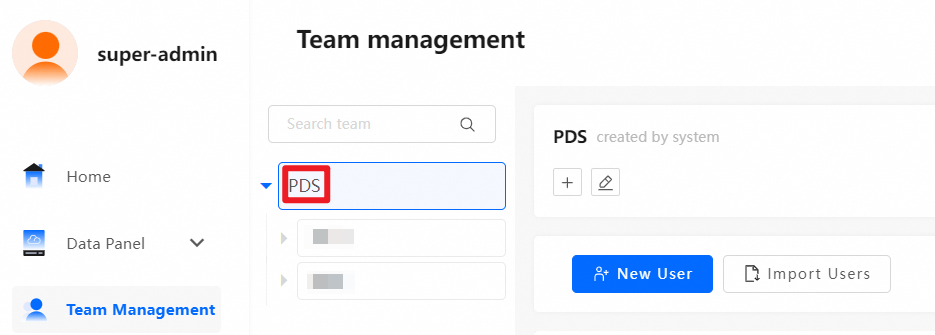
After you purchase Enterprise Drive, a root team with the same name as your organization is created by default. A dedicated space is configured for this root team, which serves as the company space. You can manage this in .
Permission management
-
By default, a super administrator and a drive administrator have full permissions to manage all data in the company space.
-
By default, a regular user has read-only access to the data in the company space.
-
We recommend using the company space only for public files, such as employee handbooks and company-wide information. For department-specific files like project materials, create a team space to enable more granular management.
Modify space size and permissions
Method 1:
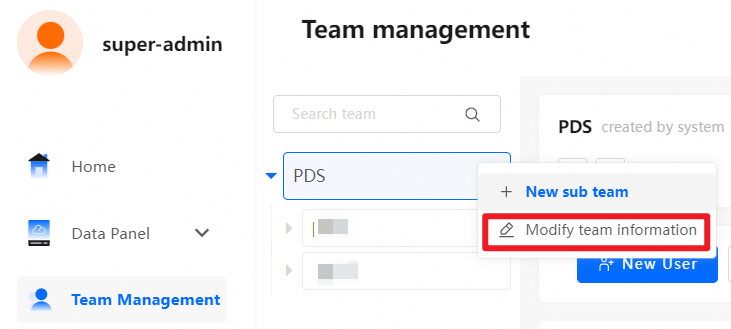
A super administrator or drive administrator can navigate to , select the enterprise drive, and click Modify team information to adjust the company space size or permissions. Note that the new size cannot exceed the remaining storage.
Method 2:
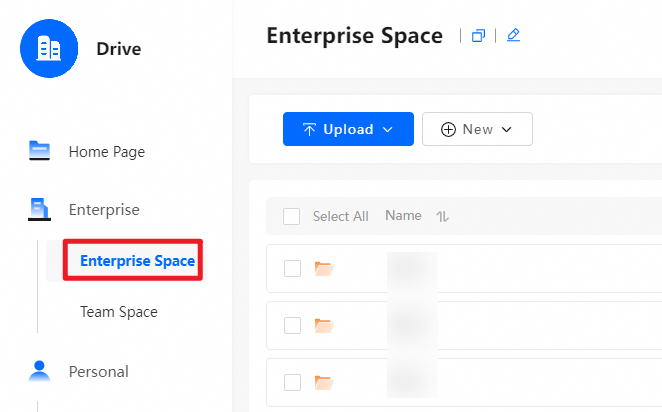
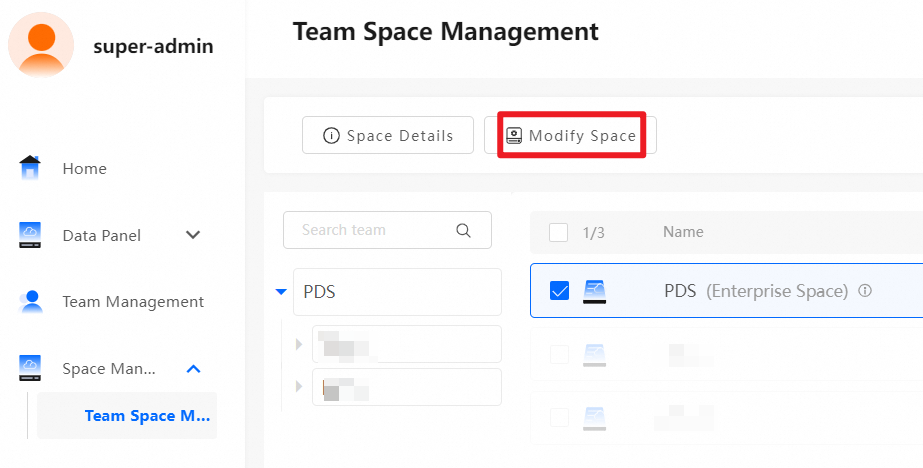
Alternatively, a super administrator or drive administrator can navigate to , select the company space, and click Modify Space to adjust its size or permissions. Note that the new size cannot exceed the remaining storage.
Team space
Overview
-
Administrators can create teams based on their company's organizational structure in .
-
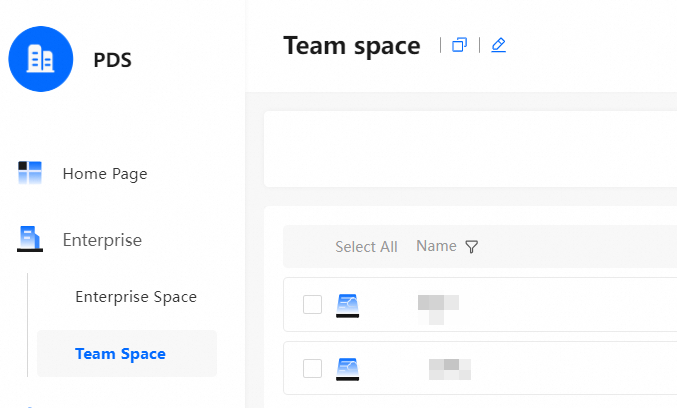
A team space stores files and documents for various departments. Team administrators can grant different access permissions to different teams or users based on business requirements.
Create a team
Administrators can navigate to and click New sub team.
Permission management
-
In Enterprise Cloud Drive, Team Administrators have full permissions for all data operations within the team space by default.
-
By default, a regular user has no permissions for a team space.
Modify space size and permissions
Method 1:
An administrator can navigate to , select a team, and click Modify team information to adjust the team space size or permissions. Note that the allocated size cannot exceed the remaining storage.
Method 2:
If you did not allocate a space when creating the team, an administrator can also navigate to and click Modify Space to adjust the size or permissions. Note that the new size cannot exceed the remaining storage.

Personal space
Overview
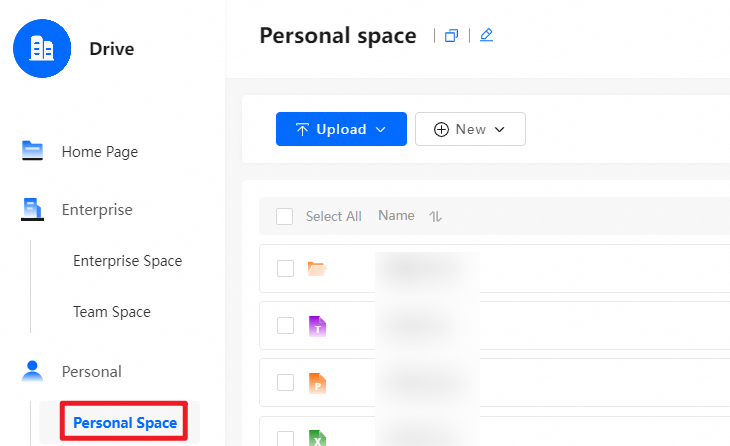
A personal space stores an individual user's data. By default, only the user who owns the space can access it.
Create a personal space
To use a personal space, an administrator must allocate it when creating a New User.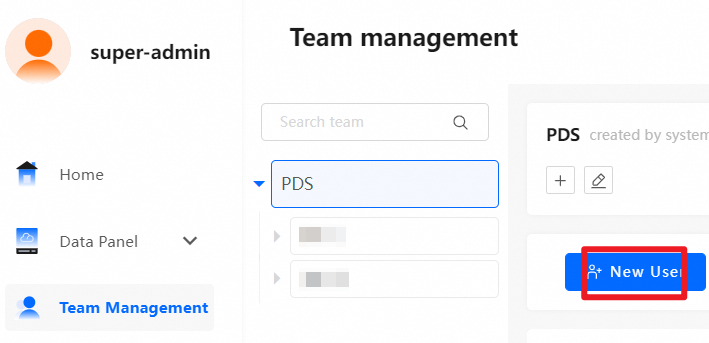
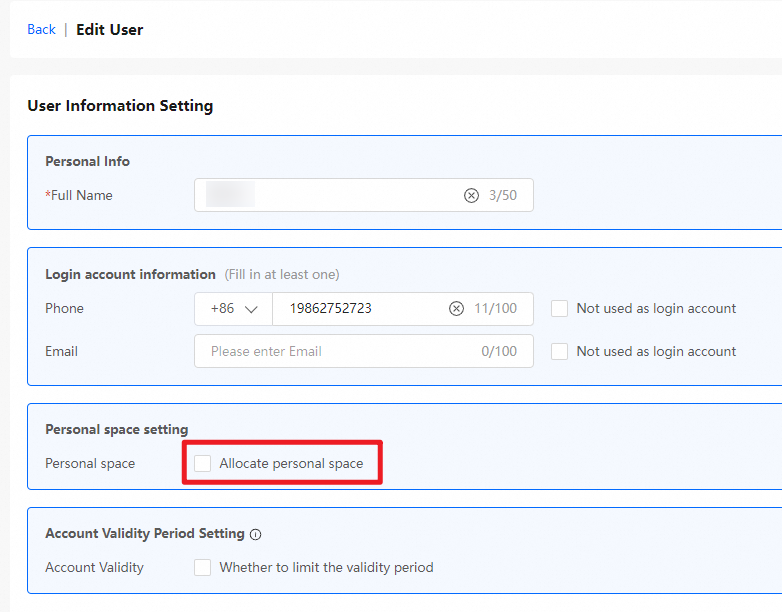
Modify personal space
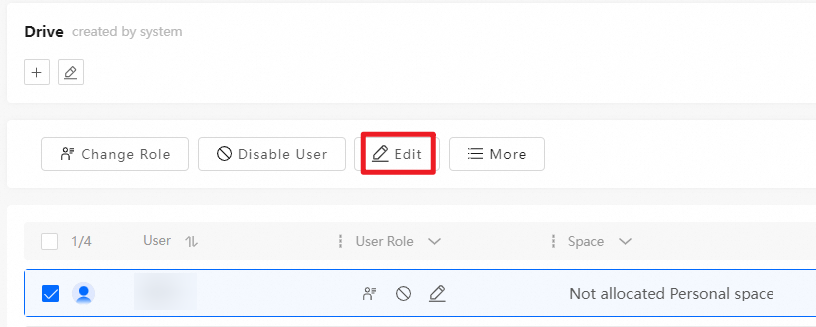
To change the size of a personal space, an administrator can find the target user in and click Edit to adjust the size.