This topic explains how administrators configure permissions for Enterprise Disk.
Authorization management for files is not supported.
Enable the feature
To configure permissions, follow these steps:
Log on to the Enterprise Disk Management Console as a super administrator or Drive administrator.
Navigate to and enable the feature.
After you enable the feature, complete the following steps to apply the new settings:
Web client: Refresh the page, and then configure permissions.
Desktop client: Log out and then log back in, and then configure permissions.
Web and desktop clients
Enterprise space access permissions
Under Team Management, select an enterprise and click the edit button to modify the default access permissions for the enterprise space.
In the Modify Team Information dialog box, click Modify Space Default Permissions to configure the default permissions for the space.
Team space access permissions
Method 1:
Under Team Management, select a team and click the edit button to modify the default access permissions for that team space.
In the Modify Team Information dialog box, click Modify Space Default Permissions.
Method 2:
In the Management Console, click Return to user interface in the upper-right corner. Then, navigate to , select a team disk, and click Authorization management to customize the access permissions for that disk.
In the dialog box, switch between the Current Directory Authorization and Inherited from Parent Directory tabs. On the left side, select the target team or user. On the right side, set the validity period (such as Permanent) and access role (such as Viewer).
Folder access permissions
In the Management Console, click Return to user interface in the upper-right corner. Then, navigate to , select a folder, and click Authorization management to customize the access permissions for that folder.
In the left panel of the dialog box, select the target user (such as User 1). The selected user is displayed in the right panel. Set the validity period (such as Permanent) and click Select Permissions to assign the corresponding permissions.
Mobile app
To use the mobile app, go to the official Enterprise Disk download center or search for Enterprise File Management in your app store.
The mobile app does not support authorization for the enterprise space. Use the web or desktop client instead.
Team space access permissions
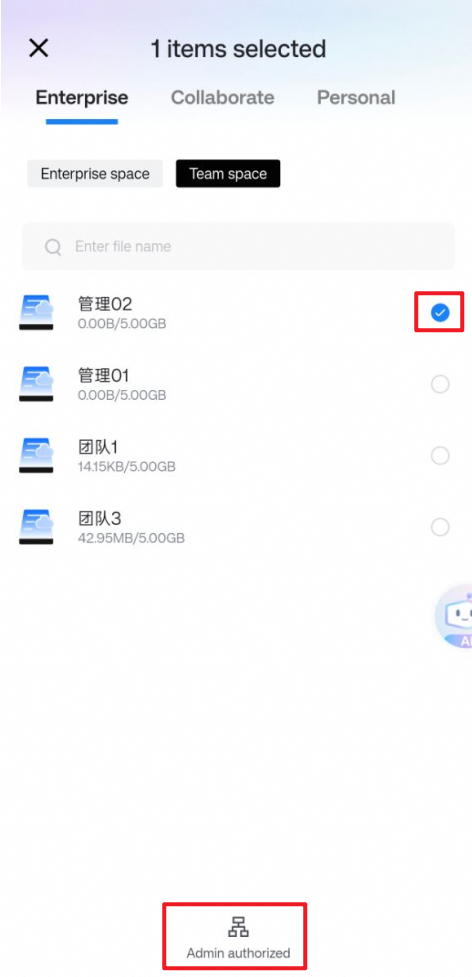
In the Team space section, select a team and tap Authorization management to modify the default access permissions for that team.
Folder access permissions
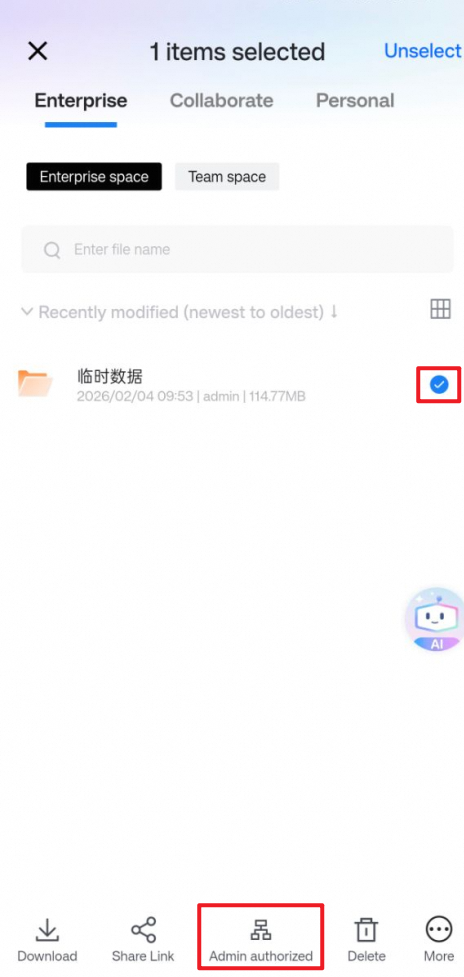
In the section, select a folder and tap Authorization management to customize the access permissions for that folder.