Drive and Photo Service (Developer Edition) supports file historical versions. You can manage versions through the default client or the API.
Key concepts
In a personal space or an enterprise drive, files and folders are organized in a tree structure.
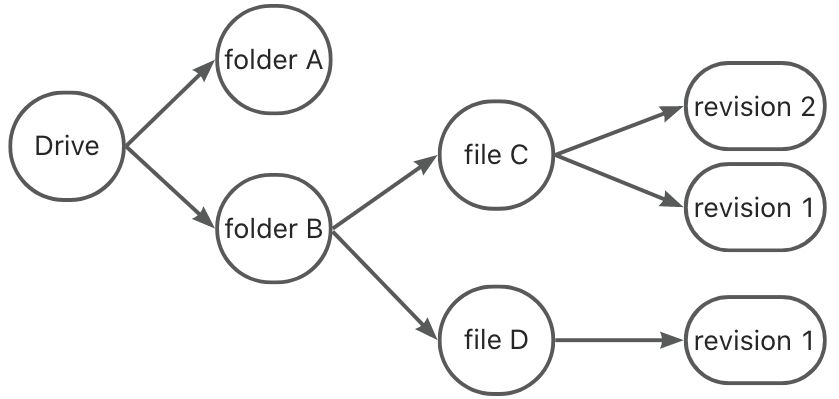
-
Folders do not have versions. A file has at least one version.
-
Creating a new file or editing an existing file generates a new version.
-
When you create a file, it has only one version.
-
Editing or overwriting an existing file creates a new version.
-
If multi-version is not enabled, only the latest version of a file is retained.
-
If multi-version is enabled, creating a new version converts the current version into a historical version. Configured rules determine the total number of historical versions.
-
Historical versions of a file consume storage space in your drive.
Features
-
Multi-version backup saves all versions of your files. Restore any file to a previous state if it is accidentally overwritten or modified.
-
Editing or overwriting a file creates a historical version. You can list, view, restore, delete, and describe historical versions.
-
Configure a retention period from 1 to 999 days, or retain versions indefinitely. Automatically merge versions created within a specific period to reduce version sprawl.
-
Set the maximum number of retained versions from 1 to 999. Mark up to 50 versions for permanent retention, protecting them from deletion by retention or count limits.
Prerequisites
-
A PDS Developer Edition domain is created.
-
Only a super administrator or drive administrator can enable this feature.
-
You have enabled BasicUI.
Enable historical versions
-
Log on to BasicUI and go to the admin console.
-
In the left-side navigation pane, choose .
-
Turn on the Historical Version switch.
The switch is located on the page.
Historical version configuration
To the right of Historical Version, click Edit to modify the configuration.
|
Parameter |
Description |
|
Merge file historical versions |
Enabled by default. Multiple saves within a 10-minute period (online editing, file synchronization) are merged into a single historical version. If disabled, every save creates a new historical version. |
|
Version count limit |
|
|
Retention period |
|
API call flow and examples
Generate a new version
When you first upload a file, it has only one version. Overwriting the file creates a new version.
To overwrite a file, call the CreateFile operation with file_id set to the target file ID. The rest of the upload process is the same as described in Upload a file.
List historical versions
Call the ListRevision operation to retrieve a paginated list of a file's versions. The versions are returned in reverse chronological order.
Request sample:
{
	"drive_id":"testDriveId",
	"file_id": "testFileId"
}
Response sample:
{
	"items": [{
		"domain_id": "testDomainId",
		"drive_id": "testDriveId",
		"file_id": "testFileId",
		"revision_id": "testRevisionId",
		"revision_name": "history_version.xlsx",
		"file_extension": "xlsx",
		"size": 8493,
		"revision_version": 2,
		"keep_forever": false,
		"revision_description": "",
		"revision_create_reason": "overwrite",
		"content_hash_name": "sha1",
		"content_hash": "xxxxxx",
		"crc64_hash": "xxxxxx",
		"created_at": "2022-09-05T04:00:09.017Z",
		"updated_at": "2022-09-05T04:00:09.017Z",
		"creator_type": "User",
		"creator_id": "testCreatorId",
		"is_latest_version": true
	}],
	"next_marker": ""
}
Field descriptions:
-
drive_id: The ID of the personal space or enterprise drive. -
file_id: The ID of the file. This cannot be a folder ID. -
next_marker: Pagination token. Pass this value as themarkerparameter in the next request. An empty value indicates the last page. -
revision_version: The version number. A smaller number indicates an earlier version. -
revision_create_reason: The reason the version was created. Valid values:-
"" (empty string): The file was created.
-
"overwrite": The file was overwritten.
-
"restore_rev": A historical version was restored.
-
-
is_latest_version: Indicates whether this is the latest version of the file. -
revision_name: The name of the version. The latest version shares the file's name. A historical version's name is fixed upon creation.
Get version details
Call the GetRevision operation to retrieve the details of a single version. Unlike the ListRevision response, the GetRevision response includes a download URL.
Request sample:
{
	"drive_id":"testDriveId",
	"file_id": "testFileId",
	"revision_id": "testRevisionId"
}
Response sample:
{
	"domain_id": "testDomainId",
	"drive_id": "testDriveId",
	"file_id": "testFileId",
	"revision_id": "testRevisionId",
	"revision_name": "history_version.xlsx",
	"file_extension": "xlsx",
	"size": 8493,
	"revision_version": 2,
	"keep_forever": false,
	"revision_description": "",
	"revision_create_reason": "overwrite",
	"content_hash_name": "sha1",
	"content_hash": "xxxxxx",
	"crc64_hash": "xxxxxx",
	"created_at": "2022-09-05T04:00:09.017Z",
	"updated_at": "2022-09-05T04:00:09.017Z",
	"creator_type": "User",
	"creator_id": "testCreatorId",
	"is_latest_version": true,
	"download_url": "testDownloadUrl"
}
Update version properties
Call the UpdateRevision operation to update a version's properties.
Mark a version for permanent retention
-
You can mark up to 50 versions for permanent retention. A version marked for permanent retention is not deleted even if it exceeds the retention period or count limits.
-
To delete a version with permanent retention, call the DeleteRevision operation.
-
Permanently deleting a file also deletes all its versions, including those with permanent retention.
Request sample:
{
	"drive_id": "testDriveId",
	"file_id": "testFileId",
	"revision_id": "testRevisionId",
	"keep_forever": true
}
Cancel permanent retention
Request sample:
{
	"drive_id": "testDriveId",
	"file_id": "testFileId",
	"revision_id": "testRevisionId",
	"keep_forever": false
}
Set version description
Request sample:
{
	"drive_id": "testDriveId",
	"file_id": "testFileId",
	"revision_id": "testRevisionId",
	"revision_description": "this is a revision"
}
Restore a historical version
-
You cannot use this operation to restore the latest version of a file.
-
Restoring a historical version creates a new version based on it. The original historical version remains unchanged. The user who performs the restore becomes the creator of the new version. To release storage, call the DeleteRevision operation.
Call the RestoreRevision operation to restore a historical version, making it the latest version of the file.
Request sample:
{
	"drive_id": "testDriveId",
	"file_id": "testFileId",
	"revision_id": "testRevisionId"
}
Delete a historical version
You cannot use this operation to delete the latest version of a file.
Call the DeleteRevision operation to delete a historical version and release the storage space it occupies.
Request sample:
{
	"drive_id": "testDriveId",
	"file_id": "testFileId",
	"revision_id": "testRevisionId"
}