BasicUI is an official, ready-to-use drive application from Drive and Photo Service (PDS). It provides separate user interfaces and management consoles to support different permission levels within an organization. The user interface offers comprehensive file management capabilities, such as file organization, sharing, and collaboration. The management console handles drive administration, supporting functions like authorization, domain management, and feature toggle configuration.
Prerequisites
You have the permissions to operate the PDS console. If you log on as a RAM user that has not been granted the relevant permissions (AliyunPDSFullAccess), you need to grant the permissions to the RAM user.
A PDS Developer Edition domain is created.
Enable BasicUI
Log on to the Drive and Photo Service (PDS) console.
In the upper-left corner, select the region where you created the domain.
In the navigation pane on the left, find your domain under and click Details.
Click the Applications tab.
In the row for BasicUI, click Allow Access in the Actions column.
PDS logon page configuration
Without configuring the logon page, users cannot log on to BasicUI.
In the navigation pane on the left, find your domain under and click Details.
Click the User Systems tab.
On the User Systems tab, click Configure.
In the PDS Logon Page Configuration panel on the right, configure the following logon methods:
PDS User System: Enable or disable Mobile Number and Email Address logon, and set the Enable Whitelist Logon toggle for each.
Third-party User System: Enable or disable Enable Logon by DingTalk, Enable RAM User Logon, and Enable Logon by LDAP.
Under PDS User System, enable Mobile Number or Email Address.
You can enable both Mobile Number and Email Address for logon.
Enable Whitelist Logon: If enabled, only whitelisted users can log on. If disabled, all users can log on.
You can manage the user whitelist in BasicUI.
Click OK.
To enable a Third-party User System, see Account access.
Log on to BasicUI
General logon method
This method is available to all users.
You can use the desktop client or a browser to access the URL
https://domainID.apps.aliyunpds.com.ImportantWhen a browser is used, replace domainID with the actual value.
Enter your phone number or email address and click Send Verification Code.
Enter the verification code and click Log On. After you log on successfully, you can access the service and start using it.
PDS console logon
This method is only for a super administrator with permission to use the PDS console.
Log on to the Drive and Photo Service (PDS) console.
In the upper-left corner, select the region where you created the domain.
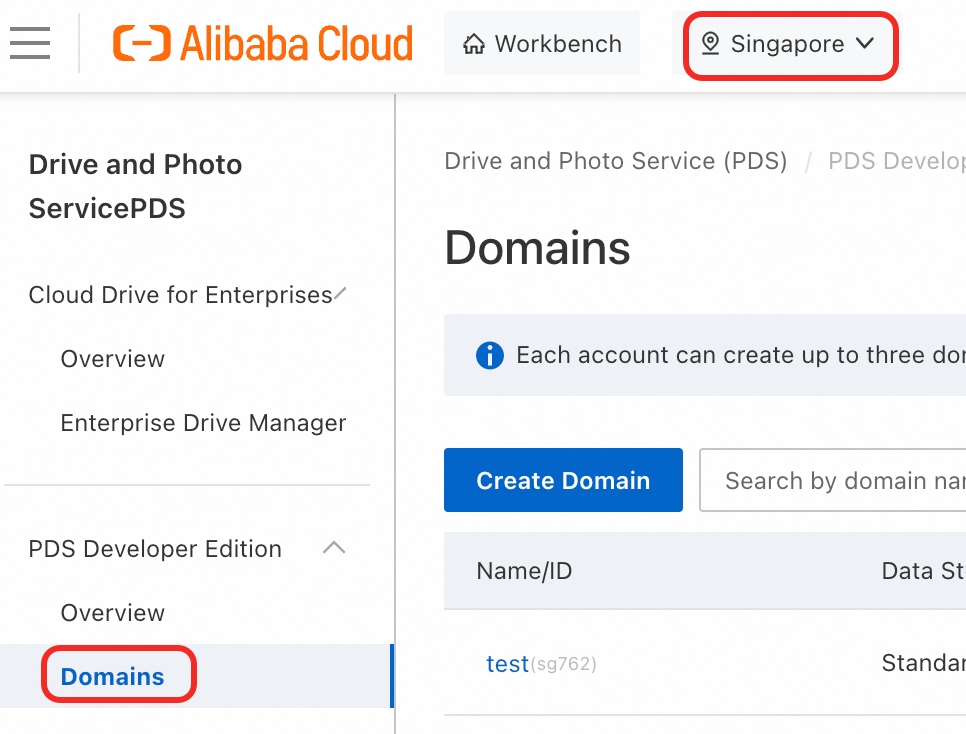
In the navigation pane on the left, find your domain under and click Details
Click the Applications tab.
In the row for BasicUI, click Manage in the Actions column.
BasicUI features
BasicUI is a ready-to-use, visual drive interface from PDS.
It provides two interfaces: the management console and the user interface.
Management console
Module | Feature | Description |
Team management | Team | Create, edit, and delete teams, and add users to a team. |
User | Create, import, edit, disable, transfer, delete, and forcefully delete users; switch user roles; configure user space; view user permission information; and set account validity periods. | |
drive management | drive | Create, modify, delete, and disable a drive, and view its details. |
Security policy | sharing management | Enable or disable sharing and online editing for shares. |
Sharing/authorization settings | Enable or disable Sharing/Authorization settings. | |
Preview watermark | Enable or disable the preview watermark. | |
Storage encryption | Storage encryption is enabled by default. | |
Logon IP management | Enable or disable Logon IP Restriction. | |
Enterprise settings | Standard customization | Modify Enterprise Basic Information and configure custom domain names. |
Advanced customization | Configure homepage settings, security settings, custom logon and logoff, custom side navigation, and desktop client management. | |
Permission module | Add or disable permission combinations. | |
File settings | Configure file versioning, uploads, downloads, and trash settings. | |
File access | Enable or disable Document preview, online editing, online decompression, and pack to download. | |
This feature accelerates data transfers across regions by using a globally deployed network to speed up point-to-point transfers and reduce latency. | ||
This feature provides additional cloud storage space that users can enable for data backup. | ||
Dedicated logon configuration | Allows users to log on with their DingTalk accounts. You can also synchronize users and organizational structures from DingTalk to the drive for easier user and team management. | |
Allows users to log on with RAM users. You can also synchronize users and organizational structures from RAM to the drive for easier user and team management. | ||
Allows users to log on with their LDAP accounts. You can also synchronize users and organizational structures from LDAP to the drive for easier user and team management. | ||
Microsoft configuration | Allows users to log on with their Microsoft accounts. | |
SAML configuration | Allows users to log on using Security Assertion Markup Language (SAML). | |
Lark configuration | Allows users to log on with their Lark accounts. You can also synchronize users and organizational structures from Lark to the drive for easier user and team management. |
User interface
Module | Feature | Description |
Enterprise | Team Space | Provides a full range of file management capabilities, including uploading, downloading, creating files and folders, moving, copying, deleting, sorting, starring, and adding remarks. |
Personal | Personal Space | Provides a full range of personal file management capabilities, including uploading, downloading, creating files and folders, moving, copying, deleting, sorting, starring, and adding remarks. |
Shared By Me | A list of files that you have shared. | |
Shared With Me | A list of files shared with you. | |
Starred | Files or folders that you have starred. | |
Handover Received | Files or folders transferred to you from other users. | |
My Shared Links | Manage all your shared files and folders. | |
trash | You can only view and manage deleted files and folders from Personal Space, Received Transfers, and Team Drives for which you have management permissions. |