This topic describes the best practices for uploading a file to Drive and Photo Service (PDS). You can refer to this topic to upload a file to PDS.
Terms
folder: a file of the directory type. A folder does not contain physical data. You can call the CreateFile operation of PDS to create a folder.
file: a file of the non-directory type. A file contains physical data. To create a file, you must upload a local file to PDS. This topic describes how to upload a file to PDS.
File upload
Process
To upload a file to PDS, perform the following three steps:
Call the CreateFile operation to create a file and initialize the file. PDS returns the metadata of the file and a URL that is used to upload the file over HTTP.
Upload the file by using the URL that is returned in the preceding step.
Call the CompleteFile operation to complete the file upload process.

Procedure
The following example shows how to upload a local file to PDS.
1. Create a file
Call the Create file operation to create a file and initialize the file.
Core parameter settings:
drive_id = "testDriveId": the ID of the drive to which the file is uploaded.
parent_file_id = "root": the directory to which the file is uploaded. A value of root indicates that the file is uploaded to the root directory.
name = "testName.jpg": the name of the file to be uploaded.
type = "file": the type of the file to be uploaded. Valid values: file and folder.
size = 13381200: the actual size of the local file. Unit: bytes.
part_info_list = [{"part_number":1},{"part_number":2},{"part_number":3}]: the parts of the file to be uploaded. Specify the number of parts based on the file size and the size of each part defined by the client. You can specify multiple parts to improve the upload success rate and perform resumable upload. In this example, the file size is about 13 MB and the size of each part defined by the client is 5 MB. Therefore, three parts are uploaded.
Sample request body:
{
    "drive_id":"testDriveId",
    "name":"testName.jpg",
    "parent_file_id":"root",
    "part_info_list":[
        {
            "part_number":1
        },
        {
            "part_number":2
        },
        {
            "part_number":3
        }
    ],
    "size":13381200,
    "type":"file"
}
Sample response body:
{
    "parent_file_id":"root",
    "part_info_list":[
        {
            "part_number":1,
            "upload_url":"https://xxxx1"
        },
        {
            "part_number":2,
            "upload_url":"https://xxxx2"
        },
        {
            "part_number":3,
            "upload_url":"https://xxxx3"
        }
    ],
    "upload_id":"testUploadId",
    "rapid_upload":false,
    "type":"file",
    "file_id":"testFileId",
    "revision_id":"testRevisionId",
    "domain_id":"testDomainId",
    "drive_id":"testDriveId",
    "file_name":"testName.jpg"
}
Core response parameters:
file_id: the unique ID assigned to the file by PDS. The ID of each file is unique in a drive.
upload_id: the ID assigned to the file upload process by PDS. The ID of the file upload process is used in subsequent steps such as the step to complete the file upload process.
part_info_list: the upload URLs assigned to the parts by PDS. The number of URLs is the same as the number of parts to be uploaded. PDS assigns each part an upload URL.
2. Upload the file
Traverse and upload the parts of the file based on the URLs returned in Step 1. In this example, The PUT HTTP method is used.
Sample Java code:
// Traverse all the parts of the file to be uploaded.
for (PartInfo uploadPartInfo : partInfoList) {
   // Calculate the serial numbers of the parts in the local file.
   int number = uploadPartInfo.getPartNumber();
   long pos = (number - 1) * partSize;
   long size = Math.min(length - pos, partSize);
   byte[] partContent = new byte[(int) size];

   // Read the data of the parts from the local file to the memory.
   RandomAccessFile randomAccessFile = new RandomAccessFile(localFile, "r");
   randomAccessFile.seek(pos);
   randomAccessFile.readFully(partContent, 0, (int) size);
   randomAccessFile.close();

   // Upload the parts.
   RequestBody body = RequestBody.create(null, partContent);
   Request request = new Request.Builder()
   .url(uploadPartInfo.getUploadUrl())
   .header("Content-Length", String.valueOf(size))
   .put(body)
   .build();

   OkHttpClient okHttpClient = new OkHttpClient.Builder().build();
   Response response = okHttpClient.newCall(request).execute();

   // Determine whether the parts are uploaded.
   if (!response.isSuccessful()) {
   System.out.println(response.body().string() + "\n");
   Assert.fail("upload part failed, partNumber:" + number);
   return "";
   }
   System.out.println("upload part success, partNumber:" + number);
}
3. Complete the file upload process
Call the CompleteFile operation to complete the file upload process after all the parts of the file are uploaded.
Core parameter settings:
drive_id = "testDriveId": the ID of the drive to which the file is uploaded.
file_id = "testFileId": the file ID. Set this parameter to the value of the file_id parameter that is returned in Step 1.
upload_id = "testUploadId": the file upload process ID. Set this parameter to the value of the upload_id parameter that is returned in Step 1.
Sample request body:
{
    "drive_id":"testDriveId",
    "file_id":"testFileId",
    "upload_id":"testUploadId"
}
If an HTTP status code 200 is returned, the file is uploaded.
Sample response body:
{
    "domain_id":"testDomainId",
    "drive_id":"testDriveId",
    "file_id":"testFileId",
    "parent_file_id":"root",
    "type":"file",
    "file_extension":"jpg",
    "name":"testName.jpg",
    "size":13381200,
    "status":"available",
    "content_hash":"xxxxx",
    "created_at":"2023-01-16T11:55:12.166Z",
    "updated_at":"2023-01-16T11:55:13.368Z"
}
Resumable upload
Scenarios
When you upload a file, you can temporarily stop uploading the file. For example, if you want to upload a file by using only Wi-Fi, you can temporarily stop uploading the file in case that Wi-Fi is unavailable and resume uploading the file until Wi-Fi is available.
Implementation
When you upload a file, you can split the file into multiple parts.
For example, if you want to upload a file of 50 MB and the size of each part defined by the client is 5 MB, the client splits the file into 10 parts.

The client has uploaded the first six parts to PDS, and you stop uploading the file when the seventh part is being uploaded. In this case, the client needs to store the intermediate information of the file upload process, such as the file information and the upload progress. The client can store the intermediate information to a database.

When you resume uploading the file, the partial data of the seventh part that is uploaded to PDS is discarded. The client resumes uploading the file from the seventh part that is not completely uploaded. When the client resumes uploading the file, the upload URLs of the remaining parts may become invalid and an error code 403 may be returned. In this case, you can call the ListUploadedParts operation to obtain the upload URLs of the remaining parts.
If the file upload process is suspended for more than 10 days, you cannot perform resumable upload. In this case, you must call the CreateFile operation to create another file and upload the local file again.
Instant file transfer
Overview
PDS provides the file deduplication capability at the domain level. When you upload a file that already exists in a PDS domain, you do not need to perform a complete file upload process. In this case, you need to only calculate the Secure Hash Algorithm 1 (SHA-1) hash value of the file, and the file can be uploaded to PDS within seconds.
Scenarios
If User A has uploaded a movie to a drive of PDS, User B can upload the movie to another drive of PDS in the same domain by using the instant file transfer feature. User B does not need to perform a complete process to upload the movie. This improves the upload efficiency and saves the upload traffic.
The file that is uploaded by User B to PDS by using the instant file transfer feature is independent of the file in the drive of User A. This ensures data security.
Use the instant file transfer feature
Before you use the instant file transfer feature to upload a file, you must calculate the SHA-1 hash value of the file. When you call the Create file operation, you must set the content_hash parameter to the calculated SHA-1 hash value of the file.
Core parameter settings:
content_hash_name = "sha1": the calculation algorithm for instant file transfer. Only SHA-1 is supported.
content_hash = "xxxx": the calculated SHA-1 hash value of the file.
size = 13381200: the size of the file.
Other parameter settings are the same as those described in the "File upload" section of this topic.
Sample request body:
{
    "drive_id":"testDriveId",
    "name":"testName.jpg",
    "parent_file_id":"root",
    "content_hash":"xxxxx",
    "content_hash_name":"sha1",
    "part_info_list":[
        {
            "part_number":1
        },
        {
            "part_number":2
        },
        {
            "part_number":3
        }
    ],
    "size":13381200,
    "type":"file"
}
Sample Java code for calculating the SHA-1 hash value of the file:
public static String getFileHash(File file) throws IOException {
 	 return Hex.encodeHexString((getFileHashBytes(file)));
}

public static byte[] getFileHashBytes(File file) throws IOException {
   byte[] sha1;
   try {
     MessageDigest digest = MessageDigest.getInstance("SHA1");
     byte[] buffer = new byte[10 * 1024];
     FileInputStream is = new FileInputStream(file);
     int len;
     while ((len = is.read(buffer)) != -1) {
        digest.update(buffer, 0, len);
     }
     is.close();
     sha1 = digest.digest();
   } catch (NoSuchAlgorithmException e) {
   	 throw new RuntimeException("SHA1 algorithm not found.");
   }
   return sha1;
}
Sample response body:
{
    "domain_id":"testDomainId",
    "drive_id":"testDriveId",
    "parent_file_id":"root",
    "upload_id":"testUploadId",
    "rapid_upload":true,
    "type":"file",
    "file_id":"testFileId",
    "revision_id":"testRevisionId",
    "file_name":"testName.jpg"
}
Core response parameters:
rapid_upload: indicates whether the file is uploaded by using the instant file transfer feature.
A value of true indicates that the file is uploaded by using the instant file transfer feature. Based on the specified SHA-1 hash value, PDS detects an existing file that contains the same data as the file to be uploaded in the same domain. In this case, the upload URLs of the parts of the file are not returned in the response body, and the client does not need to perform subsequent steps, including the steps to upload the file and complete the file upload process.
A value of false indicates that the file is not uploaded by using the instant file transfer feature. In this case, the response body contains the upload URLs of the parts of the file. The client must perform subsequent steps, including the steps to upload the file and complete the file upload process.
Use the pre-hashing feature to improve accuracy
Before you use the instant file transfer feature to upload a file, you must calculate the SHA-1 hash value of the file. In most cases, the client has limited computing capacity. It is time-consuming to calculate the complete SHA-1 hash value of a large file. In addition, if no data matches the SHA-1 hash value of a file in a PDS domain, the file cannot be uploaded by using the instant file transfer feature. This wastes the computing capacity of the client and increases the amount of time used to upload the file.
To resolve this issue and improve the accuracy of instant file transfer, PDS provides the pre-hashing feature. You need to only calculate the SHA-1 hash value of the first 1 KB data of a file. When you call the CreateFile operation, set the pre_hash parameter to the calculated SHA-1 hash value of the first 1 KB data of the file. The server checks whether the data already exists in a PDS domain.
Core parameter settings:
pre_hash = "xxxxx": the SHA-1 hash value of the first 1 KB data of the file.
Other parameter settings are the same as those described in the "File upload" section of this topic.
Sample request body:
{
    "drive_id":"10530",
    "name":"testName.jpg",
    "parent_file_id":"root",
    "part_info_list":[
        {
            "part_number":1
        },
        {
            "part_number":2
        },
        {
            "part_number":3
        }
    ],
    "pre_hash":"xxxx",
    "size":13381200,
    "type":"file"
}
Response analysis:
If an HTTP status code 409 is returned, data in the same domain matches the SHA-1 hash value of the first 1 KB data of the file, which indicates that an existing file in the domain may contain the same data as the file to be uploaded. In this case, the client can continue to calculate the complete SHA-1 hash value of the file, call the Create file operation again, and then try to upload the file by using the instant file transfer feature. Note that the pre-hash feature does not guarantee the matching accuracy because the first 1 KB data of a file may be matched with data in PDS with high probability.
If an HTTP status code 201 is returned, data in the same domain does not match the SHA-1 hash value of the first 1 KB data of the file, which indicates that no file in the domain contains the same data as the file to be uploaded. In this case, the upload URLs of the parts of the file are synchronously returned, and the client can continue to perform the subsequent steps of the file upload process.
The pre-hash value is asynchronously calculated in the background and may be returned at a latency of several minutes. If you upload a duplicate file soon after a file is uploaded to PDS, the duplicate file may not be uploaded by using the instant file transfer feature.
Flowchart
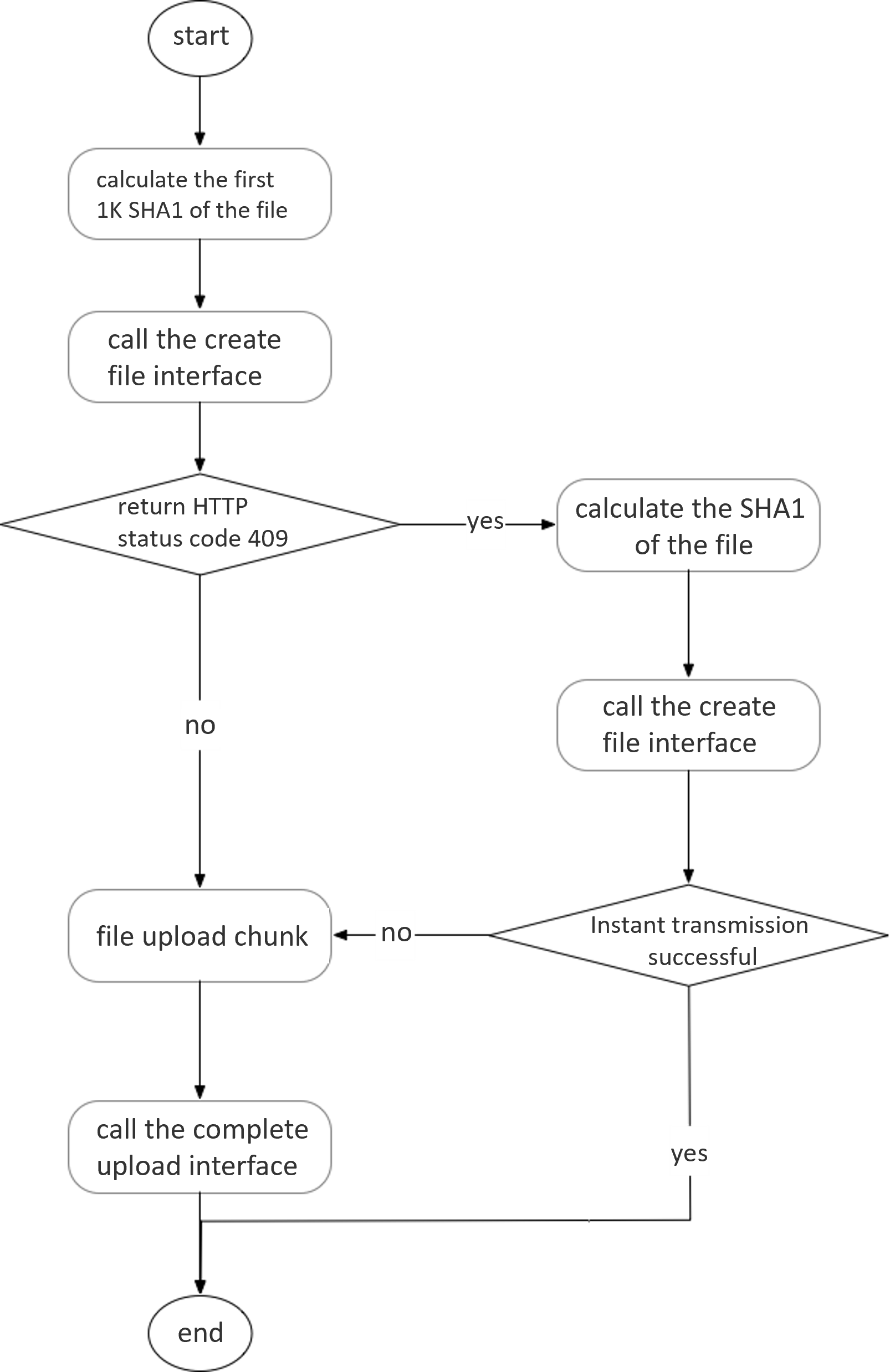
File upload in overwrite mode
PDS allows you to upload a file by overwriting an existing file. To do so, set the file_id parameter to the ID of an existing file when you call the Create file operation. Then, follow the regular file upload process to upload the file.
Sample request body:
{
    "drive_id":"testDriveId",
    "file_id":"testFileId",
    "name":"testName.jpg",
    "parent_file_id":"root",
    "part_info_list":[
        {
            "part_number":1
        },
        {
            "part_number":2
        },
        {
            "part_number":3
        }
    ],
    "size":13373603,
    "type":"file"
}
Key issues:
After a file is overwritten, the ID of the file remains unchanged. You can use the same file ID to perform operations on the file.
When multiple clients concurrently overwrite the same file, the version of the file uploaded by the client that last calls the CompleteFile operation is used as the latest version of the file.
If you want to retain the versions of a file before the file is overwritten, you must enable the historical version feature. For more information, see ListRevision.
FAQ
What do I do if the upload URLs of the parts of a file expire?
The URLs used to upload the parts of a file are valid for one hour. If you call the CreateFile operation to upload the parts of a file after one hour, an error code 403 is returned. For example, if you stop uploading a file and perform resumable upload after one hour, an error code 403 is returned. In this case, you can call the ListUploadedParts operation to obtain the upload URLs of the remaining parts before you perform resumable upload.
What limits do I need to take note of when I upload a file?
The size of each part of a file can be up to 5 GB.
The server calculates the SHA-1 hash value of a file in streaming mode. Therefore, the parts of a single file must be uploaded in sequence and cannot be concurrently uploaded.
The parts of a file cannot be overwritten.
What is the validity period for a file upload process?
You must complete a file upload process within 10 days. Otherwise, the file upload process is discarded. In this case, you must call the CreateFile operation to create another file in PDS and upload the local file again.