This topic describes how to use the ComfyUI tool.
Log on to the PAI ArtLab console.
Prerequisites
You have activated PAI ArtLab and granted the required permissions. For more information, see Activate PAI ArtLab and grant permissions.
(Optional) You have claimed a free trial, received a coupon, or purchased a resource plan. For more information, see Billing of PAI ArtLab.
Ensure that you use the resources, coupon, or resource plan within its validity period. For more information, see View usage and validity period.
Procedure
This topic provides an example of how to use ComfyUI (Shared Edition) to generate a style transfer image and then create a video from that image.
Log on to PAI ArtLab. In the upper-right corner, hover over the
 icon and select the China (Shanghai) region.
On the Toolbox page, click the ComfyUI (Shared Edition) card to start the tool.
Generate a style transfer image.
Drag the sample workflow file into the ComfyUI interface.
In the Upload Style Image ① area, upload a sample style image. In the Upload Style Image ② area, upload a sample building image. Then, click Execute and wait until the image is generated.
Generate a video.
On the workflow page, click
 to browse sample templates.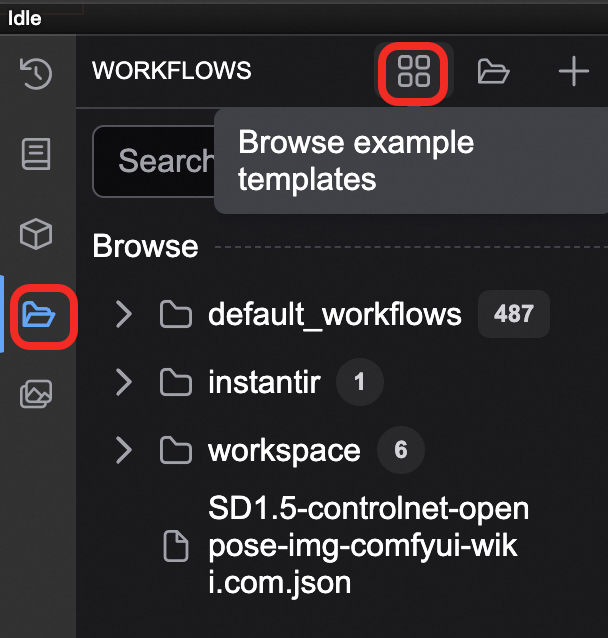
Select .
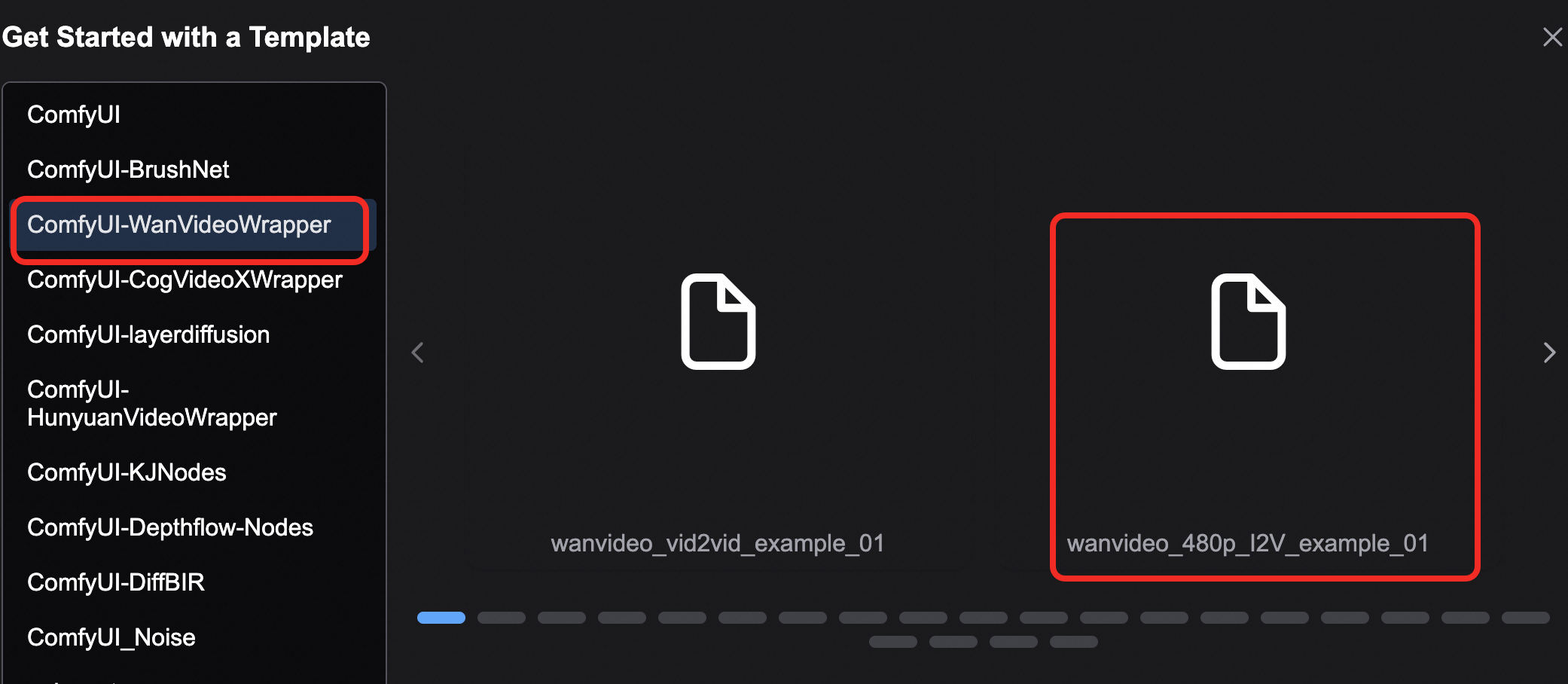
Configure the parameters as follows.
Node
Configuration
#22 WanVideoWrapper
(WanVideo Model Loader)
Set model to WanVideo/Wan2_1-I2V-14B-480P_fp8_e4m3fn.safetensors.
#16 WanVideoWrapper
(WanVideo TextEncode)
This iconic building is completely covered by beautiful pink flowers, lush green leaves, intricate vines, spring garden aesthetics, along with falling petals and fluttering butterflies. Surrealism, rich details, warm sunshine, 8K resolution, realistic natural and architectural scenes, advanced aesthetics, surrealism, high quality, and ultra clarity.#21 WanVideoWrapper
(WanVideo VAE Loader)
Set model_name to WanVideo_1_VAE_bf16.safetensors.
#18
(Load Image)
Click upload to upload the generated style transfer image.
Click Execute and wait until the video is generated.


Related operations
Use third-party models and install custom nodes (ComfyUI plug-ins)
Make sure that you deploy the Exclusive Edition of ComfyUI. The Shared Edition does not support third-party models or custom nodes.
Go to the Object Storage Service (OSS) storage directory that is mounted to the workflow. In the upper-right corner, click the
 icon, and then click the storage bucket link.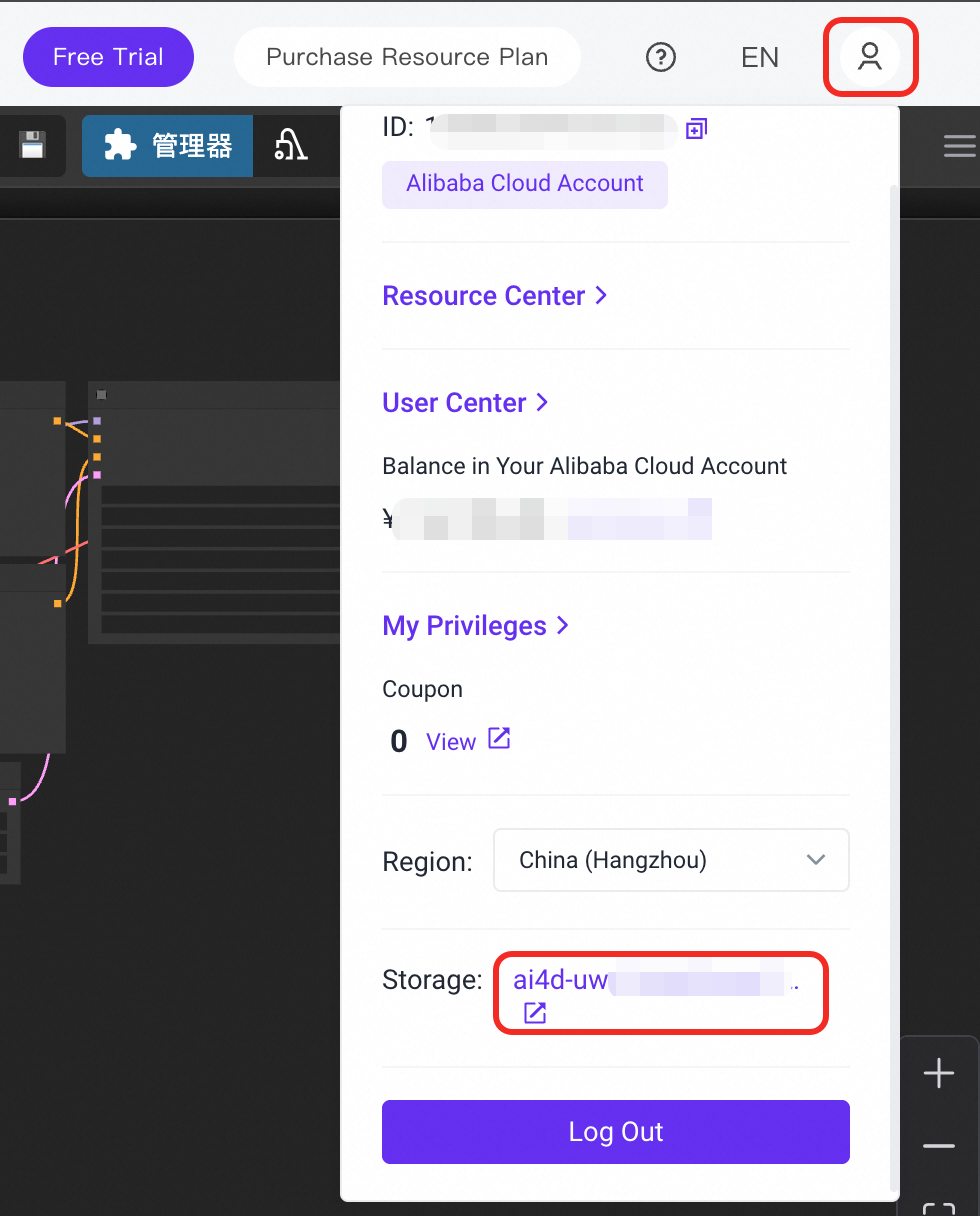
The OSS path contains the following directory structure.
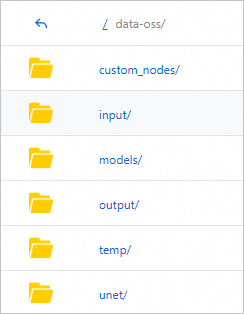
Where:
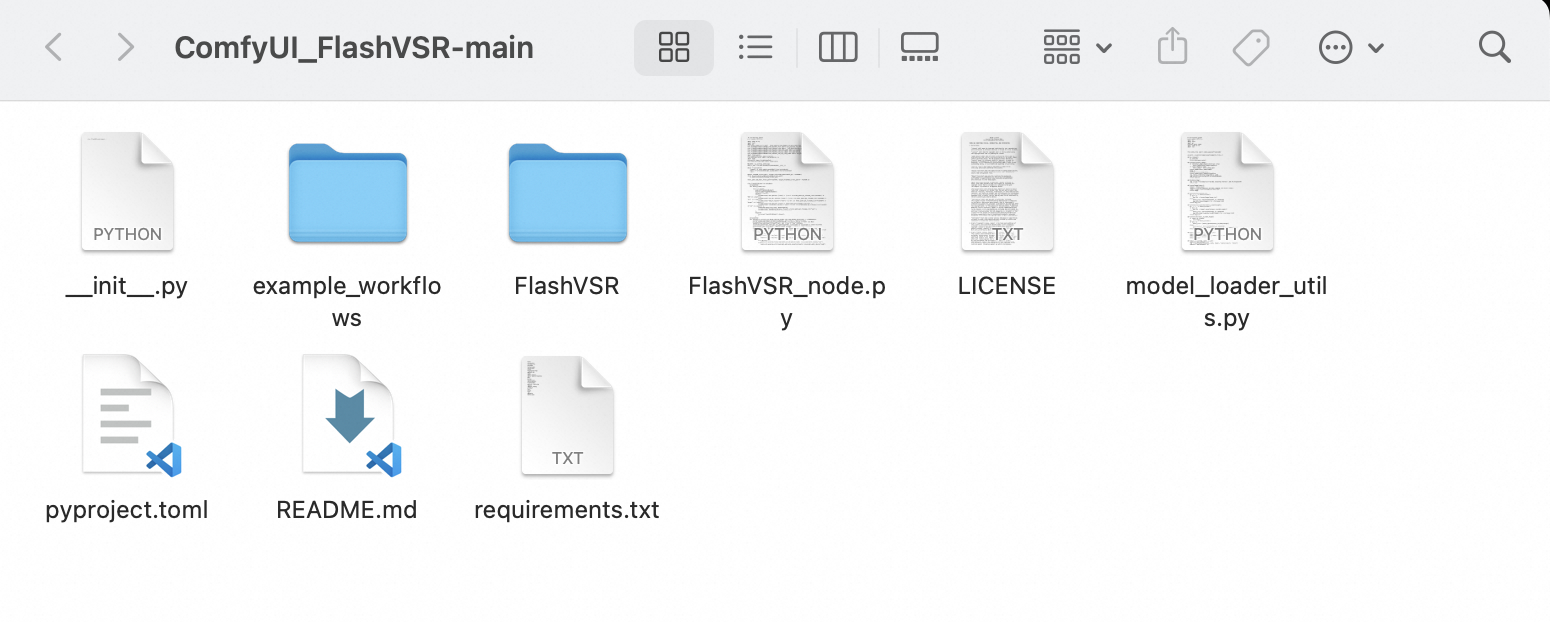
custom_nodes: This directory stores node files.Example: To install a node from a third-party platform, download the node library package and upload it to the
custom_nodesdirectory. For example, download the ComfyUI_FlashVSR-main folder and upload it to thecustom_nodesdirectory.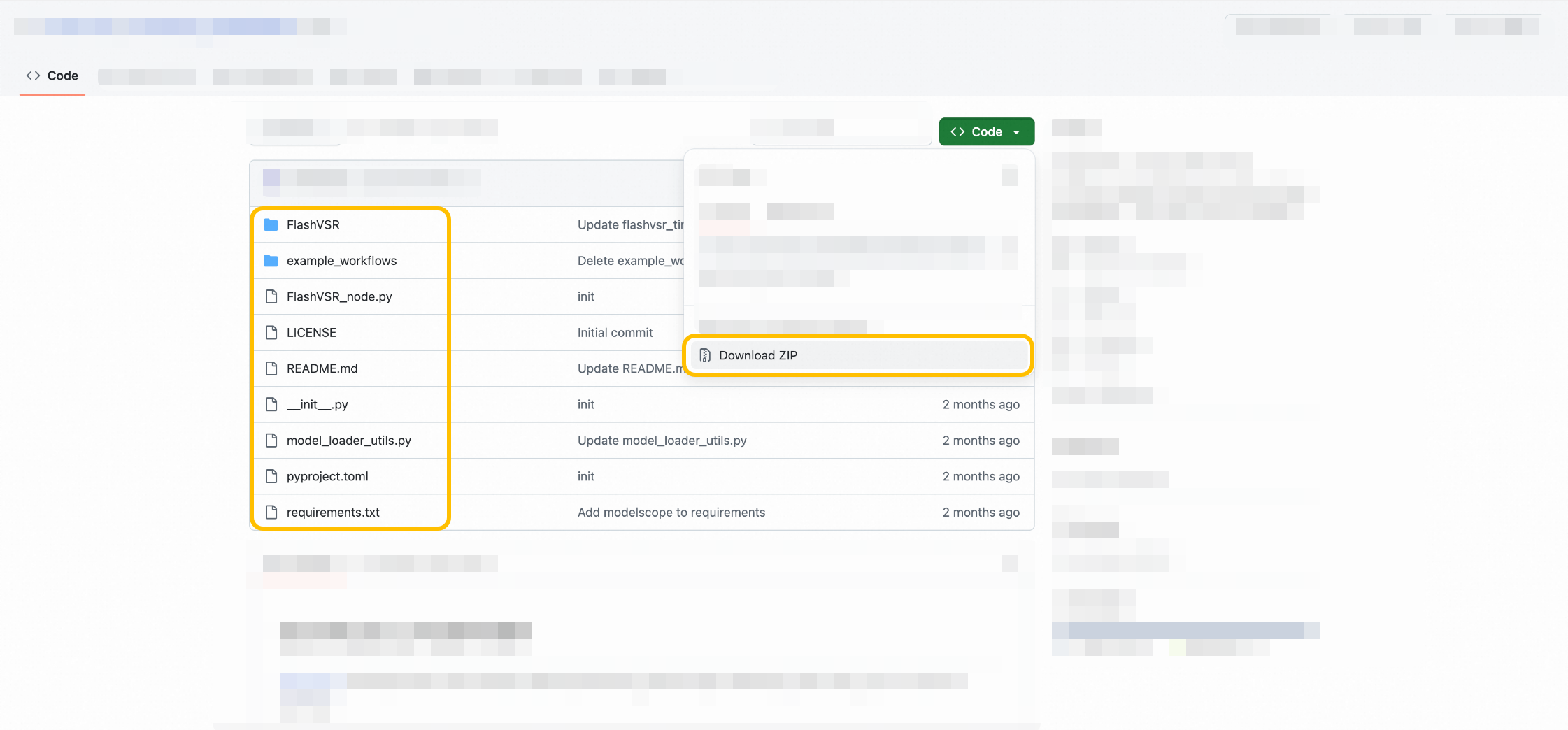
models: This directory stores model files.Example 1: Installing model dependencies for a node library
As mentioned previously, a node library typically uses multiple models. To ensure the node runs correctly, you must upload its dependent model files. As shown in the figure below, upload the required models to the
modelspath and place them in theFlashVSRandvaesubpaths.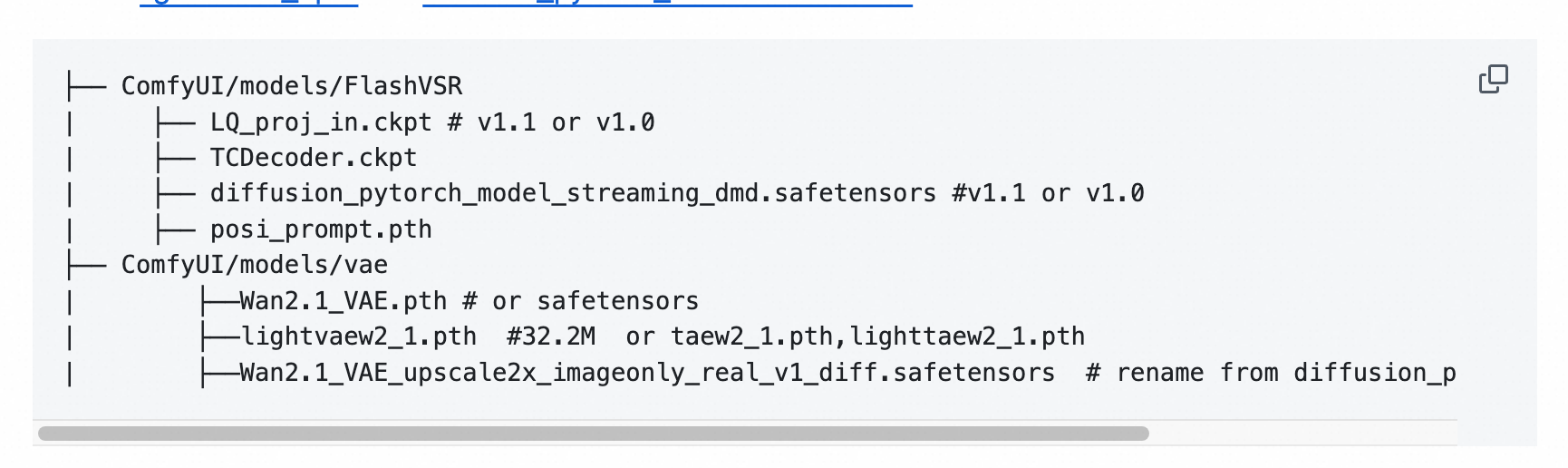
Example 2: Resolving a "missing model" error
If an error message that indicates a missing model appears, as shown in the figure below, it is because the platform cannot connect to the public network by default. To resolve this issue, add the missing model to the
modelsdirectory. For this specific error, add the depth_anything_v2_vits_fp16.safetensors model to themodels/depthanything/directory in OSS.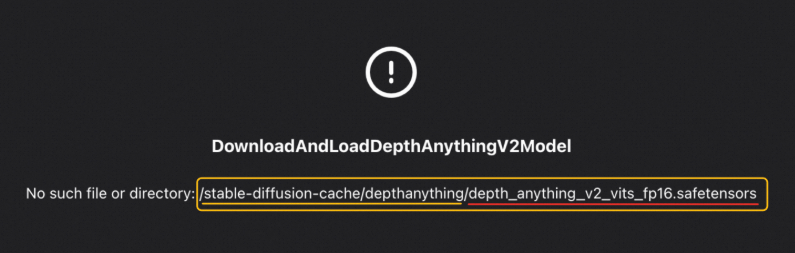
If the required path does not exist in OSS, create it.
Load the new model or node.
After you upload a model to the mounted storage space, click . If the model is not found, click Restart Process. After the process restarts, refresh the browser page.
After you upload a node file, click Restart Process. After the process restarts, refresh the browser page.
If you still cannot find the new model or node, in the navigation pane on the left, click Developer Center. Find the corresponding ComfyUI service, Stop the service, and then Start it again.
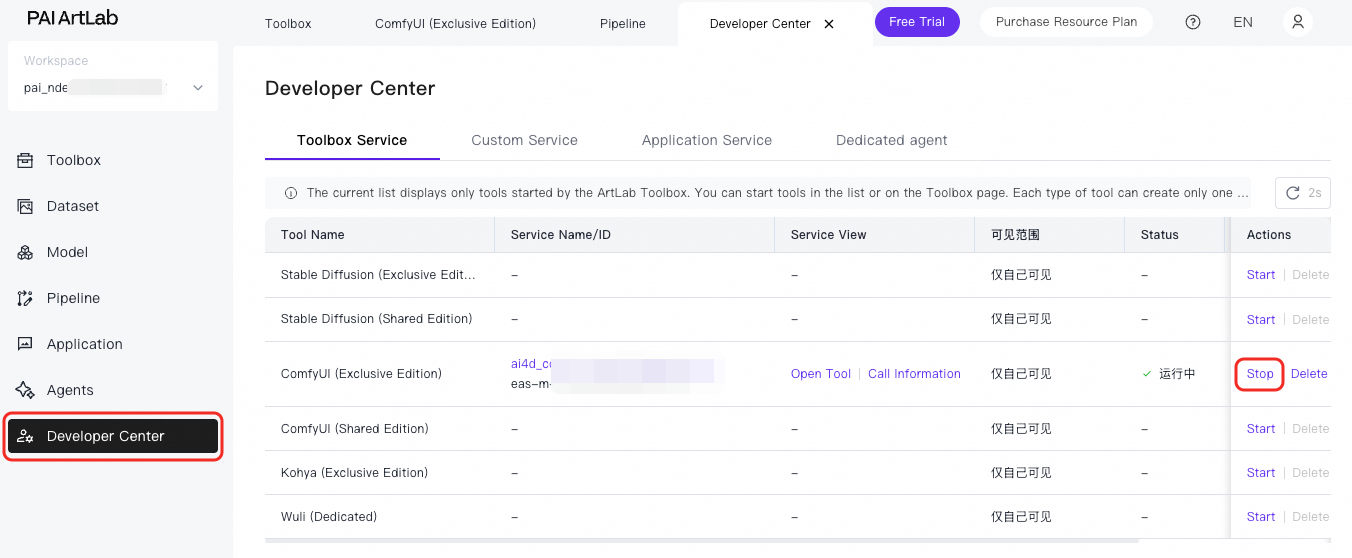
Upload model or node files. You can upload files to OSS using the console. For large files, see Upload large files to OSS.
Export the API version or original file of a workflow
New ComfyUI (Shared Edition) page
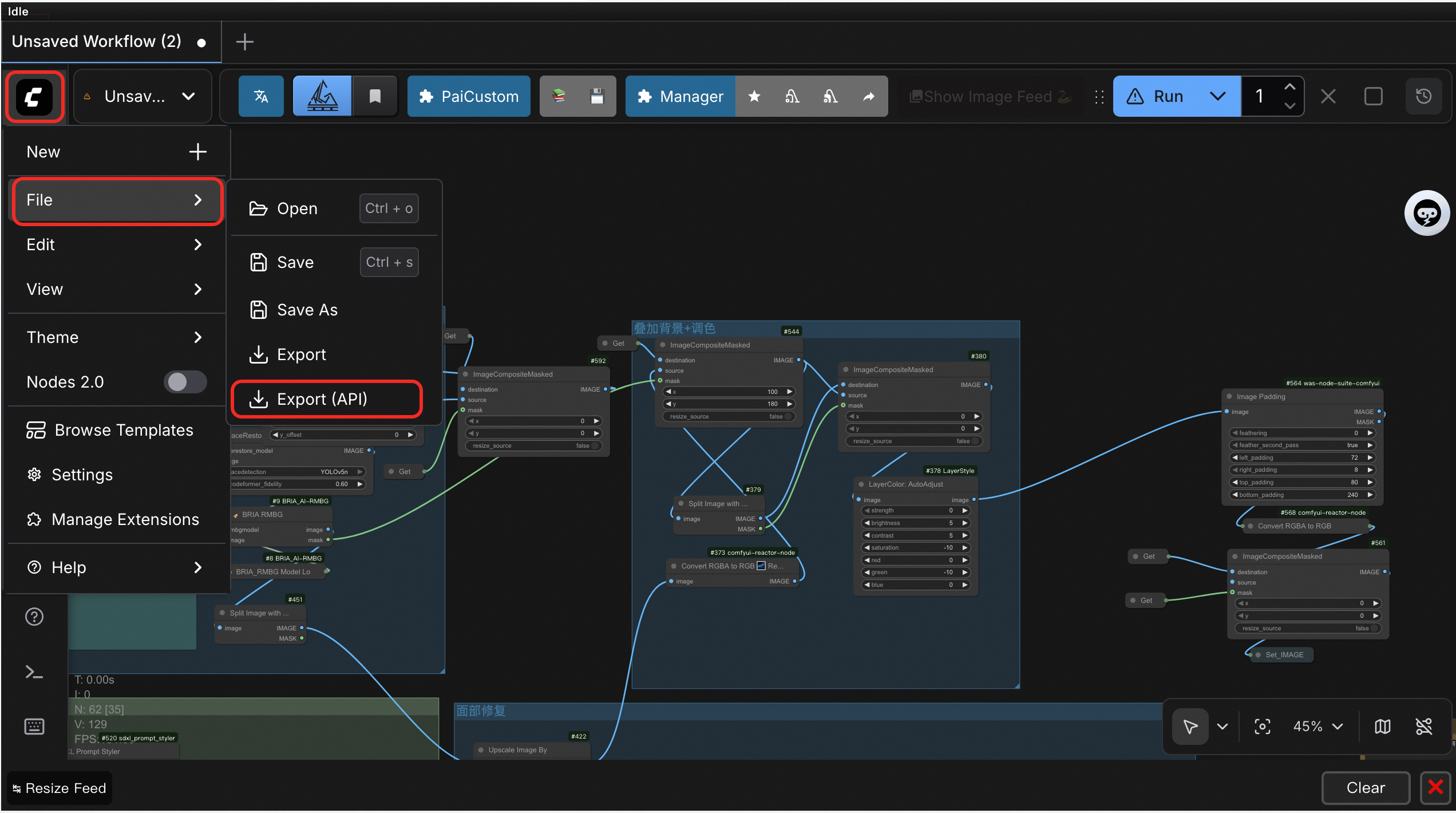
To export the workflow file in API format, click Workflow > Export (API). To export the original workflow file, click Export.
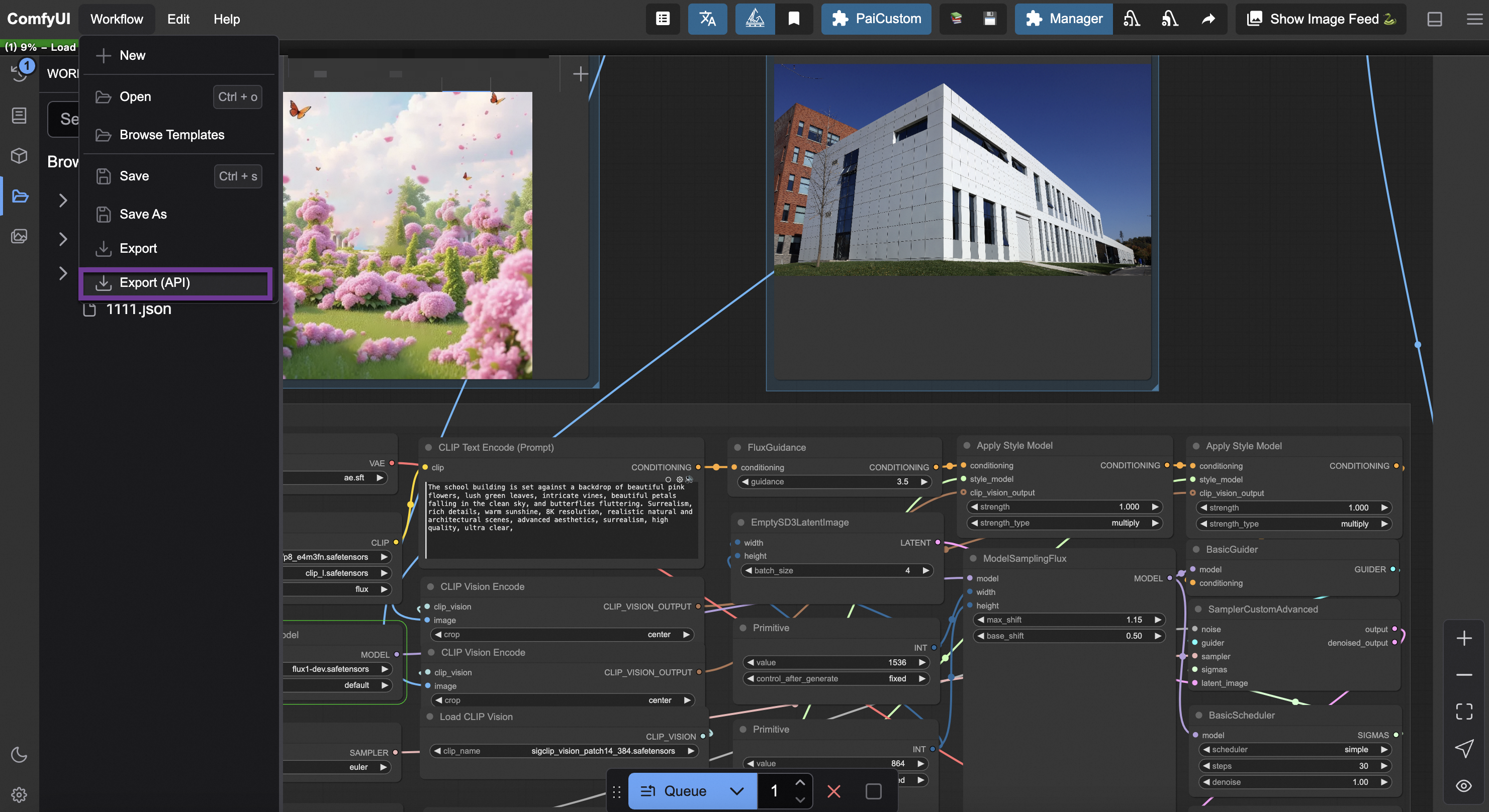
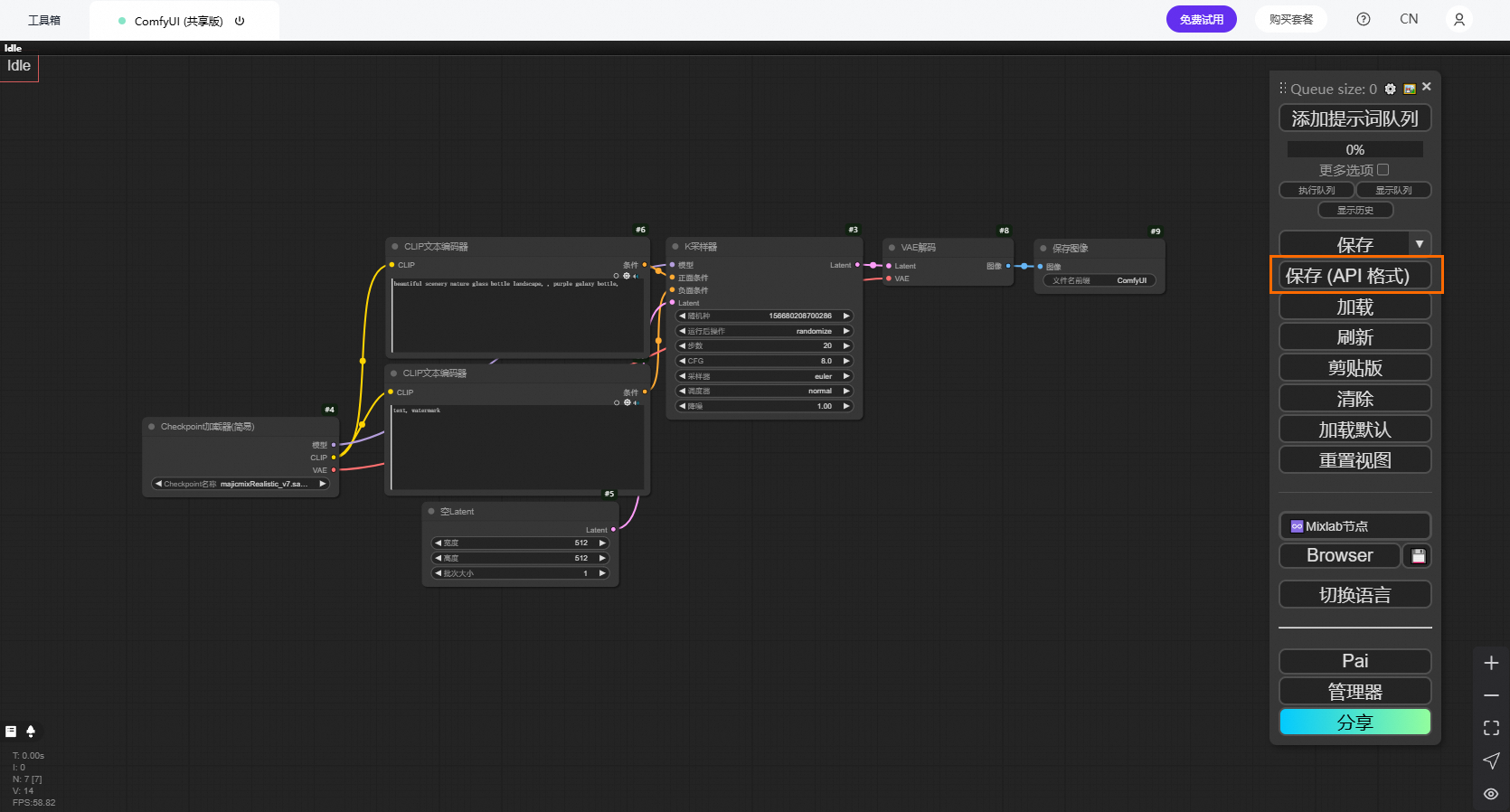
Old ComfyUI (Shared Edition) page
To export the workflow file in API format, click Save (API format). To export the original workflow file, click Save.
ComfyUI (Exclusive Edition) page
To export the workflow file in API format, click Export (API). To export the original workflow file, click Export.
Switch between new and old ComfyUI versions
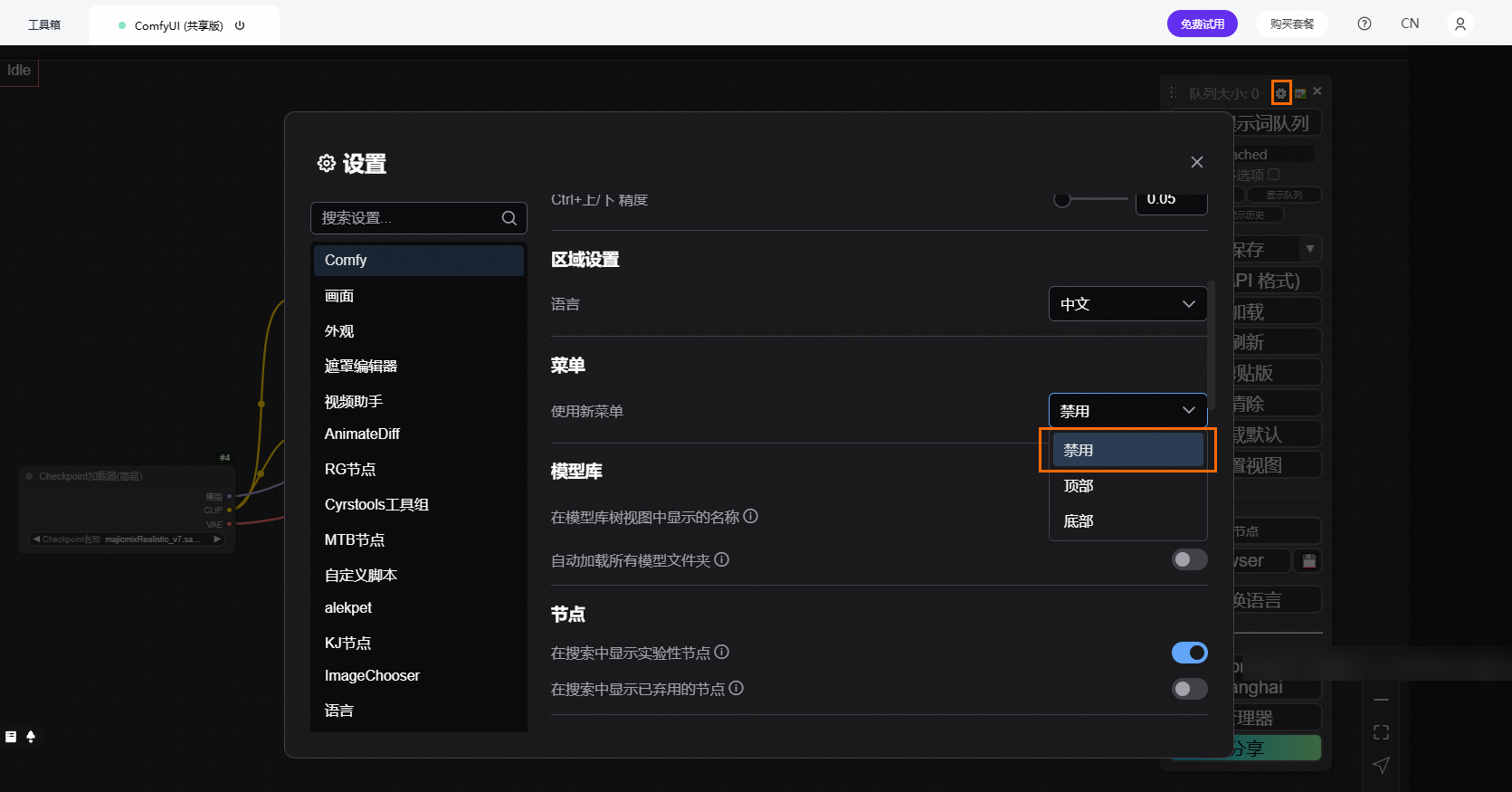
Switch from the old version to the new version:
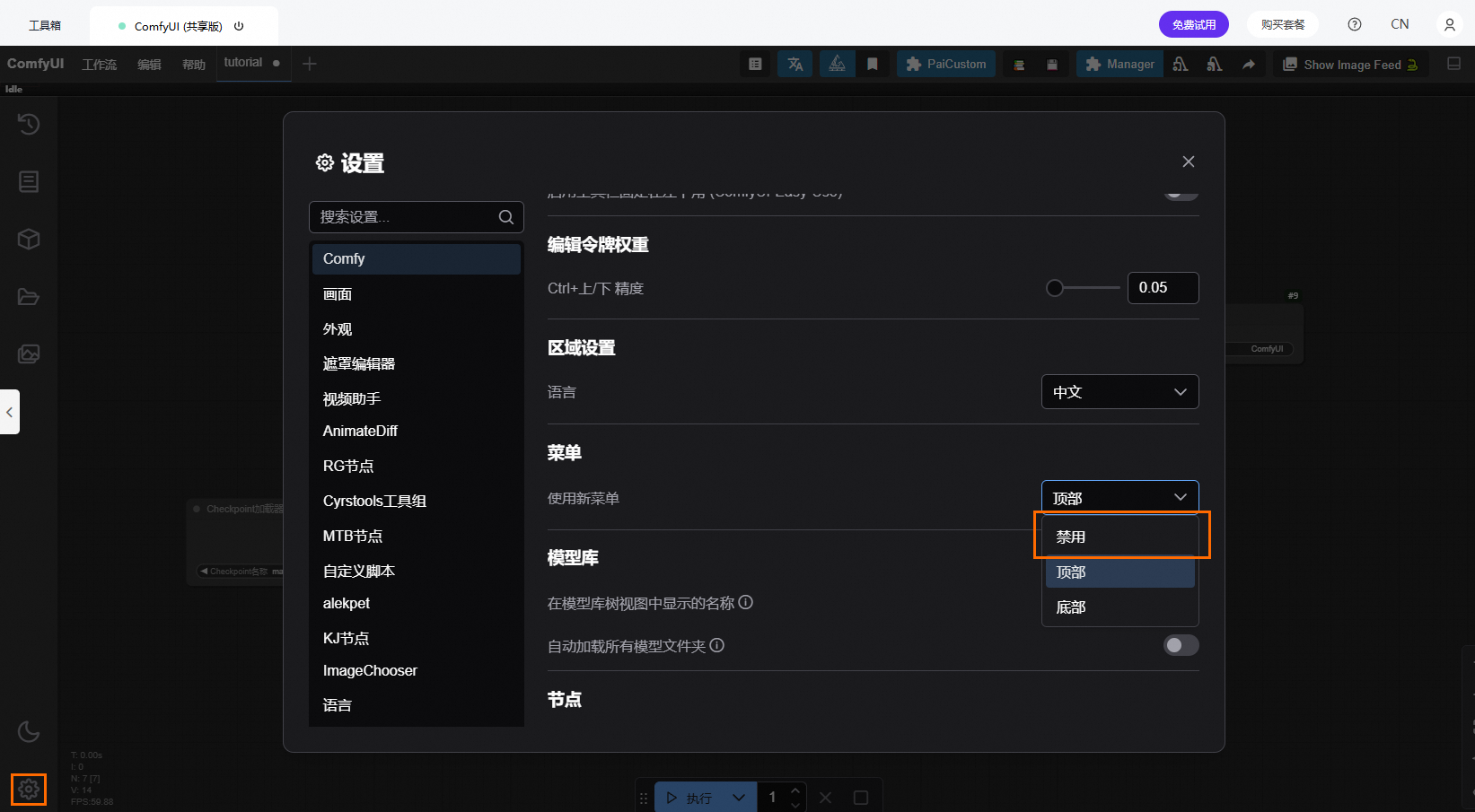
Switch from the new version to the old version:
Verify ComfyUI API integration
For more information, see PAI ArtLab Developer Center usage guide.