Divide a single GPU's compute power and memory across multiple service instances to improve utilization and reduce costs.
Prerequisites
Configure GPU slicing only if the following conditions are met:
-
Resource type: Use an EAS resource group or Lingjun resource quota.
-
Instance status: GPU instances in your resource group must be running.
NoteThe first time you purchase a GPU instance, initialization takes 8 to 10 minutes. Wait until the instance is ready.
Configure GPU slicing
Configure GPU slicing when creating or updating a service.
Use the console
-
Log on to the PAI console. Select a region on the top of the page. Then, select the desired workspace and click Elastic Algorithm Service (EAS).
-
Create or update a service to open the service configuration page.
-
In the Resource Information section, configure the following parameters. For other parameters, seeDeploy a custom inference service.
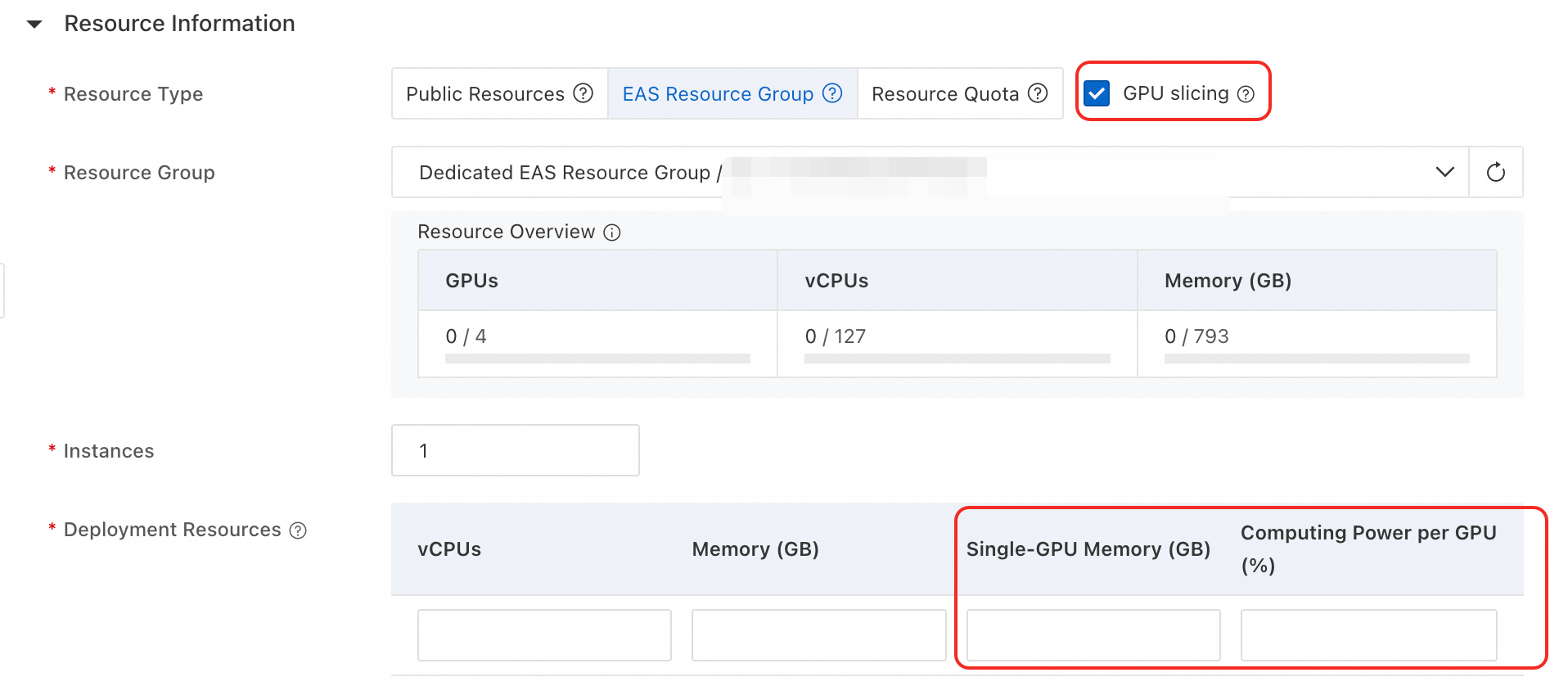
Parameter
Description
Resource Type
Select EAS Resource Group or Resource Quota.
GPU Slicing
Select this checkbox to enable GPU slicing.
NoteIf this option does not appear, see Why is the GPU slicing option missing?.
Deployment Resources
-
Single-GPU Memory (GB): Required. GPU memory each instance needs from a single GPU. Enter an integer.
ImportantFor resource specifications starting with ml, the unit is GB. For those starting with ecs, the unit is GiB.
-
Computing Power per GPU (%): Optional. Percentage of GPU compute power each instance needs from a single GPU. Enter an integer from 1 to 100.
The GPU memory per GPU and GPU compute percentage per GPU settings work together. For example, setting GPU memory to 48 GB and GPU compute percentage to 10% means each instance uses up to 48 GB of GPU memory and up to 10% of GPU compute power.
-
-
ClickDeploy or Update.
Use the local client
-
Example GPU slicing fields in a JSON configuration file:
{ "metadata": { "gpu_core_percentage": 5, "gpu_memory": 20 } }-
gpu_memory: Maps to Single-GPU Memory (GB) in the console.
-
gpu_core_percentage: Maps to Computing Power per GPU (%) in the console. Requires gpu_memory to also be specified.
ImportantIf you use GPU memory-based scheduling, do not configure the gpu field or set it to 0. Setting gpu to 1 allocates the entire GPU, and the gpu_memory and gpu_core_percentage fields are ignored.
-
-
See Command usage instructions. Use the
createormodifycommand to create or update a service.
Troubleshooting
Q: Why is the GPU slicing option missing in the console?
Check the following:
-
Confirm that you selected EAS resource group or Lingjun resource quota for Resource type.
-
Check whether your selected resource group has GPU resources. If the GPU column shows 0, no GPU resources are available.
-
Check whether the GPU instance is running. If the resource is initializing, wait until it is ready.