Integrating resource groups with Resource Access Management (RAM) enables resource isolation and fine-grained permission management within a single Alibaba Cloud account. This topic explains how Platform for AI (PAI) uses resource groups and shows you how to grant resource group-level permissions.
-
Resource group-level authorization applies only to supported resource types and Actions.
-
For unsupported resource types, granting permissions at the resource group scope is ineffective. Instead, grant permissions at the account level. For more information, see Actions that do not support resource group-level authorization.
How it works
You can use resource groups to manage resources within your Alibaba Cloud account. For example, you can create separate resource groups for different projects and move resources into them for centralized management. For more information, see What is a resource group?
After you group your resources, you can grant permissions on a specific resource group to different principals, such as RAM users, RAM user groups, or RAM roles. This ensures a principal can manage only the resources within that group. For more information, see Resource grouping and authorization.
This authorization method offers the following benefits:
-
Fine-grained permissions: Ensures each identity has the precise access it needs, which provides resource isolation between different projects in the same account.
-
Scalability: When you add new resources, simply assign them to the resource group. The principal automatically gains the corresponding permissions on the new resources, eliminating the need for manual re-authorization.
Grant resource group-level permissions to a RAM user
This section shows how to grant a RAM user permissions on Platform for AI (PAI) resources within a specific resource group.
1. Prerequisites
-
Create the RAM user that you want to use. For more information, see Create a RAM user.
-
Create a resource group and move your existing resources to it. For more information, see Create a resource group, Automatically transfer resources to a resource group, and Manually transfer resources to a resource group.
2. Grant resource group-level permissions
You can grant resource group-level permissions in one of the following ways.
Method 1: Resource Management console
Grant permissions to a RAM user directly from the target resource group. For detailed instructions, see Grant permissions on a resource group to a RAM identity.
-
Log on to the Resource Management console.
-
On the Resource Groups page, find your target resource group and click Manage Permissions in the Actions column.
-
On the Permissions tab, click Grant Permission.
-
In the Grant Permission panel, configure the principal and permission policy.
-
Principal: Select an existing RAM user.
-
Permission: Select a system policy or a custom policy that you created. For more information, see Create a custom permission policy.
-
-
Click OK.
Method 2: RAM console
Grant permissions to a RAM user from the RAM console. For detailed instructions, see Manage RAM user permissions.
-
Log on to the RAM console as an Alibaba Cloud account (main account) or a RAM administrator.
-
In the left-side navigation pane, choose . On the Users page, find the target RAM user and click Add Permissions in the Actions column.
-
In the Grant Permission panel, configure the following settings:
-
Effect Scope: Select Resource Group.
-
Principal: Select an existing RAM user or the RAM user you created in the prerequisites.
-
Permission: Select a system policy or a custom policy that you created. For more information, see Create a custom permission policy.
-
-
Click OK.
Resource types that support resource groups
The following table lists the Platform for AI (PAI) resource types that support resource groups.
|
Cloud service |
Cloud service code |
Resource type |
|
Platform for AI (PAI) |
paiworkspace |
workspace: Represents a PAI workspace. |
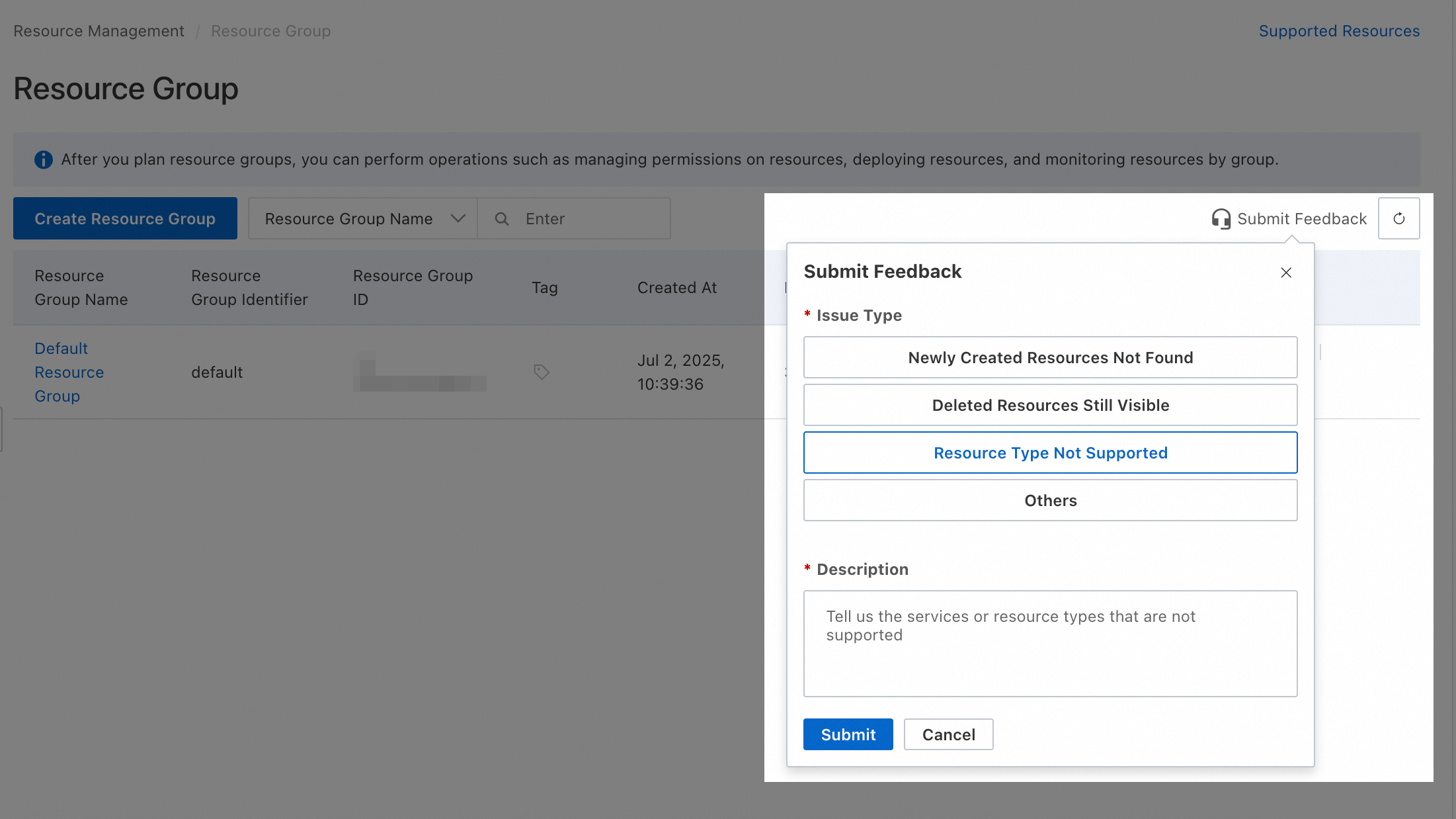
If a required resource type does not support resource groups, you can submit feedback in the Resource Management console.
Actions without resource group authorization
The following Platform for AI (PAI) Actions do not support resource group-level authorization:
|
Action |
Description |
|
paiworkspace:ListGlobalPermissions |
- |
For Actions that do not support resource group-level authorization, setting the effect scope to Resource Group is ineffective. To grant these permissions, you must create a custom permission policy and set the effect scope to Account.
 The following two examples show custom permission policies, which you can modify to fit your needs.
-
Allow all read-only actions that do not support resource group-level authorization: The
Actionelement contains the list of these specific actions.{ "Version": "1", "Statement": [ { "Effect": "Allow", "Action": [ ], "Resource": "*" } ] } -
Allow all actions that do not support resource group-level authorization: The
Actionelement contains the list of these specific actions.{ "Version": "1", "Statement": [ { "Effect": "Allow", "Action": [ "paiworkspace:ListGlobalPermissions" ], "Resource": "*" } ] }
A principal with account-level permissions can access all relevant resources in the account. To minimize risk, always follow the principle of least privilege and grant permissions cautiously. Verify that granted permissions do not exceed the principal's requirements.
FAQ
View a resource's group
-
Method 1: Click the resource name to open its details page, which displays its resource group.
-
Method 2: Log on to the Resource Management console. In the left-side navigation pane, choose . Select the resource's account (the Current Account is selected by default). Use the filters to find the resource and view its resource group.
View a product's resources in a group
-
Method 1: Log on to the Resource Management console. In the left-side navigation pane, choose . Under the account to which the resources belong (the Current Account is selected by default), click the name of the target resource group. In the right-hand panel, select the product from the Select resource type drop-down list to view all its resources in that group.
-
Method 2: Log on to the Resource Management console. In the left-side navigation pane, choose . Find the target resource group and click Manage Resources in the Actions column. On the Manage Resources page, select the product from the Product drop-down list at the top to view all its resources in that group.
Move resources to another group
Log on to the Resource Management console. In the left-side navigation pane, choose . In the row for the target resource group, click Manage Resources in the Actions column. On the resource management page, use the filters to find the resources you want to move. Select their checkboxes, click Transfer Resource Group at the bottom, and follow the prompts to complete the transfer.