PAI lets you manage resource costs with fine-grained cost allocation using tags. You can view your costs in the Alibaba Cloud Expenses and Costs center. This topic describes how to use tags for cost allocation in PAI.
Background information
Cost allocation is the process of assigning cloud resource costs to project teams or business units based on cost centers. This helps you understand your cloud cost structure and build clear cost relationships across complex organizational hierarchies. Alibaba Cloud provides a tag-based cost allocation feature to support cost allocation for your cloud resources. For more information, see Use Tags for Cost Allocation.
System tag cost allocation
For some PAI resources, the system automatically adds predefined tags. These tags allow you to allocate costs by dimensions, such as workspace or billing method.
About system tags
The system automatically adds system tag fields for workspaces, pay-as-you-go DLC jobs, and pay-as-you-go DSW instances. You can use these tags to view cost allocation across different workspaces or billing methods.
A tag consists of a tag key and a tag value. The main system tags are:
-
The cost allocation tag key for workspaces is
acs:pai:aiworkspace:id. The tag value is the ID of the workspace where the resource resides. You can use this tag to separate costs by workspace. -
The cost allocation tag key for pay-as-you-go DLC jobs is
acs:pai:dlc:payType. You can use this tag to distinguish between DLC spot jobs and DLC pay-as-you-go jobs.-
The tag value for DLC spot jobs is
spot. -
The tag value for DLC pay-as-you-go jobs is
postpaid.
-
-
The cost allocation tag key for pay-as-you-go DSW instances is
acs:pai:dsw:payType. You can use this tag to distinguish between DSW spot instances and DSW pay-as-you-go instances.-
The tag value for DSW spot instances is
spot. -
The tag value for DSW pay-as-you-go instances is
postpaid.
-
View split bills
-
Enable cost allocation tags. In the Expenses and Costs center, go to the Cost Allocation Tags page. Enable the
acs:pai:aiworkspace:id,acs:pai:dlc:payType, andacs:pai:dsw:payTypecost allocation tags. For more information, see Enable Cost Allocation Tags. -
To view your bills, go to the or Split Bill page. Click the filter button in the Instance Tag column. For example, to view cost allocation by workspace ID, set key to
acs:pai:aiworkspace:idand value to the workspace ID.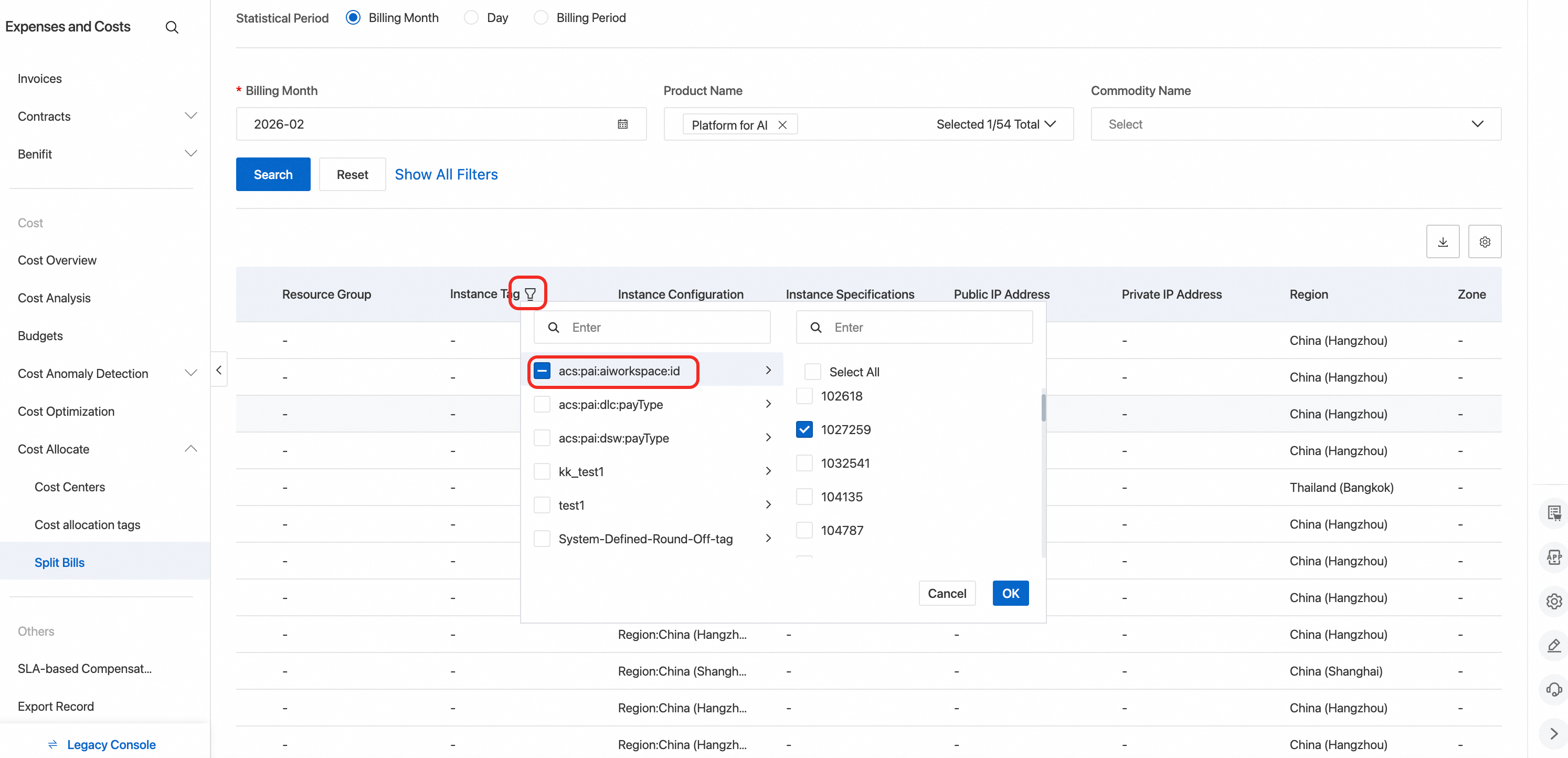
-
Billing details are updated with a one-day delay.
-
If you access the Expenses and Costs center as a RAM user, your Alibaba Cloud account must grant the RAM user the AliyunBSSFullAccess permission. For more information, see Manage RAM User Permissions.
Custom tag cost allocation
PAI supports custom tags for AI computing resources and DSW instances. You can use these tags to allocate costs more flexibly.
Plan your tags
Before you use custom tags for cost allocation, you must plan your tags based on your business and management needs. For example, if your company has a development (Dev) team and a business intelligence (BI) team, you can create a tag key named department. Then, you can use Dev and BI as tag values to separate costs by team.
Attach tags
Attach tags to AI computing resources (nodes)
You can attach tags to orders for AI computing resources to allocate costs by order.
-
Log on to the PAI console. In the left navigation pane, choose AI Computing Resources > Resource Pool.
-
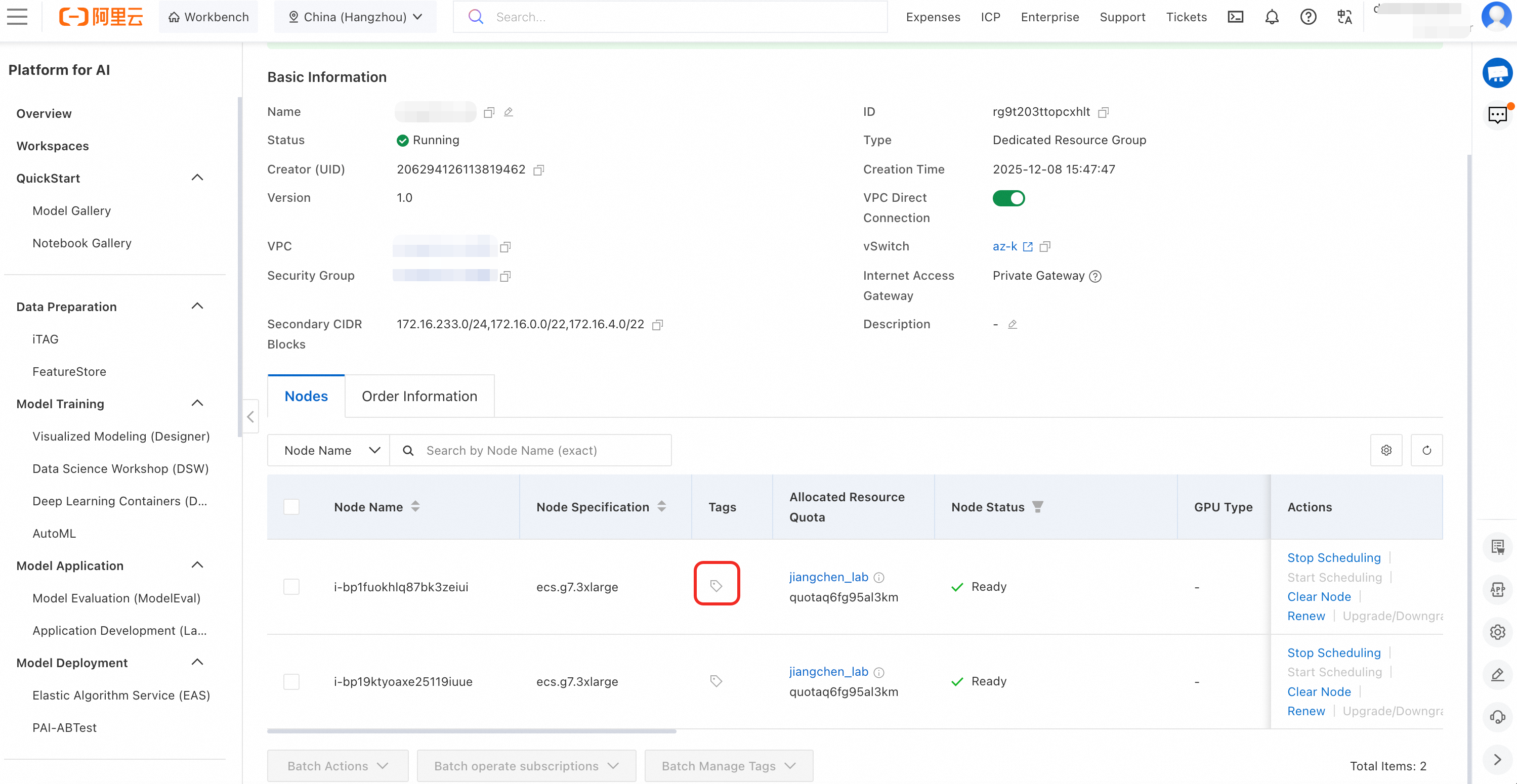
Click a resource group name to open its product page. Click the edit icon under the Tags column to add, modify, or delete tags for that order.
-
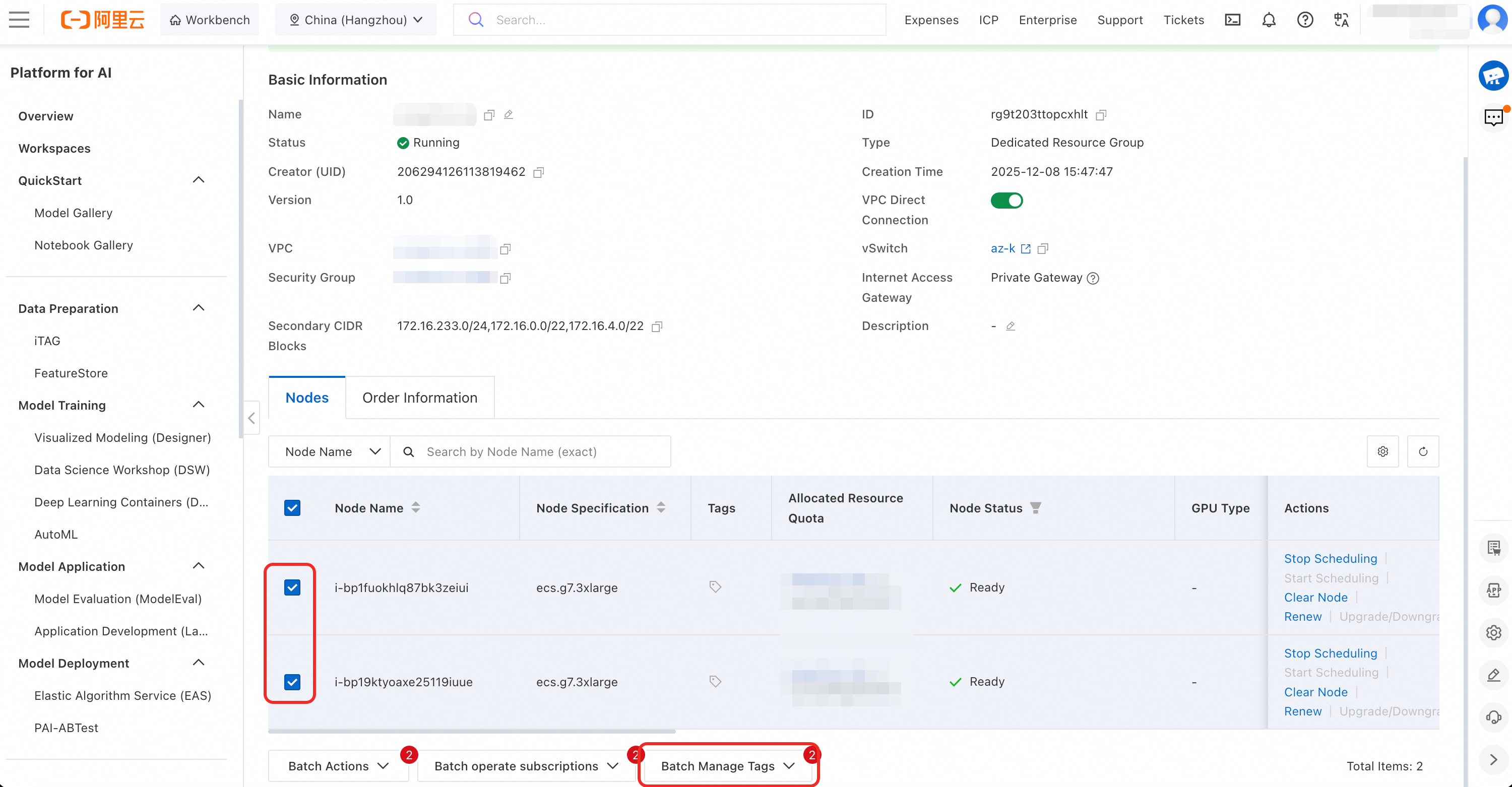
(Optional) You can manage tags in bulk. You can select multiple nodes. Then, you can click Batch Manage Tags.
Attach tags to DSW instances
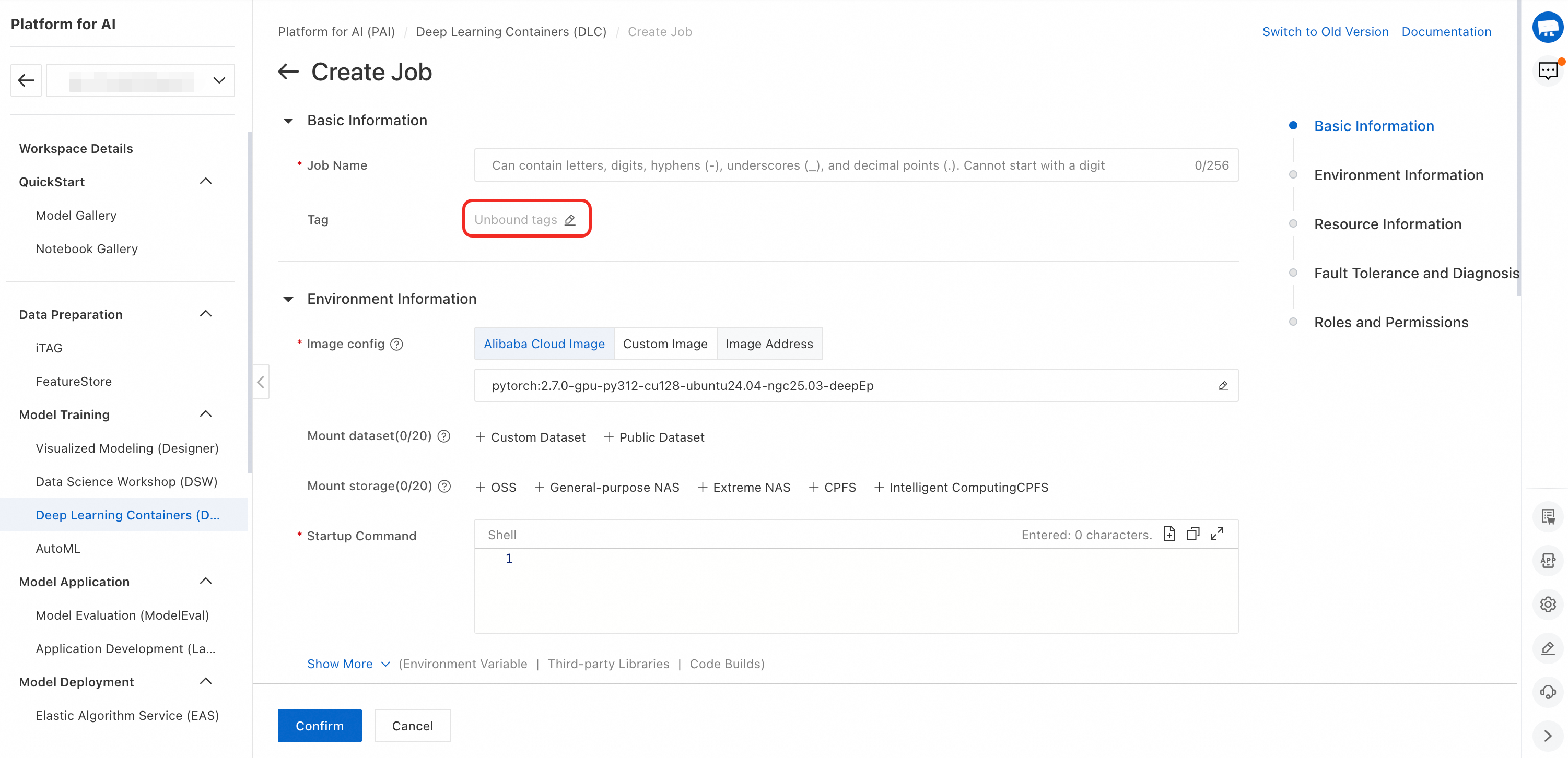
You can add tags on the configuration page when you create a DSW instance.
View split bills
-
Enable the custom cost allocation tags. In the Expenses and Costs center, go to the Cost Allocation Tags page and enable your custom cost allocation tags. For more information, see Enable Cost Allocation Tags. Note: Tags that you add in cloud service consoles take one day to appear in the Cost Allocation Tags list.
-
View your bills. Go to the or Split Bill page. Click the filter button in the Instance Tag column, and then select your custom cost allocation tag.
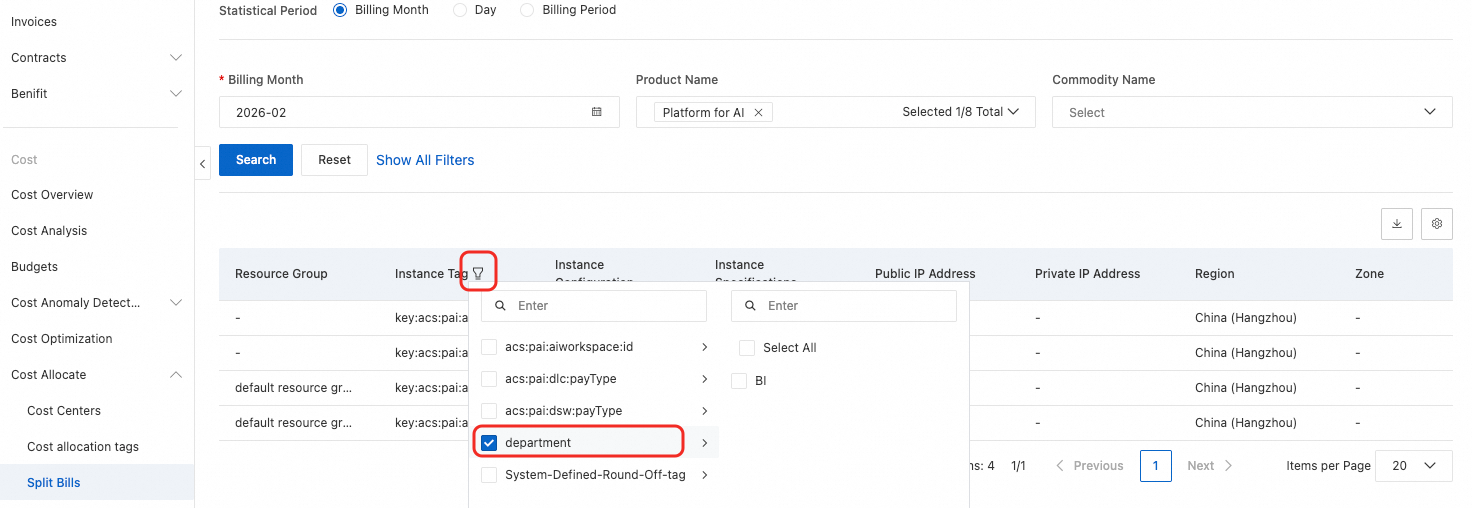
-
Billing details are updated with a one-day delay.
-
If you access the Expenses and Costs center as a RAM user, your Alibaba Cloud account must grant the RAM user the AliyunBSSFullAccess permission. For more information, see Manage RAM User Permissions.