This topic describes how to call model services from the AI Search Open Platform for data pre-processing. This solution applies to all scenarios that require processing raw images or text to enable text-to-image search, image-to-image search, and semantic search.
Workflow Overview
The following example uses a company primarily engaged in loading, unloading, handling, and warehousing. The company only has product photos taken by warehouse workers—images of product packaging containing brand and model information as text—and product IDs. To quickly find similar products using image-to-image search, follow the workflow shown in the diagram to set up the service.
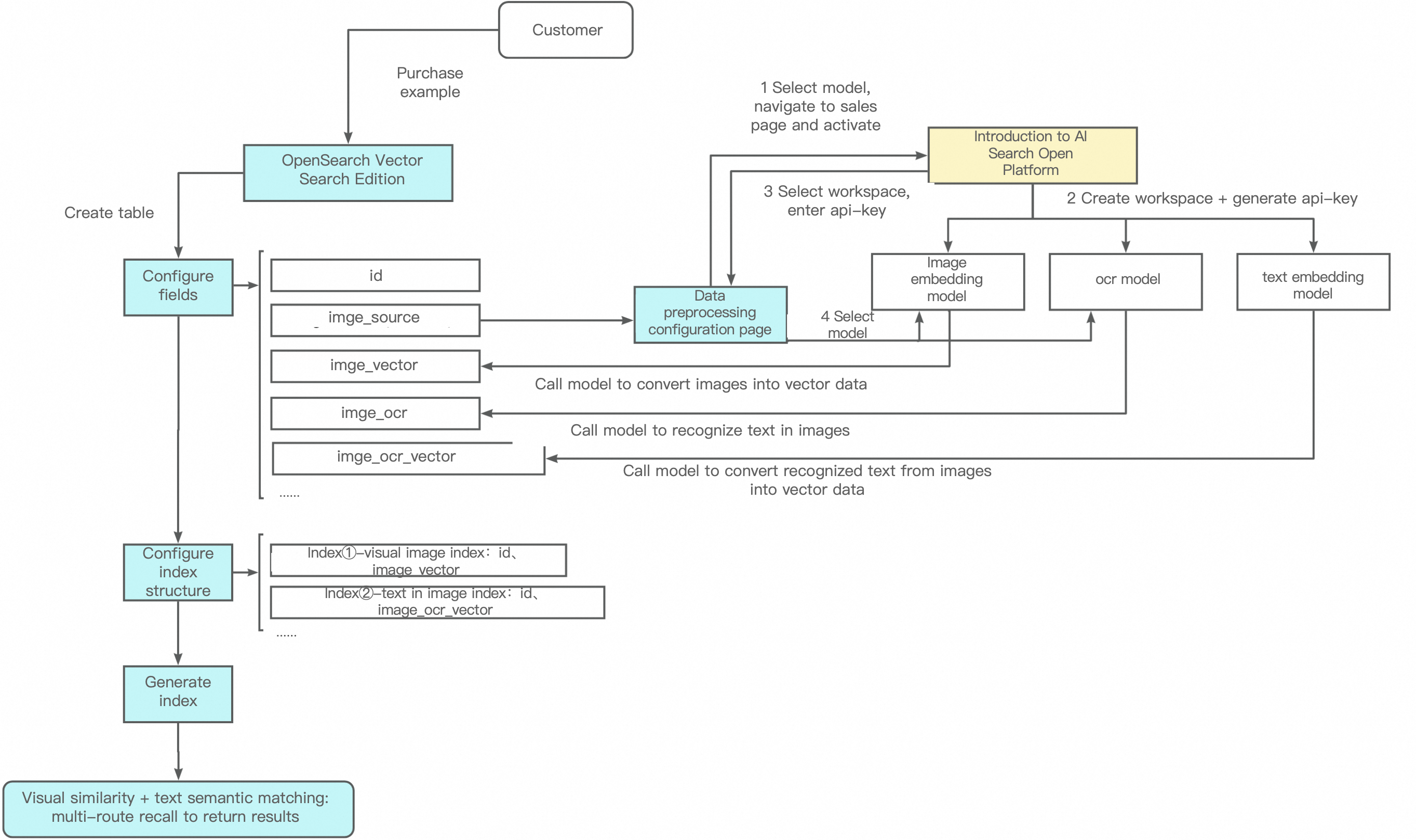
Purchase an Instance
To purchase an instance, see Purchase an OpenSearch Vector Search Edition instance.
Configure the Instance
A newly purchased instance appears with the status "Unconfigured" on its details page. An empty instance is automatically deployed with the same number and specifications of query nodes and data nodes you selected during purchase. Next, configure the instance’s table information, data synchronization, field configuration, and index schema. After the index rebuild completes, you can perform searches normally.
In the instance list, find your target instance and click Configure in the Actions column.
1. Basic Table Information
In Table Management, click Add Table, enter a table name, set the number of shards and data update resources, select a scenario template (this topic uses Vector: Image Search as an example), and then click Next:
Configuration Notes:
-
Table Name: You can define this yourself.
-
Number of Shards: Enter a positive integer not exceeding 256. This improves full build speed and single-query performance. (For some existing instances, all index tables must have the same number of shards, or at least one index table must use one shard while the others share the same shard count.)
-
Data Update Resources: These are the resources used for data updates. Each index receives two free 4-core 8 GB update resources by default. Additional resources beyond the free quota incur charges. For details, see and Billing documentation for Vector Search Edition on Alibaba Cloud International Website.
-
Scenario Template: Choose from Common Template, Vector: Image Search, or Vector: Semantic Search for Text.
2. Data Synchronization
Select a full data source. Supported sources include MaxCompute + API, OSS + API, Synchronize vector data from OpenLake-DLF to Alibaba Cloud OpenSearch, and API. This topic uses OSS + API as an example. After configuring the parameters and passing verification, click Next.
Required parameters include the OSS domain name, OSS path, OSS bucket, and data format (this example uses ha3). Click the Verify button to confirm the data source passes validation.
3. Field Configuration
Based on your selected scenario template, Vector Search Edition predefines relevant fields and auto-imports fields from your full data source into the list below. After completing field configuration and data pre-processing setup, click Next.
Field Descriptions:
-
id (primary key)
-
source_image (source image)
-
namespace (namespace)
-
source_image_vector (source image vector)
Configuration Notes:
-
Required fields include the primary key field and the vector field. The primary key field must be of type int or string and marked as the primary key. The vector field must be of type float and marked as a vector field.
-
Vector fields default to multi-value float type. Values are split using a comma by default, but you can specify a custom separator.
-
If a field is missing or empty in your data, the system fills in a default value: 0 for numeric types and an empty string for STRING types. You can also define custom defaults.
-
Data pre-processing setup: Click to configure pre-processing for the source_image field.
In the configuration interface, select the "Image Vectorization" pre-processing template. The service list then displays available image vectorization services (including the built-in model "General Image-to-Vector Model – 512-dim CLIP", which generates the field
source_image_vector).-
Data Source: Choose between OSS and Base64-encoded data. This example uses OSS.
-
OSS: Enter the OSS path. This means storing images in an OSS folder and importing them directly from OSS.
-
Base64 encoding: Encode the image first, then store it in a database or transmit it directly via API.
NoteWhen using the Bailian multimodal vector model to transmit images via Base64 encoding, you must add the
data:image/jpeg;base64,prefix before the Base64-encoded string. Replacejpegwith the MIME type that corresponds to the actual image format.The following table lists supported image formats and their MIME types:
Image format
File extension
MIME type
BMP
.bmp
image/bmp
JPEG
.jpe, .jpeg, .jpg
image/jpeg
PNG
.png
image/png
TIFF
.tiff
image/tiff
WebP
.webp
image/webp
HEIC
.heic
image/heic
Image resolution constraints: The image resolution must not exceed 4K (3840 × 2160). For resolutions between 4K and 8K, only JPEG, JPG, and PNG formats are supported.
-
-
Pre-processing Template: Templates vary based on data type (text or image). Since this example processes images, available templates are: (1) Image Vectorization, (2) OCR Image Text Recognition, and (3) OCR Image Text Recognition + Image Vectorization. This demo uses the Image Vectorization template.
-
Service List:
-
After selecting a pre-processing template, the corresponding service list appears, showing the models used by that template.
-
Models come from three sources:
-
Built-in models: Fewer options, available for free.
-
AI Search Open Platform: Appears only if you select OCR-related templates (OCR Image Text Recognition or OCR Image Text Recognition + Image Vectorization).
Note-
AI Search Open Platform offers rich capabilities and charges based on usage. See Billing methods and items.
-
Before use, activate your AI Search Open Platform workspace and obtain an API key.
-
Billing for AI Search Open Platform calls appears on a separate bill from your Vector Search Edition charges.
-
-
Custom models: You can define your own models. Go to Models > Custom Models and click Create Model.
-
-
Generated Fields:
-
Embedding services must generate a field by default.
-
OCR services let you choose whether to generate a field.
-
Each field can be processed only once by services of the same type.
-
-
-
4. Index Schema
After configuration, click Next.
In this example, Document Expiration Cleanup is disabled. Set Index Name to vector and enable Hybrid Retrieval. Included fields are: primary key id, vector field dense_vector, namespace sparse_vector_indices, sparse vector indices sparse_vector_indices, and sparse vector values sparse_vector_values. Set vector dimensions to 128, distance type to InnerProduct, real-time indexing to true, and vector index algorithm to HNSW.
Configuration Notes:
-
Included Fields: Primary key and vector fields are required. Namespace is optional and can be left empty.
-
Vector dimensions, real-time indexing, distance type, and vector index algorithm can be adjusted based on your needs.
-
Advanced Configuration: Use default parameters or adjust them as needed. For details, see General vector index configuration. After finishing the Index Schema page, click Next to go to the Confirm Creation page.
Expanded advanced parameters include the following: real-time indexing parameters, index build parameters, index retrieval parameters, linear build threshold (default: 5000), minimum recall candidate set size (default: 20000), recall rate reporting (default: true), and ignore invalid vector data (default: true). After configuration, click Next.
5. Confirm Creation
After configuration, click Confirm Creation. Return to the Instance List page. When the instance status changes to "Normal", use Actions – Query Test to run searches and tests.