This topic describes the complete process of using Data Lake Formation (DLF) as a data source to synchronize multimodal vector data to Alibaba Cloud OpenSearch. It highlights OpenSearch's powerful multimodal data processing capabilities: OpenSearch automatically extracts text, image, and video data from DLF, vectorizes and parses the content using built-in models or the AI Search Open Platform, and converts unstructured data into structured vectors that are synchronized to OpenSearch. This solution supports multiple data formats, including Paimon, Lance, and Object Table, and provides comprehensive vector index configuration options—such as vector dimensions, distance types, and retrieval algorithms—enabling you to efficiently build multimodal retrieval applications for use cases such as image search, text semantic search, and video search.
Prerequisites
-
Familiarize yourself with Data Lake Formation.
-
A DLF data catalog ID, database, and data table are configured. These identifiers are required when you configure data synchronization.
Add a Data Lake Formation (DLF) data source
-
On the Instance Details > Table Management page, click Add Table:
-
Fill in the basic information for the table, then click Next:
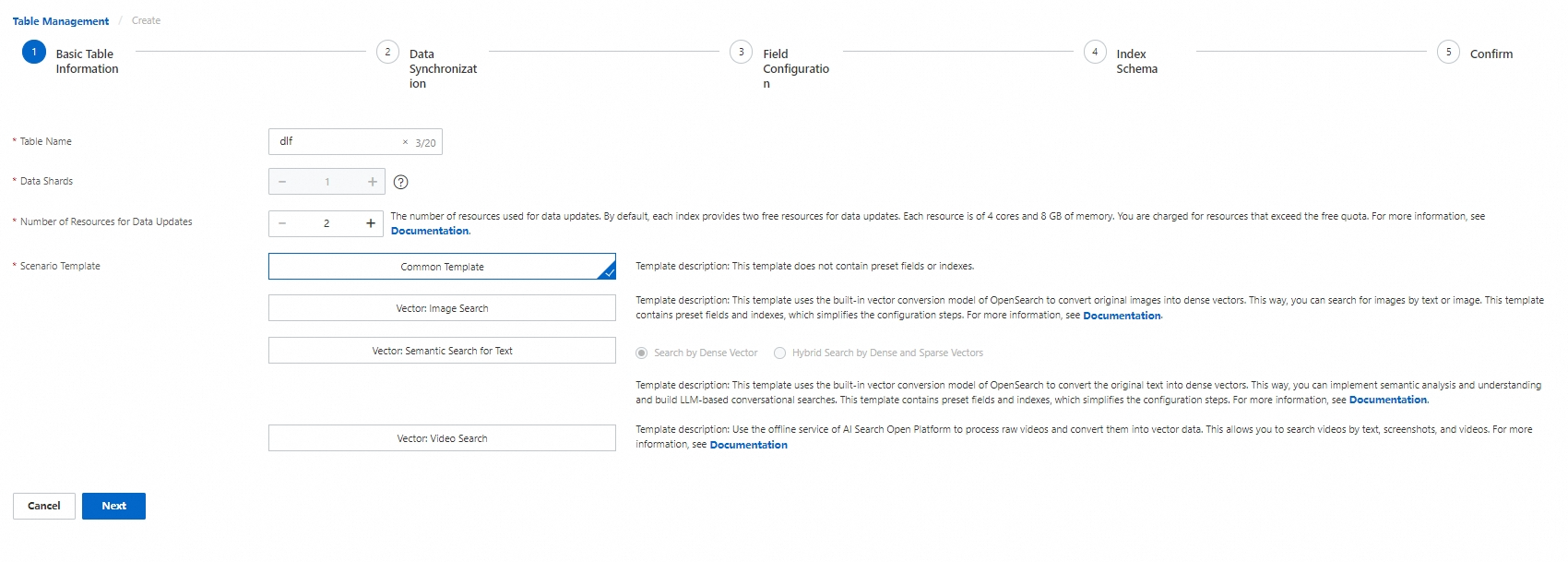 Configuration notes:
-
Table Name: A custom name.
-
Data Shards: When you set the shard count, all index tables must have the same shard count, or at least one index table can have a single shard while the others share an identical count.
-
Number of Resources for Data Updates: The number of resources used for data updates. Each index provides two free update resources with 4 cores and 8 GB by default. Resources beyond the free quota incur charges. For details, see Billing overview of OpenSearch Vector Search Edition
-
Scenario Template: OpenSearch Vector Search Edition provides four built-in templates: Common Template, Vector: Image Search, Vector: Text Semantic Template, and Vector: Video Search (this template does not currently support a data lake as a full data source).
-
For data synchronization, configure the data source. After validation passes, click Next:
-
Full data source: Select Data Lake Formation (DLF).
-
Table format: Paimon, Lance, and Object Table are supported.
Paimon is a lakehouse table format that can update data in real time like a database and supports both stream and batch processing.
Lance is a vector table format designed for AI that enables ultra-fast similarity search on vectors.
Object Table is a metadata table format that lets you use SQL to directly query and locate various files stored in the cloud.
-
Data Catalog: The DLF data catalog ID to access.
-
Database: The database under the target data catalog to access.
-
Data Table: The data table under the target database to access.
Note-
For existing instances, you must upgrade the engine version before you can select the Data Lake Formation (DLF) type.
-
The Common Template and Vector: Image Search Template support the Paimon, Lance, and Object Table formats. The Vector: Text Semantic Search Template supports Paimon data catalogs.
-
Paimon primary key tables support add, delete, update, and query operations. Paimon append-only tables support only writes and do not support updates or deletions.
-
-
Relative Path: The relative path to files in the object table when the table format is Object Table.
-
Data Format: When the table format is Object Table, you must select either the ha3 or JSON data format.
-
Tag: A data version tag. If you specify a Tag, OpenSearch uses the Tag data for full synchronization. If you do not specify a Tag, OpenSearch uses the latest data in the table for full synchronization.
Paimon provides a Tag feature to retain the metadata and data files of specific snapshots, preventing historical data loss caused by snapshot expiration. Tags can be created automatically based on write jobs, generated periodically by processing time or watermark time, or created, deleted, or rolled back to a specified tag manually. By configuring a retention policy, you can control the maximum number of tags or the retention period to ensure that historical data remains queryable. For details, see Paimon Tags.
Lance uses a Tag feature to mark specific versions in a dataset's history, making it easier to track dataset evolution—especially useful for machine learning pipelines with frequent updates. You can create, update, delete, and list tags. Tags do not generate new versions; instead, they exist as metadata in a separate directory. Tagged versions are not cleaned up by "cleanup_old_versions"—you must delete the tag first before the corresponding version can be removed. For details, see Lance Tags.
-
Data source validation: You can proceed to the next step after validation passes.
-
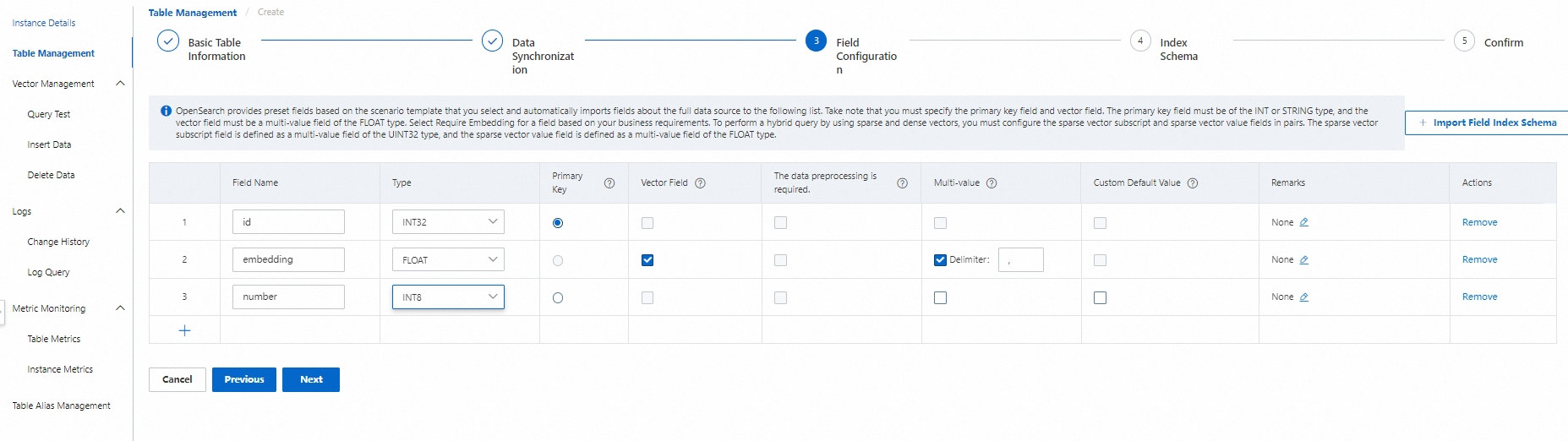
For column configuration, click Next after the configuration is complete:
-
The required columns are the primary key column and the vector column. The primary key column must be of type int or string, and you must select the primary key button. The vector column must be of type float, and you must select the vector column button.
-
The vector column defaults to a multi-value float type.
-
Data preprocessing required: Supports columns of type String. After selecting it, click Configure to call a model to preprocess the column.

Text data type
-
Data type: Text.
-
Preprocessing template: Dense vectorization, dense + sparse vectorization.
-
Service list:
After you select a preprocessing template, the service list for that template appears automatically, showing the model types used by the template.
Available model sources:
-
Built-in models: A small number of model types and quantities that can be called for free.
-
AI Search Open Platform: The AI Search Open Platform offers rich model capabilities and is charged by call volume. See Billing methods and billable items. Before use, you must first activate an AI Search Open Platform workspace and API Key.
-
Custom models: You can customize models based on your needs. On the Vector Search Edition page, in Models>Custom Models, perform a Create Model operation. For details, see Custom models.
-
Image data type
-
Data type: Image.
-
Data source: OSS, Base64 encoding, and DLF-Object Table.
-
OSS: You must provide an OSS path. This means images are stored in an OSS folder and imported directly from OSS.
-
Base64 encoding: The image is encoded once and then stored in a database, or transmitted directly through an API.
-
DLF-Object Table: An Object Table format table in the data lake. You must provide the corresponding data catalog, database, and data table.
-
-
Preprocessing template: Image vectorization, image content parsing, image content parsing + image vectorization.
-
Service list:
After you select a preprocessing template, the service list for that template appears automatically, showing the model types used by the template.
Available model sources:
-
Built-in models: A small number of model types and quantities that can be called for free.
-
AI Search Open Platform: The AI Search Open Platform offers rich model capabilities and is charged by call volume. See Billing methods and billable items. Before use, you must first activate an AI Search Open Platform workspace and API Key.
-
Custom models: You can customize models based on your needs. On the Vector Search Edition page, in Models > Custom Models, perform a Create Model operation. For details, see Custom models.
-
Video data type
-
Data type: Video.
-
Data source: OSS.
-
Preprocessing template: Video processing.
-
Service list:
After you select a preprocessing template, the service list for that template appears automatically, showing the model types used by the template.
Available model sources:
-
Built-in models: A small number of model types and quantities that can be called for free.
-
AI Search Open Platform: The AI Search Open Platform offers rich model capabilities and is charged by call volume. See Billing methods and billable items. Before use, you must first activate an AI Search Open Platform workspace and API Key.
-
Custom models: You can customize models based on your needs. On the Vector Search Edition page, in Models > Custom Models, perform a Create Model operation. For details, see Custom models.
-
-
-
When a column is missing or empty in the data, the system automatically fills in a default value: numeric types default to 0, and STRING types default to an empty string. Custom default values are supported.
-
-
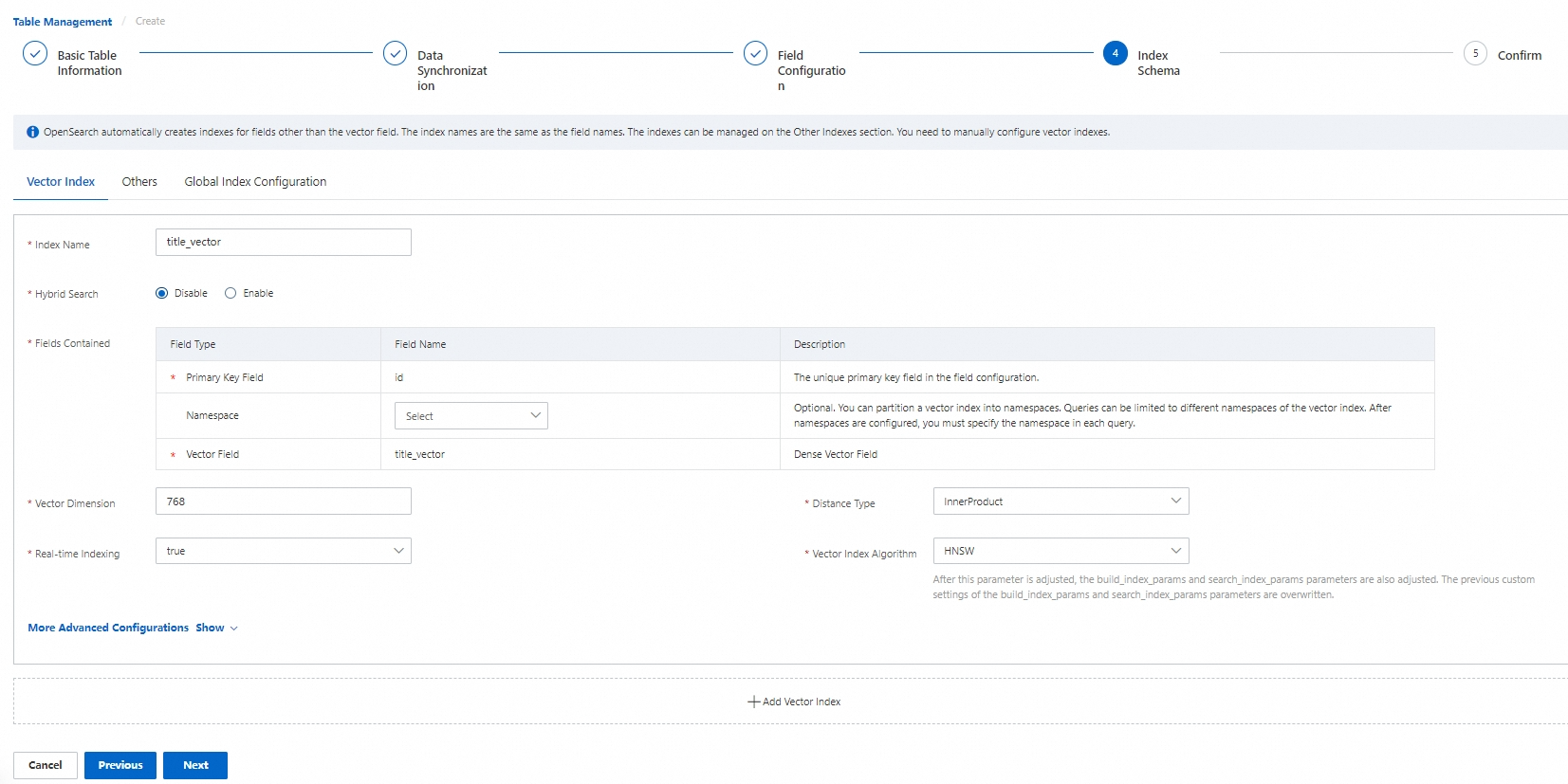
For index structure configuration, click Next after the configuration is complete:
-
Vector index:
-
Vector Dimensions: Select as needed based on the vectors generated by the model.
-
Distance Type: Select as needed based on the vectors generated by the model. The system supports three distance types: SquareEuclidean, InnerProduct, and Cosine.
-
Algorithms: Select as needed based on the vectors generated by the model. The system supports the following vector index algorithms: Liner, HNSW, QGraph, QC, DiskANN, and CagraHnsw.
-
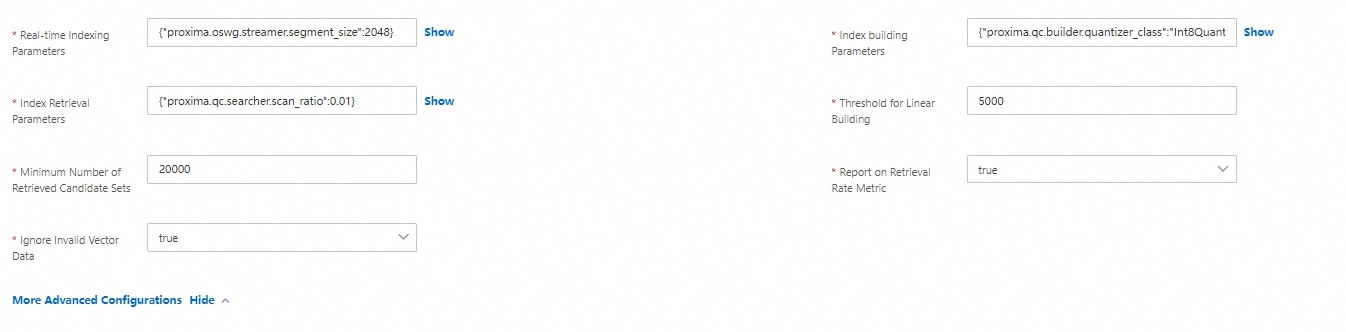
Real-time index: Indicates whether the incremental data from the API needs to build a vector index in real time. The default is true.
For other advanced configurations, click to expand and configure them. For parameter descriptions, see General vector index configuration.
-
-
Other index types: The system generates a pk column and a primary key index, and by default generates a same-named index for the remaining non-vector columns.
-
Global index configuration: You can enable automatic cleanup of expired documents. After it is enabled, a document is automatically cleaned up when current time - document time > expiration time.
-
-
To confirm creation, click Confirm Create. The system automatically creates the configured table. You can view the table creation progress in the change history:
-
When the table status is In Use, you can perform query tests on the query test page.
Note
When new data is written to a DLF Paimon table, OpenSearch automatically triggers real-time index building based on the new data. If you manually write data through the API, data consistency issues may occur, so proceed with caution.