Answers to frequently asked questions about CloudOps Orchestration Service (OOS).
-
RAM user permission error: The user is not authorized to perform the action: (ListTemplates)
-
Execution action not found despite having the required resources
-
What do I do if application build or deployment from a Git repository fails?
-
DescribeInstances API operation error: SDK.UnknownServerError or InvalidParameter
RAM user operation error: User has no permission to do the action: (ListTemplates)
-
Possible cause: The RAM user lacks the required permissions.
-
Solution: Log on to the RAM console as an administrator or using your Alibaba Cloud account. Grant the required permissions to the RAM user that reports the error. You can grant permissions on specific API operations or all API operations. For example,
"Action": "oos:*"grants permissions on all OOS API operations. For more information, see Account access control.{ "Statement": [ { "Effect": "Allow", "Action": "oos:*", "Resource": "*" } ], "Version": "1" }
RAM user operation error: User has no permission to do the action: (PassRole)
-
Possible cause: The RAM user lacks PassRole permission for CloudOps Orchestration Service.
-
Solution: Log on to the RAM console with an Alibaba Cloud account or an administrator account. Grant the PassRole permission to the RAM user. For more information, see Account access control.
{
  "Version": "1",
  "Statement": [
    {
      "Effect": "Allow",
      "Action": "ram:PassRole",
      "Resource": "*"
    }
  ]
}
Template execution error: Assumes role failed. Code: EntityNotExist.Role, msg: The role not exists: acs:ram::111111:role/OOSServiceRole
-
Possible cause: The default RAM role for OOS has not been created.
-
Solution: Log on to the RAM console with an Alibaba Cloud account or an administrator account. Create the default RAM role OOSServiceRole for your OOS service. For more information, see Grant RAM permissions to OOS.
Template execution error: Assumes role failed. Code: NoPermission, msg: You are not authorized to do this action. You should be authorized by RAM
-
Possible cause: The OOSServiceRole RAM role lacks the required trust policy.
-
Solution: Log on to the RAM console using an Alibaba Cloud account or an administrator account and add the OOSServiceRole RAM role. Set RAM permissions for OOS.
-
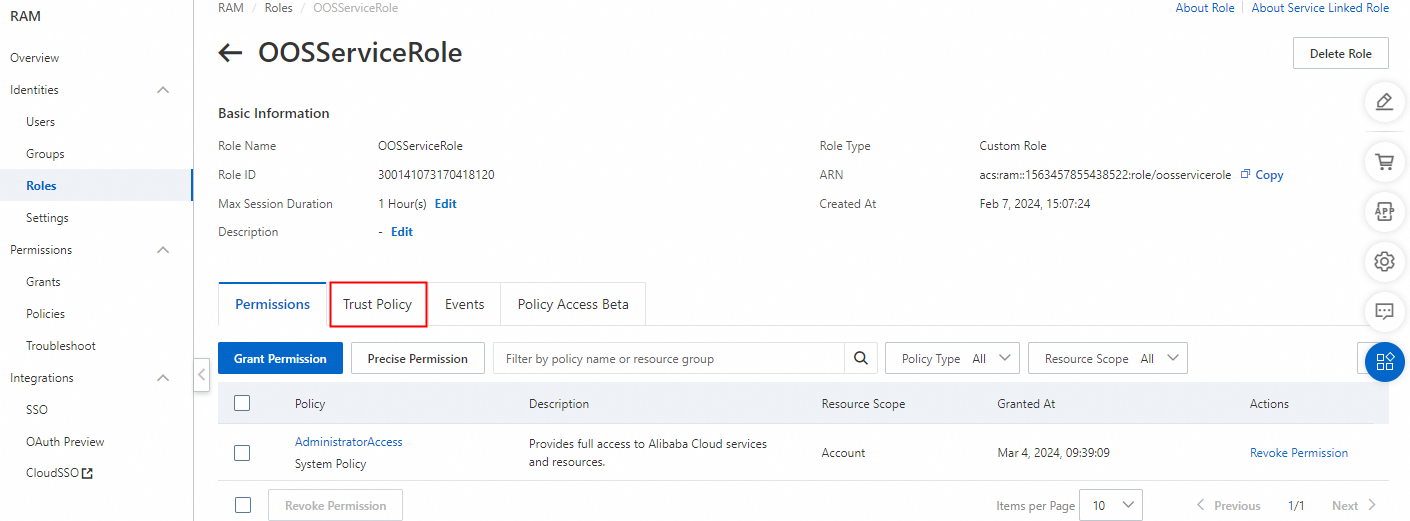
Log on to the RAM console and enter
OOSServiceNamein the search box for roles.
-
Click Trust Policy.
-
Modify the policy.
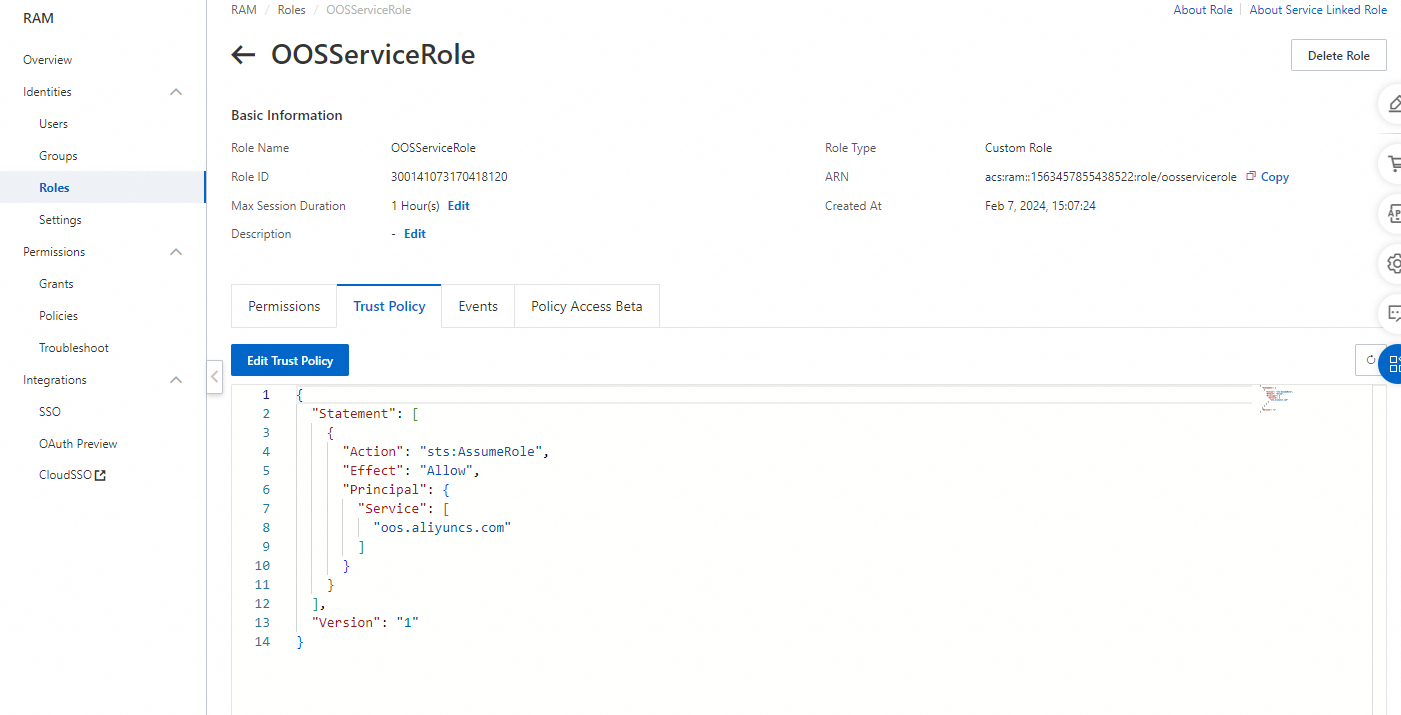
Use the following content for the policy:
{
  "Statement": [
      {
          "Action": "sts:AssumeRole",
          "Effect": "Allow",
          "Principal": {
              "Service": [
                  "oos.aliyuncs.com"
              ]
          }
      }
  ],
  "Version": "1"
}
-
Template execution error: Code: Forbidden.RAM, Message: User not authorized to operate on the specified resource, or this API doesn't support RAM
-
Possible cause: The RAM user or RAM role lacks permissions for the specified resources.
-
Solution: Grant required permissions to the RAM user or RAM role. For more information, see Query the RAM policy required for template execution, Manage RAM user permissions, and Manage permissions for a RAM role.
Temporary bandwidth upgrade error: code: InvalidAccountStatus.NotEnoughBalance message: Your account does not have enough balance
-
Possible cause: Insufficient account balance.
-
Solution: Top up your account and try again.
Temporary bandwidth upgrade error: code: InvalidBandwidth.ValueNotSupported message: Instance upgrade bandwidth of temporary not allow less then existed
-
Possible cause: The specified bandwidth is lower than the current bandwidth.
-
Solution:
-
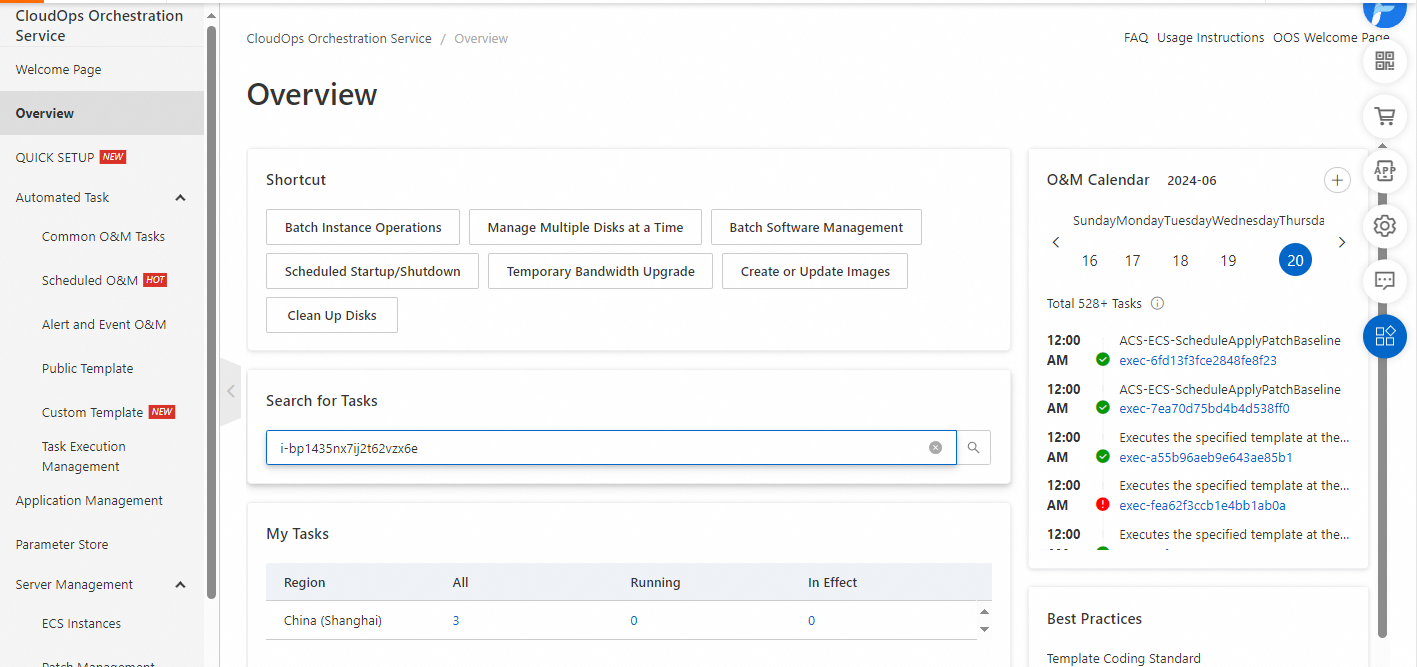
On the Overview page of the OOS console, search for temporary bandwidth upgrade tasks based on Elastic Compute Service (ECS) instance ID. Check whether a duplicate upgrade task exists.
-
If a duplicate task exists, delete it.
-
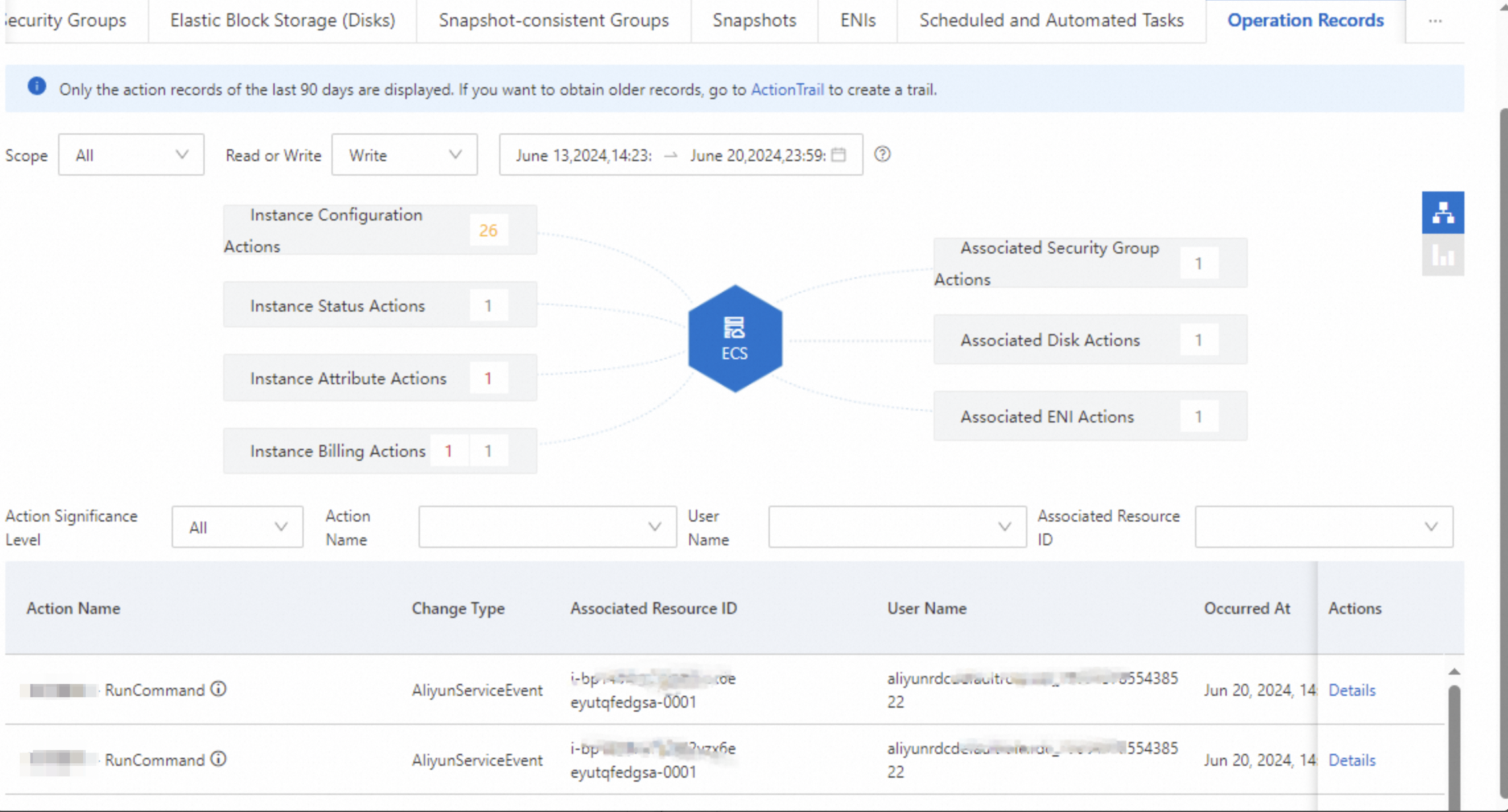
If no duplicate task exists, go to the ECS console. Click Instances, select the target instance, and check the upgrade logs on the Operation Records tab.
-
Temporary bandwidth upgrade error: code: OperationDenied.UnpaidOrder message: The specified instance has unpaid order
-
Possible cause: The ECS instance has unpaid orders.
-
Solution: Pay the outstanding orders.
Common command execution error: runCommand loop task fail because failures exceeded MaxErrors -> runCommand execution failed, checkInvocationResult Invocation.InvocationResults.InvocationResult[].ExitCode expect in [0] but is 1
-
Possible cause: The Cloud Assistant command returned a non-zero exit code.
-
Solution: Check the child execution output and logs. For more information, see Execution details.
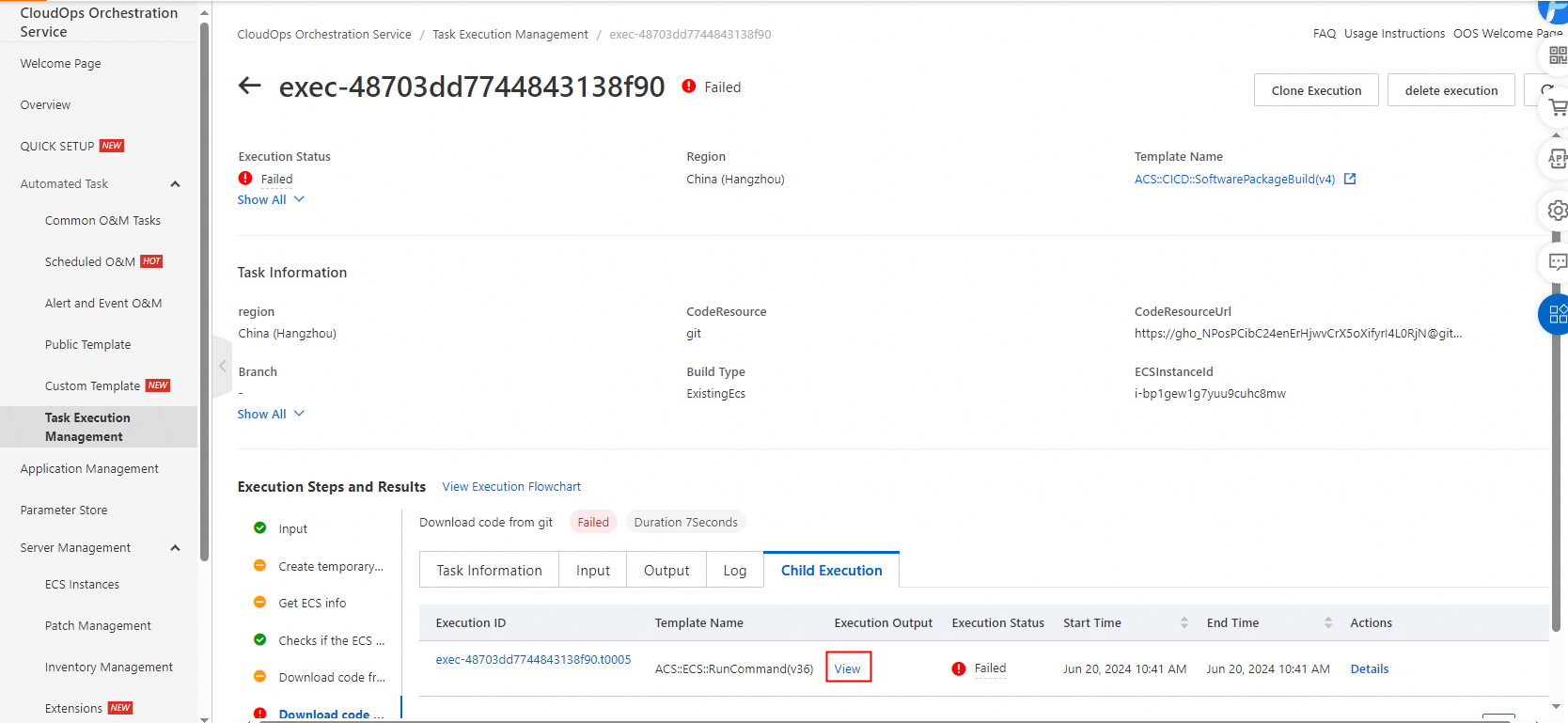
What do I do if I cannot find a created execution?
-
Possible cause: The execution is in another region.
-
Solution: View the executions in all regions on the Overview page.
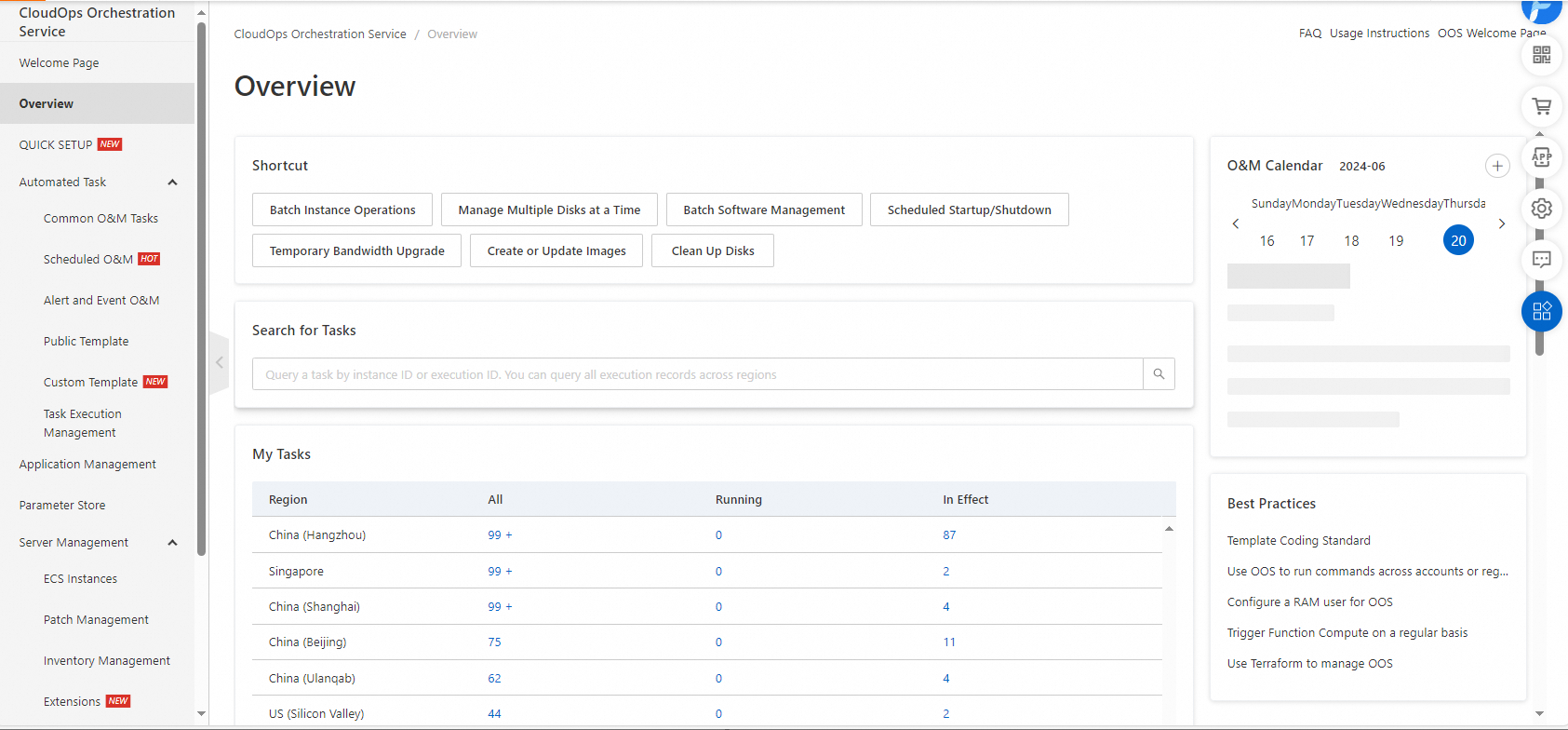
How do I troubleshoot command errors?
Solution: Check execution results and troubleshoot common issues.
What do I do if application build or deployment from a Git repository fails?
-
Possible cause: Code errors and dependency installation failures. Check logs for details.
-
Solution:
-
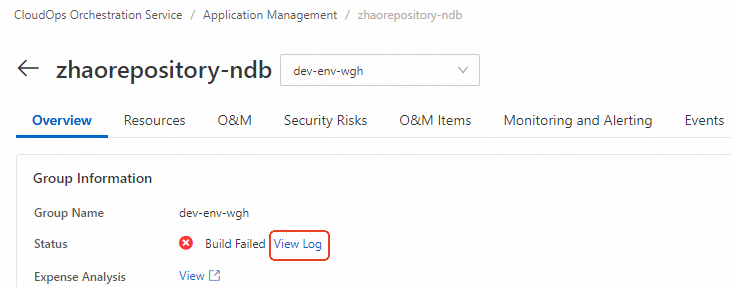
Build failures
NoteFailed builds do not create ECS instances and incur no charges.
-
View build failure logs.
-
Modify the code or add a configuration file.
Modify the code or add a configuration file for your programming language, then push to the repository. Configure applications based on specific programming languages.
-
Delete the failed application group and create a new one.
-
-
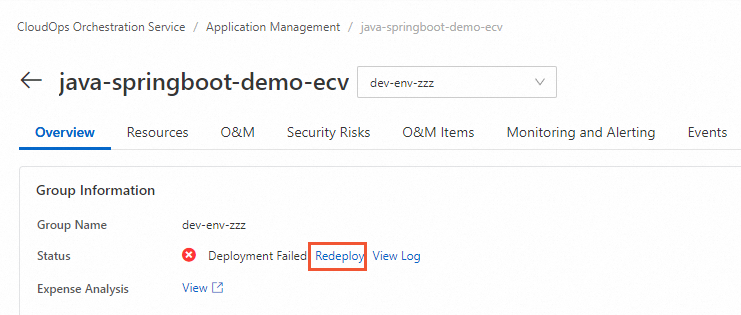
Deployment failures
-
View deployment failure logs.
-
Fix the issue and redeploy.
-
-
Unable to access the service after application deployment is successful
-
Rule out application startup delay.
Wait for the application to finish starting. If the service remains inaccessible, proceed to the next step.
-
Log on to the ECS instance and check whether the service is running:
sudo systemctl status aliyun-applicationmanager-
If running, proceed to the next step.
-
If not running, check system service logs for
docker runfailures.
-
-
View container logs
# Find the Docker container.
sudo docker ps -a | grep applicationmanager
# View container logs
sudo docker logs applicationmanager
If the Docker container is not running, update the code or configuration files for your programming language and push the changes. Configure applications based on specific programming languages.
-
On the Overview tab, in Quick Actions, click Update Application to redeploy.
-
-
Common scenarios
-
To avoid build failures, debug Buildpacks on a local machine first.
-
If these methods do not resolve the issue, submit a ticket or join the DingTalk group for application management support (ID:
10880003624) to provide feedback.
-
-
DescribeInstances API error: SDK.UnknownServerError or InvalidParameter
-
Cause: Passing more than 100 instance IDs to the DescribeInstances API returns an InvalidParameter or SDK.UnknownServerError (414 Request-URI Too Large) error.
-
Solution:
  - Name: getInstanceDescribe
    Action: ACS::ExecuteAPI
    Description:
      en: Query instance type
    Properties:
      Service: ECS
      API: DescribeInstances
      Parameters:
        InstanceIds:
          Fn::Jq:
            - All
            - .[].InstanceId
            - '{{ getInstance.instanceIds }}'
    Outputs:
      instanceIds:
        Type: List
        ValueSelector: Instances.Instance[].InstanceId
- Name: getInstanceDescribe Description: en: Views the ECS instances. Action: ACS::SelectTargets Properties: ResourceType: ALIYUN::ECS::Instance Filters: - Type: ResourceIds ResourceIds: Fn::Jq: - All - .[].InstanceId - '{{ getInstance.instanceIds }}' Outputs: instanceIds: Type: List ValueSelector: Instances.Instance[].InstanceId
Use selectTargets: replace Code Block 1 with Code Block 2
How to output literal "table {{.Name}}\t{{.MemUsage}}" in OOS templates
-
Cause: You want to run the following command as is:
docker stats --no-stream --format "table {{.Name}}\t{{.MemUsage}}" | sort -k2 -hr | head -n 6
The OOS template engine treats {{}} as variables, causing a parsing error.
-
Solution: Modify the command as follows:
left="{{"
right="}}"

docker stats --no-stream --format "table ${left}.Name${right} ${left}.MemUsage${right}" | sort -k2 -hr | head -n 6
Cloud Assistant command error: 414 Request-URI Too Large
-
Cause: The command exceeds the 24 KB limit (after Base64 encoding).
-
Limits are documented in RunCommand - Create and run a Cloud Assistant command.
-
-
Solution: Store the command in an OSS object, then use ossutil to download and run it.