File Storage NAS is seamlessly integrated with CloudMonitor. With the performance monitoring feature, you can view the performance overview of a file system in real time, such as IOPS, throughput, and latency. This topic describes how to view the performance monitoring data of a NAS file system.
Prerequisites
-
A NAS file system is required. For more information, see Create a file system.
-
CloudMonitor
Go to the CloudMonitor product details page and follow the on-screen instructions to enable the service.
View data in the NAS console
Log on to the NAS console.
-
In the left-side navigation pane, choose .
-
In the top navigation bar, select the region where the file system resides.
-
On the Performance Monitoring page, follow these steps to view the performance details of a specific file system:
-
From the File System Type drop-down list, select the target file system type.
-
From the File System ID drop-down list, select the target file system ID.
-
Select a time range, such as 1 Hour, 1 Day, 7 Days, 14 Days, Current Month, or Last Month. You can also specify a custom date range. The maximum date range is 30 days.
The File System Performance Monitoring page shows charts of key performance metrics, such as IOPS, throughput, and latency.
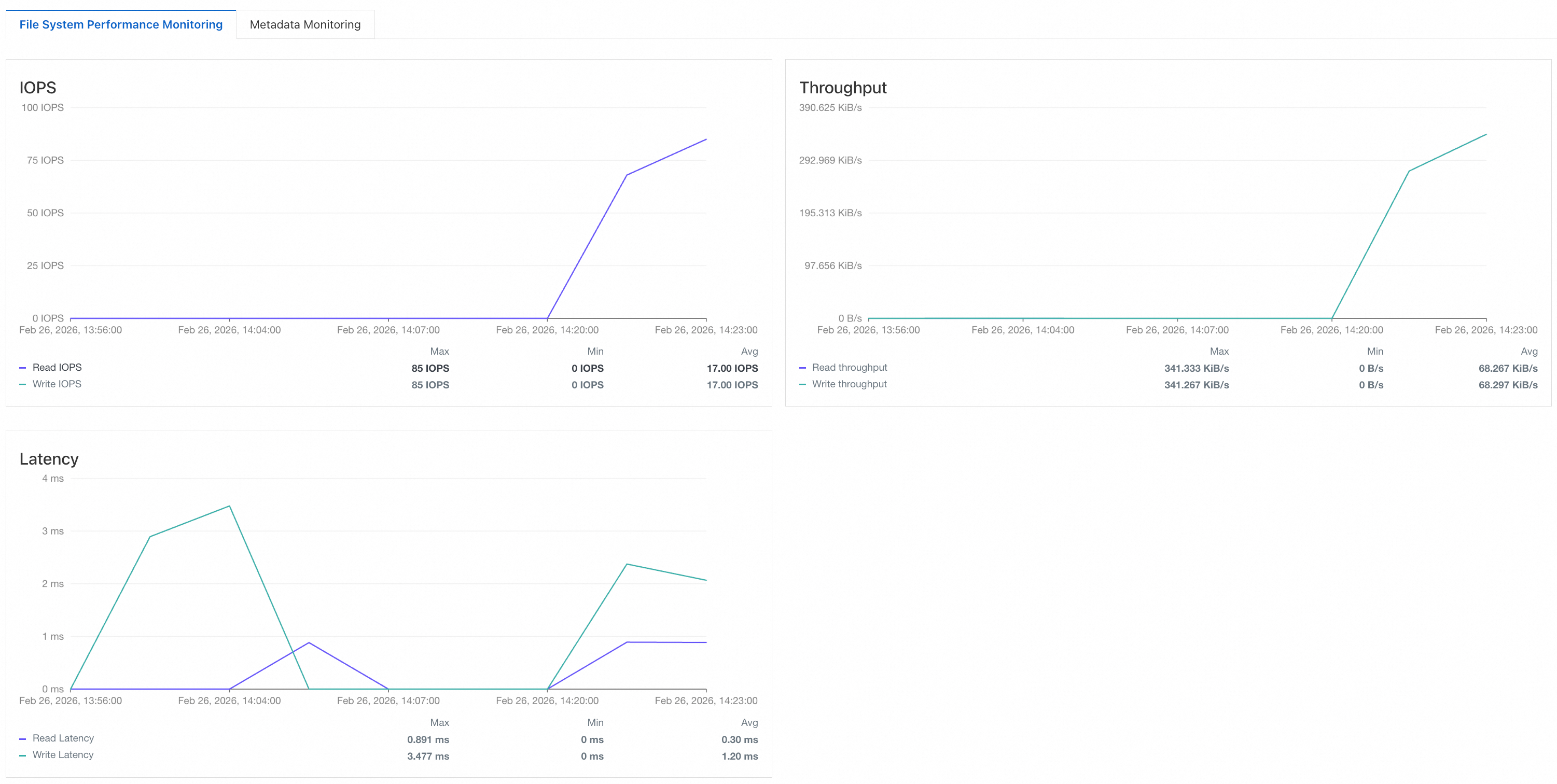
The Metadata Monitoring page shows charts of metadata performance.
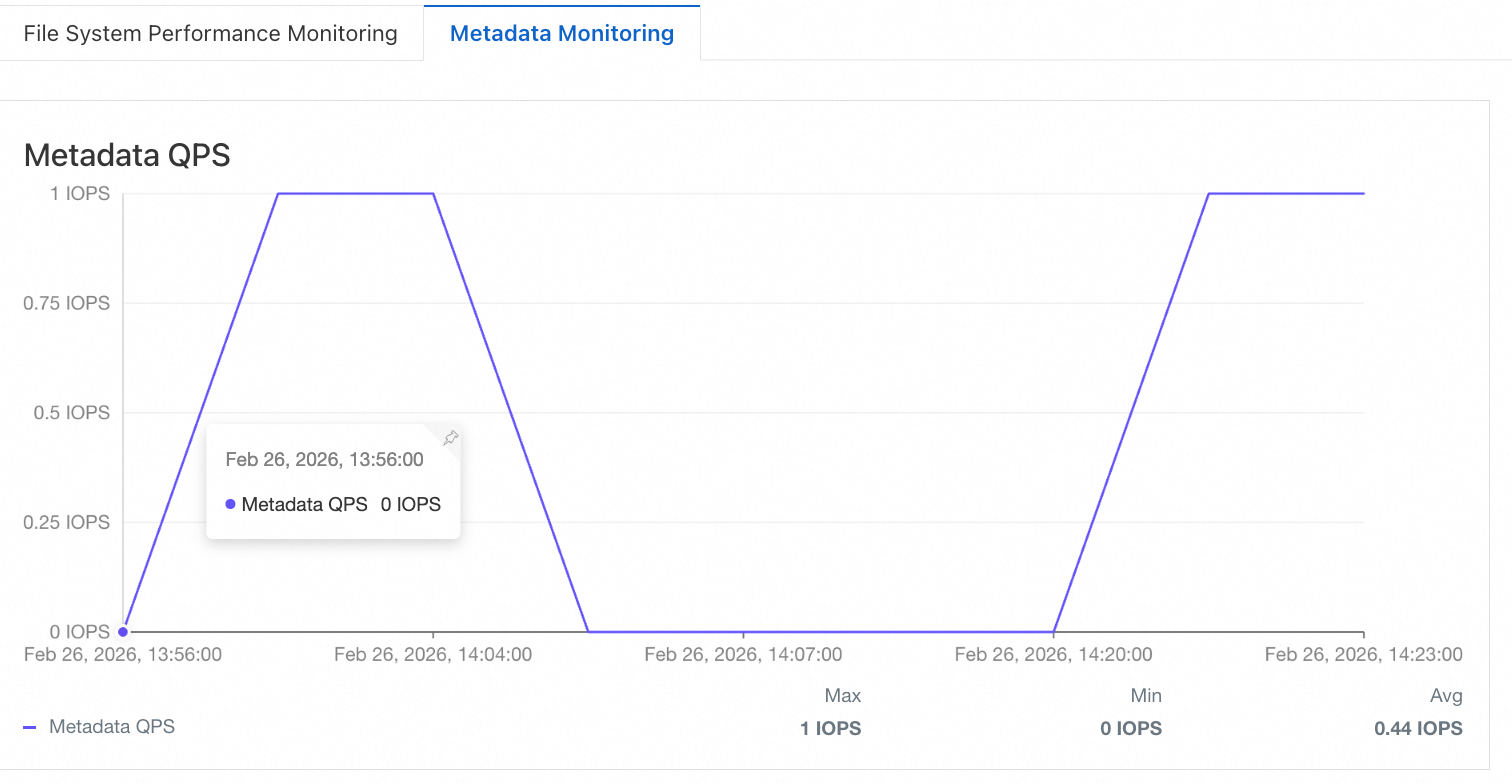
AgenticFS performance monitoring supports two granularities: file system and AgenticSpace. The metrics include read/write IOPS, read/write throughput, read/write latency, and metadata operation QPS and latency. To view these metrics, select AgenticFS from the File System Type drop-down list.
Note-
If a chart displays No data, it indicates that the file system has not received any client requests or that the required service is not enabled.
-
You can use the FIO tool to test file system performance and view the performance metrics in the CloudMonitor console. For more information, see Test the performance of a NAS file system.
For example, to test the write throughput of a file system, run the following command on an ECS instance where the file system is mounted to the /mnt directory:
fio -numjobs=1 -iodepth=128 -direct=1 -ioengine=libaio -sync=1 -rw=randwrite -bs=1M -size=1G -time_based -runtime=600 -name=Fio -directory=/mnt. -
The read/write IOPS and metadata QPS metrics are reported as integers. If fewer than 60 requests are made within one minute, the value is 0.
-
View data in the CloudMonitor console
-
Log on to the CloudMonitor console.
-
In the left-side navigation pane, choose .
-
On the Cloud Service Monitoring page, enter NAS in the search box and click File Storage NAS.
-
On the File Storage NAS page, select a region, and then click the target file system or click Monitoring Charts in the Actions column.
-
On the monitoring chart details page, click the File System Monitoring tab to view the performance details of the target file system.
By default, CloudMonitor displays monitoring data for the last hour. You can click a preset time range or specify a custom date range. The maximum date range is 30 days.
View data by using the CloudMonitor API
You can query monitoring data for NAS and AgenticFS by calling the following CloudMonitor API operations:
-
DescribeMetricMetaList: queries descriptions of time-series metrics exposed by CloudMonitor.
-
DescribeMetricList: queries the time-series monitoring data of a cloud service within a specified period.
-
DescribeMetricLast: queries the latest monitoring data of a specified object.
The following table describes the request parameters for NAS.
|
Parameter |
Description |
|
Namespace |
The namespace of the cloud service. For NAS, set this parameter to acs_nas. |
|
MetricName |
The name of the metric. Valid values:
|
|
Dimensions |
A JSON map that specifies the resource to monitor. Format: Note
The value of this parameter must be a JSON string, and the keys must be in the specified order. |
The following table describes the request parameters for AgenticFS.
|
Parameter |
Description |
|
Namespace |
The namespace of the cloud service. For AgenticFS, set this parameter to acs_nas. |
|
MetricName |
The name of the metric. Valid values:
|
|
Dimensions |
A JSON map that specifies the resource to monitor. For metrics at the file system level, use the following format: For metrics at the AgenticSpace level, use the following format: Note
The value of this parameter must be a JSON string, and the keys must be in the specified order. |
Related operations
-
Create an alert rule to receive notifications about abnormal data. This helps engineers respond to and resolve issues faster and restore services sooner. For more information, see Configure a basic alert rule.
-
You can also create an application group for multiple file systems. This helps you manage alert rules and view monitoring data at the group level, reduces management complexity, and improves monitoring efficiency. For more information, see Create an application group.
-
You can also use the FIO tool to test the throughput and IOPS of your file system. For more information, see Test the performance of a NAS file system.
FAQ
-
How do I increase the throughput threshold of a General-purpose NAS file system?
-
How do I improve NFS sequential read performance on Linux kernel 5.4 or later?
For more frequently asked questions about NAS performance, see FAQ about performance.