All Products
Search
Document Center

File Storage NAS:Mount an NFS file system on multiple ECS instances at a time

Last Updated:Aug 02, 2025

If you want to share the data of a File Storage NAS (NAS) file system among multiple Elastic Compute Service (ECS) instances, you can use Cloud Assistant to mount the NAS file system on the ECS instances at a time. Only the Network File System (NFS) protocol is supported.

Prerequisites

A file system is created. For more information, see Create a file system.

Network

You can use the ECS console to mount your file system on multiple ECS instances if your business network meets the requirements in the following scenarios:

  • The ECS instances and the mount target of the NAS file system reside in the same virtual private cloud (VPC).

  • The ECS instances and the mount target of the NAS file system reside in the classic network. The private IP addresses of the ECS instances are authorized in the permission group that is attached to the mount target. For more information, see Manage permission groups.

  • The ECS instances and the mount target of the NAS file system reside in different VPCs, and the ECS instances can access and be accessed by the file system across VPCs. The private IP addresses of the ECS instances are authorized in the permission group that is attached to the mount target. For more information, see Use CEN to mount a NAS file system across VPCs in the same region.

Limits

  • Operating system

    You can mount the file system only on a Linux ECS instance. Linux distributions such as CoreOS, FreeBSD, and Fedora CoreOS do not support the mount feature of the NAS console. If your ECS instance runs Red Hat Enterprise Linux (RHEL), you must install the Cloud Assistant client by using the RPM Package Manager (RPM) package before you mount your file system. For more information, see Linux instance.

  • Status of Cloud Assistant and ECS instances

    • You can mount your file system only on ECS instances that are in the Running state. If the ECS instances are in the Starting or Stopped state, change the status of each ECS instance to Running.

    • Cloud Assistant must run as expected.

  • ECS Limits

    The ECS instances and the NAS file system must reside in the same region. You cannot use Cloud Assistant to mount a file system on an ECS instance that resides in a different region.

  • File systems

    This topic applies only to NFS file systems.

Procedure

  1. Log on to the ECS console.

  2. In the left-side navigation pane, choose Maintenance & Monitoring > Cloud Assistant.

  3. In the top navigation bar, select the region and resource group of the resource that you want to manage. 地域

  4. On the Public Commands tab, search for the mount command named ACS-NAS-ClickMount-Mount-Linux-NFS.sh and click Execute.

  5. In the Run Command panel, configure the parameters in the Command Information section and select the ECS instances on which you want to mount the file system. The following table describes the parameters.

    Name

    Description

    Command Content

    Click View Command Content to confirm the command content.

    Execution Plan

    Select an execution plan for the command.

    • Immediate Execution: The system immediately runs the command.

    • After The Next Startup Of The System: The command is run the next time the instance starts.

    • After Each System Startup: The command is run each time the instance starts.

    • Dry run only: This operation checks the request. The command is not run. The items to be checked include request parameters, the instance execution environment, and the running status of the Cloud Assistant Agent.

    • Scheduled Execution: The system runs the command at a specified interval or point in time. Scheduled execution includes the following modes:

      • Run At A Fixed Interval: runs the command at a specified interval based on a Rate expression. You can set the interval in seconds, minutes, hours, or days. This mode is suitable for scenarios where tasks are run at fixed intervals.

        Note

        The following conditions apply to running a command at a fixed interval:

        • The specified interval must be no longer than 7 days and no shorter than 60 seconds. The interval must be longer than the timeout period of the scheduled task.

        • The execution interval is based only on the fixed frequency and is irrelevant to the actual running time of the task. For example, if you set the command to run every 5 minutes and the task takes 2 minutes to complete, the next round of execution starts 3 minutes after the task is complete.

        • The task is not immediately run when it is created. For example, if you set the command to run every 5 minutes, the command is not immediately run when the task is created. Instead, the command starts to run 5 minutes after the task is created.

      • Run Only Once At A Specified Time: runs the command once at the specified time and in the specified time zone.

        For example, if you set Running Time to 2022-05-17 17:30:50 and Time Zone to (GMT+8:00) Asia/Shanghai, the system runs the command once at 17:30:50 on May 17, 2022 (UTC+8).

      • Run Based On A Clock: runs the command based on a cron expression. You can specify the frequency in seconds, minutes,hours, dates, months, weeks, and years. The system calculates the execution time and runs the scheduled task based on the cron expression in the specified time zone. This mode is flexible and suitable for complex scheduled task scenarios. For more information about cron expressions, see Cron expressions.

        Note

        The minimum interval must be greater than or equal to the timeout period of the scheduled task and no shorter than 10 seconds.

        For example, if you set Frequency to 0 0 12 ? * WED 2022 and Time Zone to (GMT+8:00) Asia/Shanghai, the system runs the command at 12:00:00 every Wednesday in 2022 (UTC+8).

    Execution Path

    The path where the command is run.

    Username

    The username used to run the command on the ECS instance.

    Using the least privilege to run commands is a best practice for permission management. You can run Cloud Assistant commands as a regular user. For more information, see Set a regular user to run Cloud Assistant commands.

    By default, commands are run as the root user on Linux instances and as the System user on Windows instances.

    Timeout

    Set the Timeout period for running the command on the instance. When the execution of a command times out, Cloud Assistant forcibly stops the task process.

    The unit is seconds. The default value is the Timeout period that you set when you created the command.

    Note

    This value is used only for the current command execution and does not change the timeout period specified for the command itself.

    Tags

    Set the Tag Key and Tag Value for the command execution to facilitate subsequent categorization, management, and maintenance.

    Task Stop Mode

    The mode in which a task is stopped when you manually stop the task or the task is interrupted due to a timeout.

    • Script Process: When the task is stopped, the script process is terminated.

    • Process Tree: When the task is stopped, the process tree, which is a collection of the script process and all its child processes, is terminated.

    Bootstrap Program

    The bootstrap program for the script execution.

    Command Parameters

    In the Command Parameters text box, enter values for the custom parameters that are specified in the command.

    • MountTargetDomain: the mount target address of the file system.

      You can view the mount target address in the mount target list of the destination file system in the NAS console. An example is ****.nas.aliyuncs.com. For more information, see Manage mount targets.

    • EcsLocalPath: the local path on the current server to which you want to mount the NAS file system.

      The value must be an empty absolute path that starts with /, such as /mnt.

    • NasRemotePath: the directory of the NAS file system.

      You can set this parameter to the root directory (/) or a subdirectory of the NAS file system, such as /abc.

    • ProtocolType: Select the protocol type of the file system.

      • General-purpose NAS file system: NFSv3 and NFSv4.0

      • Extreme NAS file system: NFSv3

      Important

      Make sure that you enter a valid value for this parameter. The value is case-sensitive and cannot be preceded or followed by spaces. If the value of this parameter is invalid, the command fails to be run.

    • AutoMountOnBoot: specifies whether to enable automatic mounting of the file system upon system startup.

      Valid values: true and false. After you enable automatic mounting upon startup, you do not need to remount the file system when you restart the ECS instance.

      Important

      Make sure that you enter a valid value for this parameter. The value must be in lowercase and cannot be preceded or followed by spaces. If the value of this parameter is invalid, the command fails to be run.

    • MountParam: the mount parameters.

      If you do not have special business requirements, you do not need to configure this parameter. For information about the parameters, see Mount an NFS file system.

    Select Instance

    Select one or more destination ECS instances.

    If you have many instances, you can enter an instance ID, instance name, or tag in the search box to search for instances and filter the instances by the status of the Cloud Assistant client.

  6. Click Run.

Query the output of a command

After you mount, unmount, or query a NAS file system, you can use Cloud Assistant to query the results.

  1. Log on to the ECS console.

  2. In the left-side navigation pane, choose Maintenance & Monitoring > Cloud Assistant.

  3. In the top navigation bar, select the region and resource group of the resource that you want to manage. 地域

  4. On the Command Execution Result tab, select Command Name from the drop-down list, enter the name of the command whose output you want to query, and then click the 查询图标 icon.

    • Mount: ACS-NAS-ClickMount-Mount-Linux-NFS.sh

    • Unmount: ACS-NAS-ClickMount-Unmount-Linux-NFS.sh

    • Query: ACS-NAS-ClickMount-Check-Linux-NFS.sh

  5. In the command execution result list, find the target command and click View in the Actions column.

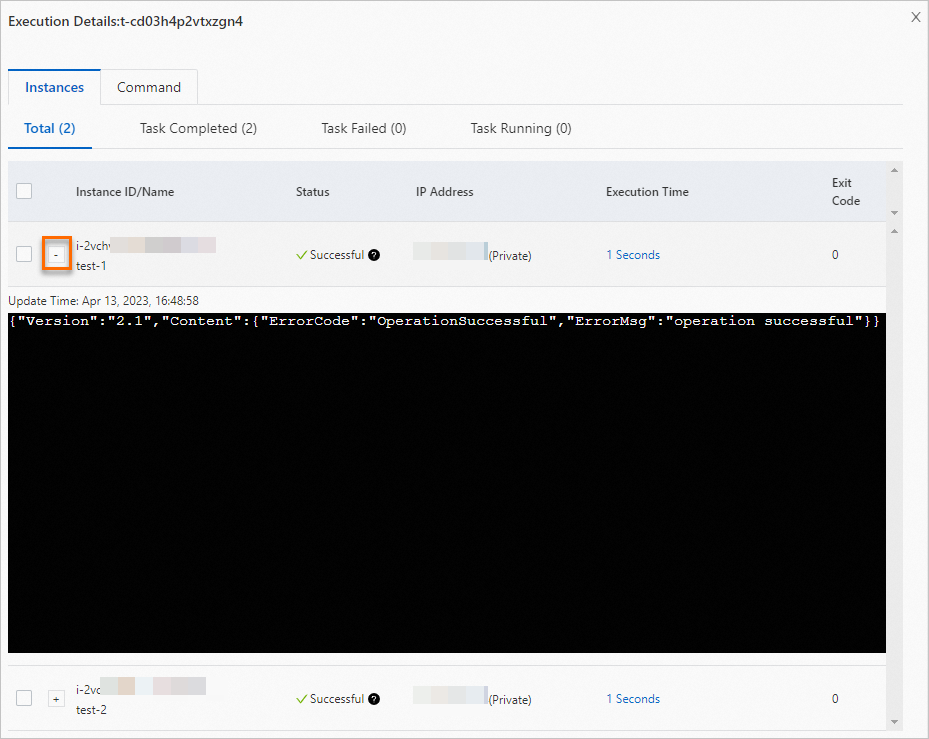
  6. On the Instance List tab in the command execution details panel, click the 批量图标001 icon next to the target instance name to view the detailed command results.

  7. After the query is complete, click Close.

Error messages

The following table describes the error messages that may be returned in the output of a command.

ErrorCode

ErrorMsg

SystemNoPermission

You do not have the permissions to run the command in the operating system. You must have the root permissions.

SystemMissingMounts

The /proc/self/mounts file does not exist in the operating system.

SystemMissingFstab

The /etc/fstab configuration file for automatic mounting does not exist in the operating system.

SystemBashOutdated

The bash version of the operating system is outdated. Upgrade the version to 4.0 or later.

BadInputMountTarget

The specified mount target parameter is invalid. Use a mount target that ends with .nas.aliyuncs.com.

BadInputLocalPath

The specified mount path parameter is invalid. Use a Linux absolute path that starts with /.

BadInputRemotePath

The specified NAS directory parameter is invalid. Use an absolute path that starts with /.

BadInputProtocol

The specified protocol type parameter is invalid. Use NFSv3 or NFSv4.0.

BadInputAutoMount

The specified automatic mount parameter is invalid. Use true or false.

BadInputForceUnmount

The specified forced unmount parameter is invalid. Use true or false.

NasClientNfsInstallFail

The NFS client fails to be installed. Install the NFS client again.

LocalPathCreateFail

The local directory fails to be automatically created on the ECS instance. Manually create the directory.

LocalPathAlreadyMounted

The local directory is already mounted on another mount target of the NAS file system. Select a valid local directory.

LocalPathNonEmpty

The mount directory is not empty. Select an empty directory.

LocalPathNotOnMountTarget

The NAS file system is not mounted on the local directory using the mount target. Mount the NAS file system using a valid mount target.

LocalPathMultipleMounts

The NAS file system is mounted on the local directory multiple times. Check and forcibly unmount the NAS file system.

LocalPathAncestorMounted

The NAS file system is already mounted on the parent directory of the local directory. Select a valid directory.

LocalPathNonExistent

The local directory does not exist. Select a valid directory.

RemotePathCreateFail

The subdirectory fails to be created for the NAS file system. Select the root directory to mount the NAS file system.

MountFailRemoteRoot

The root directory of the NAS file system fails to be mounted. For more information about how to troubleshoot mount failures, see FAQ about troubleshooting of mount failures.

MountFailRemotePath

The subdirectory of the NAS file system fails to be mounted. Select the root directory to mount the NAS file system.

UnmountFailRemoteRoot

The root directory of the NAS file system fails to be unmounted before you mount the subdirectory. Select the root directory to mount the NAS file system.

UnmountFailLocalPath

The NAS file system fails to be unmounted. Stop the related applications and then forcibly unmount the NAS file system.

UnmountFailRemoveAutoMount

The automatic mounting of the NAS file system fails to be disabled.

Related operations

If you want to query multiple ECS instances or unmount a file system from multiple ECS instances at a time, you can use Cloud Assistant to run commands.

Operation

Command

Description

Unmount a file system from multiple ECS instances

ACS-NAS-ClickMount-Unmount-Linux-NFS.sh

Run commands using Cloud Assistant and replace the command in Step 5 with the unmount command. This way, you can create a task to unmount a file system from multiple ECS instances at a time.

To run the unmount command, you must configure the following parameters:

  • MountTargetDomain: the domain name of the mount target of the NAS file system.

    You can view the mount target address in the mount target list of the destination file system in the NAS console. An example is ****.nas.aliyuncs.com. For more information, see Manage mount targets.

  • EcsLocalPath: the local directory of the ECS instances on which the NAS file system is mounted.

    To view the local directory, perform the following steps: Log on to the NAS console. Go to the Mount Targets page of the file system. Click Mount in the Actions column of the mount target. Then, click Query Mount Details in the Actions column of the ECS instance.

  • CancelAutoMountOnBoot: specifies whether to disable automatic mounting of the NAS file system when the ECS instances start. Valid values: true and false.

    If you set this parameter to true, the /etc/fstab file in the ECS instances is modified.

  • ForceUnmount: specifies whether to forcibly unmount the NAS file system. Valid values: true and false.

    A forced unmount runs the umount -lf <mount path> command, which may cause data loss and unexpected exit of related applications. We recommend that you first run the fuser -mv <mount path> command on the ECS instance to view related applications other than mount. If no related applications are running and you cannot unmount the file system as expected, you can use the forced unmount feature. For information about the risks of forced unmount, see What are the risks of forcibly unmounting a NAS file system?

Query multiple ECS instances at a time

ACS-NAS-ClickMount-Check-Linux-NFS.sh

Run commands using Cloud Assistant and replace the command in Step 5 with the query command. This way, you can create a task to query multiple ECS instances at a time.

To run a query command, you must configure the following parameter:

MountTargetDomain: the domain name of the mount target. If you do not configure this parameter, the details about all NAS file systems that are mounted on the ECS instance are returned.

FAQ