You can use Resource Group to manage File Storage NAS (NAS) resources as a collection and apply Resource Access Management (RAM) policies that authorize actions only on resources within a specific group. This lets you enforce the principle of least privilege (PoLP) in your Alibaba Cloud account.
You can scope permissions to a resource group only for supported resource types and actions. For unsupported actions, any resource group scope in a policy is ignored, and permissions must be granted at the account level instead.
How it works
Resource groups organize your resources by project or environment. Once resources are grouped, you can attach a RAM policy to an identity (such as a RAM user, user group, or role) that scopes its permissions exclusively to that group. For more information, see Resource grouping and authorization.
This approach provides two key benefits:
-
Fine-grained access control: Instead of granting account-wide permissions, you can limit an identity's access to only the resources within a specific group. This helps isolate project-specific workloads and reduce the risk of unintended access.
-
Simplified management: When new resources are added to a resource group, RAM identities with permissions scoped to that group automatically gain access. You do not need to update RAM policies each time a new resource is created.
Grant resource group-level permissions to a RAM user
This section demonstrates how to grant a RAM user permission to access only the resources of File Storage NAS (NAS) within a specific resource group.
1. Prerequisites
-
Create a resource group and ensure that the target resources are in it. If you need help doing this, see Create a resource group, Add resources to a resource group automatically, and Add resources to a resource group manually.
2. Grant permissions
You can grant resource group-level permissions from either the Resource Management console or the RAM console.
Resource Management console
-
Log on to the Resource Management console.
-
On the Resource Group page, find the target resource group and click Permission Management in the Actions column.
-
On the Permissions tab, click Grant Permission.
-
In the Grant Permission panel, configure the principal and access policy.
-
Principal: Select a RAM user.
-
Policy: Select a System Policy or a Custom Policy. For more information, see Create a custom permission policy.
-
-
Click OK.
For more information, see Grant permissions on resource groups to a RAM identity.
RAM console
-
Log on to the RAM console using an Alibaba Cloud account or a RAM administrator account.
-
In the navigation pane on the left, choose . On the Users page, find the target RAM user and click Attach Policy in the Actions column.
-
In the Attach Policy panel, add permissions for the RAM user.
-
Resource Scope: Select Resource Group.
-
Principal: Select an existing RAM user or the RAM user created in the previous step.
-
Policy: Select a System Policy or a Custom Policy. For more information, see Create a custom permission policy.
-
-
Click OK.
For more information, see Manage RAM user permissions.
Supported resources
The following resources from File Storage NAS (NAS) support resource group-level authorization:
|
Alibaba Cloud service |
Service code |
Resource type |
|
File Storage NAS (NAS) |
nas |
filesystem : file system |
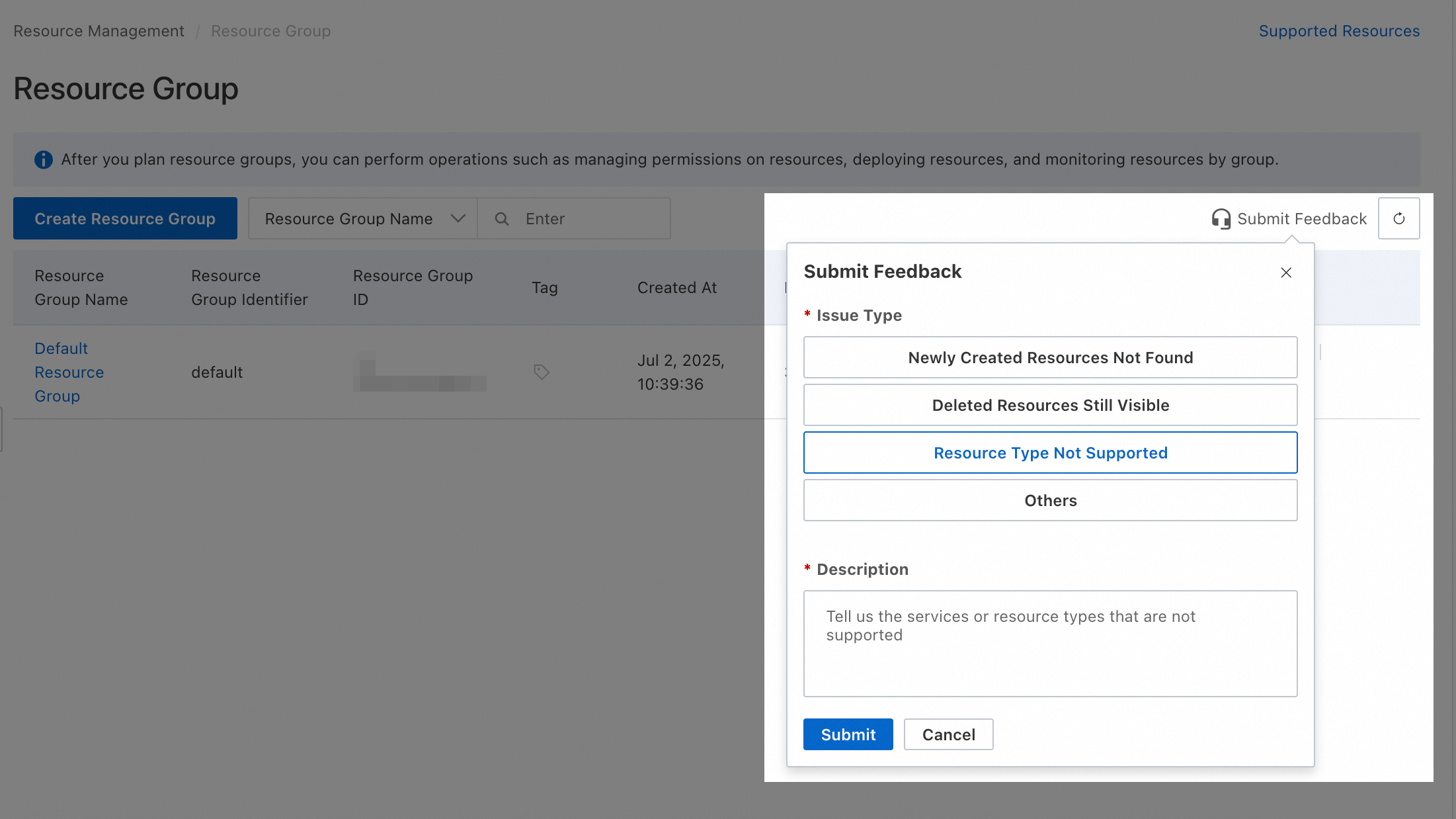
To request support for resource types not listed here, submit feedback via Resource Management console.
Unsupported actions
The following actions of File Storage NAS (NAS) do not support resource group-level authorization:
|
Action |
Description |
|
nas:01DescribeFileSystemStatistics |
- |
|
nas:AddClientToBlackList |
Adds a client to the blacklist of a Cloud Parallel File Storage (CPFS) file system and revokes the write access from the client. The blacklist serves as an I/O fence. |
|
nas:AddTags |
- |
|
nas:ApplyAutoSnapshotPolicy |
Applies an automatic snapshot policy to one or more file systems. |
|
nas:AttachVscMountPoint |
- |
|
nas:AttachVscToFilesystems |
Associates the VSC device with the file system. |
|
nas:BindStoragePackage |
- |
|
nas:CancelAutoSnapshotPolicy |
Removes automatic snapshot policies from one or more file systems. |
|
nas:CancelLifecycleRetrieveJob |
Cancels a running data retrieval task. |
|
nas:CancelRecycleBinJob |
Cancels a running job of the recycle bin. |
|
nas:ClientMount |
- |
|
nas:ClientRootAccess |
- |
|
nas:ClientWrite |
- |
|
nas:CreateAccessGroup |
Creates a permission group. |
|
nas:CreateAccessRule |
Creates a rule for a permission group. |
|
nas:CreateAutoSnapshotPolicy |
Creates an automatic snapshot policy. |
|
nas:CreateFile |
Creates a directory or file. |
|
nas:CreateLDAPConfig |
Creates LDAP configurations. |
|
nas:CreateLogAnalysis |
Dumps the logs of a General-purpose NAS file system to Simple Log Service. |
|
nas:CreateMountTargetInternal |
- |
|
nas:CreateProtocolMountTarget |
Creates an export directory for a protocol service. |
|
nas:CreateProtocolService |
Creates a protocol service for a Cloud Parallel File Storage (CPFS) file system. The creation takes about 5 to 10 minutes. |
|
nas:CreateServicePolicy |
- |
|
nas:CreateSnapshot |
Creates a snapshot. |
|
nas:CreateVscMountPoint |
- |
|
nas:DeleteAccessGroup |
Deletes a permission group. |
|
nas:DeleteAccessRule |
Deletes a rule from a permission group. |
|
nas:DeleteAutoSnapshotPolicy |
Deletes an automatic snapshot policy. |
|
nas:DeleteFileSet |
- |
|
nas:DeleteLDAPConfig |
{"summary1":""} |
|
nas:DeleteLogAnalysis |
Disables log dumping for a General-purpose NAS file system. |
|
nas:DeleteMountTargetSpecial |
- |
|
nas:DeleteProtocolMountTarget |
Deletes an export directory of a protocol service. |
|
nas:DeleteProtocolService |
Deletes a protocol service of a Cloud Parallel File Storage (CPFS) file system. |
|
nas:DeleteSnapshot |
Deletes a snapshot or cancels a snapshot that is being created. |
|
nas:DeleteVscMountPoint |
- |
|
nas:DemoCloneTest |
- |
|
nas:DescribeAccessGroups |
Queries permission groups. |
|
nas:DescribeAccessRules |
Queries the information about rules in a permission group. |
|
nas:DescribeAutoSnapshotPolicies |
Queries automatic snapshot policies. |
|
nas:DescribeAutoSnapshotTasks |
Queries automatic snapshot tasks. |
|
nas:DescribeBlackListClients |
Queries the status of clients in the blacklist of a Cloud Parallel File Storage (CPFS) file system. |
|
nas:DescribeFileSystemBriefInfos |
- |
|
nas:DescribeFileSystemFlowControlSetting |
- |
|
nas:DescribeFileSystemStatistics |
Queries the statistics of file systems that are owned by the current account. |
|
nas:DescribeFilesystemsAssociatedHpnZones |
- |
|
nas:DescribeFilesystemsVscAttachInfo |
Queries information about virtual storage channels associated with a file system. |
|
nas:DescribeLogAnalysis |
Queries the log dump information configured in log analysis. |
|
nas:DescribeMountedClients |
Queries the clients on which a file system is mounted. |
|
nas:DescribeProtocolMountTarget |
Queries the export directories of a protocol service. |
|
nas:DescribeProtocolMountTarget007 |
- |
|
nas:DescribeProtocolService |
Queries the information about protocol services. |
|
nas:DescribeRegions |
Queries the regions in which File Storage NAS is available. |
|
nas:DescribeResourceStatistics |
- |
|
nas:DescribeSnapshots |
Queries the information about one or more snapshots of a file system. |
|
nas:DescribeStoragePackages |
You can call the DescribeStoragePackages operation to query the list of storage plans. |
|
nas:DescribeVscMountPointAttachInfo |
- |
|
nas:DescribeVscMountPoints |
- |
|
nas:DescribeZones |
Queries all zones in a region and the file system types that are supported in each zone. |
|
nas:DetachVscFromFilesystems |
Unassociates a VSC device from a file system. |
|
nas:DetachVscMountPoint |
- |
|
nas:GetFileSet |
- |
|
nas:GetLifecycleRuleTimeRange |
- |
|
nas:GetViperGrayConfig |
- |
|
nas:ListDirectoriesAndFiles1 |
- |
|
nas:ModifyAccessGroup |
Modifies a permission group. |
|
nas:ModifyAccessRule |
Modifies a rule in a permission group. |
|
nas:ModifyAutoSnapshotPolicy |
An automatic snapshot policy is modified. After you modify an automatic snapshot policy that is applied to a file system, the modification immediately applies to subsequent snapshots that are created for the file system. |
|
nas:ModifyDataFlowTasks |
- |
|
nas:ModifyLDAPConfig |
Used to modify LDAP configuration. |
|
nas:ModifyProtocolMountTarget |
Modifies the export directory parameters of a protocol service. Only the description can be modified. The virtual private cloud (VPC) ID and vSwitch ID cannot be changed. To change these IDs, you must delete the export directory and create a new one. |
|
nas:ModifyProtocolService |
Modifies a protocol service. You can modify the description of a protocol service. |
|
nas:OpenNasService |
- |
|
nas:RemoveClientFromBlackList |
Remove the client from the blacklist. |
|
nas:ResetFileSystem |
Rolls back a file system to a snapshot of the file system. |
|
nas:RetryLifecycleRetrieveJob |
Retries failed a data retrieval task. |
|
nas:SetFileSystemFlowControl |
- |
|
nas:TagResources |
Creates and adds tags to specified resources. File systems and access points are supported. |
|
nas:TestDemoDescribeProtocolMountTarget |
- |
|
nas:TestDemoDescribeProtocolMountTarget03 |
- |
|
nas:TestDescribeProtocolMountTarget |
- |
|
nas:TestDescribeProtocolMountTarget02 |
- |
|
nas:UnTagResources |
- |
|
nas:UntagResources |
Deletes a tag from a specified resource. |
For these actions, you must create a custom policy with the scope set to Account.
 Customize the following policy examples to suit your needs:
-
Allow read-only access
{ "Version": "1", "Statement": [ { "Effect": "Allow", "Action": [ "nas:DescribeAccessGroups", "nas:DescribeAccessRules", "nas:DescribeAutoSnapshotPolicies", "nas:DescribeAutoSnapshotTasks", "nas:DescribeBlackListClients", "nas:DescribeFileSystemBriefInfos", "nas:DescribeFileSystemFlowControlSetting", "nas:DescribeFileSystemStatistics", "nas:DescribeFilesystemsAssociatedHpnZones", "nas:DescribeFilesystemsVscAttachInfo", "nas:DescribeLogAnalysis", "nas:DescribeMountedClients", "nas:DescribeProtocolMountTarget", "nas:DescribeProtocolMountTarget007", "nas:DescribeProtocolService", "nas:DescribeRegions", "nas:DescribeResourceStatistics", "nas:DescribeSnapshots", "nas:DescribeStoragePackages", "nas:DescribeVscMountPointAttachInfo", "nas:DescribeVscMountPoints", "nas:DescribeZones", "nas:GetFileSet", "nas:GetLifecycleRuleTimeRange", "nas:GetViperGrayConfig", "nas:ListDirectoriesAndFiles1" ], "Resource": "*" } ] } -
Allow full access
{
  "Version": "1",
  "Statement": [
    {
      "Effect": "Allow",
      "Action": [
        "nas:01DescribeFileSystemStatistics",
        "nas:AddClientToBlackList",
        "nas:AddTags",
        "nas:ApplyAutoSnapshotPolicy",
        "nas:AttachVscMountPoint",
        "nas:AttachVscToFilesystems",
        "nas:BindStoragePackage",
        "nas:CancelAutoSnapshotPolicy",
        "nas:CancelLifecycleRetrieveJob",
        "nas:CancelRecycleBinJob",
        "nas:ClientMount",
        "nas:ClientRootAccess",
        "nas:ClientWrite",
        "nas:CreateAccessGroup",
        "nas:CreateAccessRule",
        "nas:CreateAutoSnapshotPolicy",
        "nas:CreateFile",
        "nas:CreateLDAPConfig",
        "nas:CreateLogAnalysis",
        "nas:CreateMountTargetInternal",
        "nas:CreateProtocolMountTarget",
        "nas:CreateProtocolService",
        "nas:CreateServicePolicy",
        "nas:CreateSnapshot",
        "nas:CreateVscMountPoint",
        "nas:DeleteAccessGroup",
        "nas:DeleteAccessRule",
        "nas:DeleteAutoSnapshotPolicy",
        "nas:DeleteFileSet",
        "nas:DeleteLDAPConfig",
        "nas:DeleteLogAnalysis",
        "nas:DeleteMountTargetSpecial",
        "nas:DeleteProtocolMountTarget",
        "nas:DeleteProtocolService",
        "nas:DeleteSnapshot",
        "nas:DeleteVscMountPoint",
        "nas:DemoCloneTest",
        "nas:DescribeAccessGroups",
        "nas:DescribeAccessRules",
        "nas:DescribeAutoSnapshotPolicies",
        "nas:DescribeAutoSnapshotTasks",
        "nas:DescribeBlackListClients",
        "nas:DescribeFileSystemBriefInfos",
        "nas:DescribeFileSystemFlowControlSetting",
        "nas:DescribeFileSystemStatistics",
        "nas:DescribeFilesystemsAssociatedHpnZones",
        "nas:DescribeFilesystemsVscAttachInfo",
        "nas:DescribeLogAnalysis",
        "nas:DescribeMountedClients",
        "nas:DescribeProtocolMountTarget",
        "nas:DescribeProtocolMountTarget007",
        "nas:DescribeProtocolService",
        "nas:DescribeRegions",
        "nas:DescribeResourceStatistics",
        "nas:DescribeSnapshots",
        "nas:DescribeStoragePackages",
        "nas:DescribeVscMountPointAttachInfo",
        "nas:DescribeVscMountPoints",
        "nas:DescribeZones",
        "nas:DetachVscFromFilesystems",
        "nas:DetachVscMountPoint",
        "nas:GetFileSet",
        "nas:GetLifecycleRuleTimeRange",
        "nas:GetViperGrayConfig",
        "nas:ListDirectoriesAndFiles1",
        "nas:ModifyAccessGroup",
        "nas:ModifyAccessRule",
        "nas:ModifyAutoSnapshotPolicy",
        "nas:ModifyDataFlowTasks",
        "nas:ModifyLDAPConfig",
        "nas:ModifyProtocolMountTarget",
        "nas:ModifyProtocolService",
        "nas:OpenNasService",
        "nas:RemoveClientFromBlackList",
        "nas:ResetFileSystem",
        "nas:RetryLifecycleRetrieveJob",
        "nas:SetFileSystemFlowControl",
        "nas:TagResources",
        "nas:TestDemoDescribeProtocolMountTarget",
        "nas:TestDemoDescribeProtocolMountTarget03",
        "nas:TestDescribeProtocolMountTarget",
        "nas:TestDescribeProtocolMountTarget02",
        "nas:UnTagResources",
        "nas:UntagResources"
      ],
      "Resource": "*"
    }
  ]
}
Granting account-level permissions allows access to all relevant resources in the account. Always follow PoLP.
FAQ
How do I find which resource group a resource belongs to?
-
Method 1: From the service console
-
Navigate to the service console where the resource was created. On the resource's details page, you can typically find the resource group listed in the basic information section.
-
-
Method 2: From the Resource Management console
-
Log on to the Resource Management console.
-
Choose .
-
In the left pane, select the account that owns the target resource (the default is Current Account).
-
Use filter conditions to find your resource.
-
The Resource Group Name column shows which group the resource belongs to.
-
How do I view all resources in a specific resource group?
-
Method 1:
-
Log on to the Resource Management console.
-
Choose .
-
In the left pane, under the account that owns the resources (the default is Current Account), click the name of the desired resource group.
-
In the right pane, select the cloud service from the Select resource types drop-down list.
-
All resources in that group will be displayed.
-
-
Method 2:
-
Log on to the Resource Management console.
-
Choose .
-
Find the desired resource group and click Resource Management in the Actions column.
-
On the resource management page, select the cloud service from the Service drop-down list.
-
All resources in that group will be displayed.
-
How do I move multiple resources to a different resource group in batch?
-
Log on to the Resource Management console.
-
Choose .
-
Find the desired resource group and click Resource Management in the Actions column.
-
On the resource management page, use filter conditions to find the resources you want to move.
-
Select the checkbox for each resource.
-
At the bottom of the page, click Transfer.
-
In the dialog box, select the destination resource group and click Confirm.