Migrate a self-managed MongoDB sharded cluster to ApsaraDB for MongoDB one shard at a time by using Data Transmission Service (DTS). DTS incremental migration keeps your application running during the migration.
For other options, see Overview of MongoDB data migration and synchronization solutions.
Prerequisites
Verify that your source and destination MongoDB versions are supported. Check supported version combinations in Migration solutions.
ta-tag="xref" id="xref_78n_86r_96y" href="t17092.dita#concept_26618_zh">Migration solutions.
Ensure each shard in the destination sharded cluster instance has sufficient storage space.
NoteExample: If the largest shard in your source database uses 500 GB, each shard in the destination instance must have more than 500 GB of storage.
your source database uses 500 GB, each shard in the destination instance must have more than 500 GB of storage.
How it works
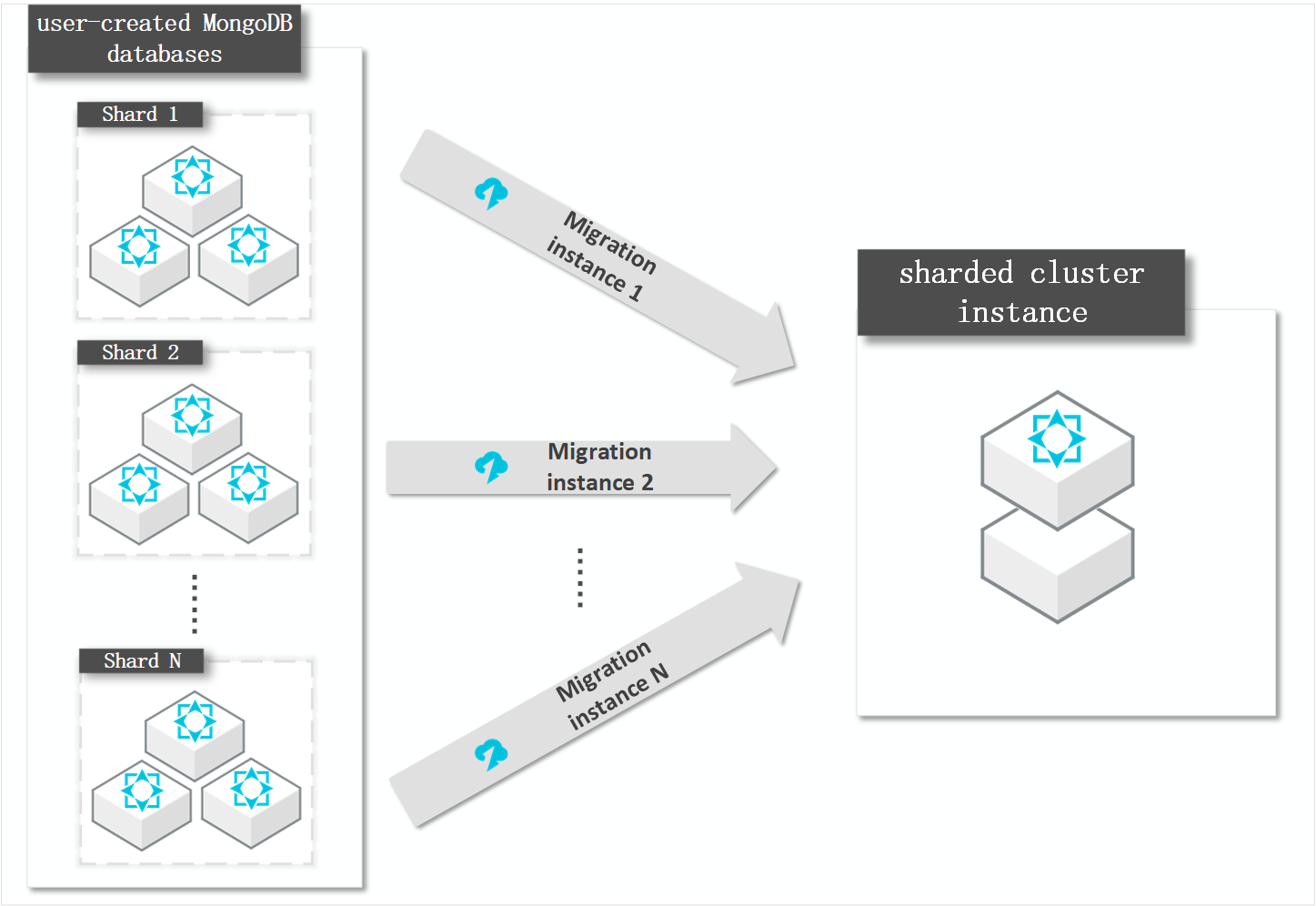
DTS migrates a sharded cluster one shard at a time. Create a separate migration task for each shard.
Data distribution depends on the shard key you configure. Configure data sharding to maximize shard performance.
Usage notes
Full data migration increases load on both source and destination databases. Run the migration during off-peak hours to avoid service interruptions.
avoid service interruptions.
When migrating across versions or storage engines, verify compatibility in Versions and storage engines first.
a#concept_qg2_xcr_52b">Versions and storage engines first.
DTS writes data concurrently, so the destination database may use 5% to 10% more storage than the source.
database may use 5% to 10% more storage than the source.
Ensure the destination has no documents with the same primary key (_id by default) as the source. If conflicts exist and deletion does not affect your business, delete the conflicting documents from the destination before migration.
nflicts exist and deletion does not affect your business, delete the conflicting documents from the destination before migration.
The admin and local databases cannot be used as the source or destination.
cannot be used as the source or destination.
The source MongoDB sharded cluster can have a maximum of 10 mongos nodes.
have a maximum of 10 mongos nodes.
Billing
Migration type | Task configuration fee | Internet traffic fee |
Full data migration | Free of charge. | Data migrated out of Alibaba Cloud over the public internet incurs charges. DTS Pricing. |
Incremental data migration | Charged. .DTS Pricing |
Migration types
Full data migration: Copies all existing data from selected source objects to the destination.
NoteIncludes databases, collections, and indexes.
n1y_f19">
Includes databases, collections, and indexes.
Incremental data migration: After full migration completes, DTS continuously synchronizes data changes from the source to the destination.
NoteDTS synchronizes create and delete operations for databases, collections, and indexes.
DTS synchronizes create, delete, and update operations for documents.
and delete operations for databases, collections, and indexes. ns for databases, collections, and indexes.
DTS synchronizes create, delete, and update operations for documents.
te, and update operations for documents.
Database account permissions
Database | Full data migration | Incremental data migration |
Self-managed MongoDB database |
|
|
ApsaraDB for MongoDB instance |
|
|
To create database accounts and grant permissions:
Self-managed MongoDB: db.createUser() (MongoDB documentation).
ngoDB documentation).
ApsaraDB for MongoDB: Manage users of a MongoDB database by using DMS.
goDB database by using DMS.
Before you begin
Required: Disable the balancer during migration to prevent data inconsistencies. Manage the balancer of a MongoDB instance.
WarningIf the balancer is not disabled, chunk migrations can affect the consistency of the data DTS reads.
"c43899c026iua">If the balancer is not disabled, chunk migrations can affect the consistency of the data DTS reads.
Remove orphaned documents created by failed chunk migrations from the source database.
NoteOrphaned documents may degrade migration performance and cause
_idconflicts that lead to errors.Download the cleanupOrphaned.js script.
wget "https://docs-aliyun.cn-hangzhou.oss.aliyun-inc.com/assets/attach/120562/cn_zh/1564451237979/cleanupOrphaned.js"In the cleanupOrphaned.js script, replace
testwith the name of the database to clean up.NoteIf you have multiple databases, repeat this step and step c.
function cleanupOrphaned(coll) {
  var nextKey = { };
  var result;
  while ( nextKey != null ) {
    result = db.adminCommand( { cleanupOrphaned: coll, startingFromKey: nextKey } );
    if (result.ok != 1)
      print("Unable to complete at this time: failure or timeout.")
    printjson(result);
    nextKey = result.stoppedAtKey;
  }
}
var dbName = 'test'
db = db.getSiblingDB(dbName)
db.getCollectionNames().forEach(function(collName) {
        cleanupOrphaned(dbName + "." + collName);
});
Run this command on each shard to remove orphaned documents from all collections in the database.
NoteRun on every shard.
mongo --host <Shardhost> --port <Primaryport> --authenticationDatabase <database> -u <username> -p <password> cleanupOrphaned.jsNote<Shardhost>: The IP address of the shard.
<Primaryport>: The service port of the primary node in the shard.
<database>: The authentication database for the account.
<username>: The database account.
<password>: The account password.
Example with three shards:
mongo --host 172.16.1.10 --port 27018 --authenticationDatabase admin -u dtstest -p 'Test123456' cleanupOrphaned.jsmongo --host 172.16.1.11 --port 27021 --authenticationDatabase admin -u dtstest -p 'Test123456' cleanupOrphaned.jsmongo --host 172.16.1.12 --port 27024 --authenticationDatabase admin -u dtstest -p 'Test123456' cleanupOrphaned.js
d826nfg"><password>: The account password.
Example with three shards:
g="codeblock" id="codeblock_6ze_gis_zmv" outputclass="language-plaintext" code-type="xCode">mongo --host 172.16.1.11 --port 27021 --authenticationDatabase admin -u dtstest -p 'Test123456' cleanupOrphaned.js
mongo --host 172.16.1.10 --port 27018 --authenticationDatabase admin -u dtstest -p 'Test123456' cleanupOrphaned.jsmongo --host 172.16.1.11 --port 27021 --authenticationDatabase admin -u dtstest -p 'Test123456' cleanupOrphaned.jsmongo --host 172.16.1.12 --port 27024 --authenticationDatabase admin -u dtstest -p 'Test123456' cleanupOrphaned.jsmongo --host 172.16.1.12 --port 27024 --authenticationDatabase admin -u dtstest -p 'Test123456' cleanupOrphaned.jsCreate databases and collections that need sharding in the destination instance, and configure data sharding. Configure data sharding to maximize shard performance.
Configuring sharding before migration prevents all data from landing on a single shard and exceeding its storage capacity.
ote" id="note_keh_seo_9uz">
Configuring sharding before migration prevents all data from landing on a single shard and exceeding its storage capacity.
Limits
Source database limits
The server must have enough outbound bandwidth. Insufficient bandwidth slows down migration
Collections to be migrated must have PRIMARY KEY or UNIQUE constraints, with all fields unique. Otherwise, duplicate records may appear in the destination
DTS uses read and write resources on both the source and destination databases during full data migration, which increases server load. Run migrations during off-peak hours
If the source and destination databases use different MongoDB versions or storage engines, verify compatibility first. See MongoDB versions and storage engines
For incremental data migration, enable oplog on the source database and retain oplog for at least 7 days. If oplog is not enabled, error messages are returned during the precheck and the data migration task cannot be started. If DTS cannot obtain the oplog, the task fails and data inconsistency or loss may occur. These retention requirements are outside the DTS service level agreement (SLA)
If you select collections as migration objects and plan to edit them in the destination (such as renaming), a single task supports up to 1,000 collections. For more than 1,000 collections, configure multiple tasks or migrate the entire database
Do not use the admin or local database as the source or destination
The source self-managed MongoDB database cannot have more than 10 mongos nodes
Do not migrate collections with time to live (TTL) indexes. TTL indexes can cause data inconsistency between source and destination after migration
Make sure no orphaned documents exist in the source database or the destination sharded cluster instance. Orphaned documents can cause data inconsistency or task failure. See the MongoDB documentation and How do I delete orphaned documents of a MongoDB database deployed in the sharded cluster architecture?
During migration, do not run the following commands on the source database — they change data distribution and cause inconsistency:
shardCollection,reshardCollection,unshardCollection,moveCollection,movePrimary
During schema migration and full data migration:
Do not perform schema changes on databases or collections, including updating array types. Schema changes cause task failure or data inconsistency
Do not write data to the source database if you run only full data migration (without incremental). To ensure data consistency, select schema migration, full data migration, and incremental data migration together
If the source database balancer is active during migration, chunk migration may introduce latency.
Other limits
If you purchase a DTS instance before configuring a task, specify the number of shards at purchase time
DTS cannot connect to a MongoDB database over an SRV connection string
Add shard keys to all data in the source database before starting migration. During migration, INSERT operations must include shard keys, and UPDATE operations cannot modify shard keys
Disable the balancer for the source MongoDB database during full data migration. Keep it disabled until each subtask reaches the incremental data migration phase. Re-enabling it prematurely causes data inconsistency. See Manage the ApsaraDB for MongoDB balancer
Make sure the destination database does not already contain documents with the same primary key (
_id) as the source. If duplicates exist, delete the corresponding documents in the destination before starting migrationTransaction information is not retained. Migrated transactions are converted to individual records
If a primary key or unique key conflict occurs when DTS writes to the destination, DTS skips the conflicting write and retains the existing data
Do not scale an ApsaraDB for MongoDB sharded cluster instance while a migration task is running. Scaling causes the task to fail
Query count results on the destination ApsaraDB for MongoDB database using
db.$table_name.aggregate([{ $count:"myCount"}])Because DTS writes data concurrently, the storage space used in the destination is 5–10% larger than in the source
If a destination collection has a unique index or the
cappedattribute set totrue, the collection supports only single-threaded writes and does not support concurrent replay during incremental migration. This may increase migration latencyFull data migration uses read and write resources on both databases, increasing server load. Run migrations during off-peak hours
Concurrent INSERT operations during full data migration cause table fragmentation. After full data migration, the tablespace in the destination is larger than in the source
DTS attempts to resume failed migration tasks for up to 7 days. Before switching workloads to the destination instance, stop or release any failed tasks, or revoke DTS write permissions on the destination. Otherwise, the source data overwrites the destination data when a failed task resumes
If a DTS task fails, DTS technical support attempts to restore it within 8 hours. During restoration, the task may restart and task parameters may be modified
Only task parameters may be modified — database parameters are not changed. Parameters that may be modified are listed in the Modify instance parameters section.
If the destination is a replica set instance:
If connected over Express Connect, VPN Gateway, Smart Access Gateway, Public IP Address, or Cloud Enterprise Network (CEN): set Domain Name or IP and Port Number
to the primary node's IP address and port, or configure a high-availability endpoint. See Create a DTS task in which the source or destination database is a high-availability MongoDB database
If connected over Self-managed Database on ECS: set Port Number to the primary node's port
If the destination is a sharded cluster instance, make sure your application behavior meets ApsaraDB for MongoDB sharded cluster requirements
Migrate data
Before you begin
Complete the following steps before creating the DTS task.
Step 1: Disable the source database balancer
Disable the balancer on the self-managed MongoDB database to prevent chunk migration from affecting data consistency during the DTS task.
If the balancer is active during migration, chunk migration causes DTS to read inconsistent data.
For instructions, see Manage the ApsaraDB for MongoDB balancer.
Step 2: Delete orphaned documents from the source database
Orphaned documents left by failed chunk migrations compromise migration performance, may create duplicate _id values, and may cause unwanted data to be migrated.
Download the cleanupOrphaned.js file:
wget "https://docs-aliyun.cn-hangzhou.oss.aliyun-inc.com/assets/attach/120562/cn_zh/1564451237979/cleanupOrphaned.js"In the
cleanupOrphaned.jsfile, replacetestwith the name of the database from which you want to delete orphaned documents.To delete orphaned documents from multiple databases, repeat this step and the next step for each database.
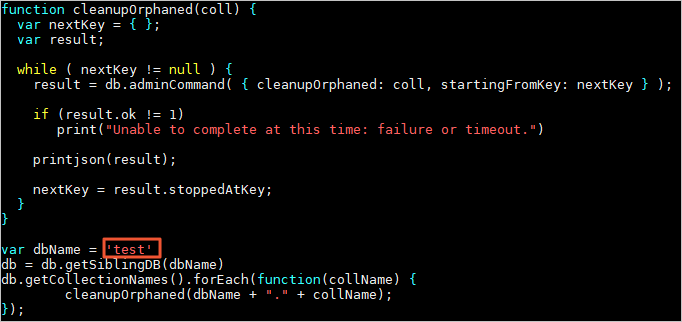
Run the following command on each shard to delete orphaned documents from all collections in the specified database:
Run this command on every shard.
Placeholder
Description
<Shardhost>IP address of the shard
<Primaryport>Service port of the primary node in the shard
<database>Name of the database to which the account belongs
<username>Account used to log on to the self-managed MongoDB database
<password>Password used to log on to the self-managed MongoDB database
mongo --host <Shardhost> --port <Primaryport> --authenticationDatabase <database> -u <username> -p <password> cleanupOrphaned.jsExample: For a source database with three shards:
mongo --host 172.16.1.10 --port 27018  --authenticationDatabase admin -u dtstest -p 'Test123456' cleanupOrphaned.js
mongo --host 172.16.1.11 --port 27021 --authenticationDatabase admin -u dtstest -p 'Test123456' cleanupOrphaned.js
mongo --host 172.16.1.12 --port 27024  --authenticationDatabase admin -u dtstest -p 'Test123456' cleanupOrphaned.js
Step 3: Configure sharding in the destination instance (sharded cluster only)
If the destination is a sharded cluster instance, create the databases and collections to be sharded and configure data sharding before starting the migration. This distributes migrated data evenly across shards and prevents a single shard from being overloaded.
See Configure sharding to maximize the performance of shards.
Step 1: Open the Data Migration page
Use one of the following methods to open the Data Migration page and select the region where the migration instance resides.
DTS console
Log on to the DTS console.
In the left-side navigation pane, click Data Migration.
In the upper-left corner, select the region where the data migration instance resides.
DMS console
The exact steps may vary depending on the DMS console mode and layout. See Simple mode and Customize the layout and style of the DMS console.
Log on to the DMS console.
In the top navigation bar, go to Data + AI > DTS (DTS) > Data Migration.
From the drop-down list to the right of Data Migration Tasks, select the region where the migration instance resides.
Step 2: Create a task
Click Create Task to open the task configuration page.
Step 3: Configure source and destination databases
After configuring the source and destination databases, read the Limits displayed at the top of the page. Skipping this step may cause the task to fail or result in data inconsistency.
Configure the following parameters:
General
Parameter | Description |
Task Name | DTS auto-generates a task name. Specify a descriptive name to make the task easy to identify. A unique name is not required. |
Source database
Parameter | Description |
Select Existing Connection | If the instance is registered with DTS, select it from the drop-down list — DTS populates the remaining parameters automatically. Otherwise, configure the parameters below. In the DMS console, select from the Select a DMS database instance list. |
Database Type | Select MongoDB. |
Access Method | Select the connection method. This example uses Public IP Address. For other methods, set up the network environment first. See Preparation overview. |
Instance Region | The region where the source database resides. If the region is not listed, select the geographically closest one. |
Architecture | Select Sharded Cluster. This option appears only for Express Connect, VPN Gateway, Smart Access Gateway, Public IP Address, or Cloud Enterprise Network (CEN) access methods. |
Migration Method | Select the method for migrating incremental data: Oplog (recommended) or ChangeStream. Oplog is available when oplog is enabled on the source (enabled by default on both self-managed databases and ApsaraDB for MongoDB instances) and provides low-latency incremental migration. ChangeStream is available when change streams are enabled. See Change Streams. If the source is an inelastic Amazon DocumentDB cluster, select ChangeStream only. If Architecture is set to Sharded Cluster, the Shard account and Shard password parameters are not required. |
Endpoint Type | Select Standalone or Multi-node based on your setup. This parameter appears only for Express Connect, VPN Gateway, Smart Access Gateway, Public IP Address, or Cloud Enterprise Network (CEN) access methods. |
Mongos Domain Name or IP Address | The endpoint or IP address of any mongos node. Appears only when Endpoint Type is Standalone. Set Domain Name or IP to any mongos node's address and Port Number to its port. |
Port Number | The service port of the mongos node. Appears only when Endpoint Type is Standalone. The port must be accessible over the Internet. |
Mongos endpoint | The endpoint of the source database in |
Authentication Database | The authentication database for the source. Default: admin. |
Database Account | The account for accessing mongos nodes. If Access Method is Self-managed Database on ECS or Database Gateway, enter the shard access account instead. |
Database Password | The password for the database account. |
Access to Multiple Shard Nodes | The access information for shard nodes. Available only when the source architecture is Sharded Cluster, Migration Method is Oplog, and Endpoint Type is Multi-node. Click Add, enter each shard node endpoint in |
Shard access information (IP:Port) | The IP address and port of each shard, in |
Shard account | The account for accessing shards in the source database. |
Shard password | The password for the shard account. |
Encryption | The connection encryption method: Non-encrypted, SSL-encrypted, or Mongo Atlas SSL. Available options depend on Access Method and Architecture settings. If Architecture is Sharded Cluster and Migration Method is Oplog, SSL-encrypted is unavailable for ApsaraDB for MongoDB. If the source uses Replica Set architecture, Access Method is not Alibaba Cloud Instance, and Encryption is SSL-encrypted, upload a CA certificate to verify the connection. |
Destination database
Parameter | Description |
Select Existing Connection | If the instance is registered with DTS, select it from the drop-down list. Otherwise, configure the parameters below. |
Database Type | Select MongoDB. |
Access Method | Select Alibaba Cloud Instance. |
Instance Region | The region where the destination ApsaraDB for MongoDB instance resides. |
Replicate Data Across Alibaba Cloud Accounts | Select No to use an instance in the current account. |
Architecture | The architecture of the destination instance. |
Instance ID | The ID of the destination ApsaraDB for MongoDB instance. |
Authentication Database | The authentication database for the destination. Default: admin. |
Database Name | The name of the destination database that receives the migrated objects. |
Database Account | The database account for the destination instance. |
Database Password | The password for the destination database account. |
Encryption | The connection encryption method. Available options depend on Access Method and Architecture settings. If the destination is an ApsaraDB for MongoDB instance with Sharded Cluster architecture, SSL-encrypted is unavailable. |
Step 4: Test connectivity
Click Test Connectivity and Proceed.
Make sure DTS server CIDR blocks are added to the security settings of the source and destination databases. See Add the CIDR blocks of DTS servers. If the source or destination is a self-managed database not connected as Alibaba Cloud Instance, click Test Connectivity in the CIDR Blocks of DTS Servers dialog box.
Step 5: Configure migration objects
On the Configure Objects page, configure the following parameters:
Parameter | Description |
Migration Types | Select the migration types based on your requirements. To perform only full data migration, select Schema Migration and Full Data Migration. To keep the service running during migration, select Schema Migration, Full Data Migration, and Incremental Data Migration. If Schema Migration is not selected, create the database and collections in the destination before starting the task, and enable object name mapping in Selected Objects. If Incremental Data Migration is not selected, do not write data to the source during migration. |
Processing Mode of Conflicting Tables | Precheck and Report Errors: checks whether the destination has collections with the same names as the source. The precheck fails if duplicates exist. To resolve naming conflicts without deleting or renaming destination collections, use the object name mapping feature. See Map object names. Ignore Errors and Proceed: skips the precheck for duplicate collection names. During full data migration, if a record has the same primary key as an existing record in the destination, the existing record is kept. During incremental data migration, the existing record is overwritten. If source and destination schemas differ, specific columns may fail to migrate. |
Capitalization of Object Names in Destination Instance | Controls the capitalization of database and collection names in the destination. Default: DTS default policy. See Specify the capitalization of object names in the destination instance. |
Source Objects | Select one or more objects (collections or databases), then click the |
Selected Objects | Right-click an object to rename it in the destination or map it to a different destination object. See Map object names. Right-click an object to set the incremental migration mode for databases and collections. Right-click a collection to specify WHERE filter conditions for full migration. See Specify filter conditions. To remove objects, click them and then click the |
 icon to add them to Selected Objects.
 icon. If object name mapping is used, other objects that depend on the mapped objects may fail to migrate.
Click Next: Advanced Settings to configure the following:
Parameter | Description |
Dedicated Cluster for Task Scheduling | DTS schedules tasks to a shared cluster by default. For higher stability, purchase a dedicated cluster. See What is a DTS dedicated cluster. |
Retry Time for Failed Connections | The retry window for connection failures after the task starts. Valid values: 10–1,440 minutes. Default: 720 minutes. Set to 30 minutes or more. If DTS reconnects within this window, the task resumes. Otherwise, the task fails. When multiple tasks share the same database, the most recently set retry time applies. DTS charges for the instance during retry. |
Retry Time for Other Issues | The retry window for DDL or DML operation failures. Valid values: 1–1,440 minutes. Default: 10 minutes. Set to more than 10 minutes. Must be less than Retry Time for Failed Connections. |
Enable Throttling for Full Data Migration | Limits DTS resource usage during full data migration. Configure Queries per second (QPS) to the source database, RPS of Full Data Migration, and Data migration speed for full migration (MB/s). Available only when Full Data Migration is selected. |
Only one data type for primary key _id in a table of the data to be synchronized | Specifies whether the |
Enable Throttling for Incremental Data Migration | Limits DTS resource usage during incremental data migration. Configure RPS of Incremental Data Migration and Data migration speed for incremental migration (MB/s). Available only when Incremental Data Migration is selected. |
Environment Tag | A tag to identify the DTS instance. Optional. |
Configure ETL | Enables the extract, transform, and load (ETL) feature. Select Yes to enter data processing statements in the code editor. See Configure ETL in a data migration or data synchronization task. Select No to skip ETL. |
Monitoring and Alerting | Configures alerting for the task. Select Yes to set an alert threshold and notification contacts. See Configure monitoring and alerting when you create a DTS task. |
Click Next Step: Data Verification to configure data verification. See Configure a data verification task.
Step 6: Run the precheck
Click Next: Save Task Settings and Precheck.
To preview the API parameters for this task configuration, hover over Next: Save Task Settings and Precheck and click Preview OpenAPI parameters.
DTS runs a precheck before the migration starts. The task cannot start until the precheck passes.
If a precheck item fails, click View Details next to it, resolve the issue, then run the precheck again.
If a precheck item triggers an alert:
If the alert cannot be ignored, click View Details, resolve the issue, then rerun the precheck.
If the alert can be ignored, click Confirm Alert Details, then click Ignore in the dialog box, and click OK. Click Precheck Again to continue. Ignoring an alert may lead to data inconsistency.
Step 7: Purchase an instance
Wait for Success Rate to reach 100%, then click Next: Purchase Instance.
On the Purchase Instance page, configure the following:
Section
Parameter
Description
New Instance Class
Resource Group
The resource group for the migration instance. Default: default resource group. See What is Resource Management?
Instance Class
The instance class determines migration speed. Select based on your needs. See Instance classes of data migration instances.
Read and accept the Data Transmission Service (Pay-as-you-go) Service Terms by selecting the check box.
Click Buy and Start, then click OK in the confirmation dialog.
The task appears on the Data Migration page.
Full data migration only: the task stops automatically. Status shows Completed.
Incremental data migration: the task runs continuously and never stops automatically. Status shows Running.
Step 8: Create tasks for remaining shards (if applicable)
If Access Method for the source is Self-managed Database on ECS or Database Gateway, repeat Steps 1–7 for each remaining shard.
Step 9: Stop the migration tasks
Full data migration
Do not manually stop a full data migration task — the migrated data may be incomplete. Wait for the task to stop automatically.
Incremental data migration
Incremental data migration does not stop automatically. Stop it manually at an appropriate time, such as during off-peak hours or before switching workloads to the destination instance.
Wait until Incremental Data Migration appears in the Running progress bar and Undelayed appears in Operation Info. Then stop writing data to the source database for a few minutes.
After Incremental Data Migration status changes back to Undelayed, manually stop the migration tasks for all shards.
Step 10: Switch workloads to the destination instance
After migration completes and you have verified the data, switch your workloads to the destination ApsaraDB for MongoDB instance.