To build a knowledge base for RAG (Retrieval-Augmented Generation) applications, import your source data into Alibaba Cloud Model Studio. This data serves as the initial source for your knowledge base.
Console access: Only International Edition users who created applications before April 21, 2025 can access the Application Development tab. This tab includes Applications (agent application and workflow application), Components (prompt engineering and plug-in), and Data (knowledge base and application data). These are all preview features. Use them with caution in production environments.

API access: Only International Edition users who created applications before April 21, 2025 can call the application data, knowledge base, and prompt engineering APIs.
Model Studio supports three import methods:
| Import method | Source | Destination |
|---|---|---|
| Upload local files | Files from your computer | File tab, organized by categories |
| Upload local tables | Spreadsheets from your computer | Table tab, organized by data tables |
| Import from OSS | Files from Object Storage Service (OSS) | File tab, organized by categories |
Model Studio does not support direct import of JSON, CSV, or YAML files. Convert these files to XLSX or XLS format before importing.
For supported data formats and capacity limits, see Knowledge base quotas and limits.
Parsing methods
When importing files (local or OSS), select a parsing method that matches your content type. Choose Default Settings for the standard configuration, or Custom Settings to define parsing rules for specific formats.
| Parsing method | Best for | How it works |
|---|---|---|
| Digital Parsing | Text-only documents | Does not parse illustrations or charts in files. |
| Intelligent Parsing | Documents with illustrations | Detects images, extracts text from them, and generates summaries. These summaries and other text content are chunked, converted into vectors, and used for knowledge base retrieval. |
| LLM Parsing | Visual Q&A over illustrations and charts | Uses the Qwen-VL model to detect and interpret visual content, enabling agent applications to answer questions about illustrations and charts. |
| Qwen VL Parsing | Image files only | Select a Qwen-VL model and write a prompt to specify the layout, elements, and content for detection. Provides the same capabilities as LLM Parsing but is limited to image formats. |
If your documents contain figures, charts, or images, use Intelligent Parsing, LLM Parsing, or Qwen VL Parsing instead of Digital Parsing.
 |  |
|---|
How to make a Model Studio application display illustrations from a file in its answers
Import local files
Go to the File tab.
In Category Management on the left, select an existing category or click the
 icon to create one.Note
Model Studio uses categories to organize imported files.
Click Import Data. On the Import Data page, set the import method to Upload Local File.
Select a Parsing Method. For details, see Parsing methods.
(Optional) Configure Tags for the file.
NoteTags help filter files during knowledge base retrieval. When calling an application through an API, specify tags in the
tagsrequest parameter. For agent applications, set tags when debugging the knowledge base in the console.Click Confirm to start parsing and importing. Track progress on the page.
NoteModel Studio converts the file into a processable format. During peak hours, this may take several hours.
After the import completes, click Details next to the file to review it.
Post-import behavior
Imported files are stored as independent replicas in free platform storage. Replicas are not linked to your original data, and no capacity limit applies.
Files imported within the last 90 days can be viewed. After 90 days, files remain stored but are no longer viewable.
Imported files are accessible only within the current workspace. Model Studio does not use them for commercial purposes or make them public.
Import local tables
Go to the Table tab.
In Table Management on the left, select an existing data table or click the
icon to create a new one.NoteModel Studio manages imported tabular data using data tables.
Import to a new data table
Enter a Table Name. Then configure the table schema by choosing either Upload Excel File or Custom Header:
Upload Excel File: Model Studio auto-detects the table header in the uploaded file, uses it to create the data table schema, and imports the remaining rows as data records.
Custom Header: Column Name and Type are required. Description is optional.
WarningThe table structure (column name, description, and type) cannot be modified after confirmation.
ImportantThe schema of the uploaded file (column count and column names) must exactly match the target data table schema. Otherwise, the import fails. Add or remove fields by clicking New Columns or Delete in the Actions column.
Provide a clear, natural-language description for each field to help the model understand its meaning. For example, specify that the
agefield represents a user's age.If the field type is
image_url, the value must be a publicly accessible image URL (for example:https://example.com/downloads/pic.jpg). When creating a knowledge base,image_urlfields generate an image index -- Model Studio accesses the image, extracts its features, converts them into a vector using image embedding, and saves it. During retrieval, this vector is compared with the user-uploaded image vector for similarity matching.
Click the
 icon to select and upload a file in XLSX or XLS format.Note
The file must contain a table header. Otherwise, the import fails.
Click OK to start the import. The new data table appears in the Table Management navigation tree on the left.
Import to an existing data table
In Table Management on the left, select the target data table and click Import Data.
Set the import type to Upload and Overwrite or Incremental Upload.
NoteClick Download Template to download a blank file that contains only the table header. Insert new data into this file and use it for an overwrite or incremental upload.
Click the
icon to select and upload a file in XLSX or XLS format.NoteThe file must contain a table header that matches the structure of the current data table. Otherwise, the import fails.
Import OSS files
Go to the File tab.
In Category Management on the left, select an existing category or click the
icon to create one.Click Import Data. On the Import Data page, set the import method to OSS.
NoteFirst-time OSS imports require authorization. Complete the authorization as prompted and add the
bailian-datahub-accesstag to the target bucket. For details, see Configure file import from OSS.ImportantBuckets with the Archive, Cold Archive, or Deep Cold Archive storage class are not supported.
Root directory access is not supported. Select an existing subdirectory or create a new one.
Buckets with content encryption and private buckets are supported.
If the bucket has Referer hotlink protection enabled, add
*.console.aliyun.comto the Referer whitelist. For details, see Allow access only from trusted websites.
Select a Parsing Method. For details, see Parsing methods.
(Optional) Configure Tags for the file.
NoteTags help filter files during knowledge base retrieval. When calling an application through an API, specify tags in the
tagsrequest parameter. For agent applications, set tags when debugging the knowledge base in the console.Click OK to start parsing and importing. Track progress on the page.
NoteModel Studio converts the file into a processable format. During peak hours, this may take several hours.
After the import completes, click Details next to the file to view the results.
NoteImported files are stored as independent replicas in free platform storage, separate from your original data with no capacity limit. Files are accessible only within the current workspace. Model Studio does not use them for commercial purposes or make them public.
Next step
Configure file import from OSS
When importing files from OSS for the first time, grant Model Studio access to your OSS resources. The authorization flow differs for an Alibaba Cloud account and a RAM user.
Alibaba Cloud account authorization
Click Authorize Now.

In the dialog box, click Confirm Authorization. This automatically creates an OSS service-linked role that grants Model Studio access to your OSS resources.
NoteThe authorization usually takes effect within seconds, but a slight delay may occur during peak hours.
NoteIf you receive the error "This request failed. Try submitting again or contact an administrator. Error code: 10041495", see Resolve error code 10041495.

Add the
bailian-datahub-accesstag to the target OSS bucket. This tag marks the buckets that Model Studio can access. Buckets without this tag are inaccessible.Log on to the OSS console. In the left navigation pane, click Buckets. Find the target bucket.
Hover over the
 icon and click Edit.
On the Bucket Tag page, click Create Tag if no tags exist, or click Settings to modify existing tags.
Click Tag, set the tag key to
bailian-datahub-accessand the tag value toread, then click Save.
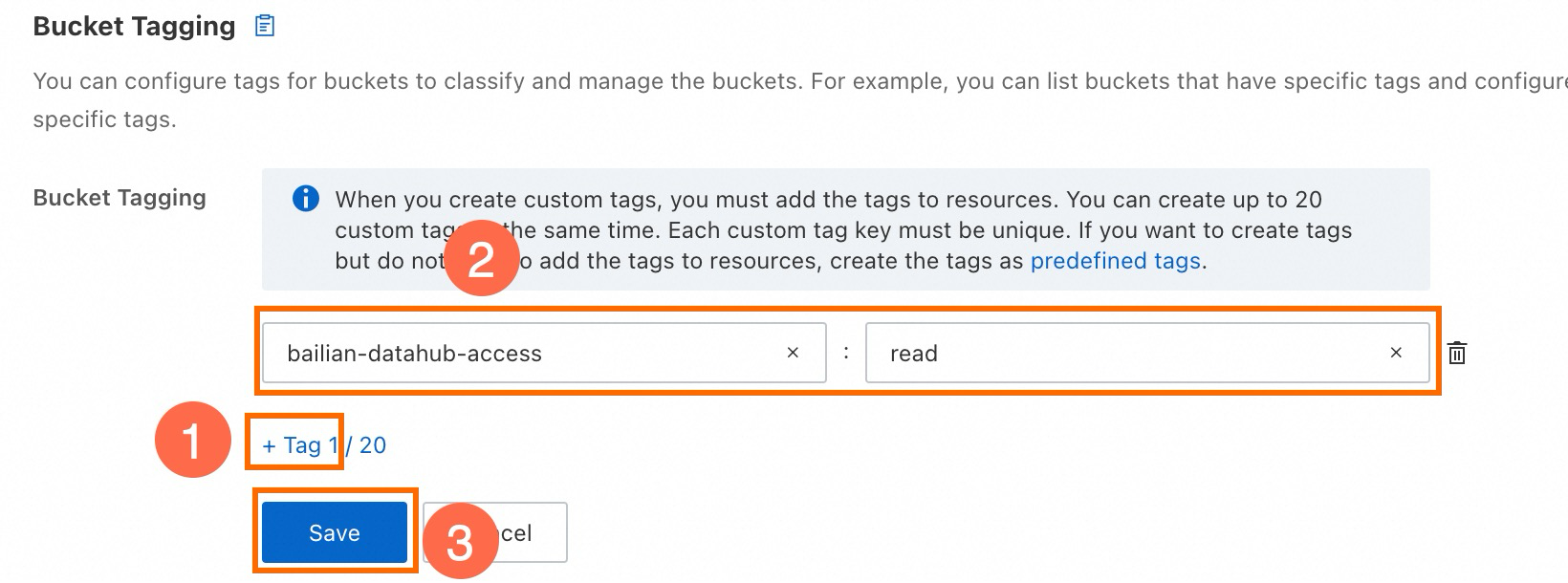
Return to the Import Data page, reselect the target bucket, and retry the import.
ImportantModel Studio does not support accessing files in the root directory of a bucket. Select an existing subdirectory or create a new one.
RAM user authorization
Click Authorize Now.
In the dialog box, click Confirm Authorization. If you receive an Authorization Failed or No Permission error, grant the RAM user permission to create service-linked roles first:
Log on to the RAM console. In the left navigation pane, choose Permissions > Policies, then click Create Policy.
Click the JSON tab, paste the following policy, then click OK: ``
json { "Action": [ "ram:CreateServiceLinkedRole" ], "Resource": "*", "Effect": "Allow", "Condition": { "StringEquals": { "ram:ServiceName": "datahub.sfm.aliyuncs.com" } } }``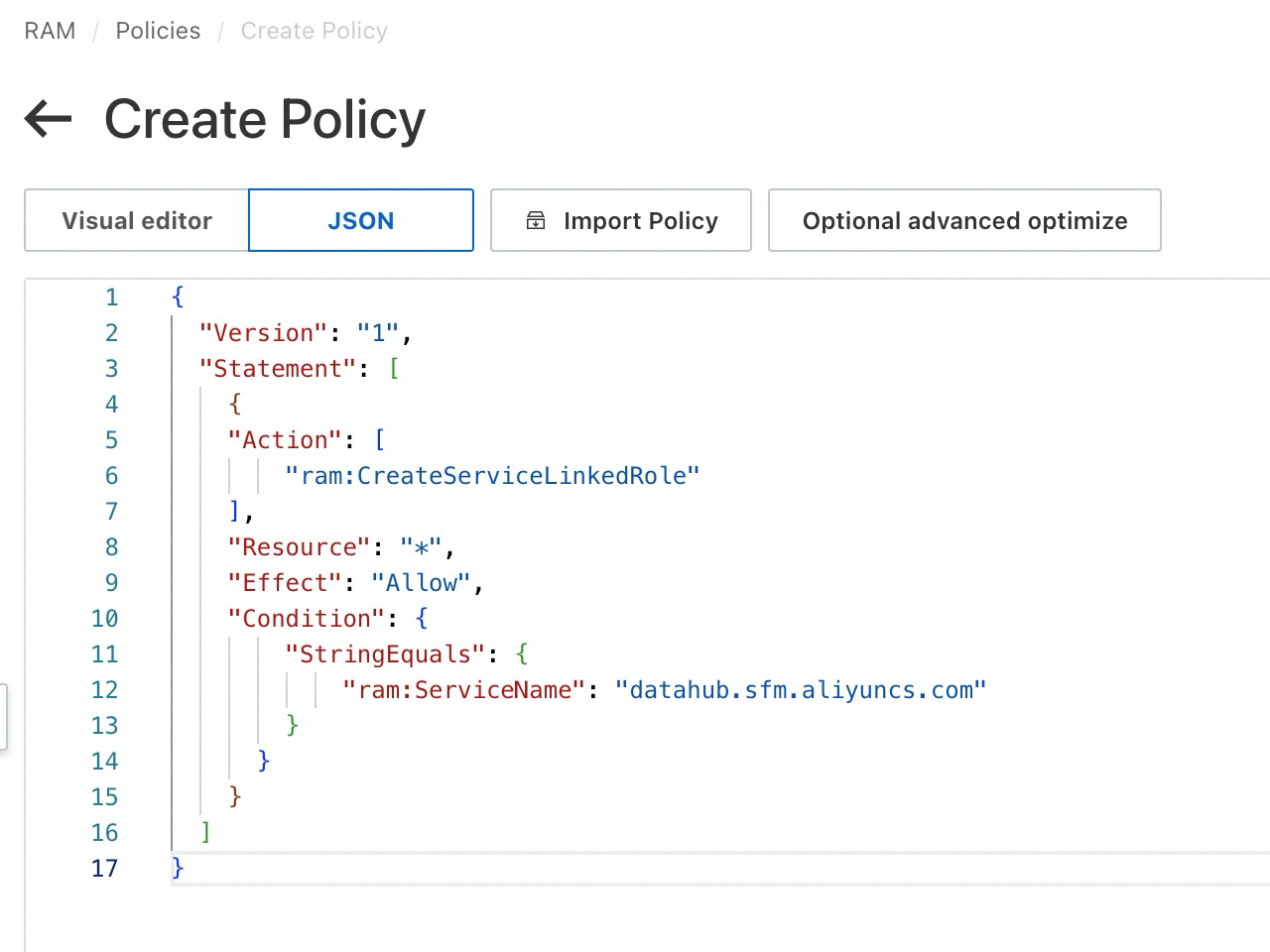
Enter a policy name and click OK.
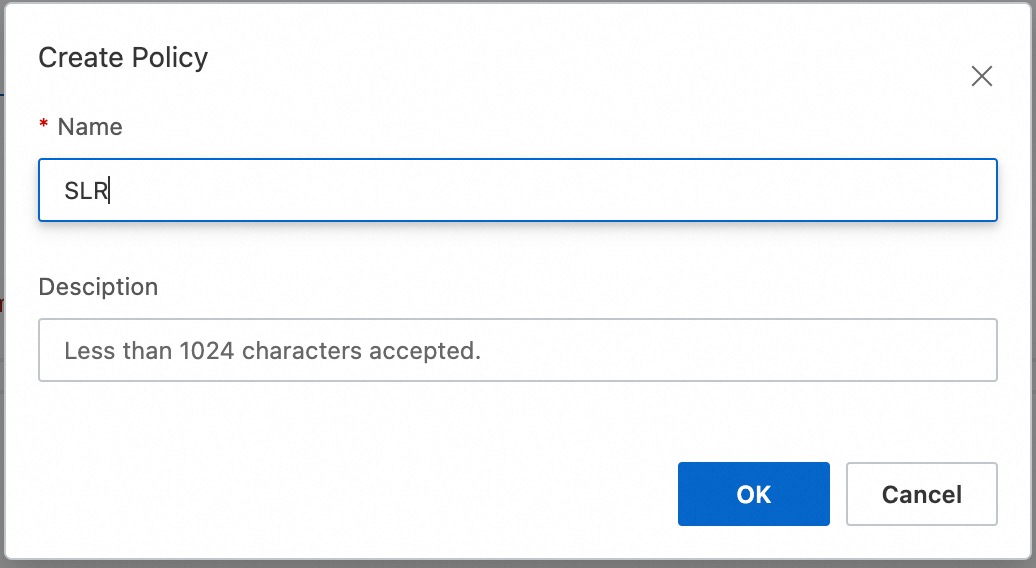
In the left navigation pane, choose Identities > Users. Find the target RAM user and click Add Permissions in the Actions column.
Select the custom policy you just created and click Grant permissions.

Grant the RAM user permission to access OSS through Model Studio:
Return to the Import Data page and click Authorize Now.
In the dialog box, click Confirm Authorization to automatically create the required OSS service-linked role.
NoteThe authorization usually takes effect within seconds, but a slight delay may occur during peak hours.
NoteIf you receive the error "The request failed. Try to submit again or contact an administrator. Error code: 10041495", see Resolve error code 10041495.
Add the
bailian-datahub-accesstag to the target OSS bucket. This tag marks the buckets that Model Studio can access. Buckets without this tag are inaccessible.Log on to the OSS console. In the left navigation pane, click Buckets. Find the target bucket.
Hover over the
icon and click Edit.On the Bucket Tag page, click Create Tag if no tags exist, or click Settings to modify existing tags.
Click Tag, set the tag key to
bailian-datahub-accessand the tag value toread, then click Save.
Return to the Import Data page, reselect the target bucket, and retry the import.
ImportantModel Studio does not support accessing files in the root directory of a bucket. Select an existing subdirectory or create a new one.
FAQ
Resolve "You are not authorized to access this module" during data import
By default, a RAM user cannot perform write operations such as data import or knowledge base creation. Use the Alibaba Cloud account to assign the RAM user page permissions for Administrator, or at minimum, both Application Data - Operations and Knowledge Base - Operations.
Resolve error code 10041495
This error typically means the Alibaba Cloud account has not activated OSS.
Log on to the OSS console with the Alibaba Cloud account and activate OSS as prompted.
Return to the Model Studio Import Data page and retry the authorization.