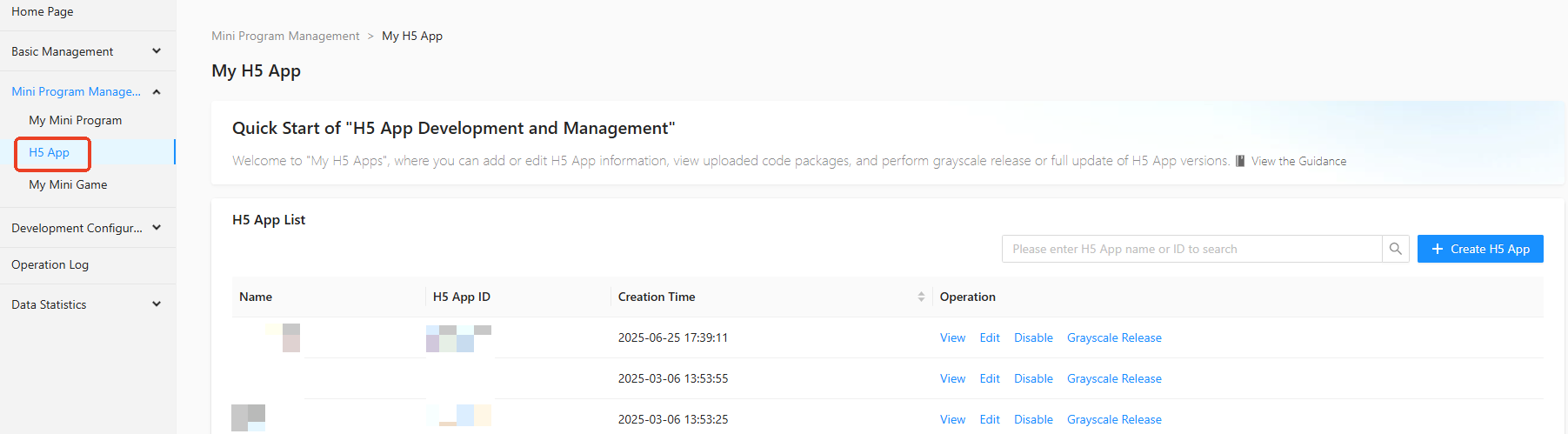
In the Mini Program Open Platform > Developer Backend left-side navigation pane, click Mini Program Management > H5 App to enter the My H5 App page.
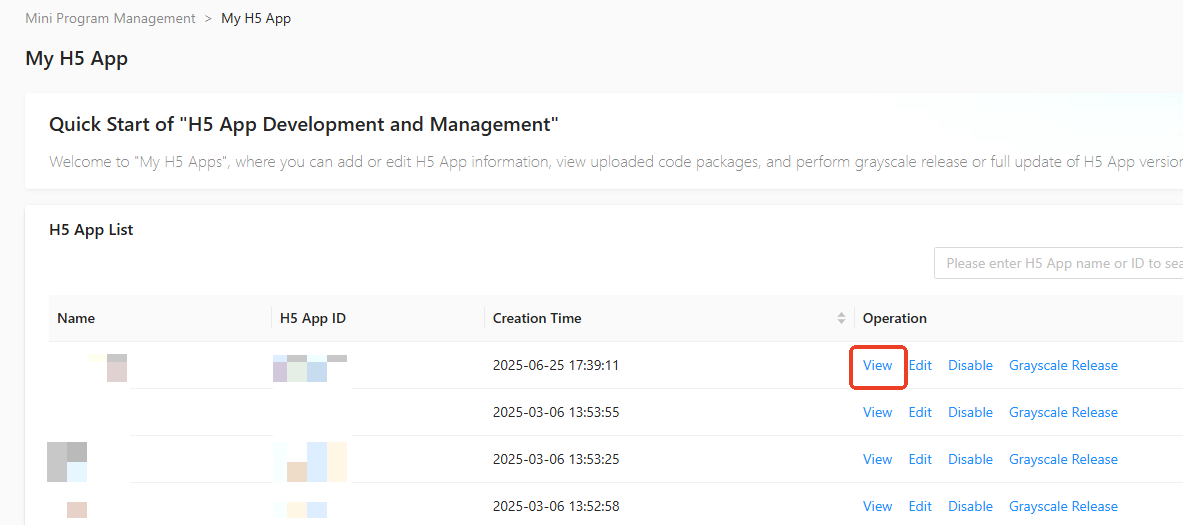
On the My H5 App page, click View in the operation column of the H5 App list to enter the Intelligent Platform H5 App Details page.
On the Intelligent Platform H5 App Details page, the Details tab displays cards for the basic information, online version, review version, and experience version of the H5 App.
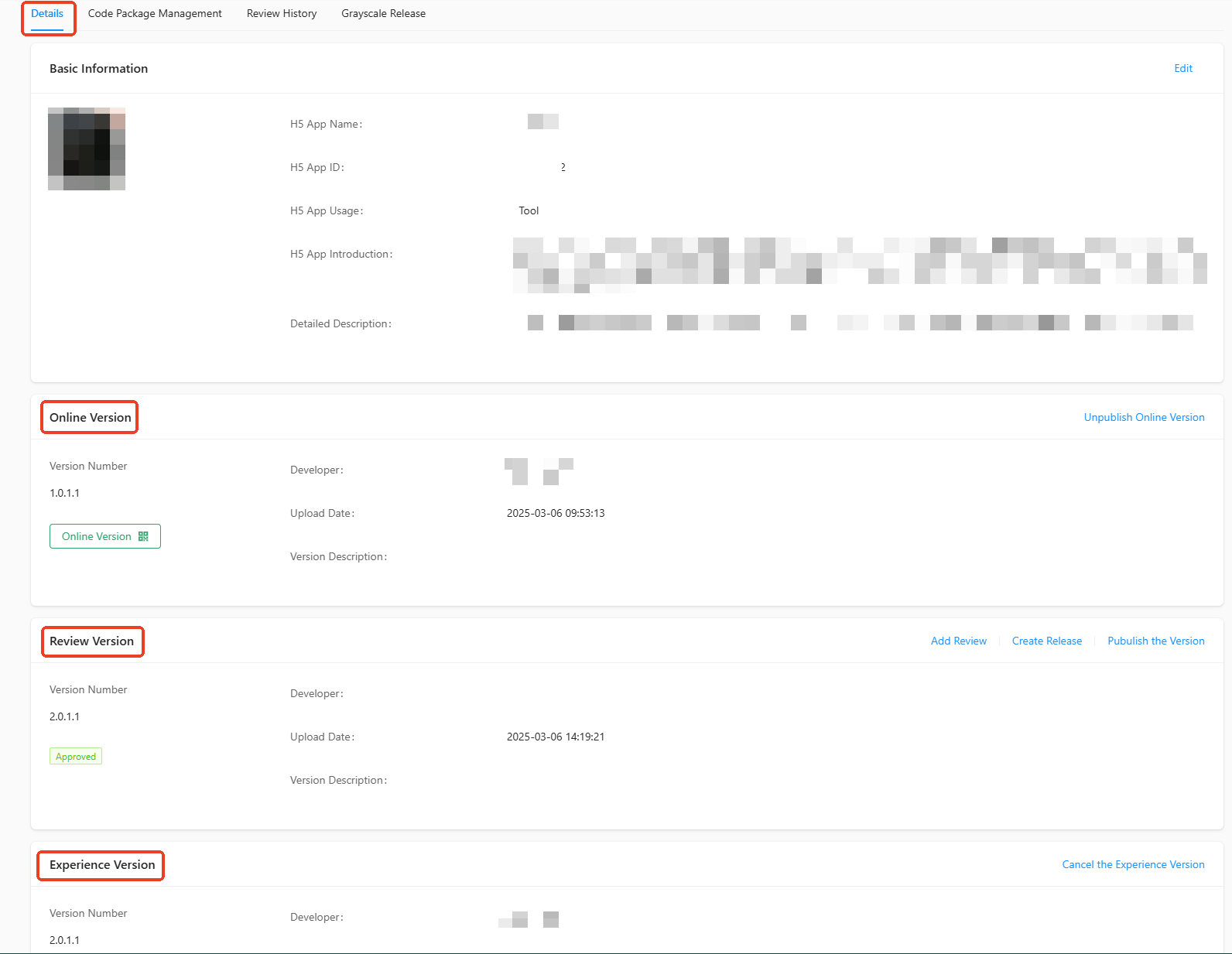
In H5 App version management, you can configure:
Online Version: The H5 App version currently used in the online environment.
Review Version: The H5 App version currently in the review process.
Experience Version: A version selected from the development version, which is a "test version" that only specified personnel can access.
When configuring the H5 App for the first time, you need to manually configure the information of the H5 App. Upload the H5 App code information and set the uploaded H5 App as the experience version or review version. After passing the review, the H5 App can be published as an online version.
For more information about uploading H5 App code, see Upload code package.
Add review version
In the Intelligent Platform H5 App Details page review version module, you can add a new H5 App version for review. The procedure is as follows:
Click Add Review next to Review Version.

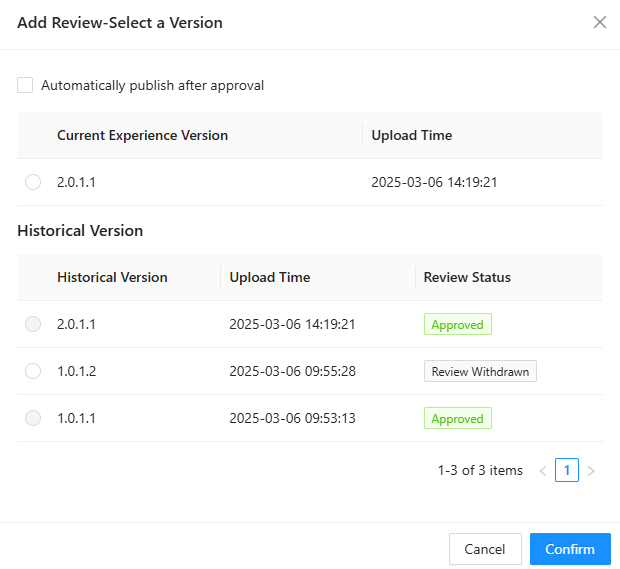
In the Add Review - Select a Version pop-up window, select the uploaded H5 App version.
 Important
When the H5 App resource status is under review or approved, it cannot be set as the review version.
If you need the H5 App to be automatically published after the review, select the Automatically publish after approval checkbox.
Click Confirm. The currently selected H5 App has been successfully set as the review version and is submitted to the Mini Program Development Platform > Admin Backend for review. For detailed operations, see Mini program publish review.
H5 App experience version
In the Intelligent Platform H5 App Details page Experience Version module, you can configure the experience version and cancel the experience version.
Configure experience version
On the Intelligent Platform H5 App Details page, click Configure Experience Version next to Experience Version.

Select a historical version and click Confirm.
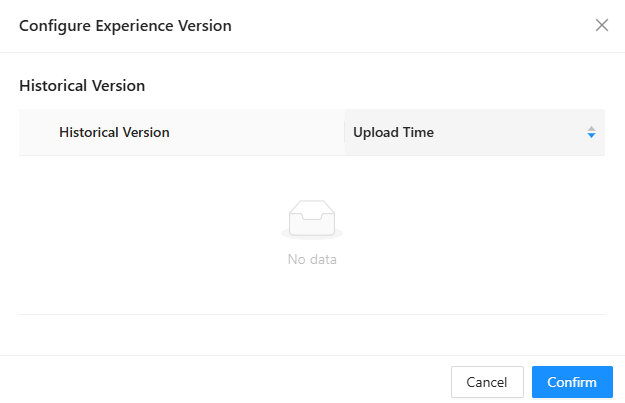
After configuration, click the QR code icon of the experience version and use an App with the mPaaS SDK installed to scan the code for preview and testing.

Cancel experience version
On the Intelligent Platform H5 App Details page, click Cancel the Experience Version next to Experience Version. After a second confirmation, the experience version is canceled.

The experience version can only be successfully canceled when the H5 App resource package is synchronized to MDS.
H5 App grayscale release
On the Intelligent Platform H5 App Details page, for Approved H5 Apps, you can perform grayscale release of the H5 App version in the review version module on this page. The procedure is as follows:
On the Intelligent Platform H5 App Details page, click Create Release next to Review Version.

In the pop-up window, select the release type, add the release description and advanced rules.
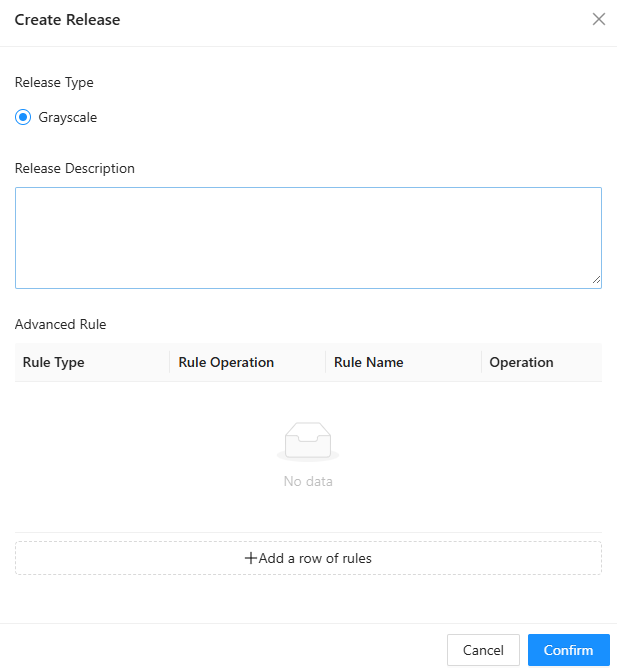
Click Confirm to perform grayscale release of the H5 App.
NoteGrayscale release can only be created when the current resource's release status is not published.
Configure online version
Publish H5 App version
The H5 App version that has passed the review can be published as an online version.
On the Intelligent Platform H5 App Details page, click Publish the Version next to Review Version. After a second confirmation, the H5 App is published.

The H5 App version to be published must be greater than the H5 App version that has already been published.
Unpublish online version
If an H5 App has already been published as an online version, you can perform the unpublish operation on the Intelligent Platform H5 App Details page. After the H5 App is unpublished, users will not be able to access the H5 App through the associated App or other entry.
On the Intelligent Platform H5 App Details page, click Unpublish Online Version next to Online Version. After a second confirmation, the version is successfully unpublished.
