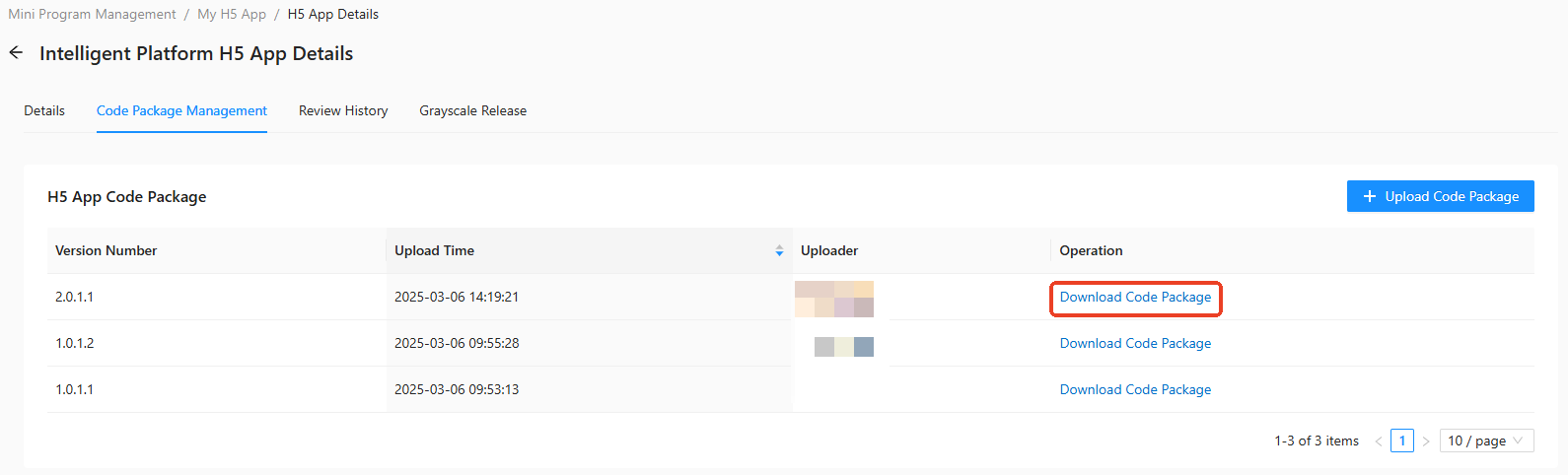
The Developer Backend of the Mini Program Open Platform supports uploading H5 App code packages, enabling users to perform operations such as review, release, and publish. You need to upload the code package on the code management tab before initiating a version review.
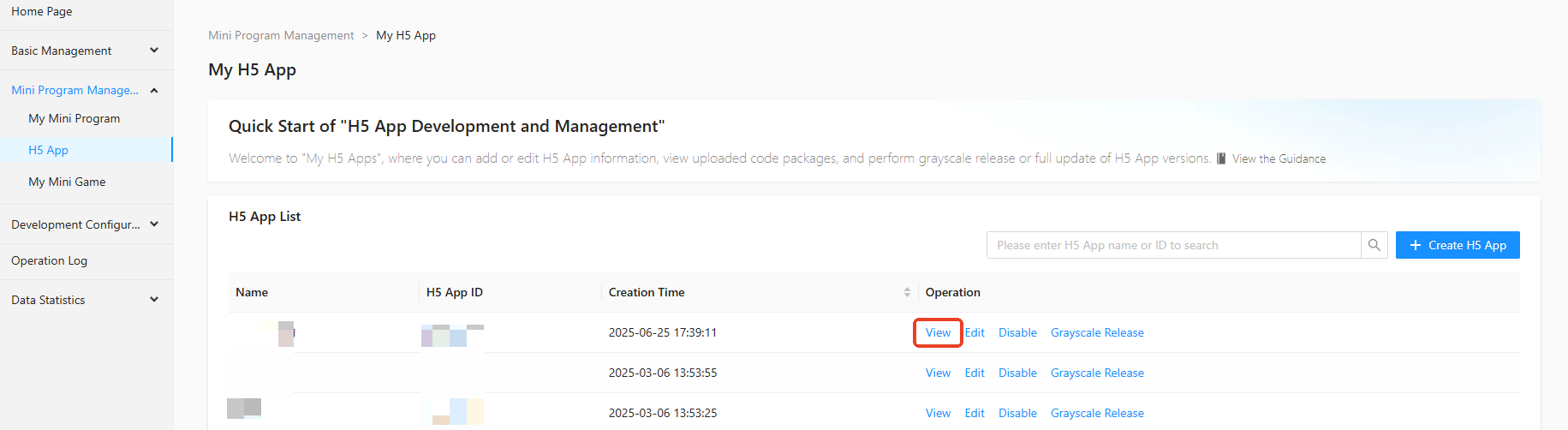
In the Mini Program Open Platform > Developer Console left-side navigation pane, click Mini Program Management > H5 App to enter the My H5 App page.
On the My H5 App page, click View in the operation column of the H5 App list.
On the Intelligent Platform H5 App Details page's Code Package Management tab, you can view a list of uploaded code package versions for the current H5 App, upload and download operations for specific versions.
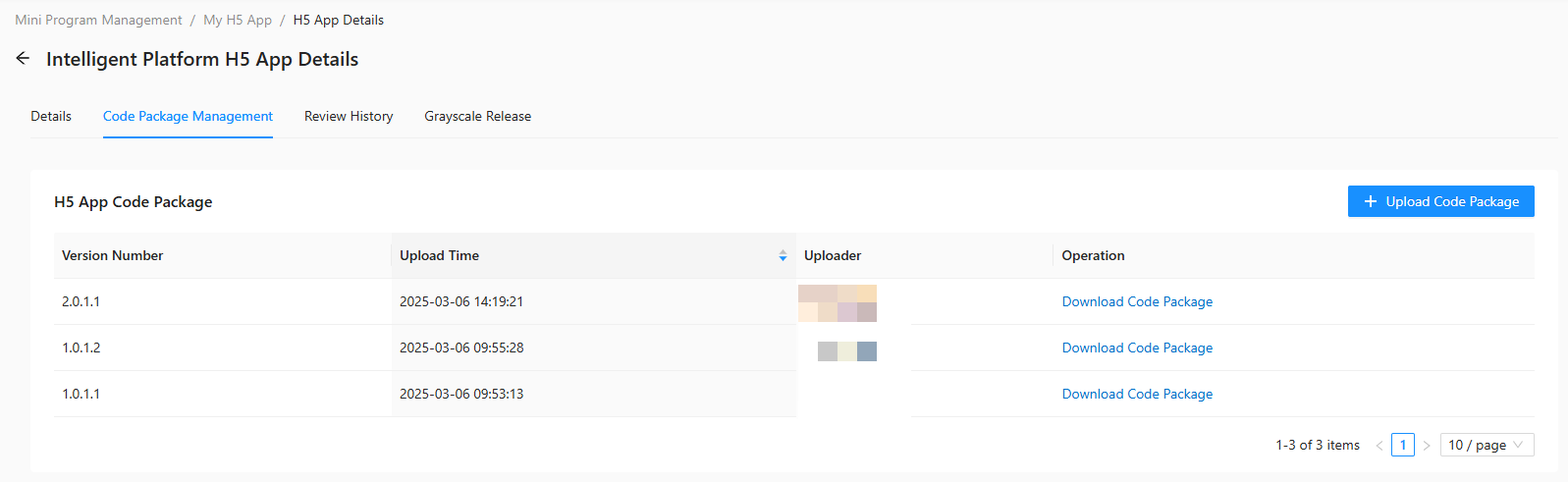
Upload code package
On the Mini Program Code Package Management tab, click + Upload Code Package.
In the Upload Code Package side panel, set the basic and configuration information for the H5 App code package.
Basic Information
Category
Description
Required
Version Number
Enter the version number of the code package. The format refers to
1.0.0.1.Yes
File
Upload the code package in zip compressed file format.
Yes
Client Effective Range
Enter the version effective range for iOS, Android, and Harmony.
The H5 offline package will be effective within the client range limited by the entered minimum and maximum versions.
If the maximum version is not filled in, it means supporting all subsequent new versions. It is recommended not to fill it in to avoid the offline package becoming invalid when the client is upgraded to a version higher than the filled maximum version.
The minimum version number is required
Configuration Information
Category
Description
Required
Main Entry URL
The home page of the offline package.
No
Extended Information
Page loading parameters in KV format, separated by commas for multiple KVs.
No
Download Time
Optional WIFI download or all network download.
Yes
Installation Time
Optional preload or not preload.
Yes
Check the box for The above information has been confirmed to be accurate and click Confirm.
Download code package
On the Mini Program Code Package Management tab, click Download Code Package in the operation column of the code package version list to download the package.