MaxCompute lets you build a data lakehouse on open source Hadoop clusters and Alibaba Cloud E-MapReduce (EMR) to query Delta Lake and Apache Hudi data in real time. This guide walks you through setting up an EMR Hadoop cluster, creating Hudi tables, and connecting MaxCompute to analyze the data.
Architecture
The following diagram shows the components of this data lakehouse solution.
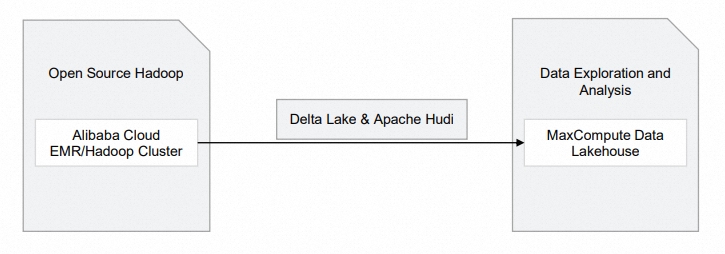
| Module | Alibaba Cloud service | Description |
|---|---|---|
| Open source Hadoop |
| Raw data is stored in Hadoop clusters. |
Supported regions
This solution is supported only in: China (Hangzhou), China (Shanghai), China (Beijing), China (Shenzhen), China (Hong Kong), Singapore, and Germany (Frankfurt).
Prerequisites
Before you begin, make sure you have:
A MaxCompute project that is not an external project. To create one, see Create a MaxCompute project.
Owner access to the MaxCompute project, or the Admin or Super_Administrator role. Only users with these roles can create external projects.
The Super_Administrator role is assigned on the Users tab in the MaxCompute console. Only an Alibaba Cloud account or a RAM user with the tenant-level Super_Administrator role can assign roles to other users. For more information, see Assign a role to a user.
Step 1: Create an EMR cluster
Skip this step if a Hadoop cluster built in a data center or on virtual machines already exists.
Create a Hadoop cluster in the EMR console. For detailed instructions, see the "Step 1: Create a cluster" section in Quick start for EMR. Configure the following parameters. For all other parameters, refer to the EMR documentation.
Step Parameter Example Description Software Configuration Business Scenario Custom Cluster Select based on your business requirements. Product Version EMR-3.43.0 Select an EMR V3.X version built on Hadoop 2.X or Hive 2.X. Optional Services (Select One At Least) Hadoop-Common, HDFS, Hive, YARN, Spark3, Deltalake, Hudi, ZooKeeper Selecting these components automatically enables their related service processes. Metadata Built-in MySQL Select Built-in MySQL or Self-managed RDS. Built-in MySQL stores metadata in an on-premises MySQL database — use this only for testing. For production, use Self-managed RDS, which stores metadata in an ApsaraDB RDS database. To configure Self-managed RDS, see Configure a self-managed ApsaraDB RDS for MySQL database. After the cluster is created, click Nodes in the Actions column.
On the Nodes tab, click the node ID in the emr-master node group to go to the Elastic Compute Service (ECS) console.
Connect to the ECS instance. For available connection methods, see Connection methods.
This guide uses Workbench to connect. The logon password is the one you set when creating the cluster.
Step 2: Prepare data
After logging on to the cluster, use Spark SQL to create Hudi or Delta Lake tables.
Start Spark SQL
EMR Hudi 0.8.0 supports Spark SQL for read and write operations on Hudi tables. For more information, see Integrate Hudi with Spark SQL.
Run the following command to start Spark SQL:
spark-sql \
  --conf 'spark.serializer=org.apache.spark.serializer.KryoSerializer' \
  --conf 'spark.sql.extensions=org.apache.spark.sql.hudi.HoodieSparkSessionExtension'
Create a Hudi table
If no database exists, data is stored in the default database automatically.
-- Create a table
CREATE TABLE h0 (
  id    BIGINT,
  name  STRING,
  price DOUBLE,
  ts    LONG
) USING hudi
tblproperties (
  primaryKey      = 'id',
  preCombineField = 'ts'
);

-- Insert a row
INSERT INTO h0 VALUES (1, 'a1', 10, 1000);

-- Query the table
SELECT id, name, price, ts FROM h0;
Step 3: Analyze data in real time with MaxCompute
Create an external project that maps to your MaxCompute project. After the mapping is in place, run queries against the Hadoop cluster data directly from MaxCompute.
Create an external project in DataWorks
Log on to the DataWorks console and select a region.
In the left-side navigation pane, choose Others > Lake and Warehouse Integration (Data Lakehouse).
On the Lake and Warehouse Integration (Data Lakehouse) page, click Start.
On the Create Data Lakehouse page, configure the parameters described in the following tables.
Create Data Lakehouse step
Parameter Description External Project Name The name of the external project. Example: test_extproject_ddd.MaxCompute Project The name of the MaxCompute project. Example: test_lakehouse.Create Data Lake Connection step
Parameter Description Heterogeneous Data Platform Type Select Alibaba Cloud E-MapReduce/Hadoop Cluster. Network Connection Select an existing network connection. For more information, see Create an external data lake connection. External Data Source Select an existing external data source. For more information, see Create an external data lake connection. Create Data Mapping step
Parameter Description External Data Source Object Defaults to the value of External Data Source. Destination Database The database in the Hadoop cluster. Click Complete Creation and Preview, then click Preview. If the database tables in the Hadoop cluster appear in the preview, the external project is created successfully.
To manage external projects using SQL statements instead, see Use SQL statements to manage an external project.
Query data from the external project
In the left-side navigation pane of the DataWorks console, choose Others > Lake and Warehouse Integration (Data Lakehouse).
On the Ad Hoc Query page, create an ODPS SQL node to view tables in the external project:
For instructions on running ad hoc queries in DataWorks, see Use an ad hoc query node to execute SQL statements (Optional).
SHOW TABLES IN test_extproject_ddd;Expected output:
ALIYUN$***@test.aliyunid.com:h0Query the table data:
SELECT * FROM test_extproject_ddd.h0;The query returns the rows inserted in Step 2.
Log on to the Hadoop cluster using Workbench and go to the Spark SQL terminal. Insert a new row into the
h0table:INSERT INTO h0 VALUES (2, 'a2', 11, 1000);Back on the Ad Hoc Query page in the DataWorks console, verify the update:
SELECT * FROM test_extproject_ddd.h0 WHERE id = '2';The query returns the newly inserted row, confirming that MaxCompute reflects Hadoop cluster updates in real time.
What's next
To build a data lakehouse that supports Delta Lake or Apache Hudi using DLF, ApsaraDB RDS or Realtime Compute for Apache Flink, and OSS instead, see Delta Lake or Apache Hudi storage mechanism based on DLF, ApsaraDB RDS or Realtime Compute for Apache Flink, and OSS.