The MaxCompute local client (odpscmd) provides a command-line interface for efficient operations on your local machine. Use it to execute commands and manage MaxCompute projects. This topic describes how to download, install, configure, run, and use the client.
Usage notes
Your device must have Java 8 or later installed.
Version compatibility
MaxCompute client v0.28.0 and later support JDK 1.9. Earlier versions support only JDK 1.8. After you start the MaxCompute client, check the version number in the command-line interface. Start the MaxCompute client.
Client output formats are not forward-compatible. Command syntax and behavior may differ across versions. Do not parse client output for automation.
For more client versions, see aliyun-odps-console.
Encoding format
The client uses UTF-8 encoding by default. If your local environment uses a different encoding, Chinese characters in query results or uploaded files may appear as garbled text. This can occur when querying MaxCompute tables or uploading local data files using Tunnel commands.
Pricing
Connecting to a MaxCompute project using the client is free. However, operations you run through the client may incur MaxCompute charges. For example, submitting an SQL query or a write command consumes computing resources. Writing data also uses storage space. You will be charged for both computing and storage. For details, see Billing items and methods.
Install and configure the MaxCompute client
Starting with v0.27.0, the client supports new MaxCompute V2.0 data types. We recommend using these new types. For a list of supported data types, see MaxCompute V2.0 data types.
Follow these steps:
Download the MaxCompute client package (GitHub).
NoteGo to the client release page using the link above. Download the latest MaxCompute client package (odpscmd_public.zip).
If the link above fails, try downloading the MaxCompute client package (OSS). For GitHub access issues, search for solutions in a search engine.
Extract the downloaded package. You get the bin, conf, lib, and plugins folders.
Go to the conf folder and configure the odps_config.ini file.
The odps_config.ini file uses the hash symbol (#) for comments. The following table describes the parameters.
Parameter
Required
Description
Example
project_name
Yes
The name of the MaxCompute project you want to access.
If you created a workspace in standard mode, make sure to distinguish between production and development (_dev) project names when configuring project_name. See Differences between workspace modes.
Log on to the MaxCompute console, and select a region in the upper-left corner.
In the navigation pane on the left, choose .
On the Projects page, find your MaxCompute project name.
doc_test_dev
access_id
Yes
Your Alibaba Cloud account or RAM user AccessKey ID. Go to the AccessKey management page to get your AccessKey ID.
None
access_key
Yes
The AccessKey secret that matches your AccessKey ID.
None
end_point
Yes
The endpoint for the MaxCompute service.
Set this based on the region and network type you selected when creating your MaxCompute project. For endpoints by region and network, see Endpoint.
ImportantThis endpoint is for the MaxCompute service. Use the Tunnel endpoint for the MaxCompute Tunnel service. Enter the MaxCompute endpoint here.
An incorrect endpoint causes connection errors. Double-check your entry.
http://service.cn-hangzhou.maxcompute.aliyun.com/api
log_view_host
No
The LogView URL. We recommend setting this parameter. Without it, you cannot quickly locate issues when jobs fail.
You can use this URL to view detailed job runtime information and troubleshoot errors. The value is fixed: http://logview.odps.aliyun.com.
http://logview.odps.aliyun.com
https_check
No
Whether to enable HTTPS to encrypt requests to your MaxCompute project. Valid values:
True: Use HTTPS.
False: Use HTTP.
Default: False.
True
data_size_confirm
No
The maximum input data size in GB. No limit applies. We recommend 100 GB.
100
update_url
No
A reserved parameter. Ignore it for now.
None
use_instance_tunnel
No
Whether to use InstanceTunnel to download SQL query results. Valid values:
True: Downloads the SQL execution results using InstanceTunnel.
False: InstanceTunnel is not used to download SQL execution results.
Default: False.
True
instance_tunnel_max_record
No
The maximum number of records returned for SQL query results. Set this if use_instance_tunnel is True. Maximum: 10000.
10000
tunnel_endpoint
No
The public endpoint for the Tunnel service.
If you do not set a Tunnel endpoint, Tunnel automatically routes to the Tunnel endpoint for your MaxCompute service's region and network.
If you set a Tunnel endpoint, Tunnel uses that endpoint and does not auto-route.
For Tunnel endpoints by region and network, see Endpoint.
http://dt.cn-hangzhou.maxcompute.aliyun.com
set.<key>
No
Set properties for your MaxCompute project.
For more properties, see Property list.
set.odps.sql.decimal.odps2=true
Make sure all settings are correct. Incorrect settings cause connection failures.
Run the MaxCompute client
If you use a RAM user to run the MaxCompute client, add that RAM user to your target MaxCompute project using your Alibaba Cloud account. For more details, see Grant permissions to other users.
Start the MaxCompute client in one of the following ways:
Method 1: Script files in the installation package
In the bin folder under your MaxCompute client installation path, double-click
odpscmd.bat(Windows) orodpscmd(macOS). This starts the MaxCompute client. You see the following message when the connection succeeds.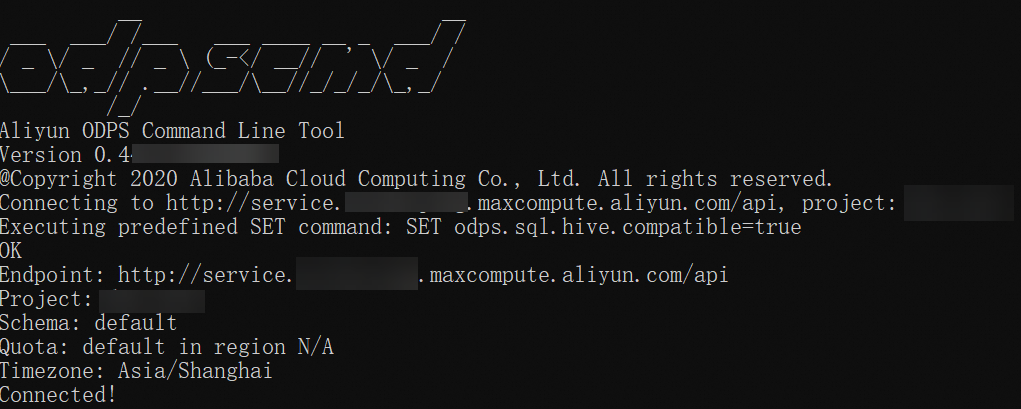
Method 2: System command-line window
In your system command-line window, go to the bin directory under your MaxCompute client installation path. Then run
odpscmd(Windows) orsh odpscmd(Linux or macOS). This starts the MaxCompute client. You see the following message when the connection succeeds.NoteOn Ubuntu, running
sh odpscmdreturns an error. Try./odpscmdinstead.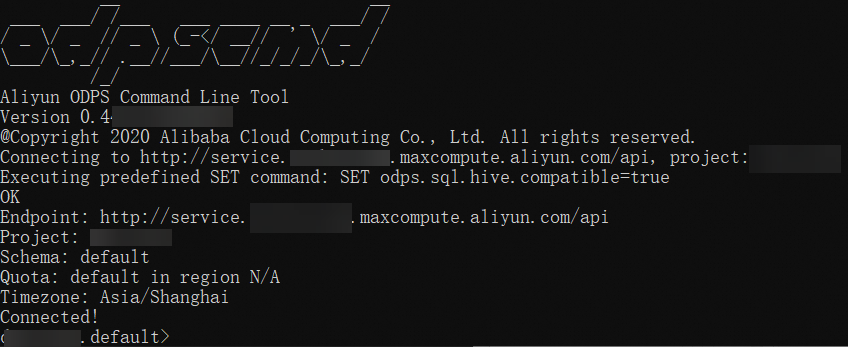
If you start the MaxCompute client from the system command line, you can pass arguments to run commands. For more arguments, see Startup parameters.
Related operations
Get help for all commands
Use one of the following methods to get quick help for MaxCompute client commands:
View command help in the MaxCompute client
View help for all commands.
odps@project_name>help;
-- Equivalent to:
odps@project_name>h;
View help for commands matching a keyword.
For example, get help for table-related commands.
odps@project_name>help table; -- Returns: Usage: alter table <tablename> merge smallfiles Usage: export table <tablename> Usage: show tables [in <project_name>] [like '<prefix>'] list|ls tables [-p,-project <project_name>] Usage: describe|desc [<projectname>.]<tablename> [partition(<spec>)] Usage: read [<project_name>.]<table_name> [(<col_name>[,..])] [PARTITION (<partition_spec>)] [line_num]ImportantThe
readcommand uses SQL syntax. For pricing details, see SQL pricing.
View command help in the system command-line window
In your system command-line window, go to the bin folder under your MaxCompute client installation path. Then run the following command to view help for all commands. When you start the MaxCompute client from the command line, you can pass several arguments. See Startup parameters for details.
...\odpscmd\bin>odpscmd -hGet current user info
After starting the MaxCompute client, run this command to retrieve your current user information.
odps@project_name>whoami;The returned parameters are described below.
Name: Your account name.
Source IP: The IP address of the device where the MaxCompute client runs.
End_Point: The endpoint for the MaxCompute service.
Project: The name of your MaxCompute project.
Schema: The schema in your MaxCompute project.
Exit the MaxCompute client
Run this command to exit the MaxCompute client.
odps@project_name>quit;
-- Equivalent to:
odps@project_name>q;
Run thetunnel downloadcommand
The first time you run the
tunnel downloadcommand in the MaxCompute client, the client creates a session folder to store logs. This folder is located in theplugins/dshipsubdirectory of its installation directory on your device.If multiple users share the same device to run the
tunnel downloadcommand, use one of these methods to keep data secure:Use your device's folder permission controls to manage access to the session folder.
In the
tunnel downloadcommand, add the-sd <new session folder name>or-session-dir <new session folder name>parameter to download data to a different session folder. For more information about thetunnel downloadcommand, see Download.
References
After logging on to the MaxCompute client, you can run SQL commands in your MaxCompute project. See Use MaxCompute with the client.
For full command syntax, see Common commands or SQL commands and functions.
FAQ
After you configure the odps_config.ini file and start the MaxCompute client, common errors include the following:
Error:no java found
Cause
Your machine does not have Java installed.
Solution
Install Java on your machine and set the environment variable. MaxCompute client v0.28.0 and later support JDK 1.9. Earlier versions support only JDK 1.8.
Error:Could not find or load main class com.aliyun.openservices.odps.console.ODPSConsole
Cause
You may have downloaded the client package twice. The second download renamed the folder to
odpscmd_public (1). Spaces or special characters in the folder name cause path errors.Solution
Remove spaces and special characters from the folder name.
Error:Accessing project '<projectname>' failed: ODPS-0420111: Project not found - '<projectname>'.
Cause
The project name in the odps_config.ini file is incorrect.
Solution
Log on to the MaxCompute console, and select a region in the upper-left corner.
In the navigation pane on the left, choose .
On the Projects page, copy the correct project name. Then update the odps_config.ini file.
Error:Accessing project '<projectname>' failed: ODPS-0420095: Access Denied - Authorization Failed [4002], You don't exist in project <projectname>.
Cause
Your AccessKey ID does not belong to an Alibaba Cloud account or RAM user added to the target project. Or the project name is wrong.
Solution
Contact the project owner to add your Alibaba Cloud account or RAM user to the target project. See Add an Alibaba Cloud account (project level) or Add a RAM user (project level).
Error:Accessing project '<projectname>' failed: { "Code": "InvalidProjectTable", "Message": "The specified project or table name is not valid or missing."}orAccessing project '<projectname>' failed: connect timed out
Cause
The
end_pointvalue is wrong. For example, you used the classic network endpoint for an internal network connection, or you entered the Tunnel endpoint instead of the MaxCompute endpoint.Solution
Choose an endpoint that matches your project's region and network. See the Endpoint documentation.
The
end_pointparameter must hold the MaxCompute endpoint, not the Tunnel endpoint.
Error:Accessing project '<projectname>' failed: <endpoint>
Cause
The value of the
end_pointparameter is incorrect. For example, the public endpoint for the China (Hangzhou) region,http://service.cn-hangzhou.maxcompute.aliyun.com/api, is incorrectly entered ashttp://service.ch-hangzhou.maxcompute.aliyun.com/api.Solution
Copy the correct endpoint from the Endpoint documentation. Avoid typing it manually.
Startup parameters
In your system command-line window, use startup parameters to run commands quickly. Syntax:
Usage: odpscmd [OPTION]...
where options include the following:
    --help                                  (-h)for help
    --config=<config_file>                  specify another config file
    --project=<prj_name>                    use project
    --endpoint=<http://host:port>           set endpoint
    -k <n>                                  will skip begining queries and start from specified position
    -r <n>                                  set retry times
    -f <"file_path;">                       execute command in file
    -e <"command;[command;]...">            execute command, include sql command
The following describes the startup parameters.
Command | Description | Command example |
| Get help for all MaxCompute client commands. |
|
| Specify the path to the odps_config.ini file. Default path: |
|
| Specify the MaxCompute project name to access. |
|
| Specify the endpoint for the MaxCompute service. For more details, see Endpoint. |
|
| Run statements starting from a specific position. If | Skip the first two statements and start from the third. |
| Set the number of retries for failed jobs. |
|
| Specify the file to read. |
|
| Specify the command to run. |
|
In a shell or Windows command prompt, you might need to capture the dynamic return value of odpscmd -e <SQL statement> in a shell variable. Then use that variable in follow-up tasks. To avoid extra output such as runtime information or table headers, set the odps_config.ini parameter use_instance_tunnel to false. This disables Instance Tunnel. Then run set odps.sql.select.output.format={"needHeader":false,"fieldDelim":" "}; to hide table headers.
For example, table noheader has one column and three rows: 1, 2, and 3. Run the following command to redirect output to stdout. Only raw data appears, with no extra information:
-- Run in Windows command prompt.
...\odpscmd\bin>odpscmd -e "set odps.sql.select.output.format={""needHeader"":false,""fieldDelim"":"" ""};select * from noheader;" >D:\test.txt
-- Output saves to D:\test.txt.

-- Run in shell.
/Users/.../odpscmd/bin/odpscmd -e "set odps.sql.select.output.format={\"needHeader\":false,\"fieldDelim\":\"\"};select * from noheader;" >/Users/A/temp/test.txt
-- Output saves to /Users/A/temp/test.txt.
-- Output:
1
2
3
Version history
The following table lists recent updates to the MaxCompute client. Click each version link for full details.
For more versions and feature updates, see GitHub.
Version | Type | Description |
New feature | Support STS tokens as temporary security credentials. | |
Bug fix | Update Apache Arrow library to fix dependency compatibility issues. | |
New feature | Add | |
Enhancement |
| |
Bug fix | Upgrade dependencies to fix CVE vulnerabilities. | |
New feature | Speed up external volume creation: Add acceleration for external volume downloads. | |
Enhancement | Refactor | |
New feature |
| |
Enhancement |
| |
New feature |
| |
New feature |
| |
Bug fix | MCQA mode now detects fallback behavior more accurately and avoids duplicate logview displays. | |
New feature |
| |
Enhancement |
| |
New feature | Support JSON data type for Tunnel operations. | |
New feature |
| |
Enhancement | Expand | |
New feature |
| |
New feature |
| |
Enhancement |
| |
New feature |
| |
Bug fix | Remove Log4j dependency. | |
New feature | Support schema-based project storage. See Schema operations. | |
New feature | Support complex data types for Tunnel uploads and downloads. | |
Enhancement |
| |
New feature | Support external project connections to Data Lake Formation (DLF) for data lakehouse features. | |
Bug fix | Fix nanosecond (nano) handling when downloading TIMESTAMP data. |