MaxCompute zone-disaster recovery handles carrier network outages, IDC power failures, data center facility failures, and cluster malfunctions. Enable Multi-zone Storage and Multi-zone Compute HA to reduce business downtime and meet service continuity and industry compliance requirements.
How it works
MaxCompute zone-disaster recovery extends storage and compute availability from a single availability zone (AZ) to three AZs in the same region. It leverages the physical isolation and low-latency network connections between AZs to provide real-time data synchronization and fault isolation across data centers, ensuring that a single data center failure does not interrupt your business.
MaxCompute zone-disaster recovery includes the following features:
-
Multi-zone Storage: Enabled at the project level. Converts existing data from local storage in a single AZ to redundant storage across three AZs. New incremental data is synchronously written to all three AZs. If an AZ-level failure occurs, read and write services continue without interruption and with zero data loss, achieving a Recovery Point Objective (RPO) of 0. Multi-zone Storage protects all user data within a project, including metadata, user permissions, all table types, materialized views, UDFs, and resources.
-
Multi-zone Compute HA: Provides comprehensive zone-disaster recovery for both storage and compute by associating a Multi-zone HA Computing Resource with a project that has Multi-zone Storage enabled. You can reserve Multi-zone HA Computing Resources in multiple AZs. If an AZ-level failure occurs, compute resources automatically fail over from the affected AZ to a healthy one. Multi-zone HA Computing Resources support all job types, including SQL Task, MaxFrame, Cupid Task, and MapReduce Task.
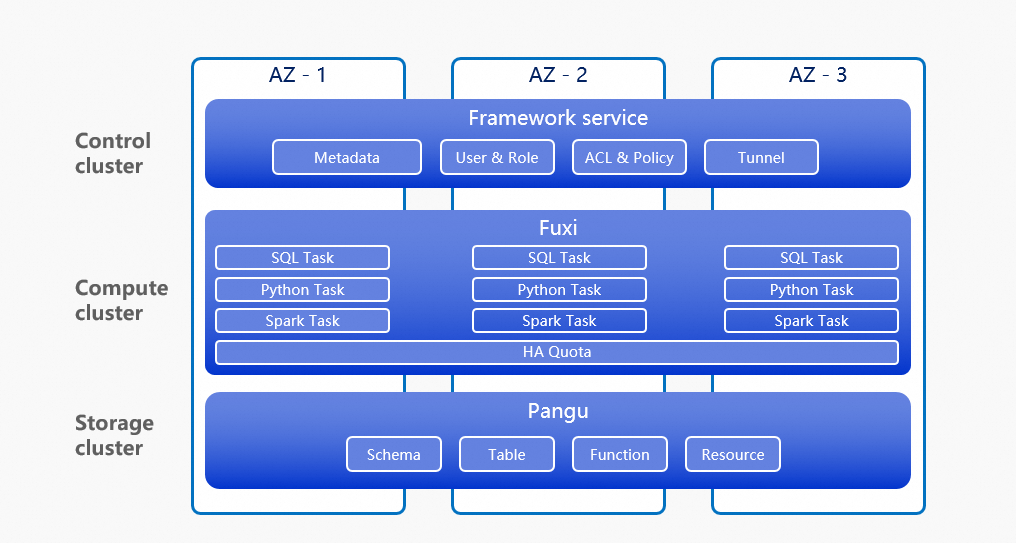
Disaster recovery process
After you enable zone-disaster recovery, the following recovery operations occur during an AZ-level failure:
-
You receive a notification from Alibaba Cloud MaxCompute about the failure.
-
The server allocates compute resources in a healthy AZ. The system then verifies the integrity and availability of project data, such as tables, partitions, and permissions.
-
Jobs submitted from the client may fail, and you must resubmit them. You do not need to change your MaxCompute configurations, such as the endpoint, authentication information, project_name, or quota_name.
-
After jobs resume, continue to monitor the status of your upstream applications to ensure that your entire business has fully recovered.
Use cases
-
Financial services
Ensure that banking services continuously analyze and process transaction data without interruption from data center failures.
-
Critical infrastructure
Protect data analysis systems for essential public services such as electricity, water, and transportation from disruptions caused by data center failures.
Benefits
-
Data redundancy and backup.
-
Reduced business downtime.
-
Compliance with industry requirements.
-
Improved user experience for your applications.
Supported regions
Zone-disaster recovery is supported in the following regions: China (Hangzhou), China (Shanghai), China (Beijing), China (Shenzhen), China (Shanghai) Finance, China (Hong Kong), Singapore, Indonesia (Jakarta), Malaysia (Kuala Lumpur), and Germany (Frankfurt).
Billing
-
After you enable Multi-zone Storage, MaxCompute bills you based on the Multi-zone Storage pricing model.
-
To use Multi-zone Compute HA, you must purchase a Multi-zone HA Computing Resource.
Usage
To achieve comprehensive zone-disaster recovery for both storage and compute, enable both Multi-zone Storage and Multi-zone Compute HA.
-
The storage disaster recovery preparation process does not affect running jobs and is transparent to your applications.
-
During storage disaster recovery preparation, if a streaming write to a historical table partition is in progress, the data preparation task waits for the write to commit. Periodically switch to new partitions to write data, such as daily or weekly, to ensure that multi-zone storage conversion completes for all tables and partitions.
-
Local backup data and TimeTravel data generated before you enable storage disaster recovery are stored locally in the original AZ.
-
Local backup data and TimeTravel data generated after you enable storage disaster recovery are redundantly stored across three AZs.
Enable Multi-zone Storage
-
Log in to the MaxCompute console and select a region in the upper-left corner.
-
In the left-side navigation pane, choose .
-
On the Disaster Recovery page, click the Zone-disaster Recovery tab.
-
Click Enable Zone-disaster Recovery. In the Enable Zone-disaster Recovery dialog box, Select Project, select the confirmation checkbox, and click OK.
-
After the configuration is complete, MaxCompute starts preparing project data for storage disaster recovery by migrating data from a single AZ to three AZs. This process takes approximately two days. When the migration is complete, storage disaster recovery is enabled for the project.
Enable Multi-zone Compute HA
To enable Multi-zone Compute HA, purchase a Multi-zone HA Computing Resource and set the target project's default compute quota to use this resource. This feature is available only in specific regions.
-
Log in to the MaxCompute console and select a region in the upper-left corner.
-
In the left-side navigation pane, choose .
-
On the Quotas page, click New Quota.
-
On the resource purchase page, configure the following parameters:
-
Specifications Type: Select Multi-zone HA Computing Resources.
-
Multi-zone HA CU: Select the number of CUs to purchase. The minimum purchase is 50 CUs. You can add more CUs in increments of 1.
-
-
Click Buy Now, and follow the on-screen instructions to pay the fees and complete the purchase.
In the left-side navigation pane, choose .
You can view the Multi-zone HA Computing Resources that you created.
-
Set the Default Quota of the target project to the Multi-zone HA Computing Resource.
-
Log in to the MaxCompute console and select a region in the upper-left corner.
-
In the left-side navigation pane, choose .
-
On the Projects page, click Manage in the Actions column for the target project.
-
On the Project Settings page, click the Parameter Configuration tab.
-
In the Basic Information section, click Edit.
-
Set Default Quota to the Multi-zone HA Computing Resource, and then click Submit.
-
Monitor disaster recovery resources
The disaster recovery resource monitoring page displays the project's overall disaster recovery status, AZ monitoring information, and table data details.
-
Log in to the MaxCompute console and select a region in the upper-left corner.
-
In the left-side navigation pane, choose .
-
On the Disaster Recovery page, click the Zone-disaster Recovery tab.
-
On the Zone-disaster Recovery page, click the name of the target project to open the project-level disaster recovery resource monitoring page.
-
In the Basic Information section, view the project's overall disaster recovery status, including the AZ, control plane disaster recovery info, current status, disaster recovery creation time, and last failover time.
-
If the Current Status is Preparing, this indicates that the data is being converted to multi-zone storage.
-
If the Current Status is Normal, this indicates that the data is stored across multiple AZs and has AZ-level storage disaster recovery capabilities.
-
-
Zone Monitoring
Displays monitoring information for Multi-zone Compute HA. You can view the AZs where the project's purchased Multi-zone HA Computing Resource is located.
-
Availability Zone (AZ) Using: A user's job is running in the AZ.
-
An AZ status of (Reserved) indicates that if the AZ running your jobs fails, compute resources fail over to this AZ.
-
-
Table Data Details
Search for a table by its schema name and table name. If you do not specify filters, the page displays information about all tables in the project.
Parameter
Description
Schema Name
The schema in the project.
Table Name
The name of the table.
Partitioned Table
Indicates whether the table is a partitioned table.
Last Data Update Time
The last time the data in the table was updated.
Data Volume
The size of the data in the table.
Data Distribution
The AZs where the table data is distributed.
-
An AZ status of (Preparing) indicates that the data is being converted to multi-zone storage.
-
An AZ status of (In Use) indicates that the data is redundantly stored across multiple AZs.
Actions
If the table is partitioned, click View Partition Details to view the Last Data Update Time, Data Volume, and Data Distribution for each partition of the table.
-
-
Perform a disaster recovery drill
MaxCompute provides a project-level disaster simulation and failover drill solution. The process is as follows:
-
Submit a support ticket to Alibaba Cloud to request a disaster recovery drill. In the ticket, provide the region, project name, quota name, and desired drill time window. Schedule drills during off-peak hours.
-
After Alibaba Cloud approves your ticket, a Failover button appears on the project-level Disaster Recovery Resource Monitoring page. Follow the on-screen prompts to manually switch the AZ where your compute resources run. After the failover, newly submitted jobs run immediately. You must manually retry any jobs that failed during the AZ switch.
These operations are for drill scenarios only. In a real AZ-level disaster, the system automatically fails over the compute resources.
Disable disaster recovery
-
In the left-side navigation pane, choose .
-
On the Disaster Recovery page, click the Zone-disaster Recovery tab.
-
On the Zone-disaster Recovery tab, in the Actions column for the target project, click Disable Disaster Recovery.
-
In the Disable Zone-disaster Recovery dialog box, select the confirmation checkbox and click OK.
-
Disabling disaster recovery is a high-risk operation. The project immediately loses disaster recovery capabilities. Carefully evaluate the potential impact before you proceed.
-
After you disable disaster recovery, MaxCompute redistributes the project data back to local storage in a single AZ.