Query real-time data in Delta Lake or Apache Hudi tables on Hadoop clusters through the MaxCompute data lakehouse architecture.
Background
MaxCompute supports the Delta Lake and Apache Hudi storage mechanisms through a data lakehouse architecture that runs on open source Hadoop clusters and Alibaba Cloud E-MapReduce (EMR). The following figure shows the architecture.
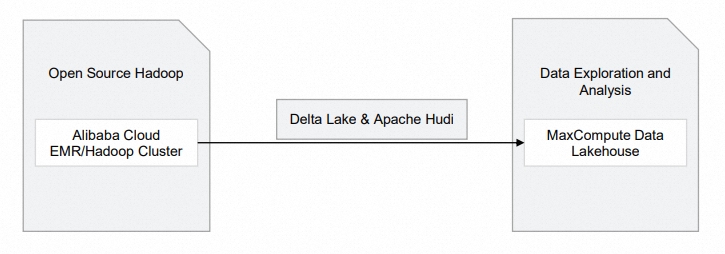
|
Module |
Alibaba Cloud service |
Description |
|
Open source Hadoop |
|
The Hadoop cluster stores raw data. |
Set up a data lakehouse on a Hadoop cluster
Prerequisites
You must have an existing MaxCompute project that is not an external project. For more information, see Create a MaxCompute project.
Limitations
The data lakehouse solution based on Hadoop clusters has the following limitations:
This feature is available only in the following regions: China (Hangzhou), China (Shanghai), China (Beijing), China (Shenzhen), China (Hong Kong), Singapore, and Germany (Frankfurt).
Procedure
The following example uses an Alibaba Cloud E-MapReduce (EMR) cluster to show you how to build a data lakehouse.
-
Step 1: Create an EMR cluster.
Skip this step if you already have a Hadoop cluster deployed in a data center or on a virtual machine.
-
Create a database and prepare data in the cluster.
-
Step 3: Analyze data from the Hadoop cluster in real time by using MaxCompute.
In the DataWorks console, create an external project to analyze the data in the Hadoop cluster.
Step 1: Create an EMR cluster
-
Create a Hadoop cluster in the E-MapReduce console.
For details on creating a Hadoop cluster, see Create an EMR cluster. Configure the following parameters and leave the default values for the rest.
Configuration area
Parameter
Example
Description
Software configuration
Business scenario
Custom Cluster
Select a business scenario.
Product version
EMR-3.43.0
Select an EMR-3.x version based on Hadoop 2.x and Hive 2.x.
Optional services
Hadoop-Common, HDFS, Hive, YARN, Spark3, DeltaLake, Hudi, ZooKeeper
Select the required Hadoop, HDFS, Hive, Spark, DeltaLake, and Hudi components. The services for the selected components are started by default.
Metadata
Built-in MySQL
Select Built-in MySQL or Self-managed RDS.
-
Self-managed RDS: uses a self-managed ApsaraDB RDS instance as the metadatabase.
If you select this option, configure the database connection parameters. For more information, see Configure a self-managed RDS database.
-
Built-in MySQL: stores metadata in the MySQL database in the local environment of the cluster.
NoteThis option is recommended only for testing. For production environments, select Self-managed RDS.
-
-
After you create the cluster, click Nodes in the Actions column for the target cluster.
-
On the Nodes page, click the target node ID in the emr-master node group to go to the ECS console.
-
Select a tool to connect to the ECS instance. For more information, see Connection methods.
NoteThis topic uses Workbench to connect to the instance. The password is the one you specified when you created the cluster.
Step 2: Prepare data
After you log on to the cluster, use Spark SQL to create Delta Lake and Apache Hudi tables.
-
Alibaba Cloud E-MapReduce Hudi 0.8.0 supports read and write operations on Hudi tables by using Spark SQL. For more information, see Integrate Hudi with Spark SQL. The following example uses an Apache Hudi table. In a terminal, run the following command to start the
spark-sqlclient.spark-sql \ --conf 'spark.serializer=org.apache.spark.serializer.KryoSerializer' \ --conf 'spark.sql.extensions=org.apache.spark.sql.hudi.HoodieSparkSessionExtension' -
After you enter the
spark-sqlshell, run the following commands to create a table and insert data.NoteIf you do not create a database, data is stored in the
defaultdatabase.-- Create a table. CREATE TABLE h0 ( id BIGINT, name STRING, price DOUBLE, ts LONG ) USING hudi tblproperties ( primaryKey="id", preCombineField="ts" ); -- Insert data. INSERT INTO h0 VALUES (1, 'a1', 10, 1000); -- Query the table. SELECT id, name, price, ts FROM h0;
Step 3: Analyze Hadoop data with MaxCompute
To analyze data from your Hadoop cluster, create an external project and map it to your existing MaxCompute project. You can then use the MaxCompute project to query data in the external project. Only the Project Owner or a user with the Admin or Super_Administrator role can create an external project.
You can assign the tenant-level Super_Administrator role on the Users tab in the MaxCompute console. Only an Alibaba Cloud account or a RAM user who already has the tenant-level Super_Administrator role can assign roles. For more information, see Assign a role to a user.
-
Create an external project in the DataWorks console.
-
Log on to the DataWorks console and select a region.
-
In the left-side navigation pane, choose .
-
On the Lake and Warehouse Integration (Data Lakehouse) page, click Start.
-
On the Create Data Lakehouse page, follow the on-screen instructions.
Table 1. Create Data Lakehouse
Parameter
Description
External project name
Example:
test_extproject_ddd.MaxCompute project
Example:
test_lakehouse.Table 2. Create an external data lake connection
Parameter
Description
Heterogeneous data platform type
Select Alibaba Cloud E-MapReduce/Hadoop Cluster.
Network connection
Select an existing network connection. For more information, see Create an external data lake connection.
External data source
Select an existing external data source. For more information, see Create an external data lake connection.
Table 3. Create a data mapping
Parameter
Description
External data source object
This parameter is automatically populated with the value from External Data Source.
Destination database
The destination database in the Hadoop cluster.
-
Click Complete Creation and Preview, and then click Preview. A successful configuration lets you preview the database tables in the Hadoop cluster.
NoteThe external project is created in the DataWorks console. To manage the external project by using SQL, see Use SQL statements to manage an external project.
-
-
On the DataWorks Ad Hoc Query page, create an ODPS SQL node and view the tables in the external project. Example:
SHOW TABLES IN test_extproject_ddd; -- The following result is returned: ALIYUN$***@test.aliyunid.com:h0NoteFor more information about how to run ad hoc queries in DataWorks, see Use an ad hoc query node to execute SQL statements (Optional).
-
On the DataWorks Ad Hoc Query page, query data from a table in the external project. Example:
SELECT * FROM test_extproject_ddd.h0; -
Log on to the Hadoop cluster by using Workbench, go to the Spark SQL terminal, and run the following statement to update data in the h0 table:
INSERT INTO h0 VALUES (2, 'a2', 11, 1000); -
On the DataWorks Ad Hoc Query page, verify the update. Example:
SELECT * FROM test_extproject_ddd.h0 WHERE id ='2';
Related documents
-
To build a data lakehouse with MaxCompute, DLF, and OSS, see Supporting Delta Lake or Hudi storage mechanisms with DLF, RDS or Flink, and OSS.