The virtual studio is a chroma keying feature of the production studio that provides automatic, professional-grade chroma keying and compositing for streams with blue, green, or real-world backgrounds. It supports streaming from multiple devices, camera angles, and remote locations. Using cloud-based chroma keying and compositing, you can create various live streaming scenarios, such as dual-screen, split-screen, and Picture-in-Picture (PiP) layouts, to deliver an immersive experience. This topic describes how to use the virtual studio for live streaming.
Prerequisites
The production studio service is enabled. For more information, see Enable the production studio service.
An accelerated domain name is added and a canonical name (CNAME) record is configured for the domain name. For more information, see Add an accelerated domain name and Configure a CNAME record for a streaming domain.
(Optional) If you want to select a video source from the ApsaraVideo Live console, a streaming domain for the video source is added and a CNAME record is configured. For more information, see Add a streaming domain and Configure a CNAME record for a streaming domain.
(Optional) If you want to select a video source from the media library, a domain name for ApsaraVideo VOD is added and a CNAME record is configured. For more information, see Add a domain name for ApsaraVideo VOD and Configure a CNAME record for an ApsaraVideo VOD domain name.
(Optional) If you want to use the live recording feature, the service for storing recordings is enabled. For more information, see Record live streams to OSS.
You have read the development guide. For more information, see Development guide.
Background information
The virtual studio is a production feature with chroma keying capabilities that supports streaming from multiple devices, camera angles, and remote locations. Using cloud-based chroma keying and compositing, you can create various live streaming scenarios, such as dual-screen, split-screen, and PiP layouts, to deliver an immersive experience. This topic describes the process from entering the virtual studio to outputting the final live stream.
The production studio service provides a series of API operations that allow you to add, delete, query, and modify virtual studio layouts. This topic describes how to quickly integrate the virtual studio service using API operations.
Flowchart
A virtual studio integrates chroma keying capabilities into a standard production studio. The workflow is similar to that of a production studio. The following figure shows the live streaming flowchart.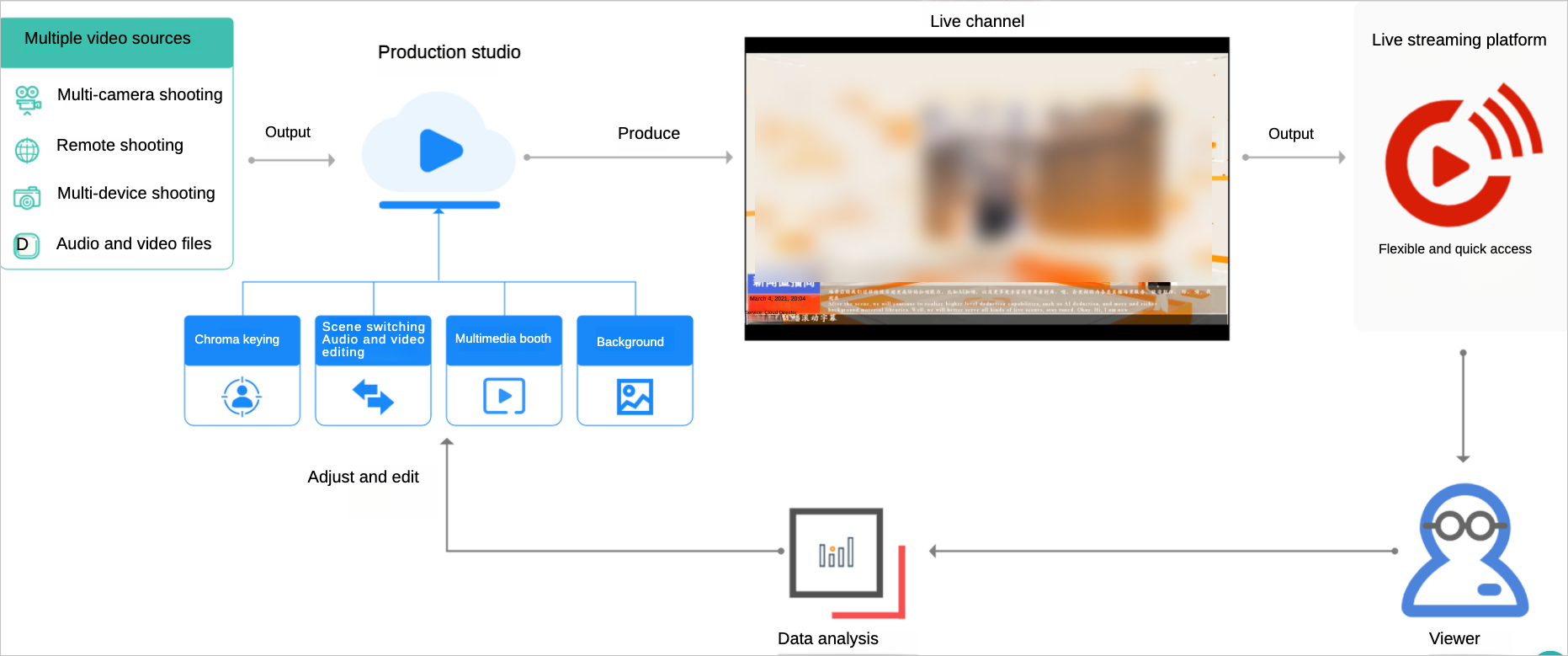 The complete workflow for using a virtual studio includes the following stages:
Live stream settings: Use the production studio console to configure features such as the live streaming domain name, output definition, transcoding, and recording.
Live stream configuration: Add audio and video assets for the live stream and set the output layout for the assets to complete the configuration.
Start live streaming: When the live stream starts, use the Program View (PVW) to preview the mixed stream output. Use the Program (PGM) production method to output the official live stream.
Real-time production: During production, you can use features such as real-time captions, graphic overlays, and the audio mixer to adjust the live content and program effects.
Console guide
Live stream settings
Log on to the ApsaraVideo Live console. In the navigation pane on the left, choose > Production Studios.
Select the virtual studio that you created and click Open in the Actions column.
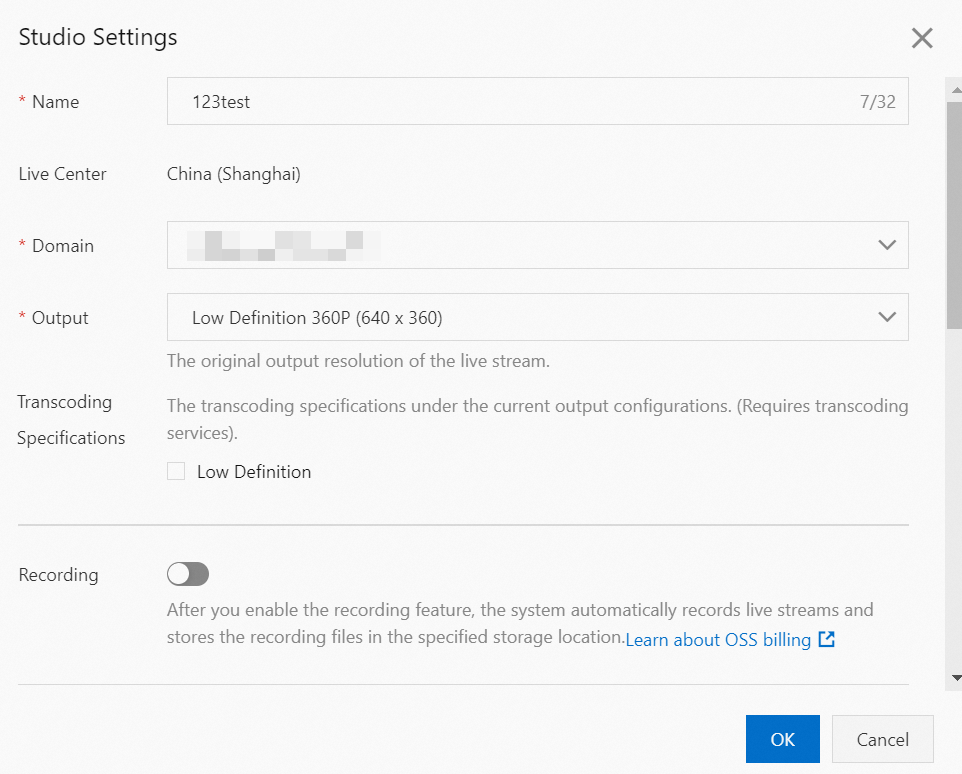
When you create a production studio instance and enter the production studio interface for the first time, the configuration panel appears automatically. After you complete the configuration, click OK.
If this is not your first time, you can also click Live Stream Settings in the upper-right corner of the interface to open the configuration panel and set up the production studio.
Configuration item
Description
Domain
Click the Domain text box. From the Domain drop-down list, select a live streaming domain name for which a CNAME record is configured.
Output
From the Output drop-down list, select the original resolution of the live stream. Valid values: Low Definition, Standard Definition, High Definition, Ultra High Definition 1080p (1920 × 1080), Portrait Low Definition, Portrait Standard Definition, Portrait High Definition, and Portrait Ultra High Definition 1080p (1080 × 1920).
Transcoding Specifications
Low Definition
Standard Definition
High Definition
Ultra High Definition 1080p (1920 × 1080)
After you configure the output, you can also set the transcoding specifications for the live stream. Select the check boxes of the transcoding specifications that you want to use. You can select multiple specifications, such as Low Definition, Standard Definition, High Definition, and Ultra High Definition 1080p (1920 × 1080).
NoteYou can select multiple transcoding specifications, but the definition cannot be higher than that of the original stream. If you select Low Definition as the transcoding format, viewers can choose between Original Quality and Low Definition during playback.
Recording Settings
(Optional) Turn on the Recording Settings switch to enable recording.
You can select automatic recording or manual recording. Automatic recording starts as soon as the live stream begins. Manual recording lets you start and stop recording as needed after the live stream begins.
Set the storage location for the live stream recordings.
NoteThe storage location must be in the same region as the production studio. Cross-region recording is not supported.
Select one or more storage formats for the recording files.
Set the recording epoch. For example, if you set it to 10 minutes, a recording file is generated every 10 minutes.
Stream Delay
(Optional) Turn on the Stream Delay switch to set a delay for the output. The range is 15s to 300s.
Standby Video
(Optional)
Live Stream: Select Select from ApsaraVideo Live Console or Enter a live URL. as the standby video.
VOD Resource: Click Select. From the list of VOD sources, select a VOD video to serve as a standby clip before the live stream starts or if the stream becomes abnormal.
ImportantAll ApsaraVideo VOD assets used (VOD sources, standby videos) must be in the same region as the production studio. The production studio does not support selecting VOD videos from other regions as assets. For example, if you use a production studio in China (Shanghai), your assets must also be in the ApsaraVideo VOD service in China (Shanghai).
Image: Click Select From Media Library or Local Upload as the standby image. You can upload JPG or PNG images. The maximum file size is 10 MB.
Multi-way Stream Relay
(Optional) Click Add URL to set a relay address.
ImportantAfter you add or delete a relay address, disconnect and restart PGM for the settings to take effect.
Using third-party platform features incurs additional relay fees. By default, you get three free relay addresses under the same domain name. If you exceed three relay addresses, the extra ones are billed. The billing standard is the same as for stream relay in the live center. For more information, see Billing of stream relay in the live center.
Live stream configuration
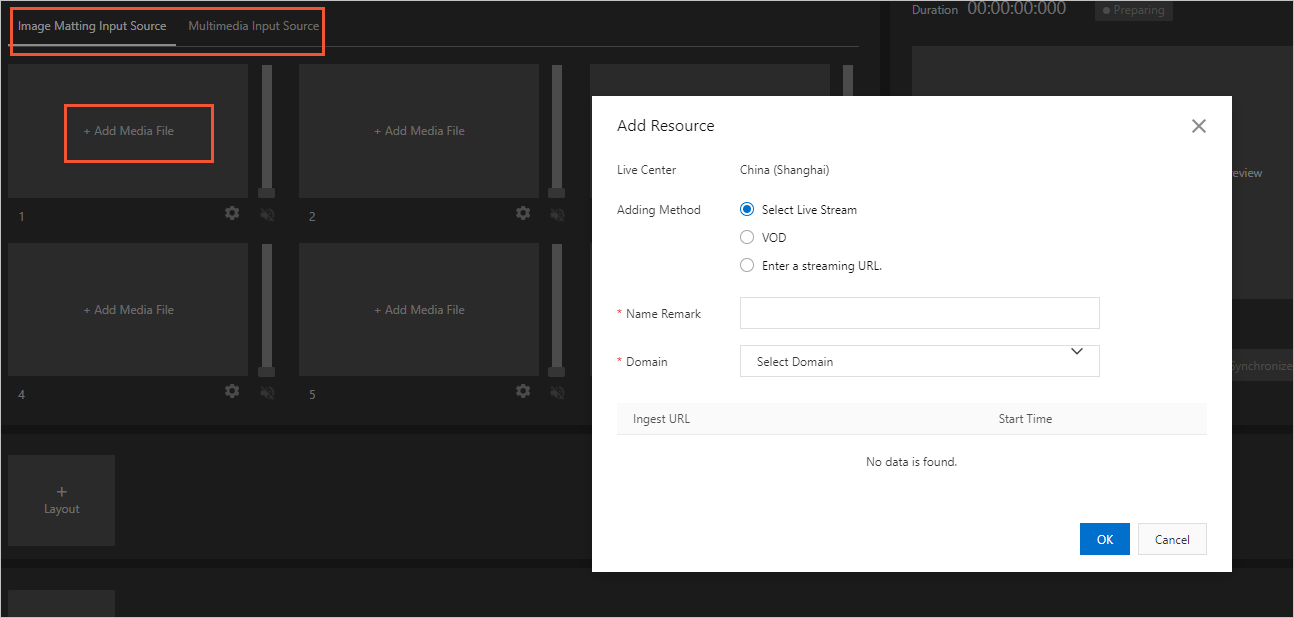
Add input sources. The virtual studio supports two types of video sources.
Chroma key input source: A live stream with a green background. The production studio's chroma keying process can remove the green background. You can add it on the Chroma Key Input Source tab in the video source area of the production studio.
Multimedia input source: A video source for a multimedia window. You can add VOD or live streams. You can add it on the Multimedia Input Source tab in the video source area of the production studio.
Click Add Media to open the Add Resource panel. Refer to the following table to add live or VOD videos and select video sources.
How to add
Description
Live Stream
Select from ApsaraVideo Live console: After you select a domain name, a list of all live streams under that domain name is automatically synchronized. Select the ingest URL that you want to add to the current production studio instance.
Enter Live Stream URL: Enter a valid live stream URL. RTMP, FLV, and RTS formats are supported.
VOD
Click Select. In the list of video assets from the media library, select a video. Set playback to Once or Loop, and click OK to add the video.
NoteFor VOD video assets selected from the VOD option, you must choose For Live Production from the More drop-down list in the ApsaraVideo VOD console. You can use the video in the production studio only after it is uploaded and pre-processed. For more information about pre-processing rules and billing methods, see ApsaraVideo VOD pricing.
Local Stream Ingest
Stream ingest methods:
Screen sharing: Share your screen. You can select an application window or your desktop as the input source.
Camera stream ingest: Use your local camera as the input source.
Resolution: Select an appropriate resolution.
Click Layout to add and configure a studio layout.
In the Layout Settings window, set Layout Type to Studio Layout and enter a Layout Name. The production studio lets you add two types of layouts, common layouts and studio layouts, to switch between standby clips, ads, and the main live stream.
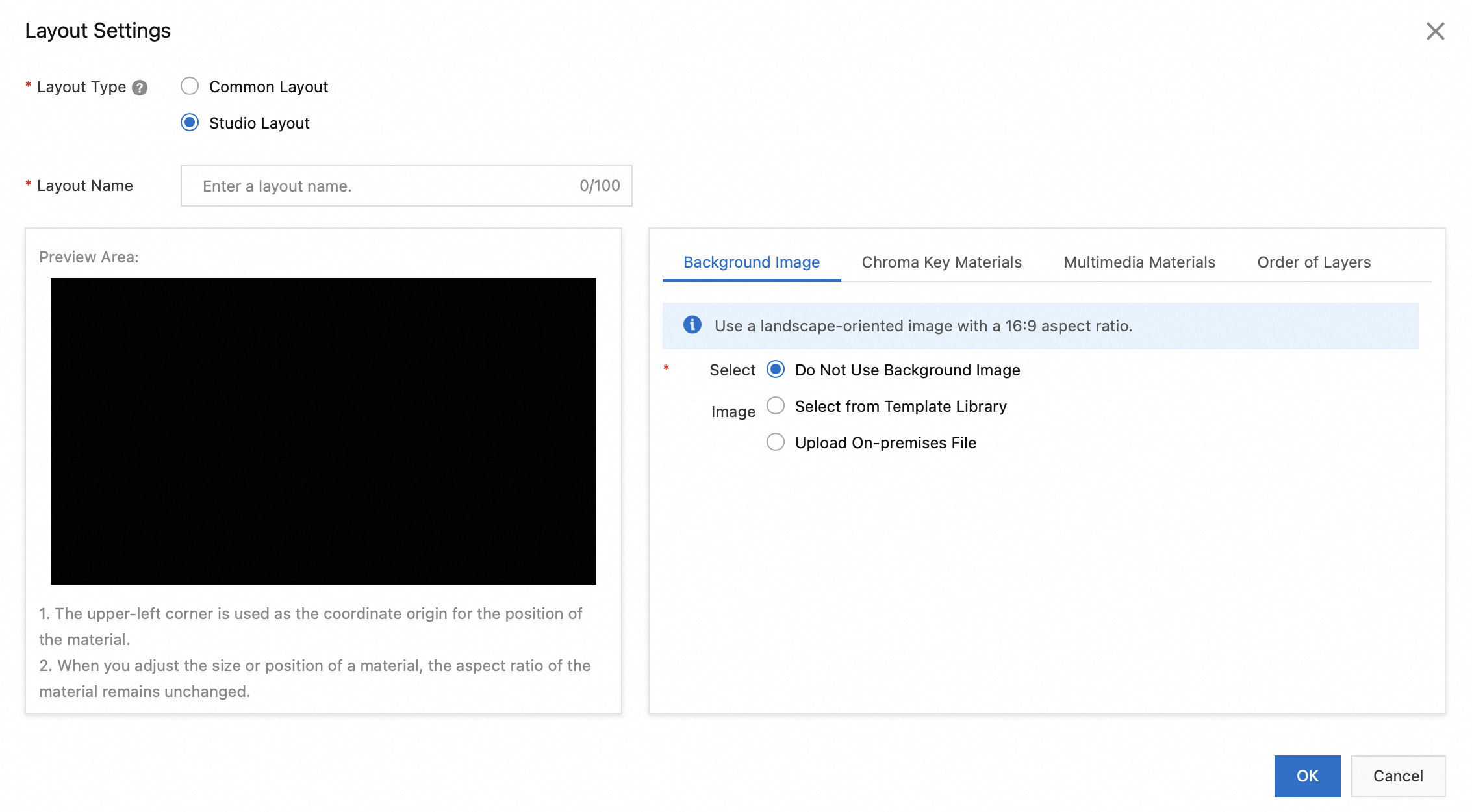
In the Layout Settings window, add a background image on the Background Image tab. You can select an image from the template library or upload a local background image.
NoteThe background image is displayed in full screen. We recommend that the image dimensions match the screen dimensions. The file size cannot exceed 10 MB.
In the Layout Settings window, on the Chroma Key Materials tab, click Add to add chroma key material. After you associate an input source, refer to the following table to configure automatic chroma keying for the input source. A live channel supports multiple chroma key input sources.
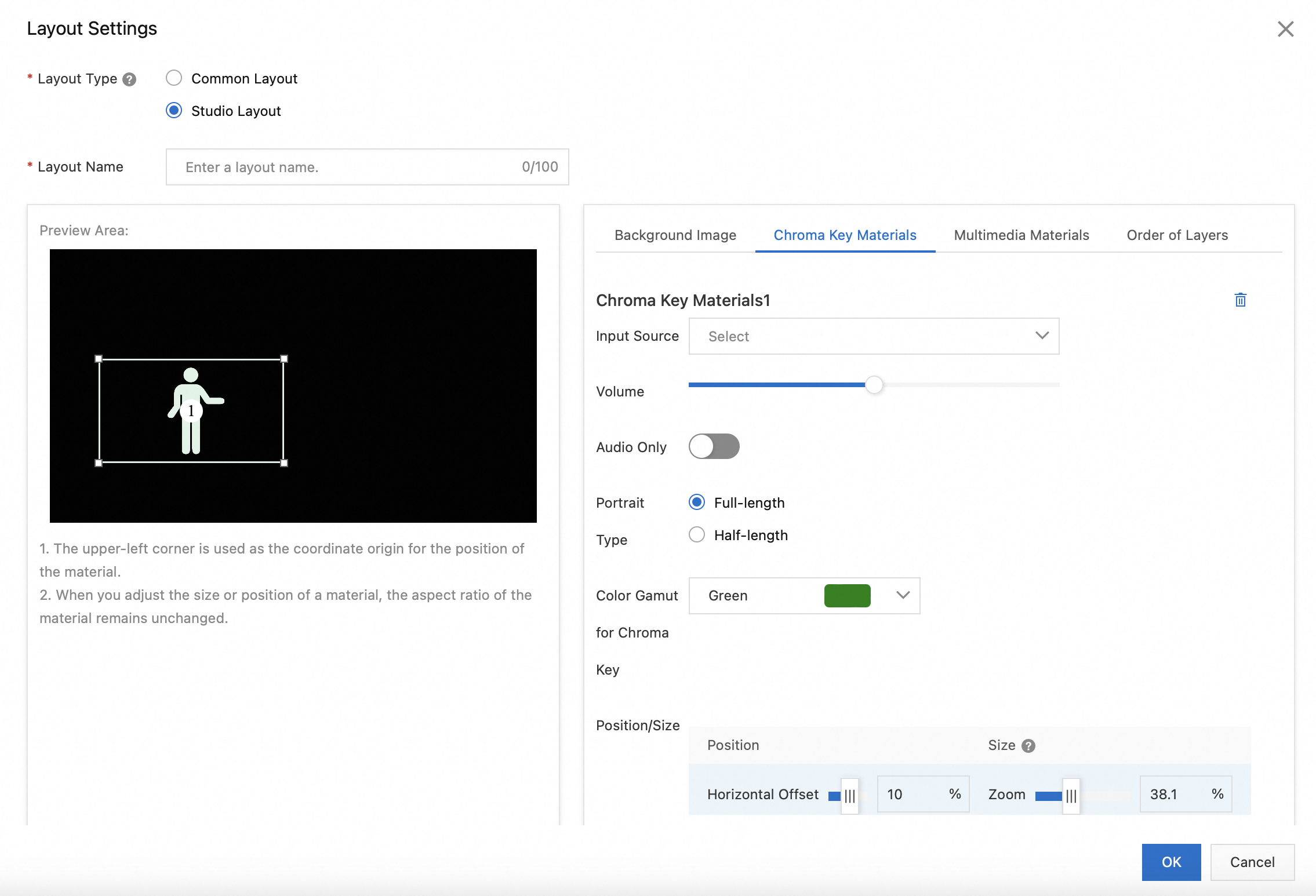
Setting
Description
Input Source
Select the corresponding input source from the drop-down list.
Portrait Type
Supports full-length portrait and half-length portrait types.
Color Gamut for Chroma Key
Supports automatic detection of three chroma key color gamuts: green screen background, blue screen background, and natural scenery.
Position/Size
Supports setting horizontal offset, vertical offset, and scaling.
In the Layout Settings window, on the Multimedia Materials tab, click Add to add multimedia material. A live channel can have one to three multimedia windows, which support inserting video or image assets.
In the Layout Settings window, on the Order of Layers tab, you can adjust the stacking order of the assets.
Click OK to complete the virtual studio layout configuration.
Start live streaming
To start the live stream, click the layout that you want to use and then click Start Live Streaming. The video sources are displayed in the PVW window according to the layout.
Click Synchronize to PGM. This is the official live content that end users see.
To switch the live content, click the new layout that you want to use. After this layout is in the PVW preview state, click Synchronize to PGM to push the live stream to the viewers.
ImportantThe production studio lets you switch the live content in the PVW preview window by switching between configured studio layouts. To switch studios or content within a studio (such as chroma key sources or content in multimedia windows) during a live stream, you must configure different studio layouts in advance.
When adding different studio layouts, we recommend that you distinguish them by name.
To end the live stream, click Stop.
Real-time production
While monitoring the stream, you can use the following features to edit and adjust the live content and program effects in real time.
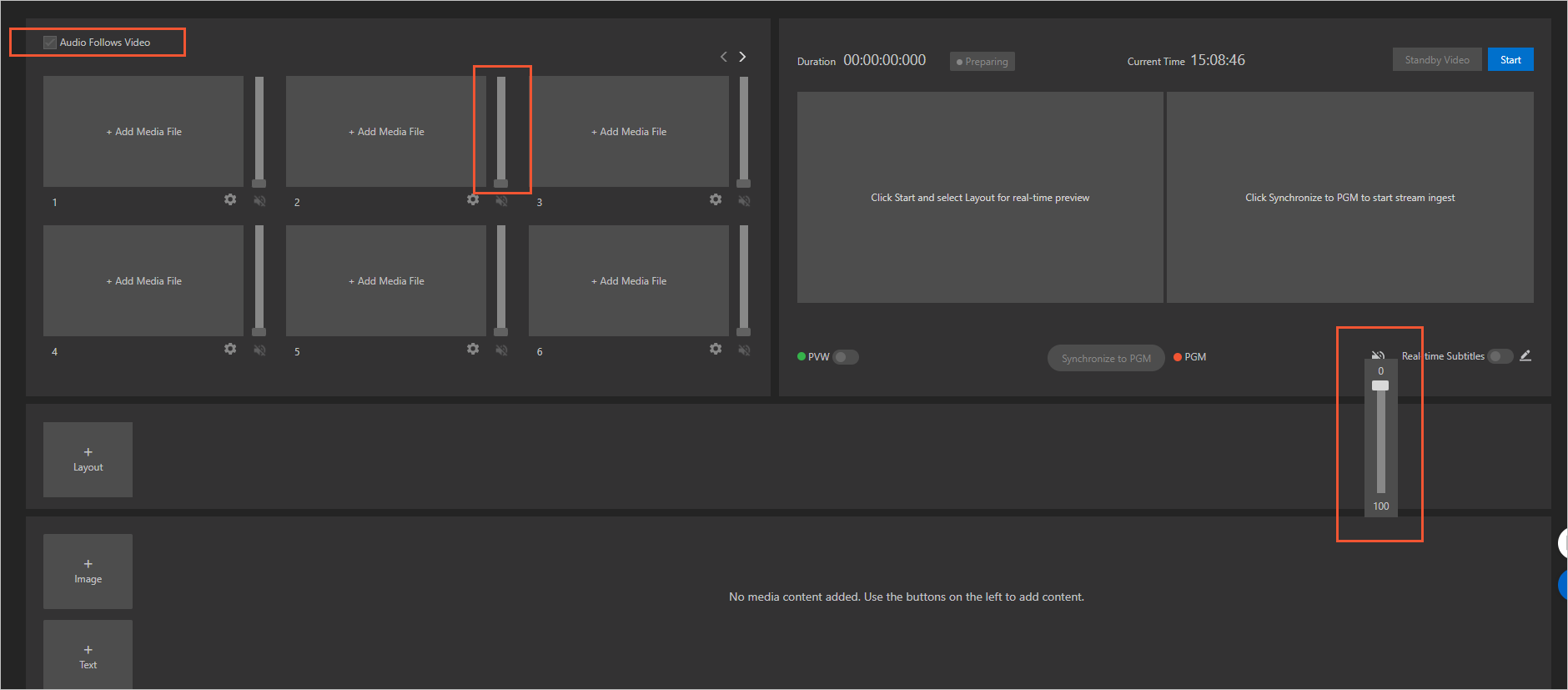
Click the audio mixer button and slide it up or down to adjust the program volume.
Audio Follows Video: The PVW window displays video but does not play audio. When you select Audio Follows Video and click Synchronize to PGM, the audio from the video source in the PVW window is sent to the PGM output. By default, audio from other video sources is muted. You can configure the audio output for all video sources in the audio mixer.
Audio Follows Video (not selected): When PVW transitions to PGM, if Audio Follows Video is not selected, the audio from the PVW video source is not output to PGM.
Set caption styles and bilingual translation.
NoteThe real-time caption feature is not available in the Singapore live center.
Real-time captions use real-time speech recognition on the audio of a live stream and display the recognized text as captions synchronized with the stream. The recognized captions can be translated in real time. You can display captions in the source language of the live stream's audio, the translated target language, or both.
Translation is supported between Chinese, English, Spanish, and Russian. The real-time caption feature adds professionalism to the content and provides an excellent viewing experience in scenarios where listening to audio is inconvenient. Real-time translation lowers the barrier for international, multilingual users to understand live stream content, making it a valuable tool for cross-border E-commerce and international event live streaming.
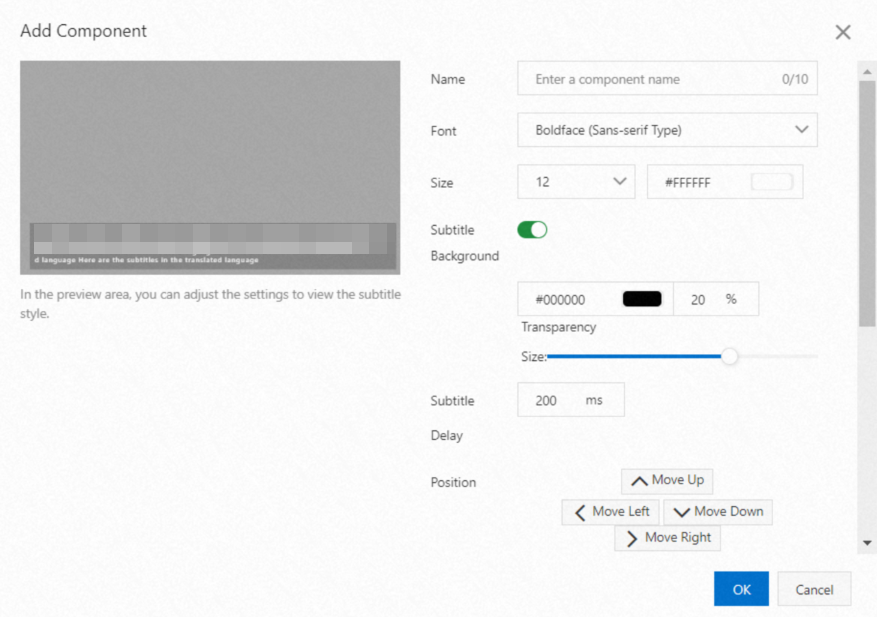
Click Live Subtitles to open the caption component window.
Set the component name, font style, size, position, video source, source language, and translation language. You can preview the effect in the area on the left. After you complete the settings, click OK to save.
Insert effects such as watermarks, logos, and text banners into the live stream.
Add an image
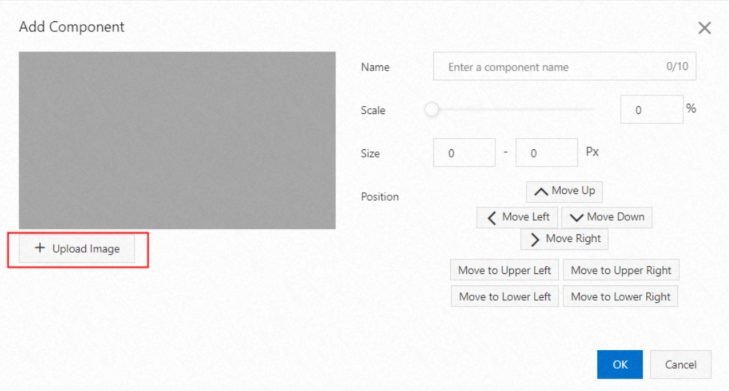
Click Image to open the image component window.
Click Upload Image and select the image source from your local device. After the image is uploaded, set the component name, scaling ratio (size), and position. You can preview the effect in the area on the left. When you are done, click OK to save.
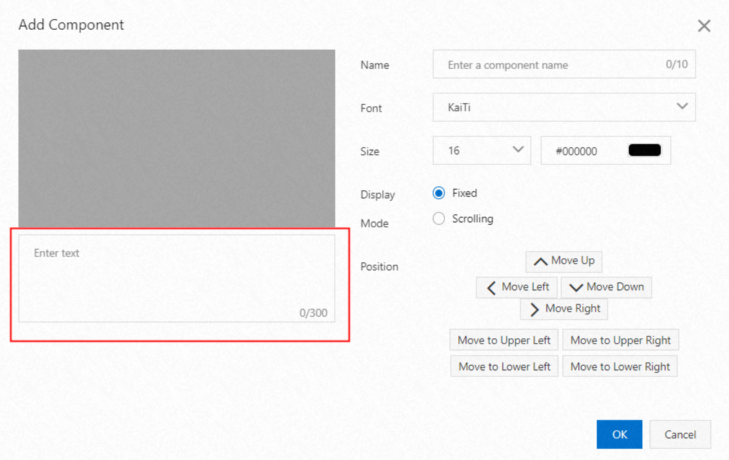
Add text
Click Text to open the text component window.
After you enter text in the text box, set the component name, font style, size, display mode, and position. You can preview the effect in the area on the left. When you are done, click OK to save.
Change the video stream layout. You can create up to 20 layouts at the same time.
Click Switch to Standby. If the live stream is abnormal or for other reasons, you can switch to the standby video in real time to ensure the live stream proceeds smoothly.
API guide
You can call API operations to quickly integrate and use the virtual studio service. The process is as follows:
Create and configure a production studio. The type must be set to virtual studio. For more information, see CreateCaster and SetCasterConfig.
Add video resources to the production studio. For more information, see AddCasterVideoResource.
Add a virtual studio layout. For more information, see AddStudioLayout.
(Optional) Add components to the production studio. For more information, see AddCasterComponent.
Start the production studio. For more information, see StartCaster .
Set the playback scene. For more information, see SetCasterSceneConfig.
Stop the production studio. For more information, see StopCaster.