Live stream transcoding prevents playback issues caused by high or low ingest bitrates. This topic covers scenarios, limits, features, template parameters, transcoding rules, and adaptive width.
Use cases
-
When the ingest bitrate is high but client bandwidth is limited, video playback can stutter. Conversely, a low ingest bitrate results in poor playback quality. Live stream transcoding resolves these issues.
-
Player plugins must support multi-bitrate switching. To enable this, provide the player with multiple streaming URLs for the same ingest stream, each with a different bitrate. ApsaraVideo Live's real-time transcoding feature generates these URLs.
-
You can ingest a stream with H.264 encoding and transcode it into an H.265 live stream in real-time to reduce bandwidth.
-
You can ingest a stream with H.265 encoding and transcode it into a low-bitrate H.265 live stream in real-time.
-
To resolve browser incompatibility with H.265, you can transcode the stream into an H.264 live stream in real-time.
-
The live stream transcoding feature incurs transcoding fees. Fees are based on the transcoding standard, resolution, and total transcoding duration. For more information about the billing rules, see Live stream transcoding fees.
Limitations
-
When you configure transcoding templates for a domain name and AppName, you cannot set the Template Type for a single template to both Standard Transcoding and Narrowband HDTM template.
-
When you configure a transcoding template for a specific AppName, it is applied only if the AppName in the ingest URL matches the one in the template. Sub-streaming domains inherit transcoding templates from the primary streaming domain, so any configurations specific to sub-streaming domains are ignored.
-
For live centers in China (Beijing), China (Shanghai), and China (Shenzhen), each domain name supports up to 300 concurrent transcoded streams. For other live centers, each domain name supports up to 50 concurrent transcoded streams. For example, if a high-definition live stream is ingested and transcoded into standard-definition and low-definition streams for playback, this counts as two concurrent transcoded streams. When the limit is reached, connections that exceed the limit will play the original stream. To view your current usage and request a quota increase, go to basic configuration > Basic Information for your streaming domain.
-
If the live streaming service does not meet your business requirements, please contact your Alibaba Cloud account manager or reach out to us through other channels.
Features
The transcoding feature includes Default Transcoding, Custom Transcoding, Multi-bitrate Transcoding, and HTML5 Auto Transcoding.
Default Transcoding: You can use system-preset templates, which include the template ID and the output resolution. The system presets the output bitrate, and it cannot be modified.
Custom Transcoding: You can configure the encoding format, resolution, bitrate, frame rate, video GOP, transcoding trigger, and template ID.
Multi-bitrate Transcoding: A transcoding template can contain multiple transcoding configurations. After you configure multi-bitrate transcoding, the player can automatically play the live stream with the appropriate bitrate based on the network bandwidth of the client. This improves the playback experience.
HTML5 Auto Transcoding: This feature resolves issues such as the lack of support for video B-frames and AAC encoding in native browsers for Real-Time Streaming (RTS) (artc://).
System-preset templates
Transcoding rules
-
ApsaraVideo Live supports on-demand transcoding by default. The system monitors transcoded live streams. If a stream has no viewers, the system does not perform transcoding. Transcoding starts when the first viewer begins to watch the stream. During the transcoding process, the system determines whether to stop transcoding based on both the playback status and the status of backend tasks. The following rules apply:
-
If backend tasks such as recording, time shifting, snapshots, or content moderation are still running, the system keeps the stream connected and continues transcoding even if no one is watching.
-
If no backend tasks are running and the system detects no viewers for five minutes, the system automatically stops transcoding.
-
If you want the system to stop transcoding whenever no one is watching, regardless of backend task status, submit a ticket to request backend configuration. For more information about how to submit a ticket, see Contact us.
-
-
The system transcodes each stream only once.
-
Transcoding is an optional service that you can configure as needed.
-
The transcoding feature supports the FLV, RTMP, HLS, and RTS protocols.
Adaptive resolution
Transcoding uses an adaptive resolution algorithm based on whether the video is in landscape or portrait orientation.
-
For adaptive landscape transcoding, the system adapts the width of the transcoded video based on the template height.
-
For adaptive portrait transcoding, the system adapts the height of the transcoded video based on the template width.
The system calculates the adaptive width as follows.
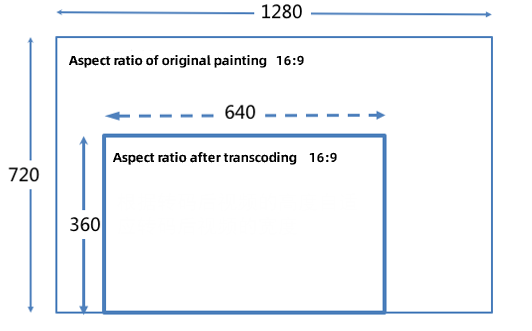
For example, if you transcode a 1920 × 1080 video using the LD (Landscape) template (template ID: ld), the template sets the height to 360, and the adaptive width results in a final resolution of 640 × 360.
For example, if you transcode a 1920 × 1080 video using the LD (Portrait) template (template ID: ld-v), the template sets the width to 360, and the adaptive height results in a final resolution of 360 × 203.
Currently, only Default Transcoding and Custom Transcoding support adaptive resolution.
Configuration
Modifying or deleting a transcoding template configuration does not affect an ongoing stream ingest task. To make the new configuration take effect or stop transcoding billing, you must disconnect the current live stream and restart stream ingest.
Default transcoding
You can configure Default transcoding in ApsaraVideo Live in two ways.
-
Log on to the ApsaraVideo Live console.
-
In the left-side navigation pane, click Feature Management > Transcoding.
-
Select the domain name that you want to configure, click the Default Transcoding tab, and then click Add to configure a transcoding template.

The following table describes the parameters for the transcoding template.
Parameter
Description
Application Name
The system first attempts to match a transcoding template with the same AppName as the ingest URL. If no match is found, the system uses a template where AppName is set to an asterisk (*).
Trigger Transcoding
-
Enabled: Transcoding starts only when the transcoded stream is pulled for the first time.
-
Disabled: Transcoding starts upon stream ingest, even if the stream is not being pulled.
Template Type
-
Offers two template types: Standard Transcoding and Narrowband HD™ Transcoding. These types differ in quality, performance, and price. The Standard Transcoding includes an Original quality - Audio-only transcoding option.
-
You can select multiple transcoding templates.
-
When you use a transcoding template, the Template ID is a parameter used to construct the transcoding URL. For instructions on how to construct the URL, see Generate live streaming URLs. For more information about template IDs, see System-preset templates. Transcoding modes include quality-priority and latency-priority. In latency-priority mode, the latency of the transcoded stream is lower.
-
For the same domain name, the combination of AppName and Template ID serves as a composite primary key.
Encryption
After you enable this feature, you can configure Alibaba Cloud Proprietary Cryptography or DRM Encryption.
NoteDRM Encryption is supported only in the Shanghai and Singapore live centers.
-
Alibaba Cloud Proprietary Cryptography
-
Alibaba Cloud video encryption supports only HLS and FLV output formats.
-
KMS CMK ID: The region of the Key Management Service (KMS) key must be the same as the live center of the domain name. If you do not have a key, go to the KMS console to create one. For more information, see Purchase and enable a KMS instance.
-
CMK Rotation Period: An integer from 60 to 3600.
-
For more information about using Alibaba Cloud video encryption, see Alibaba Cloud video encryption.
-
-
DRM Encryption
-
Before you enable this feature, you must configure a DRM key. For more information, see Configure DRM encryption.
-
DRM Encryption is supported for Widevine and FairPlay over HLS. For FairPlay, you must upload the certificate that you obtained from Apple in DRM Certificate Management. For more information, see Request a FairPlay certificate.
-
-
-
Click OK.
Custom transcoding
If the Default transcoding templates do not meet your requirements, you can use Custom Transcoding configurations. Custom Transcoding configurations allow you to set the encoding format, resolution, bitrate, frame rate, video GOP, transcoding trigger, and transcoding template ID.
You can configure Custom Transcoding in ApsaraVideo Live in two ways.
-
Log on to the ApsaraVideo Live console.
-
In the left-side navigation pane, click Feature Management > Transcoding.
-
Select the domain name that you want to configure, click the Custom Transcoding tab, and then click Add to configure a transcoding template.

The following table describes the parameters for the transcoding template.
Parameter
Description
Application Name
The system first attempts to match a transcoding template with the same AppName as the ingest URL. If no match is found, the system uses a template where AppName is set to an asterisk (*).
Template ID
-
When you use a transcoding template, the Template ID is a parameter used to construct the transcoding URL. For instructions on how to construct the URL, see Generate live streaming URLs.
-
Do not set a template ID that is identical to a system-preset template ID. For more information about system-preset template IDs, see System-preset templates.
-
For the same domain name, the combination of AppName and Template ID serves as a composite primary key.
Template Type
-
The options are Standard Transcoding, Narrowband HD™ Transcoding, and Audio-only Transcoding. The quality, performance, and price of standard and Narrowband HD™ templates differ.
-
The Audio-only Transcoding removes the video and outputs only the audio stream.
Encoding Format
H.264 and H.265 are supported.
Recommend Parameter Settings
Four recommended parameter sets are available: LD, SD, HD, and UHD. When you select a preset, the corresponding frame rate, bitrate, and resolution are automatically filled with default system values. You can then adjust these values as needed.
Resolution
The output resolution of the video in pixels. You can select a fixed resolution or have the resolution follow the source.
Follow source: If the width and height of the source stream are smaller than the adaptive dimensions, the output resolution matches the source. If the width and height are larger, the output resolution uses the adaptive dimensions. You can select one of the following adaptation methods:
-
Adaptive short side
-
Adaptive long side
-
Adaptive landscape/portrait
Fixed resolution: The output has a specified resolution. Different resolution tiers have different prices. The resolution tiers are as follows:
-
LD: (640 × 480) and below.
-
SD: (1280 × 720) and below.
-
HD: (1920 × 1080) and below.
-
2K: (2560 × 1440) and below.
-
4K: (3840 × 2160) and below.
Note
-
Transcoding is billed based on the resolution tier (LD, SD, HD, 2K, or 4K). The resolution tier is independent of the template IDs for standard templates (including lld, lsd, lhd, and lud) and Narrowband HD™ templates (including ld, sd, hd, and ud). The template IDs are used only as identifiers in API calls and should not be confused with billing tiers.
-
The console does not support custom settings for resolutions higher than 1080p. If your scenario requires 2K or 4K resolution, you can submit a ticket to request it.
For information about how to submit a ticket, see Contact Us.
Resolution tier determination rule: The output specification is determined by whether the long and short sides of the output video resolution fall within the range defined for that tier.
For example, for the SD (1280 × 720) tier:
-
If the long side of the output video resolution is less than or equal to 1280 and the short side is less than or equal to 720, the video belongs to this output specification.
-
If the long side of the output video is greater than 1280 or the short side is greater than 720, the output video belongs to a higher output specification.
Video Frame Rate
Follow source: If the source frame rate is within the allowed range, the output frame rate matches the source. If it exceeds the upper limit, the upper limit is used. If it is below the lower limit, the lower limit is used.
Fixed frame rate: The output has a specified video frame rate in FPS. The value must be less than or equal to the input frame rate.
Video Bitrate
Follow source: If the source bitrate is within the allowed range, the output bitrate matches the source. If it exceeds the upper limit, the upper limit is used. If it is below the lower limit, the lower limit is used. Output by ratio is also supported.
Fixed bitrate: Use the specified bitrate in kbps. The bitrates specified for each resolution tier are as follows:
-
LD: 100 to 800.
-
SD: 200 to 1500.
-
HD: 500 to 4000.
-
2K: 2000 to 8000.
-
4K: 4000 to 30000.
Video GOP (frames)
Specifies the Group of Pictures (GOP), the interval between two I-frames. The value must be less than or equal to the source stream's GOP and cannot exceed 3 seconds to ensure low latency.
Audio Bitrate (audio-only transcoding)
This parameter is displayed when you set Template Type to Audio Only. The unit is kbps. The value ranges from 8 to 1,000.
Profile (audio-only transcoding)
This parameter is displayed when you set Template Type to Audio Only.
-
LC-AAC: Low Complexity-Advanced Audio Coding. Offers high transcoding efficiency.
-
HE-AAC: High-Efficiency Advanced Audio Coding. Offers better audio quality than LC-AAC at low audio bitrates, typically below 128 kbps.
Sampling Rate (audio-only transcoding)
This parameter specifies the audio sampling rate and is displayed when you set Template Type to Audio Only. Valid values: 22050, 32000, 44100, 48000, and 96000.
Sound Channels (audio-only transcoding)
This parameter specifies the number of audio tracks and is displayed when you set Template Type to Audio Only. Valid values: 1 or 2.
Transcoding Mode (Advanced Configuration)
Supports quality-priority and latency-priority. In latency-priority mode, the latency of the transcoded stream is lower.
Trigger Transcoding (Advanced Configuration)
-
Enabled: Transcoding starts only when the stream is pulled for the first time.
-
Disabled: Transcoding starts upon stream ingest, even if the stream is not being pulled.
Video Encryption (Advanced Configuration)
After you enable this feature, you can configure Alibaba Cloud Proprietary Cryptography or DRM Encryption.
NoteDRM Encryption is supported only in the Shanghai and Singapore live centers.
-
Alibaba Cloud Proprietary Cryptography
-
Alibaba Cloud video encryption supports only HLS and FLV output formats.
-
KMS CMK ID: The region of the KMS key must be the same as the live center of the domain name. If you do not have a key, go to the KMS console to create one. For more information, see Purchase and enable a KMS instance.
-
key rotation period: An integer from 60 to 3600.
-
For more information about using Alibaba Cloud video encryption, see Alibaba Cloud video encryption.
-
-
DRM Encryption
-
Before you enable this feature, you must configure a DRM key. For more information, see Configure DRM encryption.
-
DRM Encryption is supported for Widevine and FairPlay over HLS. For FairPlay, you must upload the certificate that you obtained from Apple in DRM Certificate Management. For more information, see Request a FairPlay certificate.
-
All SEI Passed-through (Advanced Configuration)
If enabled, all types of SEI messages are passed through. If disabled, SEI messages are not passed through.
Source-based Keyframe (Advanced Configuration)
If enabled, the keyframes of the transcoded output stream are aligned with the keyframes of the source stream.
Source-based PTS (Advanced Configuration)
If enabled, the Presentation Timestamp (PTS) of the transcoded output stream is aligned with the PTS of the source stream.
-
-
Click OK.
Multi-bitrate transcoding
You can use Multi-bitrate Transcoding to configure multiple transcoding profiles within a single template group. In regions with significant variations in network conditions, network fluctuations can impact the playback experience. By configuring multiple bitrates, you allow the player to adapt to the user's bandwidth. After you configure Multi-bitrate Transcoding, the player can automatically select the most appropriate bitrate for the client's network, improving the playback experience.
You can configure Multi-bitrate Transcoding only on the ApsaraVideo Live console.
-
Log on to the ApsaraVideo Live console.
-
In the left-side navigation pane, click Feature Management > Transcoding.
-
Select the domain name that you want to configure, click the Multi-bitrate Transcoding tab, and then click Add to add a Multi-bitrate Transcoding template group.
-
Click Basic Information to edit the basic information of the Multi-bitrate Transcoding template group.
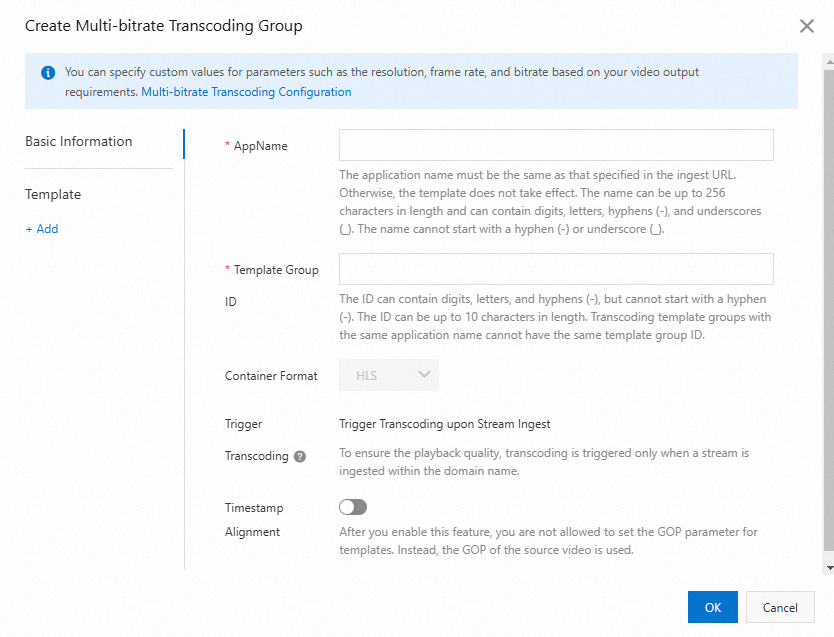
The following table describes the parameters:
Parameter
Description
Application Name
The transcoding template applies only if this AppName matches the AppName in the ingest URL. For the same domain name, the combination of AppName and Template Group ID serves as a composite primary key.
Template Group ID
The ID of the transcoding template group. This ID is a parameter used to construct the Multi-bitrate Transcoding URL. It can contain up to 10 characters, including digits, uppercase letters, lowercase letters, and hyphens (-).
Container Format
Currently, only HLS is supported.
Trigger Transcoding
Currently, transcoding can be triggered only by stream ingest. This action incurs transcoding fees. Triggering transcoding by stream pulling is not supported.
Timestamp Alignment
If enabled, this setting overrides the GOP setting in individual templates and uses the source video's GOP.
-
Click + Add to add a template.
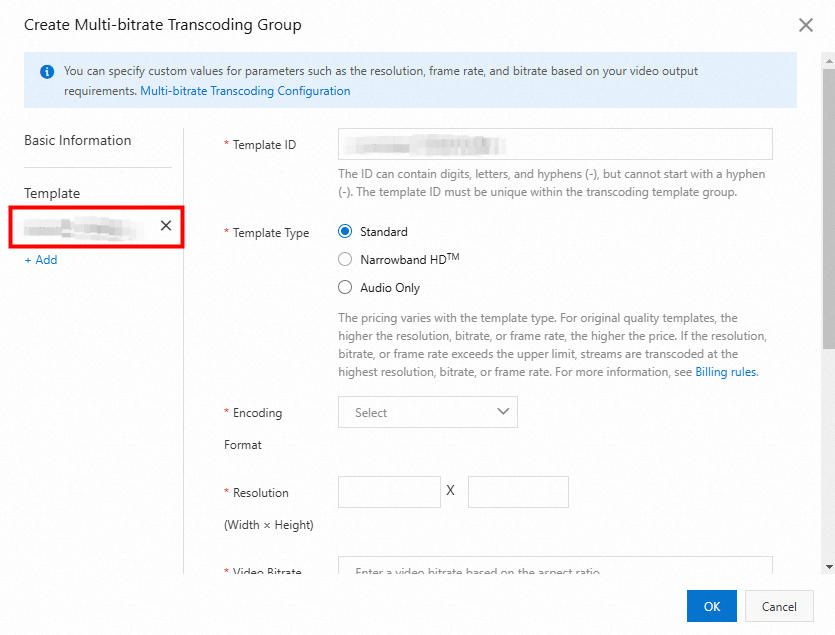
Click the added template to edit its parameters. The required parameters may vary depending on the template type. The following table describes the parameters:
Parameter
Description
Template ID
The ID of an individual template within the transcoding template group. Template IDs within the same template group must be unique.
Template Type
Valid values: Standard Transcoding, Narrowband HD™ Transcoding, and Audio-only Transcoding.
The Audio-only Transcoding removes the video and outputs only the audio stream.
Resolution
The output resolution of the video in pixels. Different resolution tiers have different prices. The resolution tiers are as follows:
-
LD: (640 × 480) and below.
-
SD: (1280 × 720) and below.
-
HD: (1920 × 1080) and below.
-
2K: (2560 × 1440) and below.
-
4K: (3840 × 2160) and below.
NoteTranscoding is billed by resolution tier (LD, SD, HD, 2K, or 4K). These billing tiers are distinct from template IDs of standard templates (such as lld, lsd, lhd, and lud) and Narrowband HD™ template IDs (such as ld, sd, hd, and ud), which are used only as identifiers. Do not confuse the two.
Resolution tier determination rule: The output specification is determined by whether the long and short sides of the output video resolution fall within the range defined for that tier.
Take the SD (1280 × 720) output specification as an example:
-
If the long side of the output video resolution is less than or equal to 1280 and the short side is less than or equal to 720, the video belongs to this output specification.
-
If the long side of the output video is greater than 1280 or the short side is greater than 720, the output video belongs to a higher output specification.
Video Bitrate
The bitrate used for the specified Resolution, in kbps. The bitrates specified for each resolution tier are as follows:
-
LD: 100 to 800.
-
SD: 200 to 1500.
-
HD: 500 to 4000.
-
2K: 2000 to 8000.
-
4K: 4000 to 30000.
Video Frame Rate
The output video frame rate in FPS. The value must be less than or equal to the input frame rate.
Video GOP (frames)
Specifies the Group of Pictures (GOP), the interval between two I-frames. The value must be less than or equal to the source stream's GOP and cannot exceed 3 seconds to ensure low latency.
Encoding Format
Currently, only the AAC encoding format is supported.
Profile (audio-only transcoding)
-
LC-AAC: Low-Complexity Advanced Audio Coding. Offers high transcoding efficiency.
-
HE-AAC: High-Efficiency Advanced Audio Coding. Offers better audio quality than LC-AAC at low audio bitrates, typically below 128 kbps.
Bitrate (audio-only transcoding)
The audio bitrate. The value ranges from 8 to 1,000.
Sound Channels (audio-only transcoding)
The number of audio tracks. Valid values: 1 or 2.
Maximum Bandwidth
An integer or decimal from 100 Kbps to 100 Mbps, with up to two decimal places. We recommend setting this value to 1.2 to 1.5 times the video bitrate.
-
-
-
Click OK.
-
Currently, Multi-bitrate Transcoding streams are available only as HLS transcoded stream URLs.
-
To play Multi-bitrate Transcoding streams, you must add the
aliyunols=onparameter. Thealiyunols=onparameter is required and has a fixed value.
The following is an example URL:
http://<DomainName>/<AppName>/<StreamName>_<Template Group ID>.m3u8?aliyunols=on&auth_key=1234****The following example shows how to use Multi-bitrate Transcoding in a real-world scenario.
For example, add a Multi-bitrate Transcoding configuration as shown in the following figure.
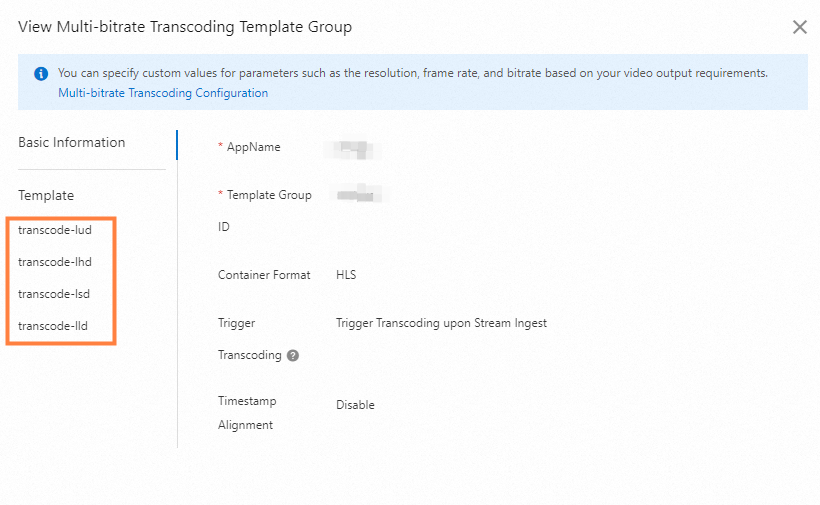
In this template group, four levels of transcoding configurations are customized. For information about the parameter values for different levels, see System-preset templates in this topic.
Then, start the stream ingest and use the web-based Alibaba Cloud Player SDK for playback. During debugging, you will find that the player automatically selects the transcoded stream with the appropriate bitrate based on the client's network bandwidth.
stream_transcode-lld.m3u8?aliyunols=on&auth_key=17260391...  200
stream_transcode-lsd.m3u8?aliyunols=on&auth_key=17260391...  200
stream_transcode-lld.m3u8?aliyunols=on&auth_key=17260391...  200
stream_transcode-lsd.m3u8?aliyunols=on&auth_key=17260391...  200
stream_transcode-lld.m3u8?aliyunols=on&auth_key=17260391...  200
stream_transcode-lsd.m3u8?aliyunols=on&auth_key=17260391...  200
stream_transcode-lsd.m3u8?aliyunols=on&auth_key=17260391...  200
stream_transcode-lhd.m3u8?aliyunols=on&auth_key=1726039...   200
stream_transcode-lsd.m3u8?aliyunols=on&auth_key=1726039...   200
stream_transcode-lhd.m3u8?aliyunols=on&auth_key=1726039...   200
stream_transcode-lhd.m3u8?aliyunols=on&auth_key=1726039...   200
stream_transcode-lhd.m3u8?aliyunols=on&auth_key=1726039... 200To use the Alibaba Cloud player, see Player SDK.
H5 automatic transcoding
Real-Time Streaming (RTS) uses the WebRTC protocol. Because native browsers often do not support video B-frames or AAC encoding for WebRTC, H5 automatic transcoding handles these incompatibilities to ensure smooth playback.
You can enable H5 automatic transcoding when you activate RTS. For more information, see Step 5: Activate the RTS feature.
-
H5 automatic transcoding resolves compatibility issues, such as B-frames and AAC encoding, for Real-Time Streaming (RTS) playback in native browsers. To transcode video content, such as by adjusting the bitrate, frame rate, or resolution, you still need to use Default transcoding or Custom Transcoding.
-
H5 automatic transcoding can be used together with Default transcoding or Custom Transcoding.
-
When you use H5 automatic transcoding, fees are incurred for audio-only transcoding. For more information, see Live stream transcoding fees.
-
To disable audio-only transcoding, log on to the ApsaraVideo Live console and choose Feature Management > Transcoding in the left-side navigation pane. Check whether an Audio-only Transcoding is configured for the domain name. If so, delete or modify the template.
-
If playback using a Web SDK automatically triggers HTML5 Auto Transcoding, such as transcoding AAC to Opus, we recommend that you use an Alibaba Cloud Native SDK instead. Native SDKs natively support formats such as AAC and therefore do not trigger this automatic transcoding, which prevents additional transcoding fees.
Video encryption
The Default transcoding and Custom Transcoding settings include options for video encryption. You can configure Alibaba Cloud Proprietary Cryptography directly within these settings. For details and setup instructions, see Alibaba Cloud video encryption.
References
To learn more about the transcoding configuration APIs, see live stream transcoding.
To use the Java SDK, see the Java SDK guide.