ApsaraVideo Live supports multiple stream ingest methods. You can implement stream ingest for standard streaming and Real-Time Streaming (RTS) by using different devices based on your business requirements.
Prerequisites
For standard streaming: All operations from Activate ApsaraVideo Live to Generate ingest and streaming URLs in the basic procedure to get started with ApsaraVideo Live are complete. For more information, see Get started with ApsaraVideo Live.
For RTS: All operations from Activate ApsaraVideo Live to Generate ingest and streaming URLs in the basic procedure to implement RTS are complete. For more information, see Get started with RTS.
The relevant ingest URLs are generated. For more information, see Generate ingest and streaming URLs.
Stream ingest for standard streaming
Scenario 1: Ingest streams on a PC
When you use a PC that runs Windows or macOS, you can install Open Broadcaster Software (OBS) to ingest streams based on your business requirements. OBS supports Windows, macOS, and Linux and is free and open source software for video recording and live streaming.
In the following example, OBS Studio V27.2.3 for Windows is used. The operations that you perform to ingest streams are similar for OBS of other versions or on other platforms.
Download and install OBS Studio. Download link: OBS Studio.
Run OBS Studio.
In the menu bar, choose File > Settings.
On the Settings page, click Stream and configure the following parameters.

Parameter
Description
Service
Select Custom...
Server
Enter the generated ingest URL that is signed. Example:
rtmp://demo.aliyundoc.com/app/stream?auth_key=1543302081-0-0-9c6e7c8190c10bdfb3c0************.Stream Key
Leave this parameter empty.
Go to the homepage of OBS Studio. Find the Sources section, add a source, and then click Start Streaming.

In the ApsaraVideo Live console, go to the Stream Management page. On the Active Streams tab, you can view and manage the ingested audio or video stream.
Scenario 2: Ingest streams on a mobile device
Use a mobile device to scan the QR code to download the Push SDK demo.
 Note
NoteIf you use an iOS device and receive a message indicating that the demo is from an untrusted enterprise developer, tap Settings > General > VPN & Device Management. On the page that appears, find the permissions required by Taobao and tap Trust.
Run the Push SDK demo.
Select Camera Pushing or Screen Sharing.
NoteOnly YUV files are allowed when you ingest local streams from a mobile device.
Enter the generated ingest URL that is signed. Example:
rtmp://demo.aliyundoc.com/app/stream?auth_key=1543302081-0-0-9c6e7c8190c10bdfb3c0************. Configure other parameters based on your business requirements.Click Start to start stream ingest.
In the ApsaraVideo Live console, go to the Stream Management page. On the Active Streams tab, you can view and manage the ingested audio or video stream.
Scenario 3: Use Push SDK to ingest streams
Push SDK for iOS
Integrate Push SDK for iOS. For more information, see SDK integration.
Configure the stream ingest parameters based on your business requirements and ingest a stream. For more information, see Use Push SDK for iOS.
Exceptions may occur when you configure the stream ingest parameters or ingest a stream. For more information, see Handle errors, exceptions, and special cases.
Push SDK for Android
Integrate Push SDK for Android. For more information, see SDK integration.
Configure the stream ingest parameters based on your business requirements and ingest a stream. For more information, see Feature usage.
Exceptions may occur when you configure the stream ingest parameters or ingest a stream. For more information, see Handle errors, exceptions, and special cases.
Stream ingest for RTS
When you ingest streams over RTS, the formats vary based on different scenarios. Strictly conform to the following rules based on the format of the ingested stream and the client used for stream ingest.
Scenario 1: Ingest using OBS
For instructions, refer to Push a live stream to RTS using OBS.
Scenario 2: Ingest on the web client
Go to the RTS Web Player.
Click the Stream Ingest tab.
Expand the none drop-down list and select camera or screen, as needed.
If you select camera, click Get devices below the page. In the pop-up window, grant permission to access the microphone and camera. After granting permissions, expand the Select Microphone and Select Camera drop-down lists and select the corresponding devices.
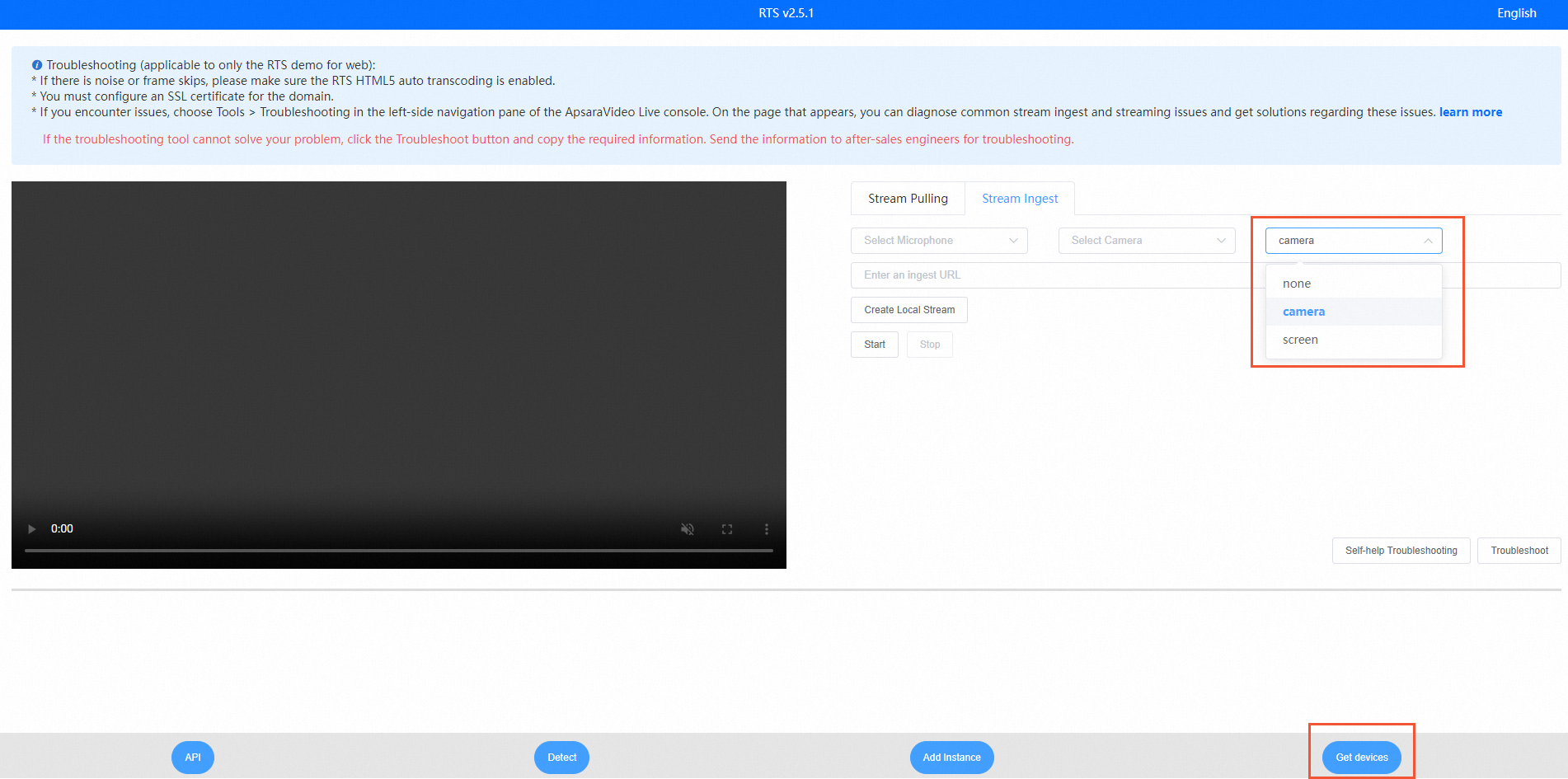
Click Create Local Stream.
Enter the generated ingest URL in the RTS format. Example:
artc://example.aliyundoc.com/liveApp****/liveStream****?auth_key=1543302081-0-0-9c6e7c8190c10bdfb3c0****.Click Start.
Scenario 3: Use Push SDK to ingest RTS streams
The procedure for using Push SDK to ingest an RTS stream is similar to the procedure for using Push SDK to ingest an RTMP stream. To ingest an RTS stream, you must specify an ingest URL in the RTS format when you call the startPush operation. Other settings are the same.
Push SDK for iOS
Integrate Push SDK for iOS. For more information, see SDK integration.
Configure the stream ingest parameters based on your business requirements and ingest a stream. For more information, see Use Push SDK for iOS.
Exceptions may occur when you configure the stream ingest parameters or ingest a stream. For more information, see Handle errors, exceptions, and special cases.
Push SDK for Android
Integrate Push SDK for Android. For more information, see SDK integration.
Configure the stream ingest parameters based on your business requirements and ingest a stream. For more information, see Feature usage.
Exceptions may occur when you configure the stream ingest parameters or ingest a stream. For more information, see Handle errors, exceptions, and special cases.