Qoder CN provides AI Chat in three modes—Ask, Edit, and Agent—to help solve coding problems, fix errors, debug, and troubleshoot runtime errors. Qoder CN supports multi-file edits, autonomous decision-making, codebase awareness, and tool use for end-to-end coding tasks.
-
To get the latest capabilities, update Qoder CN to version 2.5.0 or later in VS Code and JetBrains IDEs.
Qoder CN AI Chat core features:
-
Multiple chat modes: Switch between Ask, Edit, and Agent modes within a single conversation.
-
Automatic codebase awareness: Detects project frameworks, technology stacks, relevant code, and error messages from task descriptions—no manual context needed.
-
Tool use: Uses 10+ built-in tools for file I/O, code search, and error diagnosis. Supports MCP tool configuration and integrates with ModelStudio MCP Square.
-
Command execution: Generates and runs terminal commands autonomously.
-
Project-level changes: Breaks down tasks and modifies project files. Iterates through multi-turn chats or snapshot reverts.
-
Memory awareness: Qoder CN learns from each chat and retains context about you, your project, and your issues over time.
Start a new chat
Open the AI Chat panel
After installing Qoder CN, click the Qoder CN icon in the sidebar or use keyboard shortcuts to open the AI Chat panel. Log on to start chatting.
|
Action |
macOS |
Windows |
|
Open/Close AI chat panel |
|
|
For more details, see Install Qoder CN.
Choose a mode
Qoder CN offers three modes within a single chat flow. IDE support:
-
Visual Studio Code: All three modes. VS Code plug-in: Ask mode only.
-
Qoder CN IDE and JetBrains IDE plug-in: Ask and Agent modes only.
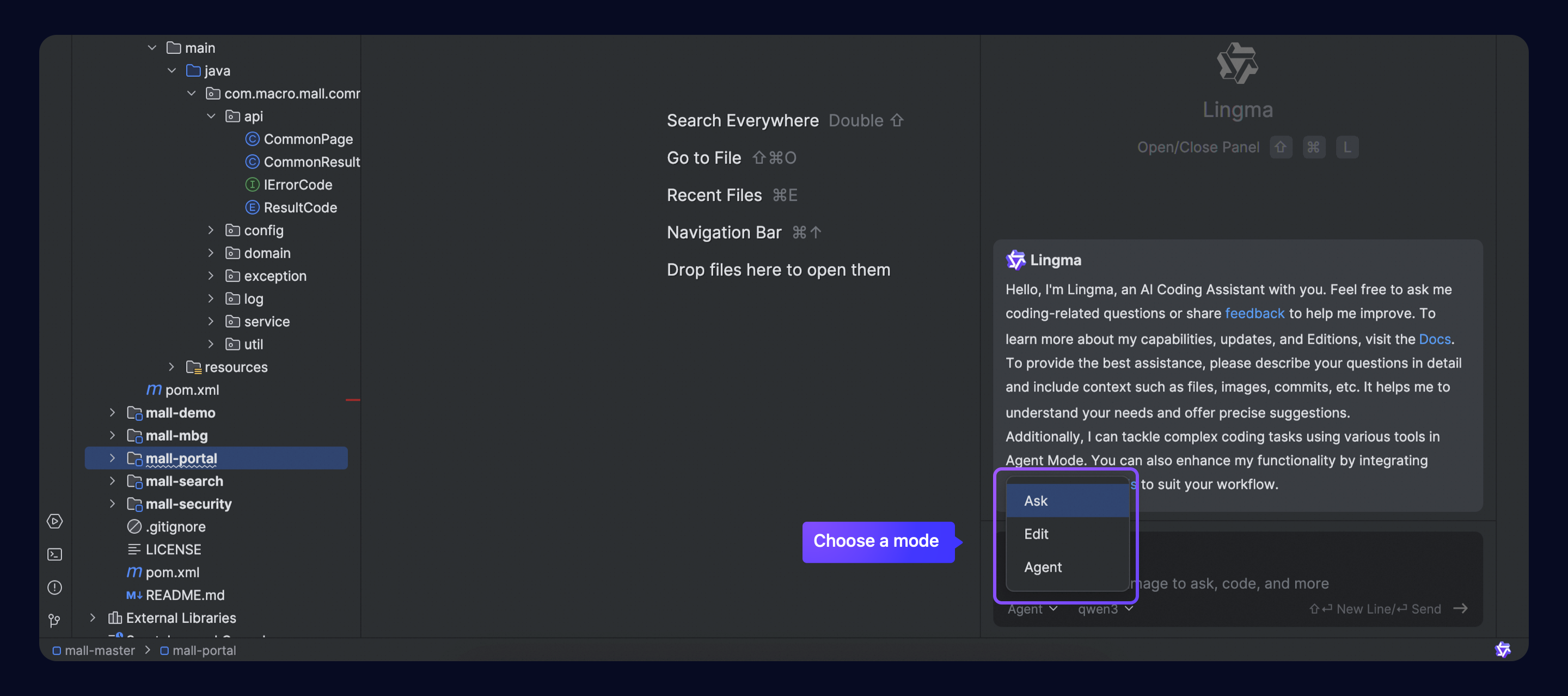
Select a mode that works for you:
|
Q&A mode. Answers coding questions and provides context-based solutions without directly modifying project files. |
|
|
Code modification mode. Makes targeted changes across multiple files based on your requirements and the current project state. |
|
|
Agent |
Autonomous task execution mode. Reads and edits files, runs terminal commands, and uses tools to complete coding tasks end-to-end. Supports MCP tool configuration. |
Input requirements
Tips for writing effective prompts:
-
Structure your request: State your goals and outline the steps clearly.
-
Provide context: Include files, images, codebase references, and code changes to help Qoder CN deliver precise solutions.
-
Specify expectations: Tell Qoder CN the language, conventions, format, and scope. Example: "Add English comments for each method."
-
Iterate step by step: Give feedback on Qoder CN suggestions. For complex tasks, break the work into smaller steps and iterate with Qoder CN.
Code modification and review
Multi-file edits
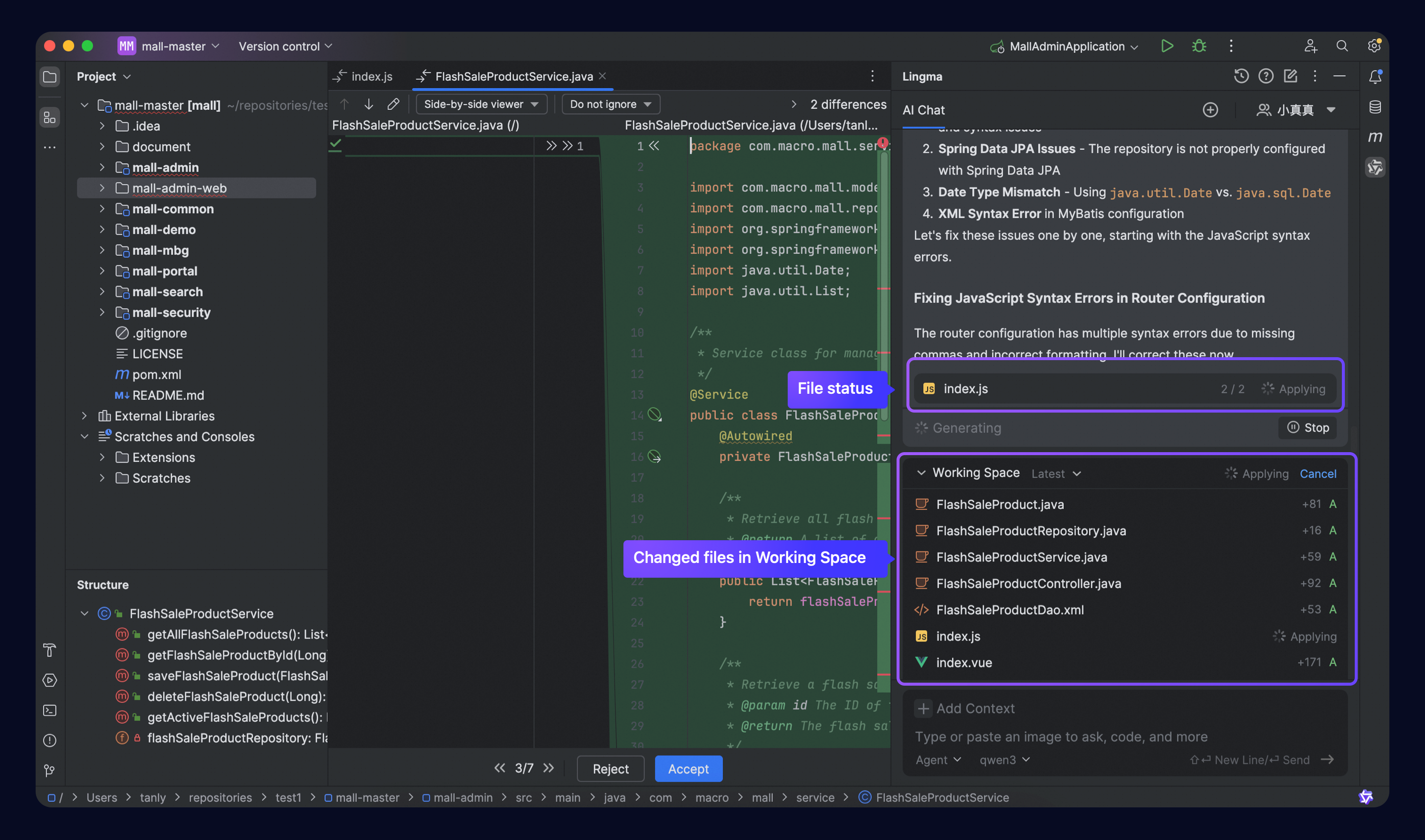
In Edit or Agent mode, multiple files can be modified at once. Each modification goes through these stages:
-
Generating: Code suggestions are generated from task breakdowns.
-
Applying: Suggestions are merged with the original files.
-
Applied: Changes are ready for review.
Track progress in the chat panel or workspace.
Use Diff view to compare original and modified files.
Review, accept, or reject modifications
To review changes:
-
Click the view changes button in the workspace or on individual files to compare modifications.
-
Navigate between changes with arrow keys:
-
Up/down arrows: navigate changes in the current file.
-
Accept or reject individual changes.
-
Forward/backward arrows in file-level controls: switch between changed files.
-
Accept or reject all changes at the file level.
-
Edit changes manually before accepting.
-
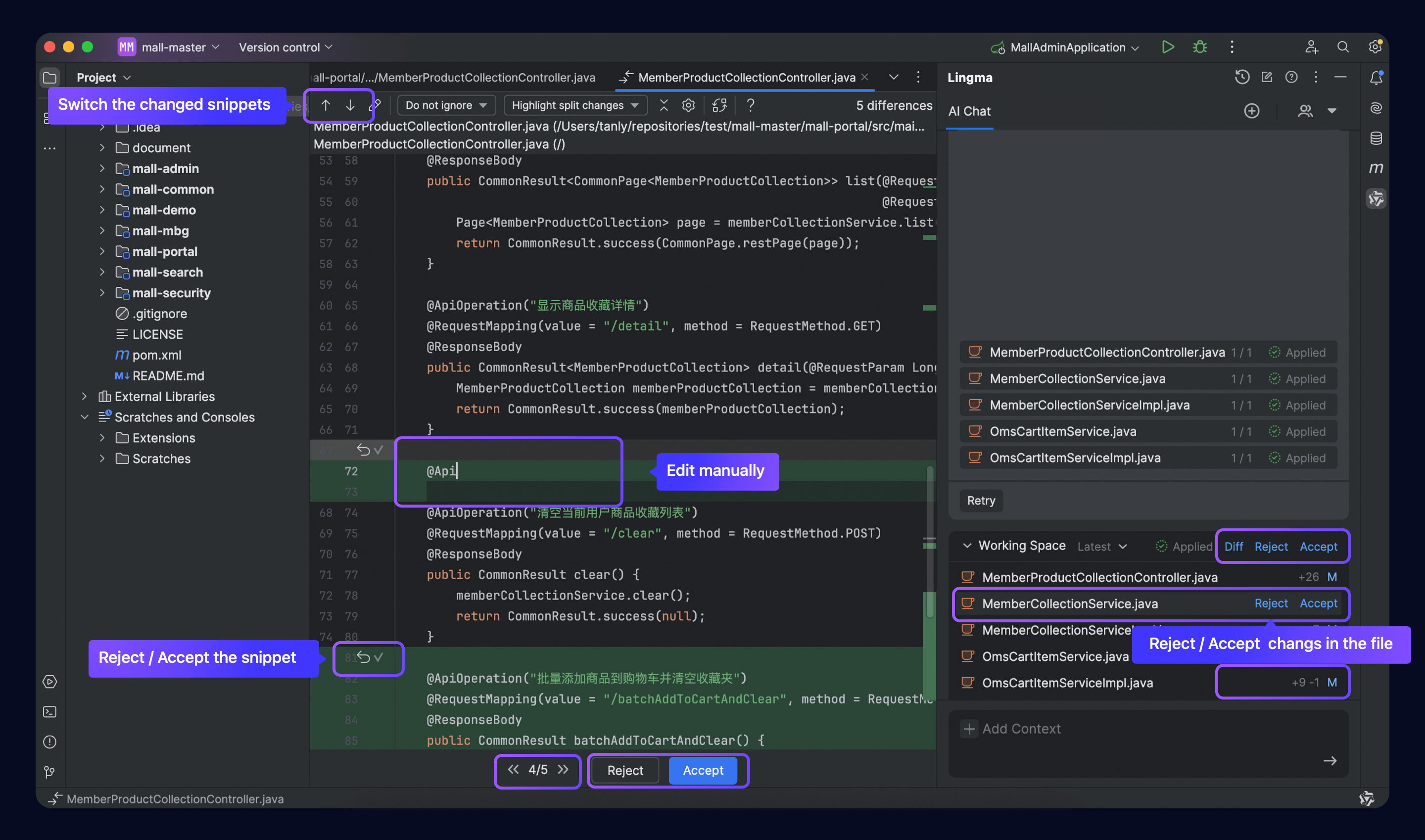
When reviewing changes:
-
Changes are combined into the latest code snapshot and accepted or rejected collectively.
-
Accepted changes are merged into the original file.
After review, the current snapshot enters one of these statuses:
-
Accepted: All changes in all files are confirmed.
-
Partially accepted: Some files have accepted changes; others are rejected.
-
Rejected: All changes in all files are rejected.
Multi-turn iterations and snapshots
Refine requirements in multiple turns
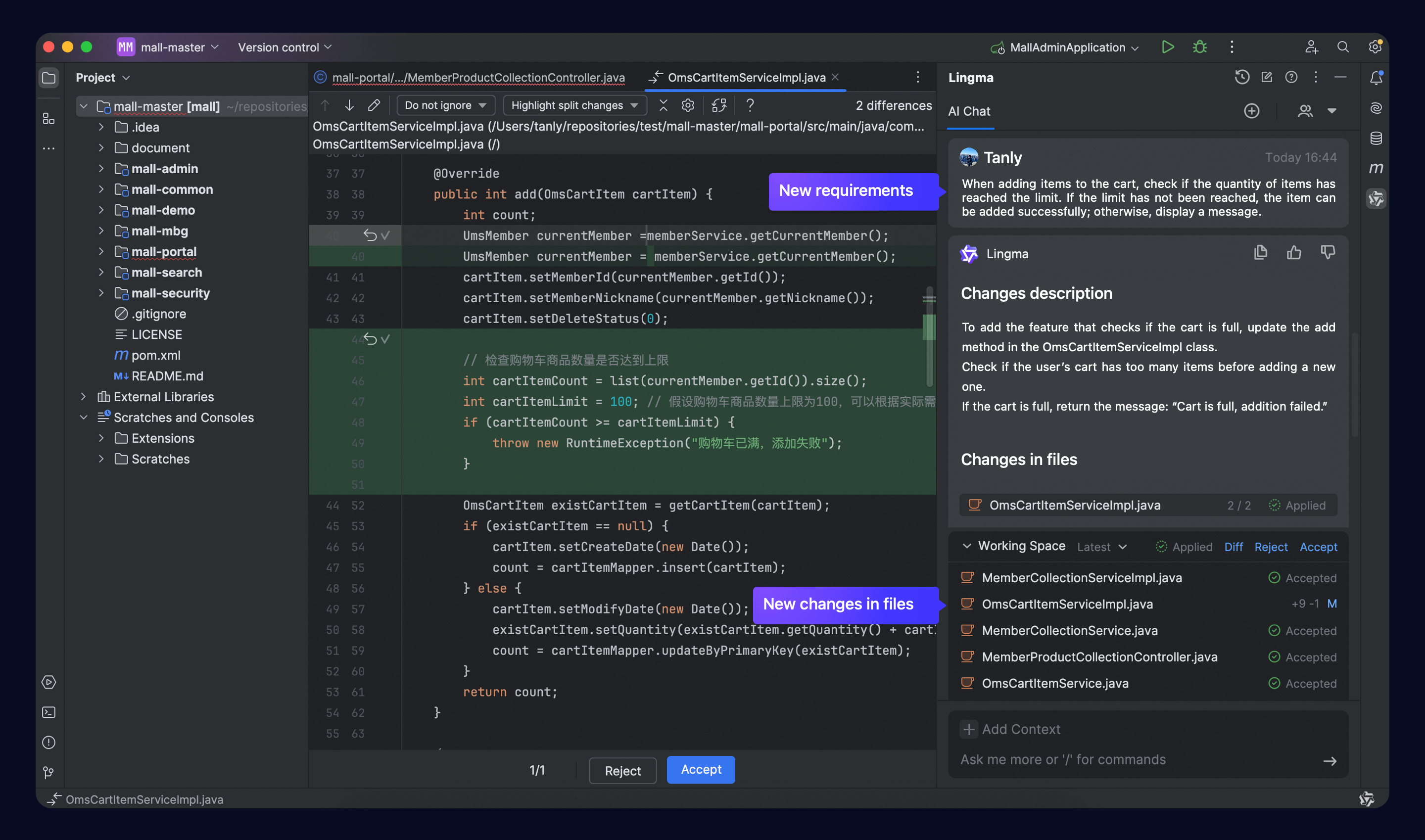
In Edit or Agent mode, continue asking questions after receiving code changes. Qoder CN combines previous changes with new requirements to generate updated files.
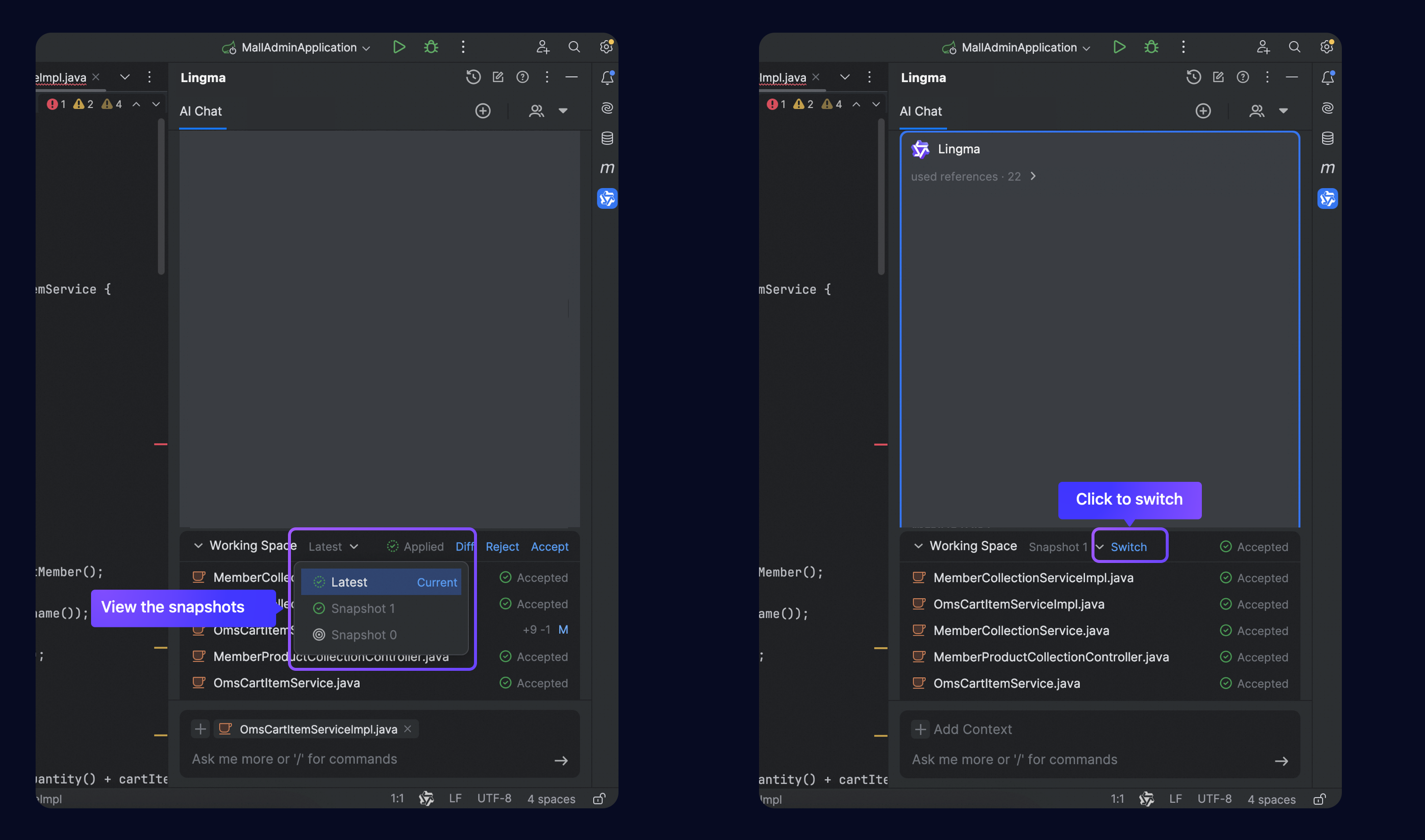
View snapshots and revert changes
Viewing and reverting snapshots is available in Visual Studio Code only. In Qoder CN IDE or JetBrains IDE, click the  icon to revert.
In Visual Studio Code, click the drop-down arrow to view all snapshots from the current session. Select a snapshot to review changes or revert.
-
Locates the response card that generated the snapshot.
-
Updates the file list to show modified files. Click a file for change details.
-
Click Switch to revert to the selected snapshot.
Start a new chat
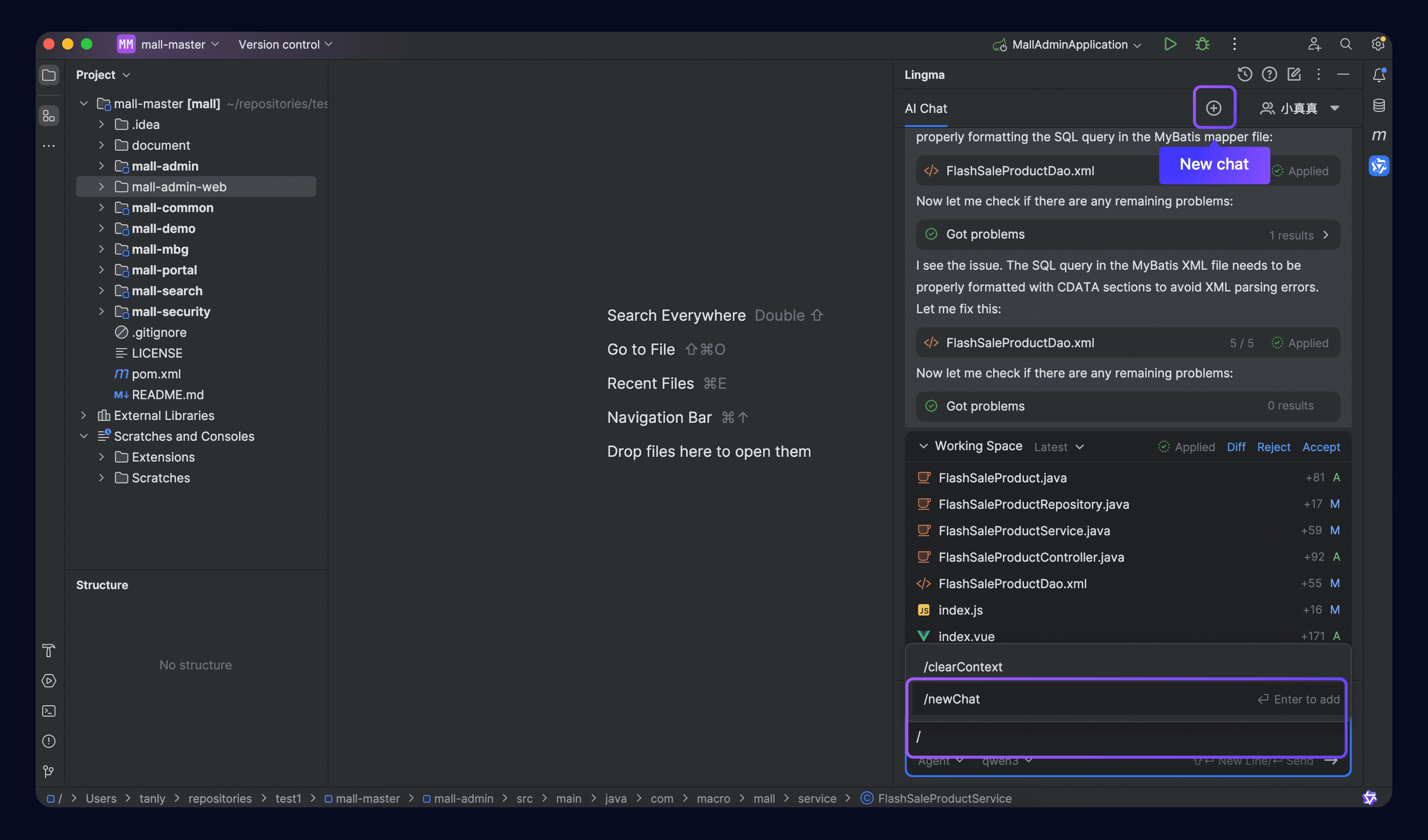
Start a new chat using either method:
-
Click the
 button at the top right of the AI Chat panel.
 -
Type
/and select/newChatin the chat box.
View chat history
Click the  icon at the top right of the AI Chat panel to view all interactions in the current project.
Context
Qoder CN supports rich context inputs: code files, directories, images, gitCommit, and knowledge base. Combine these with prompts to describe your requirements. Knowledge base context is not available in Qoder CN IDE.
For more information, see Context.
Memory
Qoder CN learns about you, your projects, and recurring challenges during chats, and keeps this information organized. Memory helps Qoder CN deliver more relevant responses over time.
For more information, see Memory.
Tools
Qoder CN includes built-in tools for file search, file read/write, directory browsing, symbol search, error checking, and terminal commands. These tools run autonomously without manual approval.
For more information, see Tools.
MCP
Qoder CN Agent mode integrates with MCP services. Configure custom MCP services to extend capabilities and align with your workflow.
The agent connects to a marketplace for third-party MCP services, enabling one-click installation.
For more information, see MCP.