Qoder CN supports various types of context in AI chat, including code files, directories, images, and Git commits. You can combine this context with prompts to specify your requests.
Add context
In AI chat, you can add context in three ways:
-
Click the add context button in the input box to open the context selection window.
-
Type
#or@in the input box to open the context selection window. You can then type to search for files.Note-
In the Qoder CN IDE and in plugins for JetBrains IDEs, use
@to open the context selection window. -
In Visual Studio Code, use
#to open the context selection window.
-
-
For code files and images, you can add them as context by dragging and dropping or by copying and pasting. This feature is only available in JetBrains IDEs.
Additionally, for context types like #file (@file), #folder (@folder), #gitCommit (@gitCommit), #teamDocs, and #rule (@rule), you can select the type and then search for and choose specific items. You can select multiple items for these types.
Finally, if you are using JetBrains IDEs, you can also drag the added context tags into your natural language prompt, to easily build your prompt.
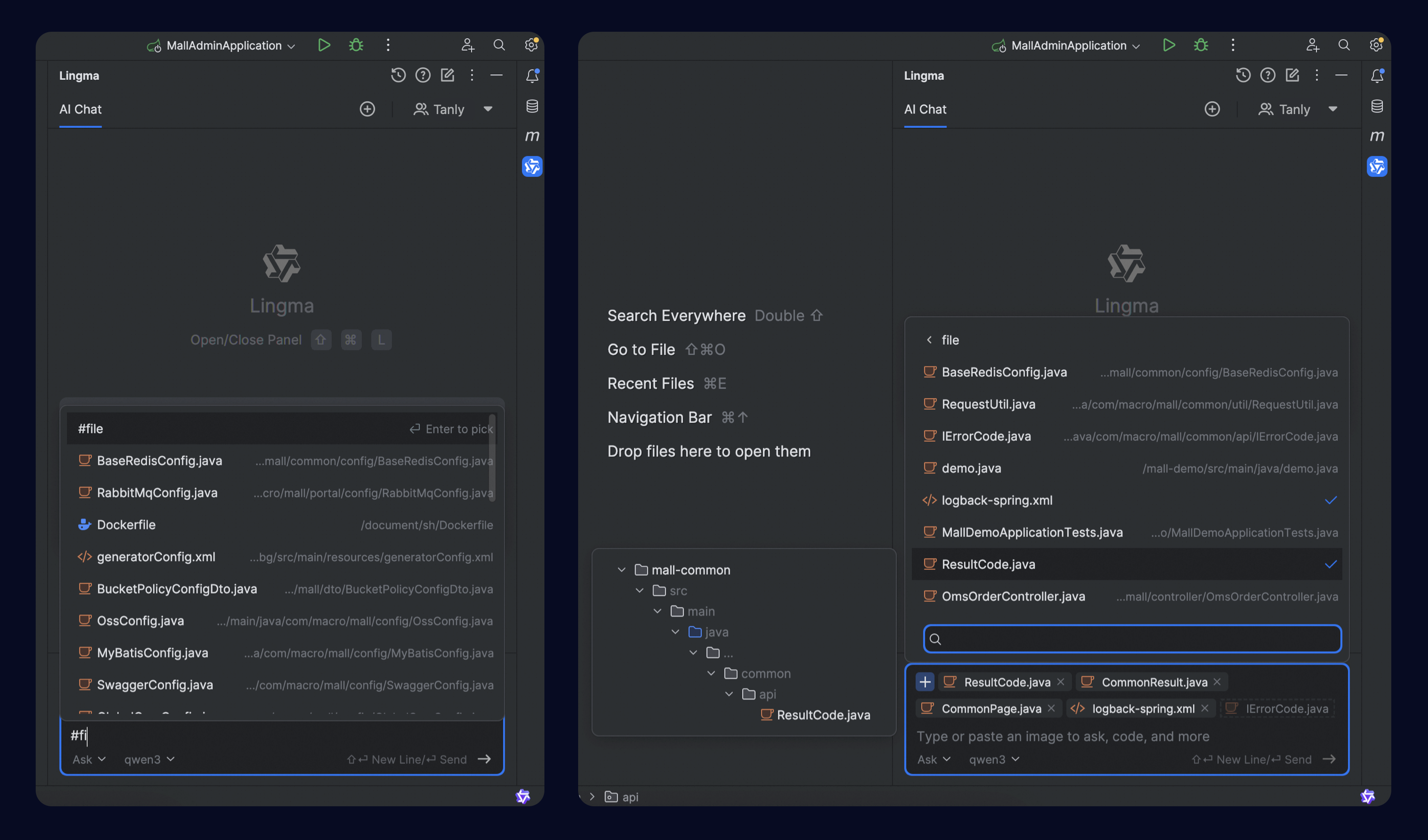
Supported context types
Qoder CN offers various context types. You can combine different types with each other or with natural language to create a complete prompt.
Supported context types include: file, folder, image, codebase, teamDocs, codeChanges, gitCommit, and rule. The following sections describe each type.
The Qoder CN IDE does not currently support the teamDocs context type.
#file
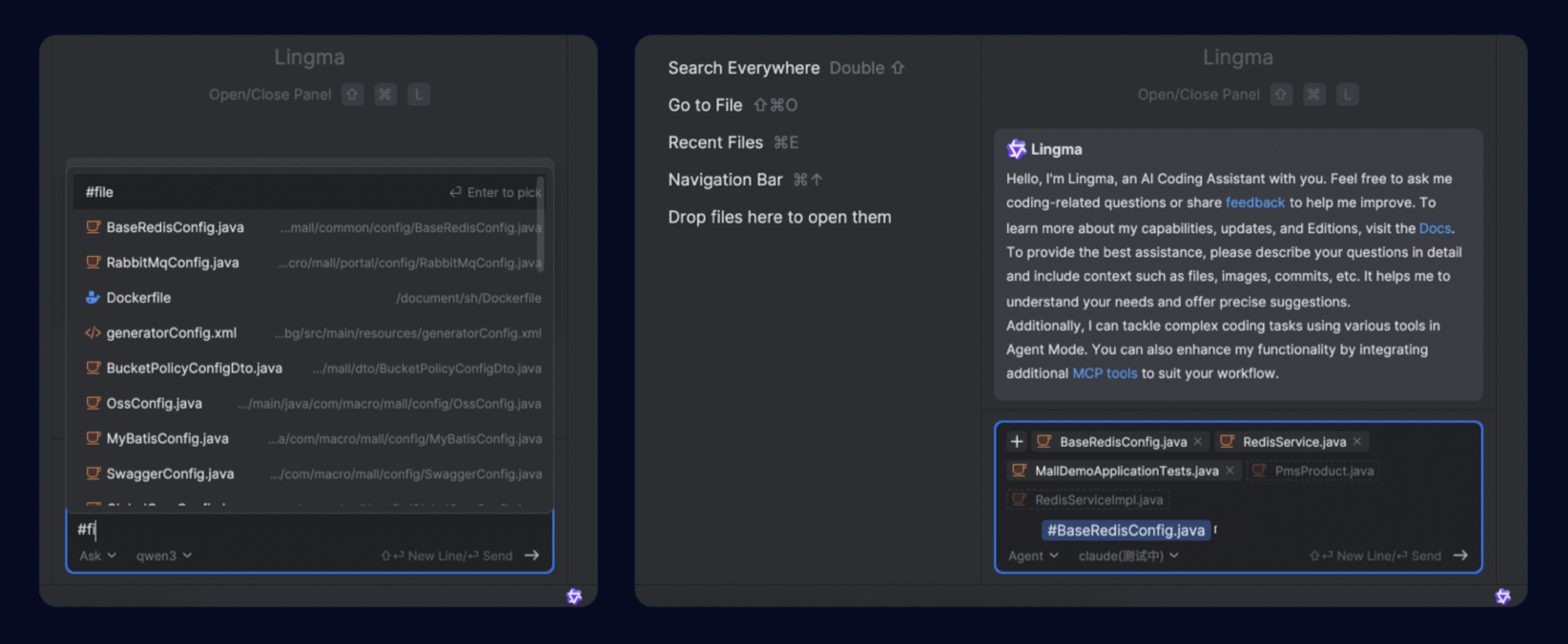
When you need to ask questions about or modify one or more files, type #file in the input box to select code files. You can select multiple files from the list. Additionally, if you are using JetBrains IDEs, you can also add code files as context by dragging and dropping or copying and pasting.
When adding files as context, keep the following two tips in mind:
-
After you select a code file, Qoder CN automatically recommends related files. You can click a file name to add it.
-
To add a specific file to your prompt, you can type
#to select it.
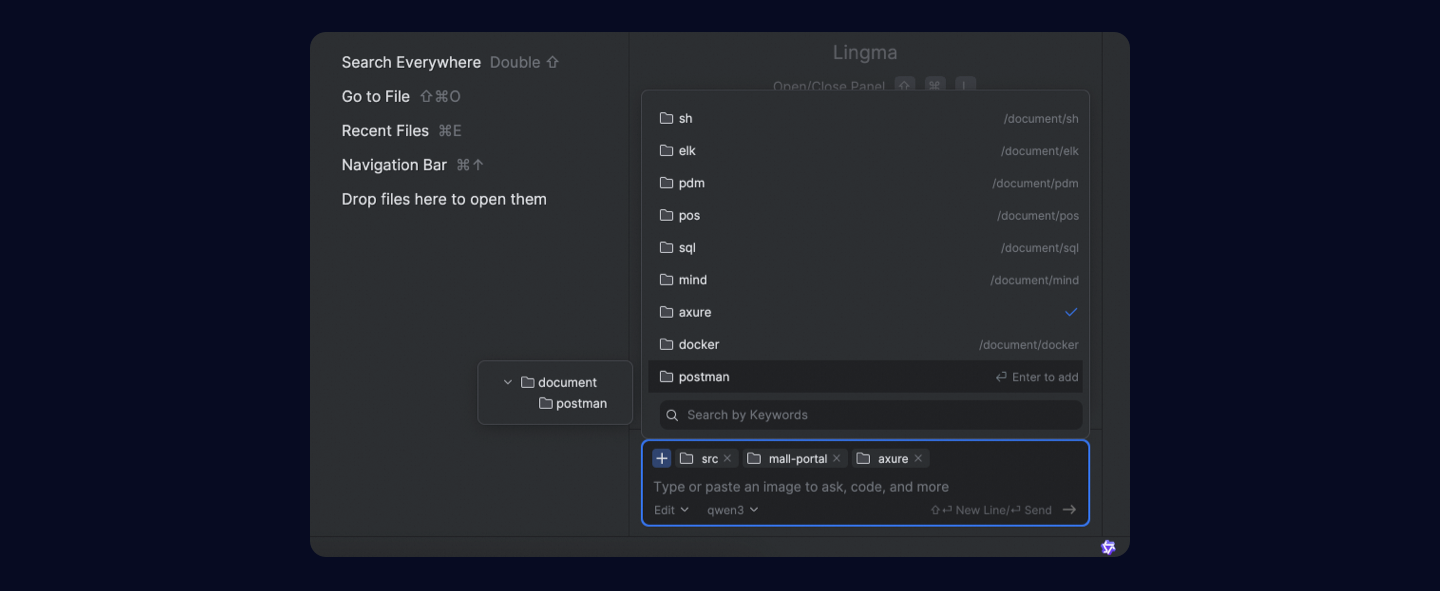
#folder
To ask questions about or modify a specific code module, especially for batch operations like searching, code refactoring, adding comments, or generating unit tests, add the relevant project directory as context.
#image
When you need to use an image to generate code, fix bugs, or create visual representations, you can click #image in the context selection window to add an image. You can also add an image by copying and pasting a file or a screenshot directly. For example, you can generate a frontend page from a design file.
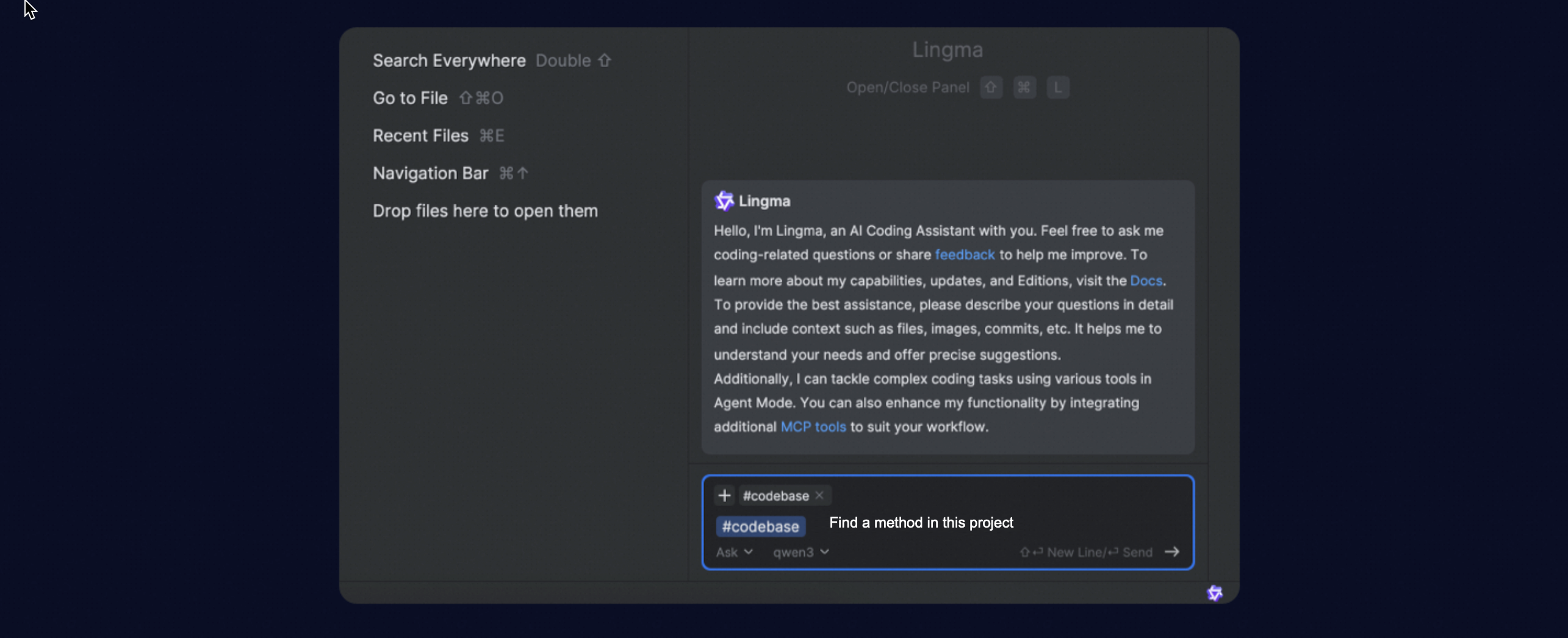
#codebase
When you need to perform a semantic search across the entire project, add #codebase as context. Qoder CN then automatically performs a semantic search within the current project's codebase to find the most relevant code snippets to use as context. For example, you can ask questions that require a global understanding of the code, such as "How is user authentication implemented in the project?", without specifying any files.
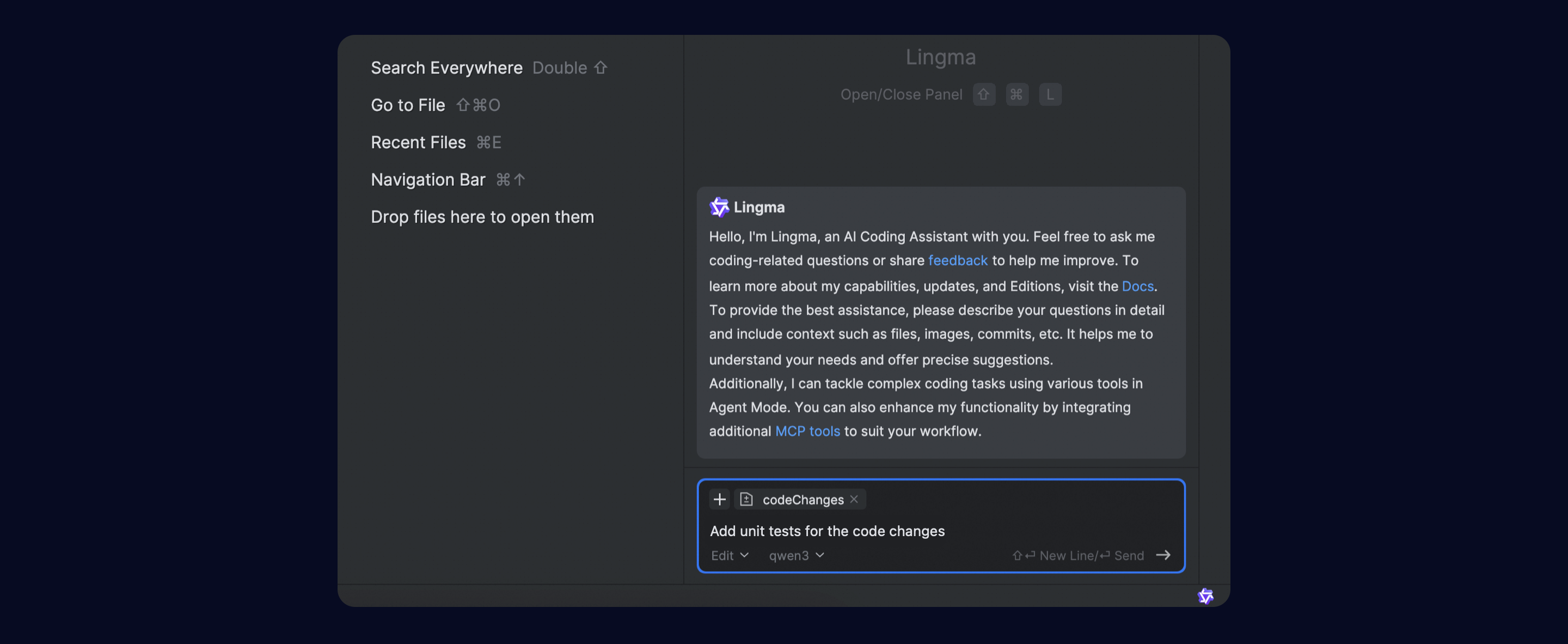
#codeChanges
When you need to ask questions about, search, or modify the code changes in the current Git staging area, you can add #codeChanges as context. For example, before pushing to a Git repository, you can ask Qoder CN to perform a code review, suggest optimizations, or add unit tests for the changes.
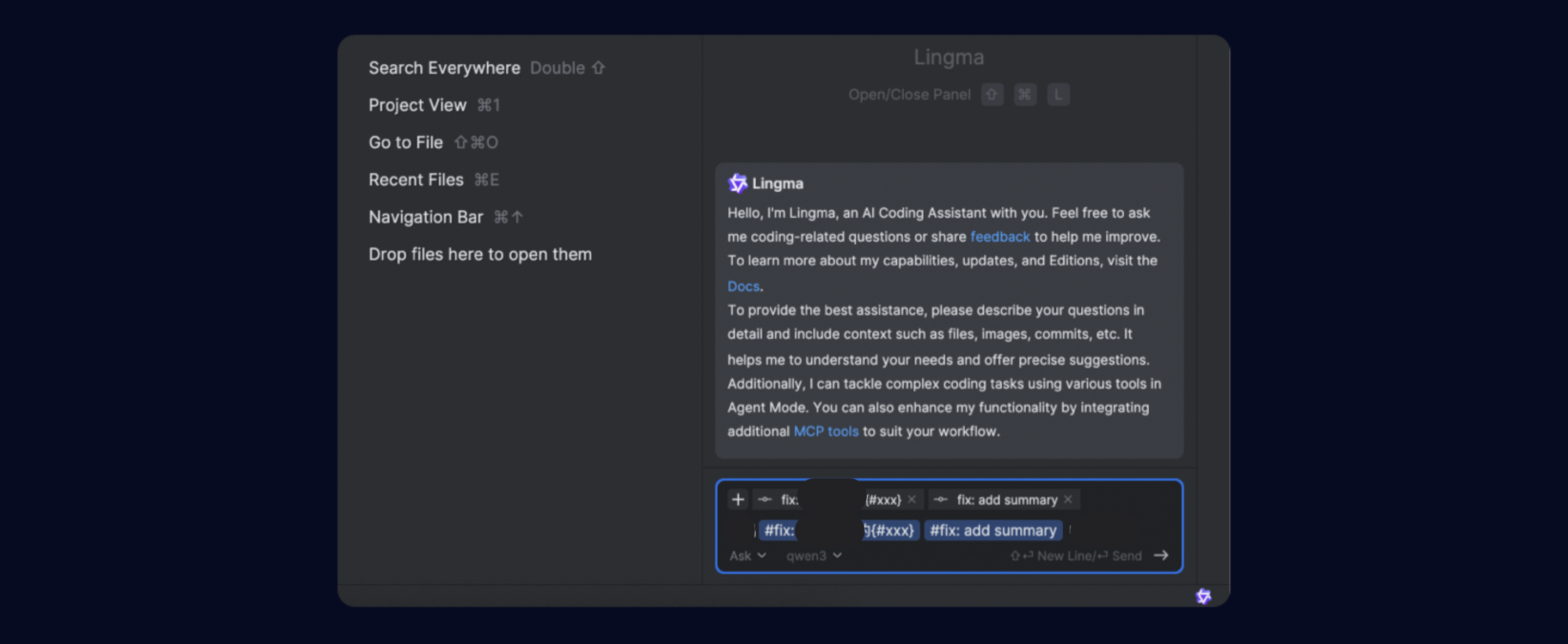
#gitCommit
When you need to ask questions about the code changes from a specific Git commit, you can use #gitCommit to add the required commit information. For example, you can select one or more Git commits to troubleshoot issues, fix bugs, or generate unit tests.
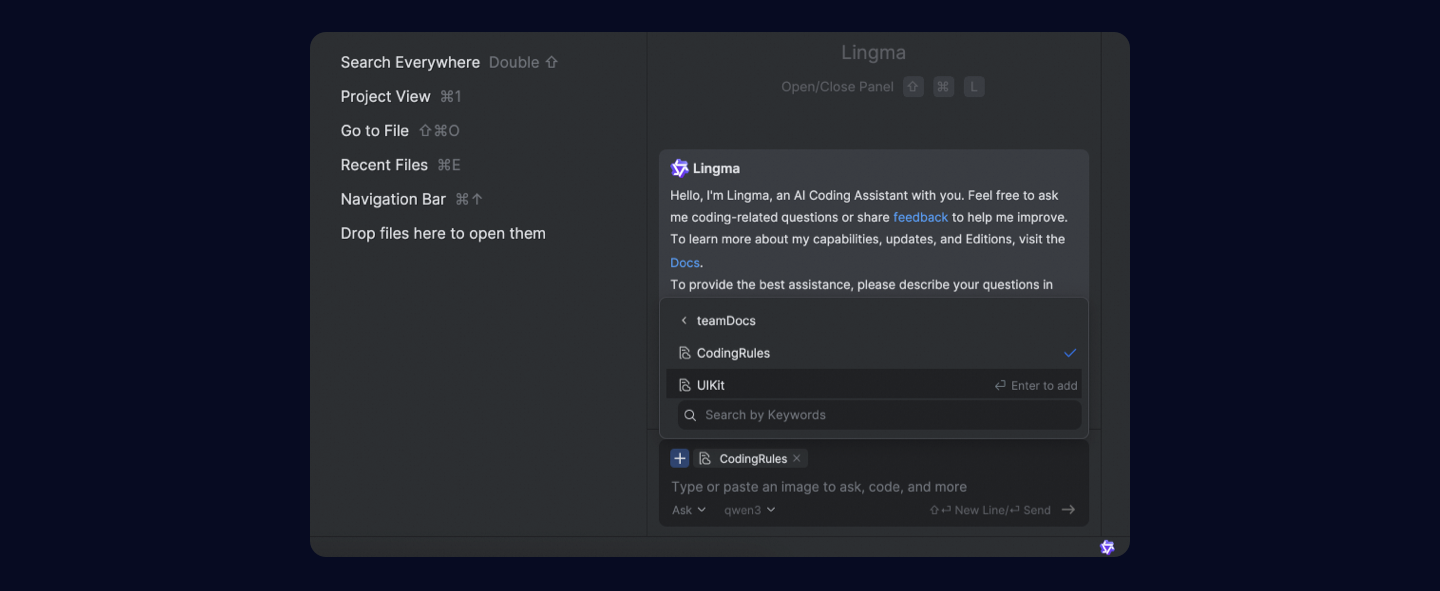
#teamDocs
When you need to use your enterprise knowledge base for Q&A or code generation, add the #teamDocs context. Qoder CN will automatically search the knowledge base and use the retrieved information as context for its responses. For example, you can use your team's internal component guidelines to generate code.
#rule
The #rule context applies a system prompt, which provides preset instructions. This prompt acts as persistent, reusable context included in every request, ensuring consistent model behavior for tasks like code generation, code refactoring, and workflow automation.