Ask mode allows Lingma, your AI Coding Assistant, to answer your questions and help solve coding problems. It can also generate suggested code, comment on code, optimize code, explain code, fix problems, and troubleshoot compiling errors.
Ask general questions
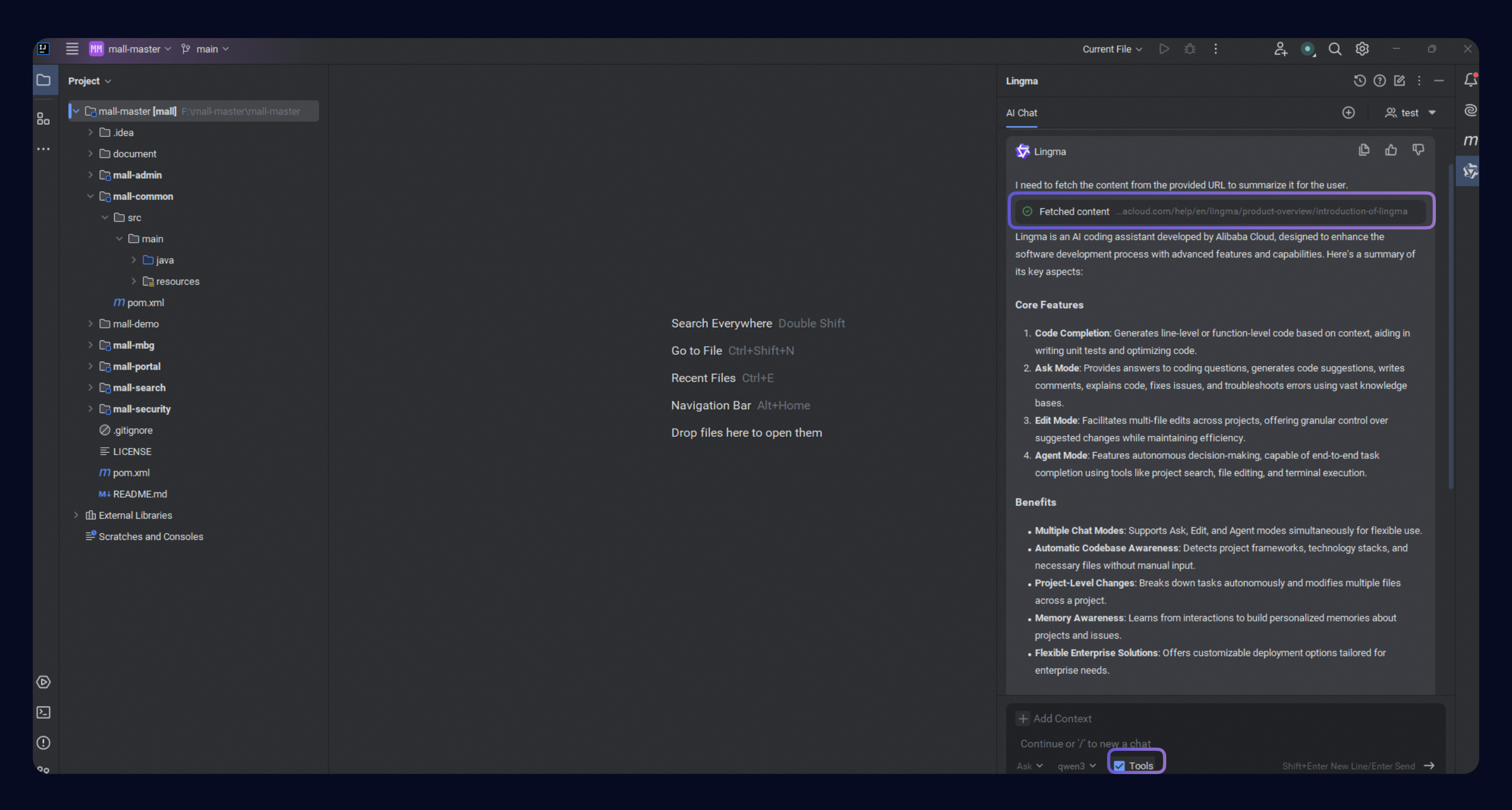
When you have no idea how to solve coding problems, click on the IDE side tool navigation or use keyboard shortcuts to open the AI Chat panel. Switch to the Ask mode in the IDE to get answers and solutions right away.
Ask about code
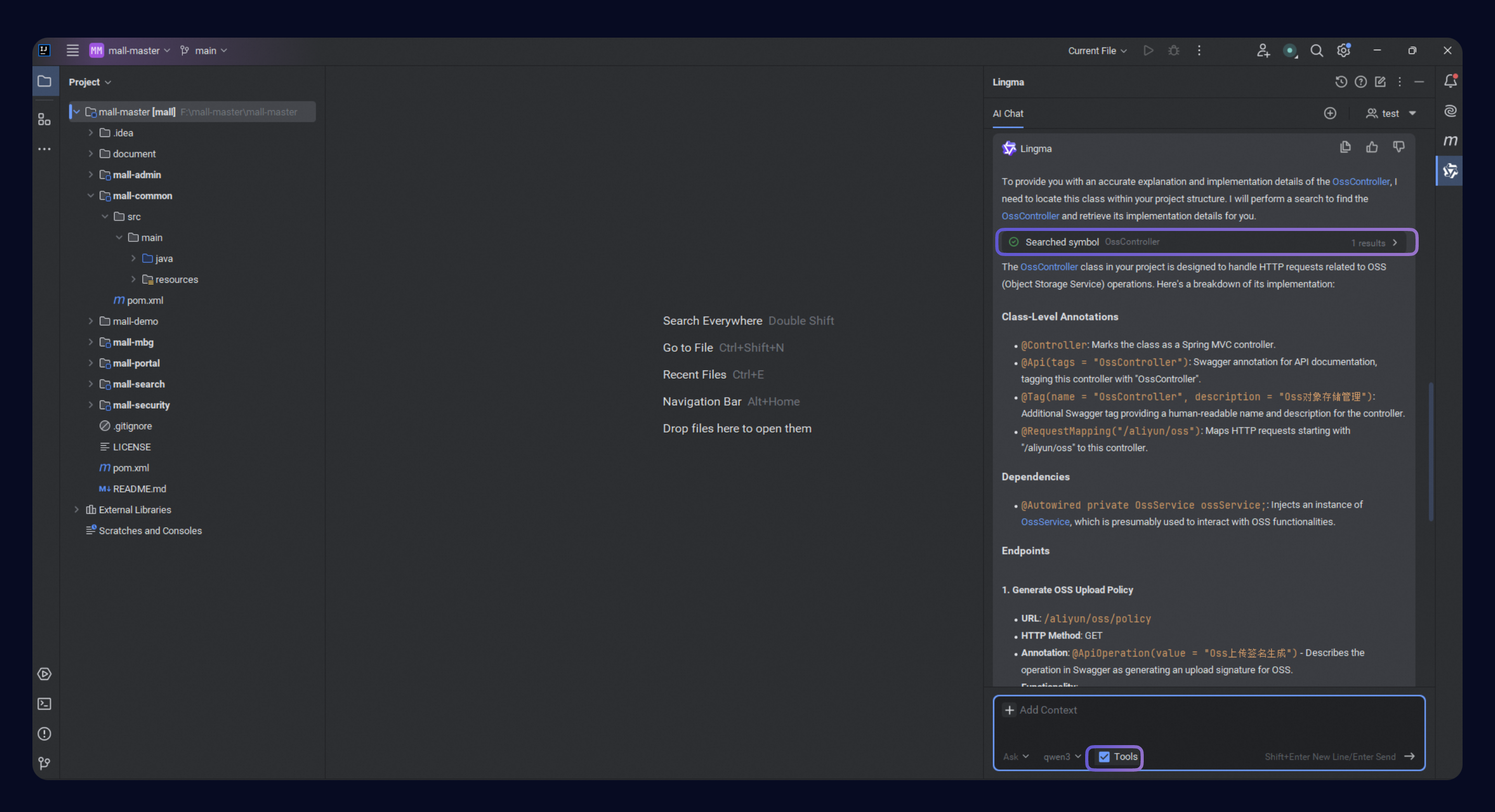
If you have questions about code or want to fix issues, select the code snippet or file, then type your question in the box of the AI Chat window. Lingma will chat with you about the code you selected.
Commands
Commands are supported for Visual Studio Code and JetBrains IDE plug-in only, not available for Lingma IDE.
How to trigger commands
Lingma offers the following methods to trigger a command:
Right-click menu: Select code in the editor, then right-click. Find Lingma and click the one you need.
Type / to invoke: In the chat box, type / to see quick commands. Pick the one you want.
Quick access above functions: To create unit tests, comments, or code explanations, or to improve code for a function, click the quick access button above the function. You don't need to select any code.
Ask mode provides the following 4 default commands for developers:
Command | Details |
Explain Code | Supports various programming languages. After you select the code, it automatically recognizes the language and generates explanations. This helps you understand the code faster. |
Generate Unit Test | Generates unit tests based on frameworks, such as JUnit, Mockito, Spring Test, unit test, and pytest. |
Generate Comments | Generates method comments and inline comments with one click, saving you time and improving code readability. |
Code Optimization | Analyzes code and context to find problems, from small syntax mistakes to big performance issues, and offers specific ways to improve. |
Define your requests for a command
You can add your requests in the chat box for the command you chose. Here are some examples:
Select
/unittestand add your specific requirements, like JUnit 5 to be used for the tests.Select
/commentand type what you need, like asking for the date to be at the start of the comments.
Suggest fixes
One-click fix for code problems
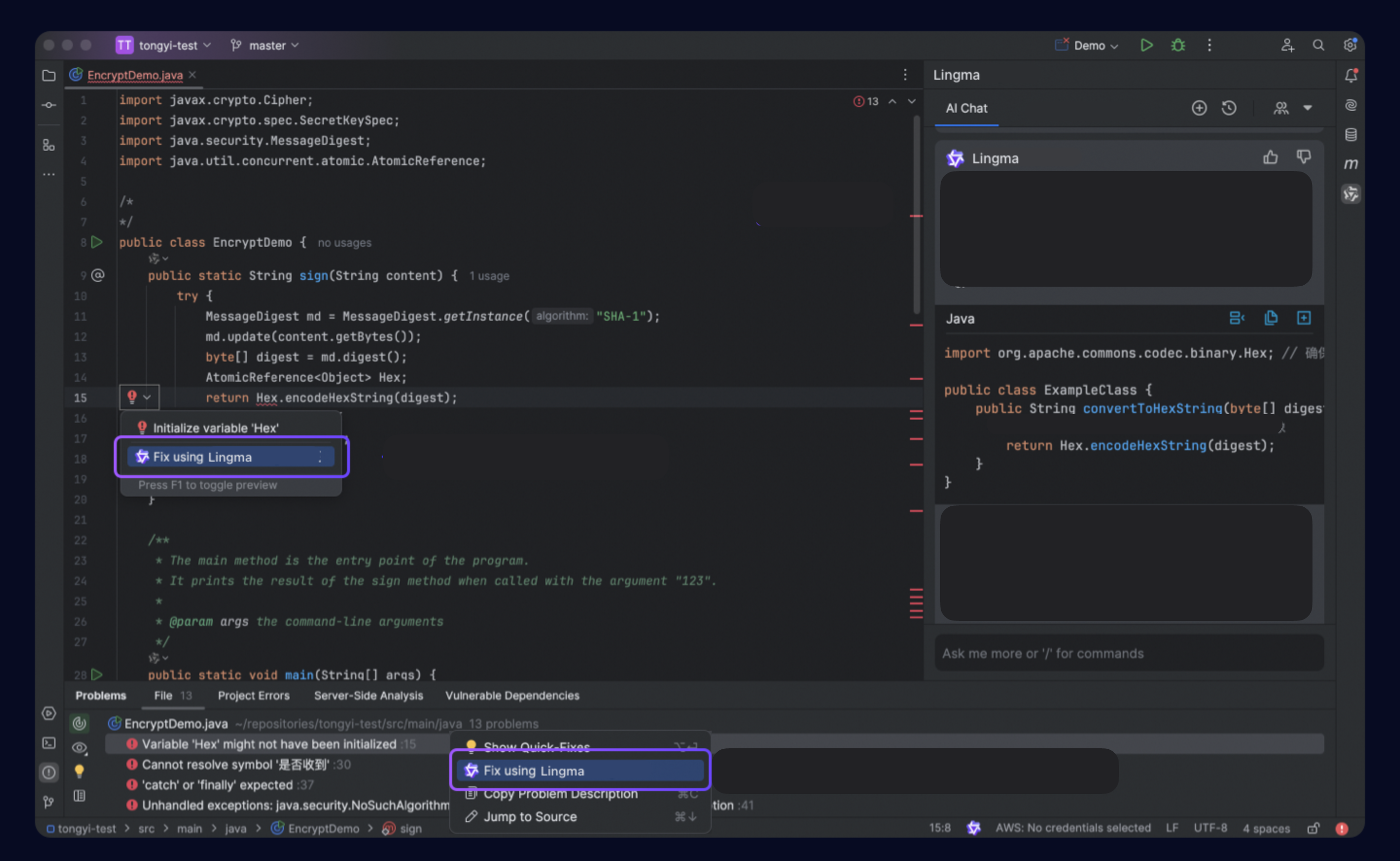
When you need to fix code problems, Lingma can provide one-click fix suggestions to help you fix various problems related to bugs.
To do so, either:
In the editor, find the error icon and select Fix using Lingma from the list.
In the Problem tool window, find the row with the error message, right-click it, and select Fix using Lingma from the list.
Troubleshooting (IntelliJ IDEA)
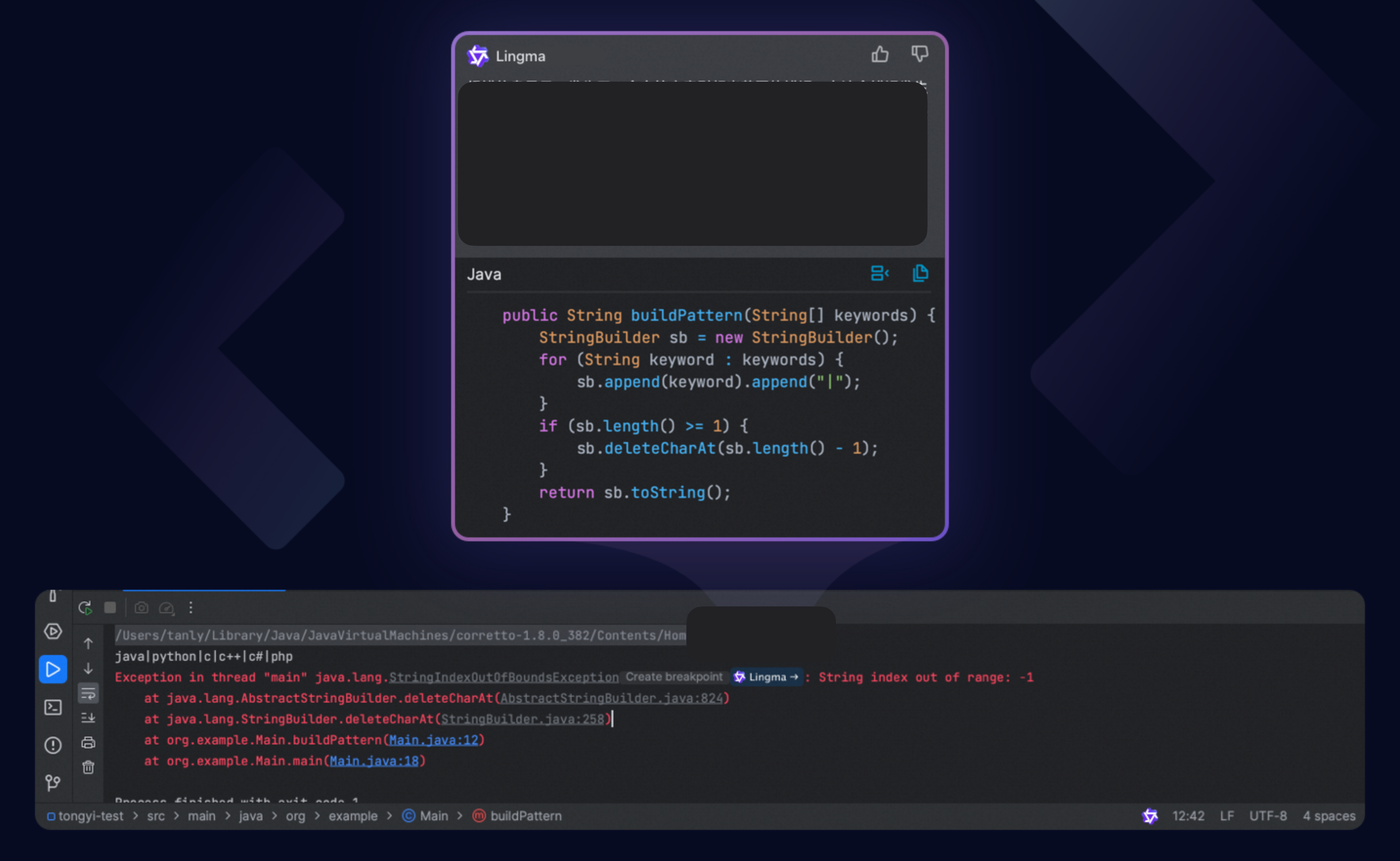
If an exception error occurs while your code is running in IntelliJ IDEA, click the Lingma icon in the Run tool window. Lingma will provide troubleshooting suggestions based on the code context and error messages.
Troubleshooting (VS Code)
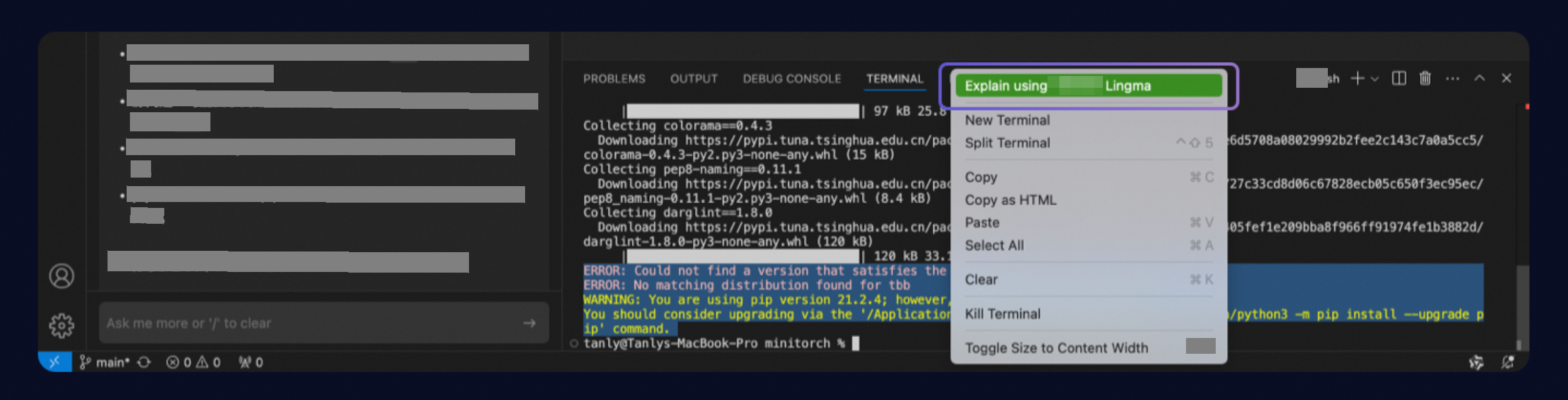
If you get an error after compiling or running code in the terminal in VS Code, right-click the message and select Explain using Lingma. Lingma will help you understand the error and suggest fixes.