This topic describes how to expand or reduce the capacity of Capacity storage (cold storage) for a Lindorm instance in the Lindorm.
Prerequisites
Capacity storage is enabled for the Lindorm instance. For more information, see Enable Capacity storage.
Usage notes
While the storage capacity is being changed, your instance is in the RESIZING or Scaling In state. During this time, you cannot perform other management operations on the instance, such as activating services or performing an upgrade or downgrade. Normal operations can resume after the instance enters the Running state, which typically takes 5 to 10 minutes.
The scale-in storage operation requires an extended period of time to complete. We recommend that you scale in Capacity storage during off-peak hours.
Procedure
Log on to the Lindorm console.
In the upper-left corner of the page, select the region where the instance is deployed.
On the Instances page, click the ID of the target instance or click View Instance Details in the Actions column for the instance.
-
In the left-side navigation pane, choose Cold Storage.
-
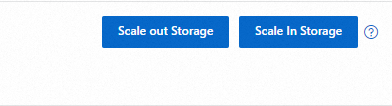
Click Scale out Storage or Scale In Storage.
-
On the Change Specification page, set the Capacity-based cloud storage capacity.
-
Read and select the terms of service, and then click Buy Now.