Learn how to use MediaConnect to ingest and distribute video content.
Procedure
Follow these steps to use MediaConnect:
Step 1: Activate Intelligent Media Services (IMS)
Step 2: Create a flow
Step 3: Add a source
Step 4: Add an output
Step 5: Start the flow
Step 6: Ingest and distribute the stream
Create a flow
Log on to the Intelligent Media Services (IMS) console.
In the left-side navigation pane, choose MediaConnect > Flows, and then click Create Flow.
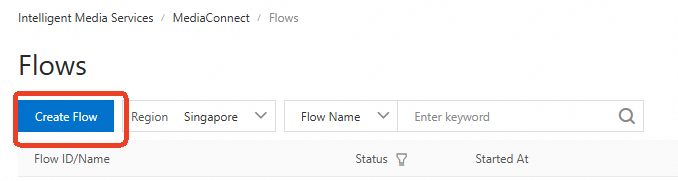
Configure the flow information.
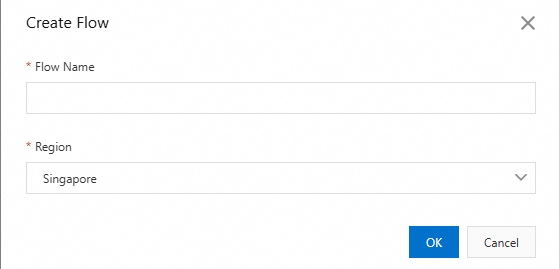
The following table describes the parameters.
Parameter
Description
Flow Name
Enter a custom name. The name can contain digits, letters, underscores (_), and hyphens (-). The maximum length is 64 characters.
Region
Valid values: Singapore, Germany (Frankfurt), China (Beijing), Saudi Arabia (Riyadh).
After you create the flow, it appears on the Flows page.
Add a source
After the flow is created, click the flow ID to open the details page. If the flow is unavailable, verify that you selected the correct region.
On the Sources tab, click Add Source Stream and configure the parameters in the right-side panel.
In this example, an RTMP-PUSH source is created.
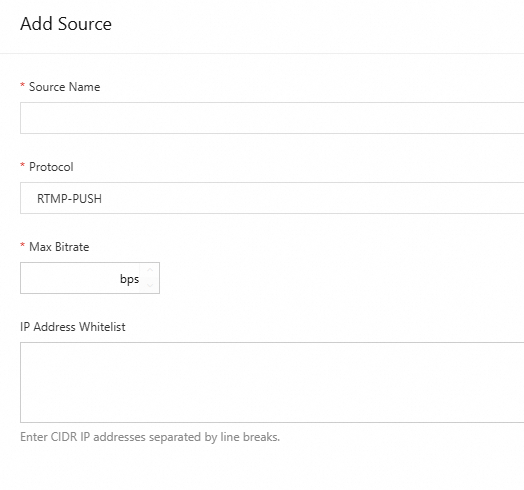
Parameter | Description |
Source Name | Name for the source stream. Supports letters, digits, hyphens (-), and underscores (_). Maximum 128 characters. |
Protocol | RTMP-PUSH. Cannot be changed after the source is added. |
Max Bitrate | Set based on your requirements. Valid values: 100 to 100,000,000 bps. Playback may stutter if the actual bitrate exceeds this value. |
IP Address Whitelist | IP addresses allowed to push content to the source. Leave empty to allow all. |
After the source is added, an RTMP ingest URL is generated. Use this URL for stream ingest after starting the flow.
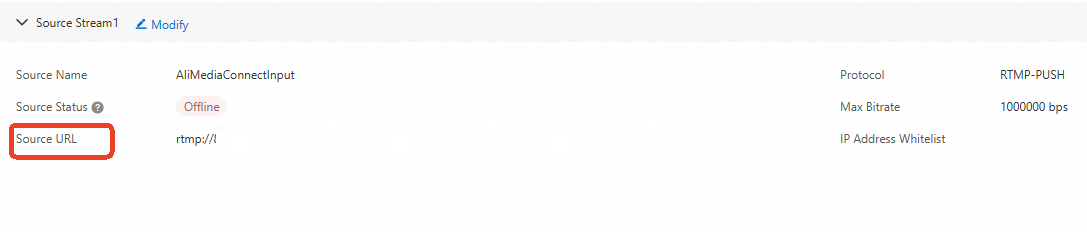
MediaConnect supports source failover for stream stability and availability. For more information, see Create and manage flows.
Add an output
On the flow details page, click Add Output in the Outputs tab.
In this example, an RTMP-PULL output is created.
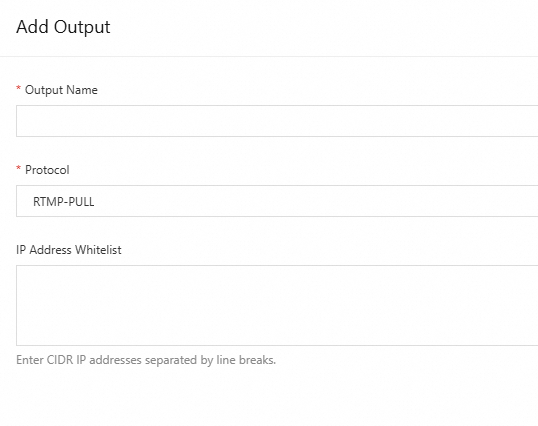
Parameter | Description |
Output Name | Name for the output. Supports letters, digits, hyphens (-), and underscores (_). Maximum 128 characters. |
Protocol | RTMP-PULL. |
IP Address Whitelist | IP addresses allowed to pull content from the output. Leave empty to allow all. |
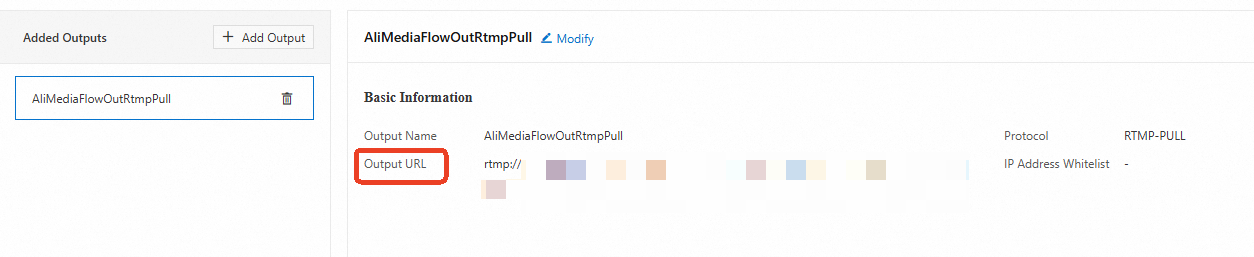
After the output is added, an RTMP playback URL is generated. Use this URL for playback after starting the flow.
Start the flow
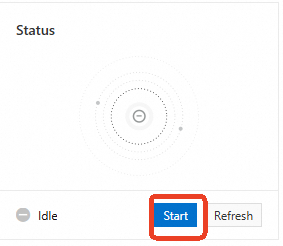
Click Start to start the flow. The flow must be running to process and transport data.
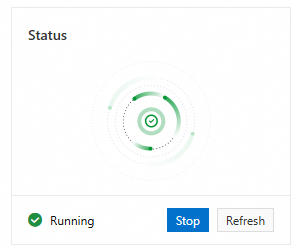
Running indicates the flow is active.
Ingest and distribute the stream
Use the source and output URLs to ingest the stream into the MediaConnect flow and distribute it to your destination.
References
For more information about flow, input and, output configurations, see Feature configurations.
To use MediaConnect for cross-region transport, see Distribute content across regions.