Hologres compute group instances support time-based scaling plans. This feature automatically scales compute resources based on traffic peaks, which improves instance stability and resource utilization while reducing costs. This topic describes how to use the time-based elasticity feature.
Scenarios
Consider a scenario where a compute group instance is used as follows: The data mid-end team uses the init warehouse for large ETL jobs, high-volume offline data import, minute-level near-real-time import, and real-time data import. Business team A queries data using warehouse 1, and business team B queries data using warehouse 2. The following are possible use cases for time-based elasticity:
Minute-level near-real-time and real-time data imports: You can continue to use the init warehouse compute group. If the data volume remains stable throughout the day, a time-based elasticity plan is not needed. If there is a clear write traffic peak during a specific period each day (for example, within 16 hours), you can set a time-based elasticity plan to scale out additional elastic resources during the peak.
Business team data queries: You can continue to use separate compute groups to serve different teams and ensure workload isolation. If the query volume remains stable, a time-based elasticity plan is not needed. If the query volume shows clear daily periodic fluctuations, you can set a time-based elasticity plan to scale out additional elastic resources during query peaks.
Large ETL jobs and high-volume offline imports: You can switch to Serverless Computing. Serverless Computing provides extra compute resources without requiring you to reserve capacity. This significantly improves instance stability, reduces out-of-memory (OOM) errors, and ensures you are charged only for the job itself. For more information, see Serverless Computing. For usage instructions, see Serverless Computing user guide.
Terminology
For the definitions of instance-level and compute group-level compute resources, see Terminology.
Example: The following table shows a sample instance resource configuration:
Category | Resource details |
Instance | 96 reserved CU, of which 64 CU are allocated and 32 CU are unallocated. |
32 elastic CU. | |
Total compute resources: 96 + 32 = 128 CU. | |
Compute group init_warehouse | 32 reserved CU, 16 elastic CU, total compute resources: 48 CU. |
Billing
Instance reserved resources: These are dedicated compute resources for compute group instances and are billed based on the standard instance billing model (subscription or pay-as-you-go).
Instance elastic resources: These are additional compute resources that are scaled out by the time-based elasticity feature. The billing formula is:
Cost = Actual elastic resource usage (CU × hours) × Unit price. For more information about unit pricing, see Billing overview. Billing occurs on an hourly basis. The system pushes invoices and automatically deducts fees from your account.NoteThe system records elastic resource usage every minute. On an hourly basis, the system calculates usage, converts units, pushes the invoice, and automatically deducts fees from your account.
Instance elastic resources are separate from unallocated reserved resources. Even if unallocated reserved resources are available, the time-based elasticity feature scales out additional compute resources instead of using the unallocated resources.
Limits
Only compute group instances support time-based elasticity. General-purpose instances and read-only replica instances do not support this feature.
Hologres supports time-based elasticity starting from version V2.2.21.
Regional availability for time-based elasticity:
Time-based elasticity is in public preview. To apply for trial access, use your Alibaba Cloud account (main account) to complete the Hologres time-based elasticity public preview application form.
Region
Support status
Description
China (Hangzhou), China (Shanghai), China (Beijing), and China (Shenzhen)
Supported
This feature is available after your request is approved.
China (Shanghai) Finance Cloud, China (Beijing) Gov Cloud, China (Shenzhen) Finance Cloud, Japan (Tokyo), Malaysia (Kuala Lumpur), and Indonesia (Jakarta)
Not supported
This feature is not available for request.
China (Chengdu), China (Hong Kong), Singapore, Germany (Frankfurt), US (Silicon Valley), US (Virginia), and UAE (Dubai)
Request by submitting a ticket
To request this feature, complete the following steps:
Complete the form: Hologres Time-sharing Elasticity Public Preview Request.
Submit a ticket to proceed with your request.
Notes
Required permissions for using time-based elasticity:
You must use an Alibaba Cloud account or a Resource Access Management (RAM) user that is granted the AliyunHologresWarehouseFullAccess permission. This permission includes read-only access to the Hologres console and configuration rights for time-based elasticity. For more information about how to grant permissions, see Grant permissions to RAM users.
Your account must have Superuser privileges in the instance. For more information about how to grant permissions, see Grant development permissions for instances to RAM users.
Scaling operations affect queries and writes:
In Hologres V2.2, scheduled scale-out and scale-in operations interrupt queries and writes for approximately 15 seconds.
Starting with Hologres V3.0, scale-out operations do not interrupt queries and writes, though the compute group status remains "Processing." Scale-in operations still interrupt queries and writes for approximately 15 seconds.
Starting with Hologres V3.1, scale-in operations do not interrupt most queries and writes. However, if a large query or write operation is running when a scale-in is triggered, and the operation requires more than 60 minutes to complete, the task fails 60 minutes after the scale-in is complete.
After you configure an elasticity plan for a compute group:
You cannot stop or delete the compute group, or manually scale in its resources.
You can scale out compute group resources only through the Hologres console. Manual execution of the
hg_alter_warehousecommand is not supported.You can create new compute groups only through the Hologres console. Manual execution of the
hg_create_warehousecommand is not supported.
Time-based elastic resources are pay-as-you-go compute resources. The success of scaling operations is not guaranteed. We recommend that you configure Cloud Monitor alerts for failure events as described in Monitoring and alerts for time-based elasticity.
User guide
Compute group resource management
Go to Virtual Warehouse Management.
Log on to the Hologres console. In the top menu bar, select the target region on the left.
In the navigation pane on the left, select Instances, then click the target Instance ID to open the instance details page.
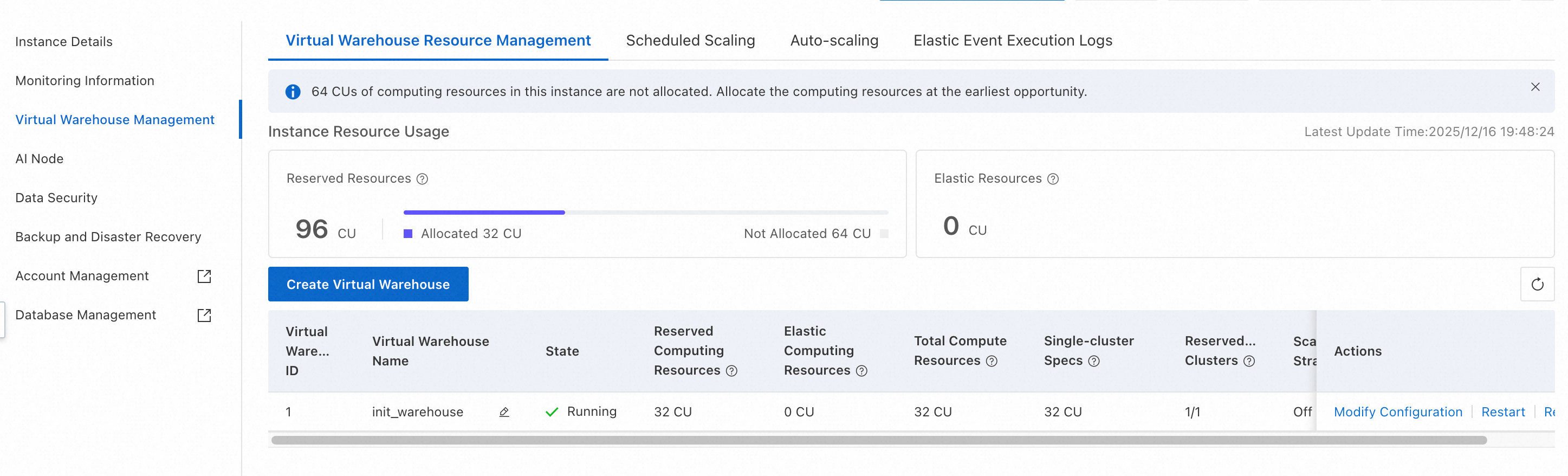
In the left navigation pane of the instance details page, click Virtual Warehouse Management.
View the resource usage of compute group instances.
On the Virtual Warehouse Resource Management tab, you can view resource usage, including allocated and unallocated reserved instances and elastic instances.
Manage compute group resources.
Click Create Virtual Warehouse. In the Create Virtual Warehouse dialog box, enter a Virtual Warehouse Name and specify the Virtual Warehouse Resource.
For compute groups with a Status of Running, you can perform the following operations: Modify Configuration, Restart, Stop, and Rebalance. For more information about Rebalance, see Shard rebalancing (Rebalance).
NoteYou cannot perform the Stop operation on the default init_warehouse compute group.
Compute group elasticity plans
View elasticity plan timeline
Go to the Virtual Warehouse Management page and click the Virtual Warehouse Scaling Plan tab.
From the Instance/Virtual Warehouse drop-down list, select an instance or compute group to view its elasticity plan timeline. The timeline displays future scaling operations based on the plan, not historical monitoring metrics.
Configure compute group elasticity plan
On the Virtual Warehouse Scaling Plan tab, click the
 icon to the left of the target compute group and then click Add Time Segment. You can then configure the start and end times of the daily effective period and the amount of elastic computing resources. To apply the settings, click Save in the Actions column.
You can Edit or Delete existing elasticity plans.
Elastic compute resources cannot exceed reserved compute resources.
Each compute group supports up to five elasticity time periods.
When you delete an elasticity plan, the compute group status changes to "Processing" even if resources remain unchanged. Read and write operations are unaffected.
When you save an elasticity plan, if the change affects the number of elastic resources for the current time, Hologres immediately applies the new configuration. Examples:
Example 1
Assume the current time is 16:00. You add an elasticity plan for compute group A (64 reserved CU):
Effective period: 15:00–18:00, elastic resources: 32 CU. After you save the plan, the total resources of compute group A immediately scale out to 96 CU.
Example 2
Assume the current time is 16:00. You modify the existing elasticity plan for compute group A (64 reserved CU):
Before: Effective period 15:00–18:00, elastic resources 32 CU.
After: Effective period 17:00–18:00, elastic resources 32 CU.
After you save the change, the total resources of compute group A immediately scale in from 96 CU to 64 CU.
Monitoring and alerts for time-based elasticity
You can monitor the execution of elasticity plans using the following methods.
Scaling plan execution log
Go to the Virtual Warehouse Management page, then click the Elastic Event Execution Logs tab.
Select a time range to view past elasticity plan executions, including execution time, compute group, execution status, event type, reserved compute resources, and target elastic compute resources.
Monitoring metrics
In the Hologres console, you can view the Warehouse_timed_elastic_cores(Count) metric, which indicates the number of cores scaled out by time-based elasticity. You can configure alert rules for this metric as needed. For more information, see Monitoring metrics in the Hologres console.
Cloud Monitor events
All scaling operations that are triggered by Hologres elasticity plans are recorded in Cloud Monitor.
To monitor time-based elastic scaling events for Hologres, go to the Cloud Monitor Event Center. On the System events page, in the Event monitoring section, select Hologres. These events include the following:
Event name
Instance:Warehouse:TimedElastic:Start: Compute group time-based elasticity scaling started.Event name
Instance:Warehouse:TimedElastic:Finish: Compute group time-based elasticity scaling completed.Event name
Instance:Warehouse:TimedElastic:Failed: Compute group time-based elasticity scaling failed.
You can configure notifications and alerts based on Cloud Monitor events. For more information, see Use system events for alerts.
Example Cloud Monitor event details for a scaling failure:
{
    "Status": "Failed",
    "InstanceName": "<instance_id>",
    "ResourceId": "<instance_resource_id>",
    "Content": {
        "ScaleType": "ScaleDown",
        "ScheduleId": "xxxxxx",
        "TimedElasticCPU": 0,
        "WarehouseId": "2",
        "WarehouseName": "<warehouse_name>"
    },
    "Product": "hologres",
    "Time": 1722852008000,
    "Level": "WARN",
    "RegionId": "<region>",
    "Id": "<event_id>",
    "GroupId": "0",
    "Name": "Instance:Warehouse:TimedElastic:Failed"
}
ActionTrail
Operations in the Hologres console, such as editing elasticity plans and the execution of scaling operations, are recorded in ActionTrail. For more information, see Event audit logs.