To accelerate access to your services using a domain name, you must point the domain to the CNAME address of your Global Accelerator instance. This topic demonstrates how to configure a CNAME record, using Alibaba Cloud DNS as an example.
Prerequisites
You have created a Global Accelerator and configured an Global Accelerator, a listener, and an endpoint group for the instance. For more information, see the following topics:
Step 1: Obtain the CNAME address
Log on to the GA console.
On the Instances page, find the target Global Accelerator instance and click its ID.
Click the Instance Information tab.
In the Basic Information area, find CNAME and click Copy next to the CNAME value.
Step 2: Add a CNAME record
Log on to the Alibaba Cloud DNS console.
If your domain name is not registered with Alibaba Cloud, add the domain name to the Alibaba Cloud DNS console.
You must add domain names that are not registered with Alibaba Cloud to the Alibaba Cloud DNS console before you can manage their DNS records. For more information, see Add a domain name. If your domain name is registered with Alibaba Cloud, skip this step.
On the Public Zone page, find the target domain name and click DNS Settings in the Actions column.
On the DNS Settings page, click Add DNS Record.
In the Add DNS Record panel, configure the CNAME record with the following parameters and click OK.
For more information about how to configure a CNAME record, see CNAME record.
Parameter
Description
Record Type
Select CNAME.
Hostname
The prefix of the accelerated domain name.
If your accelerated domain name is
www.aliyun.com, set the hostname towww.If your accelerated domain name is
aliyun.com, set the hostname to@.If your accelerated domain name is
*.aliyun.com, set the hostname to*.If your accelerated domain name is
mail.aliyun.com, set the hostname tomail.
DNS Request Source
Keep the default value.
TTL
The duration for which the DNS record is cached on DNS servers. A smaller value means the record takes effect faster.
In this example, the default value of 10 minutes is used.
Record Value
Paste the CNAME value that you copied in Step 1: Obtain the CNAME address.
To use region-based DNS resolution, upgrade Alibaba Cloud DNS to the Enterprise Standard or Enterprise Ultimate edition. For more information, see Renewal.
After you upgrade, you can modify the default resolution line of an existing A record to a specific region and add a CNAME record that points to the CNAME assigned by your Global Accelerator instance.
When you use a custom domain name as the backend service for an endpoint, the time required for the DNS record to take effect depends on the following two factors:
The TTL value that you set for the DNS record.
The cache update interval of Global Accelerator, which retrieves the DNS record every 15 seconds by default.
To route all traffic for a domain through Global Accelerator, if an A record that points to the origin server already exists, you must first delete the A record and then add the CNAME record that points to the Global Accelerator instance. After this configuration is complete, all DNS requests are resolved to the acceleration IP address provided by Global Accelerator.
Step 3: Verify the CNAME configuration
Check CNAME effective regions
Log on to the GA console.
On the Instances page, find the target Global Accelerator instance, and in the CNAME column, click View DNS Records.
On the Network Detect Tool page, view the CNAME resolution result.
After you are redirected to the Network Detect Tool page, the default detection points are selected based on the configured acceleration area:
If the acceleration area contains only regions in the Chinese mainland, detection points across the Chinese mainland are selected by default.
If the acceleration area contains only regions outside the Chinese mainland, detection points in regions outside the Chinese mainland are selected by default.
If the acceleration area contains regions both in and outside the Chinese mainland, or contains the China (Hong Kong) region, all detection points are selected by default.
You can also select specific ISPs and regions for the tests.
You can view the resolution result of each detection point. If the result matches the accelerated IP address of the acceleration area, the CNAME record is effective for that region.
Verify the CNAME configuration
Automated verification
Go to the Instant Detections page.
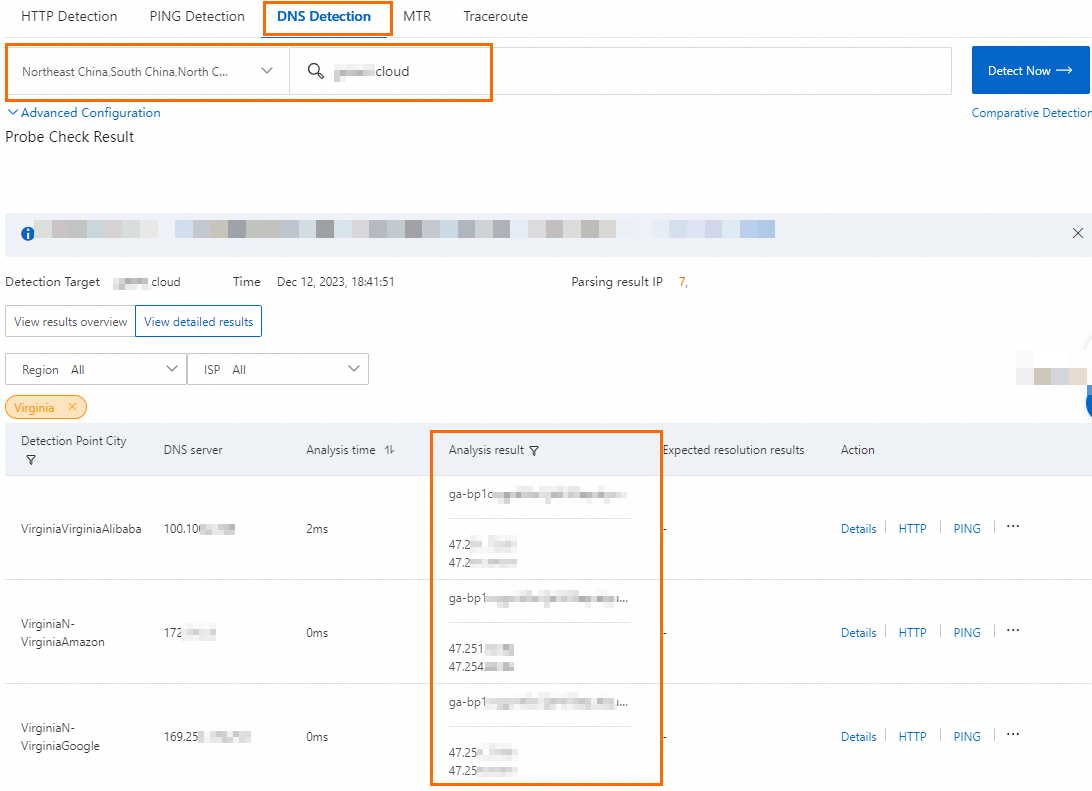
On the DNS Tests tab, select an ISP and a region, enter the accelerated domain name, and then click Test Now.
In the Inspection Result area, click
 to the right of the Detection Point City column, enter the name of the acceleration region, and then click Confirm.
View the test results.
If the DNS query result for a detection point matches the CNAME of the Global Accelerator instance or its accelerated IP address, the CNAME configuration is effective.
Manual verification
Open the command-line interface (CLI) on a computer in an acceleration region.
This topic uses Alibaba Cloud Linux 3 as an example.
Run the ping command: ping the acceleration domain name.
If the output shows your domain resolving to the CNAME of your Global Accelerator instance, the configuration is effective.
[root@iZrjxxx ~]# ping xxx.cloud
PING ga-bp1cxxx.com (47.251.xxx.xxx) 56(84) bytes of data.
64 bytes from 47.251.xxx.xxx (47.251.xxx.xxx): icmp_seq=1 ttl=95 time=1.42 ms
64 bytes from 47.251.xxx.xxx (47.251.xxx.xxx): icmp_seq=2 ttl=95 time=1.41 ms
64 bytes from 47.251.xxx.xxx (47.251.xxx.xxx): icmp_seq=3 ttl=95 time=1.39 ms
^C
--- ga-bp1xxx.com ping statistics ---
3 packets transmitted, 3 received, 0% packet loss, time 2002ms
rtt min/avg/max/mdev = 1.393/1.407/1.420/0.011 ms
References
To learn how to configure Global Accelerator to accelerate access to a backend service of a specific domain name, see Accelerate access to backend services of specific domain names.
To learn how to test the acceleration performance, see Test the acceleration performance of Global Accelerator.