In scenarios such as telecommuting or cross-region access to enterprise applications, SSL-VPN is used to securely access applications in virtual private clouds (VPCs). However, issues such as unstable connections and high latency occur, which affect work efficiency. You can use Global Accelerator (GA) to optimize SSL-VPN connections. GA uses the high-quality BGP bandwidth and global transmission network of Alibaba Cloud to resolve issues, such as unstable connections and high latency, and improve the efficiency and security of telecommuting.
Features
SSL-VPN is an OpenVPN-based network connection technology. SSL-VPN requires certificate installation to authenticate Internet clients and encrypt data transmission. You can use SSL-VPN to establish secure and reliable network connections between Internet clients and VPCs.
GA uses stable BGP lines and the congestion-free global network of Alibaba Cloud to accelerate Internet-facing applications. GA can reduce network latency, network jitters, and packet loss when your business system is deployed across regions or accessible to global users. Users can access your business system by connecting to the nearest access points worldwide. GA ensures high availability and high performance of web applications.
You can use SSL-VPN and GA together to improve the quality and speed of remote connections, ensure data security, and improve user experience.
Key features
Data encryption for security: SSL-VPN uses the SSL protocol to encrypt data to ensure the security of remote connections.
Accelerated access: You can use GA to connect to multiple regions around the world. This reduces latency and accelerates access.
Stability and reliability: GA relies on the global transmission network of Alibaba Cloud to provide stable connections.
Scenarios
Telecommuting for multinational enterprises: Enterprise employees can securely access internal resources through SSL-VPN and use GA to improve the connection speed and ensure work efficiency.
Gaming and video applications: GA provides high-speed access for end users that require secure connections and accelerates user log-on and data transmission.
Data-sensitive industries: Industries that require data security, such as finance and healthcare, can use SSL-VPN to ensure data security and use GA to improve access speed.
Examples
Employees in China (Hong Kong) use the SSL-VPN feature of VPN Gateway to securely access internal applications in US (Silicon Valley). Due to the instability of cross-border Internet connections, high latency occurs, which affects telecommuting efficiency.
To resolve this issue, the company uses GA to route requests to the nearest access point of the Alibaba Cloud global transmission network. This accelerates access and improves work efficiency.

Prerequisites
An Elastic Compute Service (ECS) instance is deployed in a VPC and applications are deployed on the ECS instance.
In this example, the Alibaba Cloud Linux 3 operating system is used. NGINX is used to configure the backend HTTP service that uses port 80.
Procedure
Step 1: Configure basic information about an instance
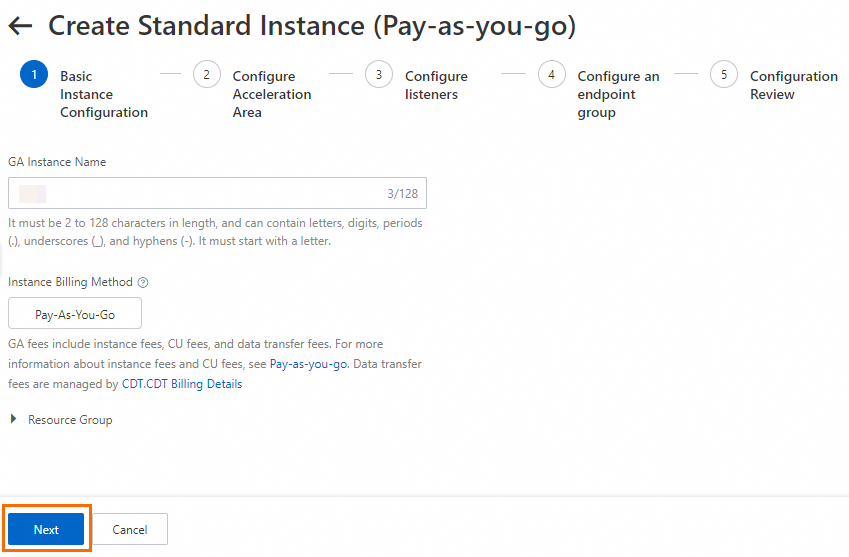
In this example, a pay-as-you-go standard GA instance is used.
On the page of the GA console, click Create Standard Pay-as-you-go Instance.
In the Basic Instance Configuration step, configure the basic information and click Next.
Step 2: Configure an acceleration area
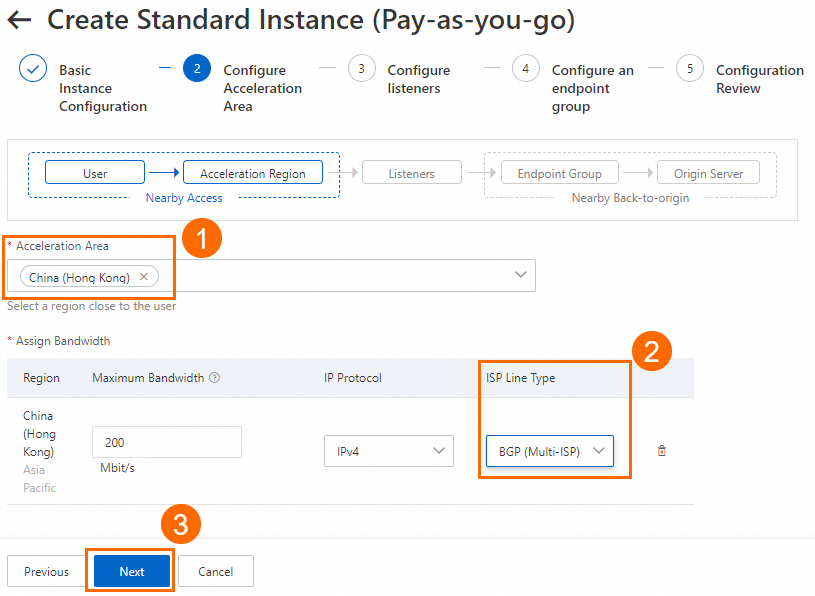
In the Configure Acceleration Area step, add an acceleration region, allocate bandwidth to the region, and then click Next.
In this example, the China (Hong Kong) region is used. The Acceleration Region parameter is set to China (Hong Kong) and the ISP Line Type parameter is set to BGP (Multi-ISP). You can use the default values for other parameters or modify the parameters based on your business requirements. For more information, see Add and manage acceleration areas.
If the acceleration regions include regions in the Chinese mainland, you must apply for an ICP number for the domain name to provide services.
If you specify a small value for the maximum bandwidth, throttling may occur and packets may be dropped. Specify a maximum bandwidth based on your business requirements.
Step 3: Configure a listener
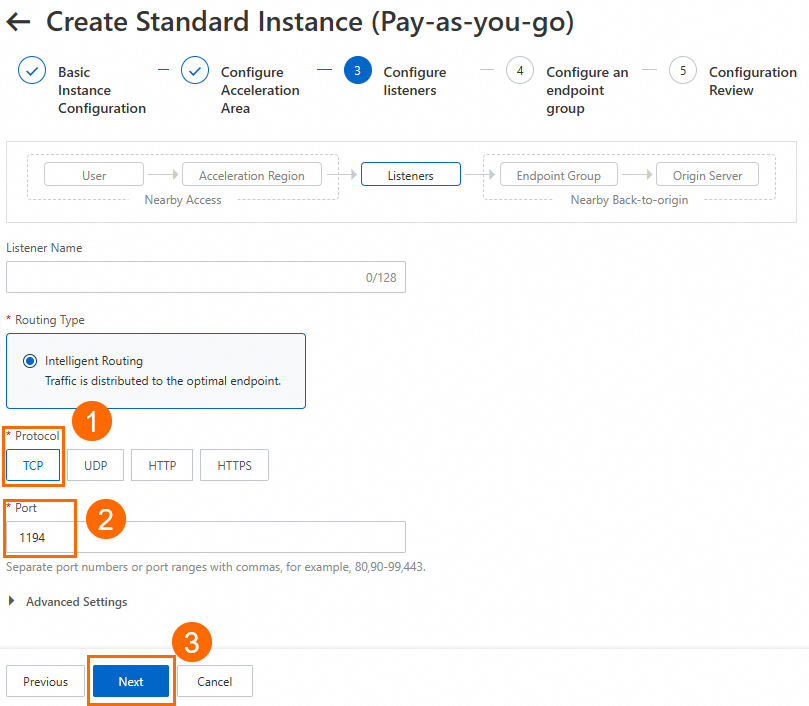
In the Configure listeners step, configure the forwarding protocol and the port, and then click Next.
In this example, the Protocol parameter is set to TCP. The Port parameter is set to 1194, which is the port of the SSL server. You can use the default values for other parameters or modify the parameters based on your business requirements. For more information about how to configure a listener, see Add and manage smart routing listeners.
Step 4: Configure an endpoint group and endpoints
In the Configure an endpoint group step, configure the endpoint and click Next.
In this example, Region is set to US (Silicon Valley), Backend Service Type is set to Custom Public IP Address, and Backend Service is set to the IP address of the SSL server. Read and select Compliance Commitments Regarding Cross-border Data Transfers. You can use the default values for other parameters or modify the parameters based on your business requirements. The IP address of the SSL server is also the public IP address of the VPN gateway and is used to establish SSL-VPN connections between clients and the VPN gateway. You can obtain the IP address in the IP Address column of the VPN gateway. For more information about how to configure an endpoint group, see Add and manage intelligent routing listeners.


In the Configuration Review step, confirm the configurations and click Submit.
On the instance creation page, click Go to Instance Details. On the instance details page, you can click tabs, such as Instance Information, Listeners, and Acceleration Areas, to view more details.
For example, you can view the accelerated IP address of the GA instance from the Acceleration Areas tab.

Step 5: Configure the config.ovpn file on the client
The config.ovpn file can be used to configure basic parameters and certificates for connections between OpenVPN clients and an SSL server. The remote field specifies the IP address of the server to which clients are connected. If GA is not used, the remote field is the IP address of the SSL server. After GA is used, the field must be set to the accelerated IP address of GA to ensure that clients can access the Alibaba Cloud acceleration network.
In this example, a Windows client is used. The operations vary based on the operating system of your client. For more information, see Configure a client.
In the lower-right corner of the desktop, right-click the VPN icon, and then click Edit config to configure the config.ovpn file. Change the
remotefield from the IP address of the SSL server to the accelerated IP address of the GA instance and save the file.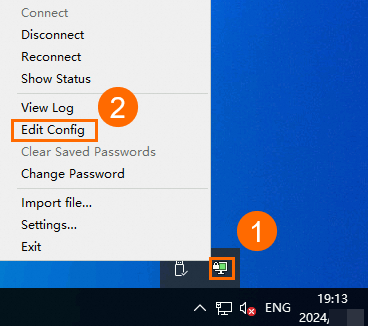
In the lower-right corner of the desktop, right-click the VPN icon again, and then click Reconnect to re-initiate the SSL-VPN connection.
Step 6: Test the network connectivity
Before the test, make sure that the security group rules of the ECS instance are configured to allow the public IP address of the GA endpoint.
Verify that the configurations take effect
Use a browser to access
http://<Private IP address of the ECS instance>from a computer in the acceleration region. In this example, a computer in the China (Hong Kong) region is used. The service can be accessed.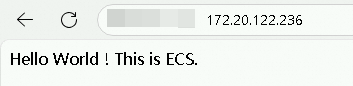
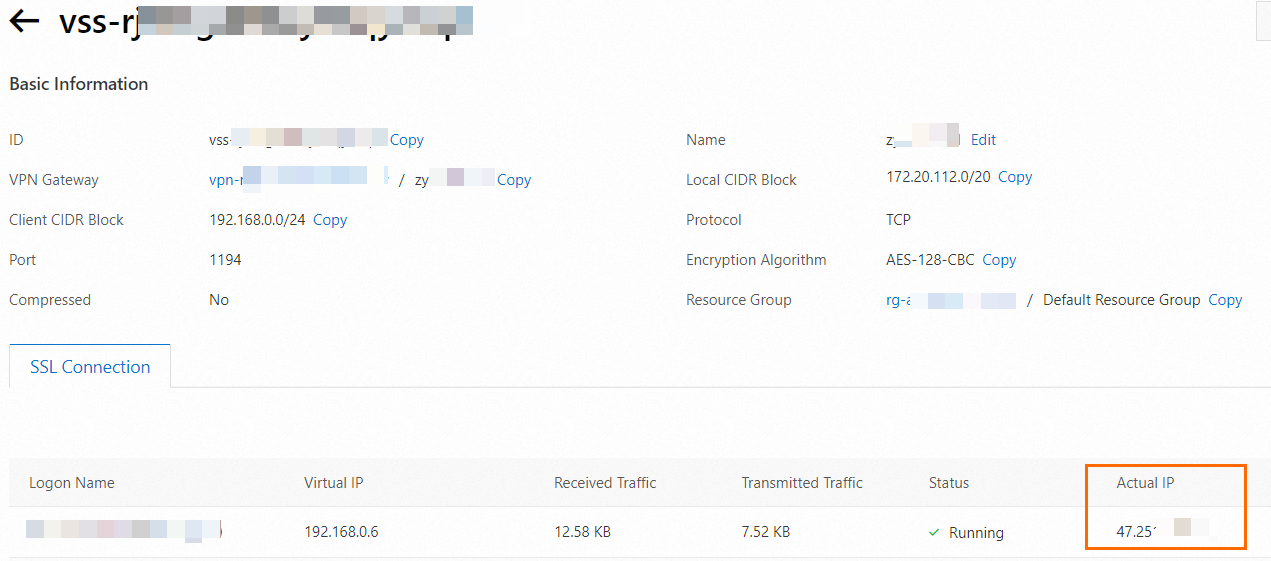
On the SSL Server page of the VPN console, find the SSL server. Click the SSL server ID to go to the details page and view information about the connected client.
If the IP address displayed in the Actual IP column is the public IP address of the GA endpoint, the SSL-VPN connection is accelerated by GA.
Test the acceleration performance
Before and after you use GA, run the curl -o /dev/null -s -w "time_connect: %{time_connect}\ntime_starttransfer: %{time_starttransfer}\ntime_total: %{time_total}\n" "http//Private IP address of the ECS instance>" command to check the latency.
Test the network latency before GA is configured.
Before you perform this step, make sure that the
remotefield in the config.ovpn file of the client is set to the IP address of the SSL server and the Actual IP column of the SSL server displays the public IP address of the client.
Test the network latency after GA is configured.
Before you perform this step, make sure that the
remotefield in the config.ovpn file of the client is set to the accelerated IP address of GA and the Actual IP column of the SSL server is the public IP address of the GA endpoint.
Compare the latency.
Parameter descriptions:
time_connect: the period of time that is required for establishing a TCP connection. Unit: seconds.
time_starttransfer: the start time of data transfer. The start time refers to the amount of time from when the client sends a request to the backend server to when the first byte is sent to the client. Unit: seconds.
time_total: the total connection time. The total connection time refers to the period of time from when the client sends a request to when the client receives the last byte from the backend server. Unit: seconds.
Parameter
Before GA acceleration (Unit: seconds)
After GA acceleration (Unit: seconds)
Acceleration effect (Unit: seconds)
Acceleration effect (Unit: percentage)
time_connect
0.163520
0.149367
Reduced by 0.014153
Speed increase of 8.66%
time_starttransfer
0.715961
0.299847
Reduced by 0.416114
Speed increase of 58.12%
time_total
0.716210
0.300105
Reduced by 0.416105
Speed increase of 58.10%
NoteThe examples and data in this topic are for reference only. The actual acceleration effect on your service prevails.
FAQ
Can I use GA if the region where my origin servers are deployed is not supported by GA?
After a standard GA instance is configured, the client cannot access the backend service. What are the possible causes of this issue?
References
After GA is deployed for SSL-VPN connections, you are charged for using GA. GA fees include GA instance fees, Capacity Unit (CU) fees, and data transfer fees. For more information, see Billing of pay-as-you-go GA instances.
For cross-border scenarios, BGP (Multi-ISP) Pro lines are used by default. If you require higher network quality, use cross-border Express Connect circuits. For more information, see Select and purchase GA resources.