For security reasons, organizations often need to isolate external-facing ports from backend application ports. You can configure port mapping in Global Accelerator (GA) to map listener ports to endpoint ports, enhancing the flexibility and security of your application deployments.
Overview
By default, Global Accelerator (GA) forwards traffic to an endpoint group by using the protocol and port range that you specify when you create a listener. Intelligent routing listeners support port mapping. When you configure an endpoint group, you can map listener ports to specific endpoint ports. After you configure port mapping, GA accepts traffic on the listener ports and forwards it to the corresponding endpoint ports.
Use cases
Port mapping is ideal for scenarios where listener ports differ from the ports that endpoints use for services:
Secure access for enterprise applications: To enhance security, organizations often isolate external-facing ports from internal application ports. With GA port mapping, you can accept external requests on a standard port, such as TCP 80, and forward them to a backend application port, such as 8080. This prevents the direct exposure of internal service ports.
Port isolation for multi-tenant SaaS applications: In a Software-as-a-Service (SaaS) application, use GA port mapping to assign a different external-facing port to each tenant, such as 8001, 8002, and 8003, and map these ports to a specific backend port, such as 8080. This ensures tenant isolation and security.
HTTPS acceleration for HTTP websites: You can use GA port mapping to encrypt client requests for websites that run on HTTP port 80. For example, you can configure an HTTPS listener on port 443 and map it to a backend service that listens on HTTP port 80. This provides secure, accelerated HTTPS access to your HTTP website.
Limits
Some older standard GA instances do not support port mapping for TCP or UDP listeners. To enable this feature, contact your account manager for an instance upgrade.
When you configure a Port Mapping, the Listener Port must be within the port range configured for the current listener. The Endpoint Port must be a value from 1 to 65535.
For TCP and UDP listeners, you can click Add Port Mapping to add multiple port mappings. The Listener Port in each port mapping must be unique. You can add up to 30 port mappings.
For HTTP and HTTPS listeners, you can add only one port mapping.
For TCP listeners:
You cannot configure port mapping for virtual endpoint groups.
If a virtual endpoint group already exists for the listener, you cannot configure port mapping for the default endpoint group.
If port mapping is already configured for the default endpoint group, you cannot add a virtual endpoint group.
After you configure port mapping, the following limits apply to subsequent listener changes:
Listener protocol: You can switch only between HTTP and HTTPS. Switching between other protocols is not supported.
Listener port: The modified listener port range must include all listener ports that have existing port mappings.
For example, if the listener port range is 80–82 and is mapped to endpoint ports 100–102, the modified listener port range must include ports 80–82. You can change the range to 80–90, but you cannot narrow it to 80–81.
If access control lists (ACLs), such as security group rules, are configured for the backend service, ensure the inbound rules allow traffic on the endpoint ports specified in the port mappings.
For example, if you map listener port 80 to endpoint port 8080, the security group rules for the endpoint must allow inbound traffic on port 8080.
Examples
The Layer 4 (TCP and UDP) and Layer 7 (HTTP and HTTPS) listeners of GA both support configuring port mapping. This article uses the following two scenarios to illustrate the port mapping capability of GA.
Layer 4 (TCP and UDP)
A gaming company hosts a large multiplayer online game on ECS instances ECS01 and ECS02. The instances are added as backends to a Network Load Balancer (NLB) server group in the US (Silicon Valley) region. In the game application, the combat logic module runs on port 8080 and the chat module runs on port 8090.
The company faces the following challenges:
Gamers are spread across the globe and experience high latency, jitter, and packet loss due to unstable international networks.
The game requires different ports to route traffic to the correct backend modules (combat and chat).
Directly exposing the actual ports of the game servers poses security risks and is difficult to manage.
To resolve these issues, the company uses GA. GA routes game requests to the nearest Alibaba Cloud access point and then transmits them over Alibaba Cloud's internal network to the game servers. This shortens the public network transmission path and reduces network issues such as latency, jitter, and packet loss. In addition, the company uses the GA port mapping feature to receive external requests on TCP ports 80 and 90 and forward them to backend service ports 8080 and 8090. This isolates the service modules and mitigates the risks of directly exposing internal service ports.

Prerequisites
You have created an NLB instance.
You have created a server group and a listener with full-port forwarding enabled for the NLB instance.
You have added ECS01 and ECS02 to the NLB server group, and deployed service modules on multiple ports on each ECS instance.
This example uses Alibaba Cloud Linux 3 and Nginx to configure a test service that listens on ports 8080 and 8090.
The security group rules for the ECS01 and ECS02 instances allow inbound traffic on ports 8080 and 8090.
You have configured a CNAME record for your domain name that points to the NLB instance.
If you use a DNS service other than Alibaba Cloud DNS, see the documentation of your DNS provider.
Procedure
Step 1: Configure basic information about an instance
In this example, a pay-as-you-go standard GA instance is used.
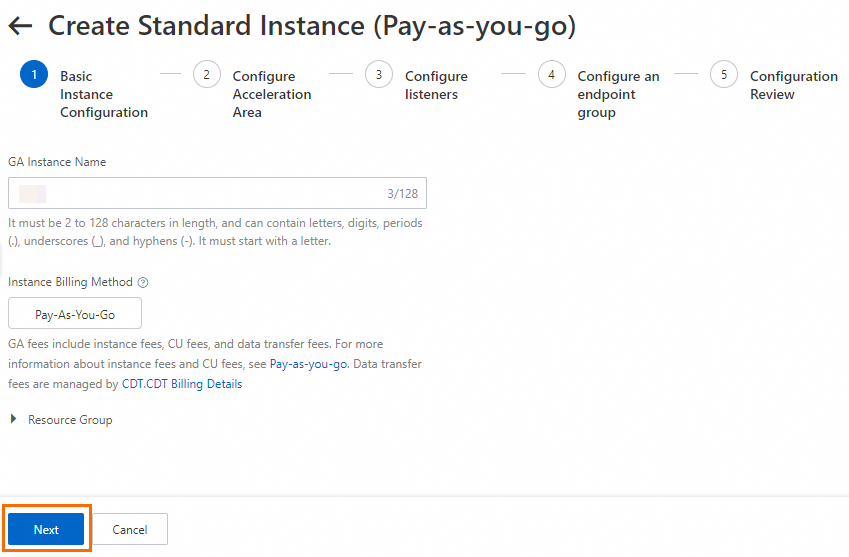
On the page of the GA console, click Create Standard Pay-as-you-go Instance.
In the Basic Instance Configuration step, configure the basic information and click Next.
Step 2: Configure an acceleration area
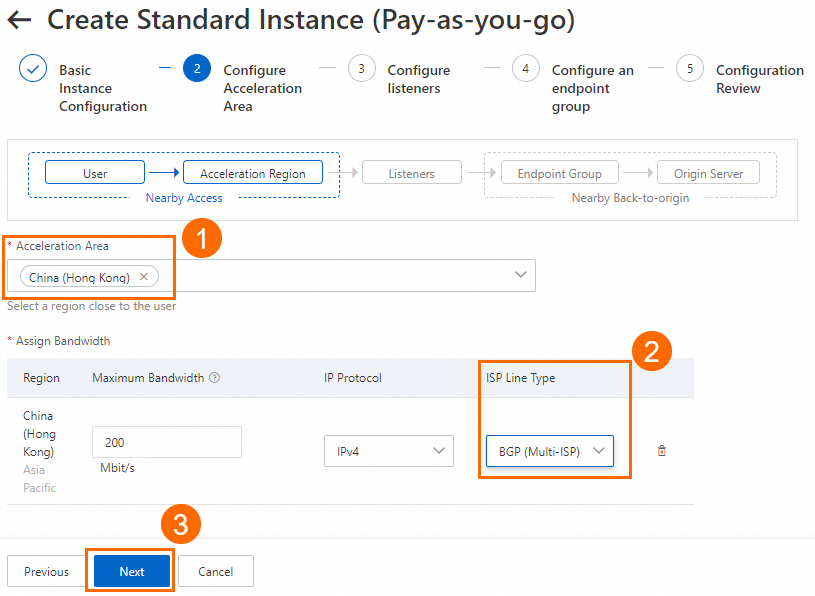
In the Configure Acceleration Area step, add an acceleration region, allocate bandwidth to the region, and then click Next.
In this example, the China (Hong Kong) region is used. The Acceleration Region parameter is set to China (Hong Kong) and the ISP Line Type parameter is set to BGP (Multi-ISP). You can use the default values for other parameters or modify the parameters based on your business requirements. For more information, see Add and manage acceleration areas.
If the acceleration regions include regions in the Chinese mainland, you must apply for an ICP number for the domain name to provide services.
If you specify a small value for the maximum bandwidth, throttling may occur and packets may be dropped. Specify a maximum bandwidth based on your business requirements.
Step 3: Configure a listener
On the Configure Listener page, configure the forwarding protocol and port, and then click Next.
In this scenario, set Protocol to TCP and set Port to a range that includes ports 80 and 90, for example, 80-90. You can use the default values for other parameters or modify them based on your business requirements. For more information about how to configure a listener, see Add and manage an intelligent routing listener.
Step 4: Configure an endpoint group and endpoints
On the Configure an Endpoint Group page, configure the backend service for the endpoint group, and then click Next.
In this scenario, set Region to US (Silicon Valley), Backend Service Type to NLB, and Backend Service to the destination NLB instance. In the Port Mapping section, map listener port 80 to endpoint port 8080 and listener port 90 to endpoint port 8090. Then, read and select Compliance Commitments Regarding Cross-border Data Transfers. You can use the default values for other parameters or modify them based on your business requirements. For more information about how to configure an endpoint group, see Add and manage an endpoint group for an intelligent routing listener.

On the Configuration Review page, confirm the configurations of the GA instance and click Submit.
Step 5: Configure a CNAME record
In actual business scenarios, we recommend that you use a custom domain name. You can create a CNAME record to map the custom domain name to the CNAME assigned by GA. This way, business traffic is switched to GA for accelerated access.
In this example, if you already created an A record that points to the backend server, you can specify the China (Hong Kong) region when you add a CNAME record that points to the GA instance. If the CNAME record works as expected, apply the CNAME record to other regions or retain only the CNAME record that points to the GA instance.
On the Authoritative DNS Resolution page, find the domain name that you want to use and click DNS Settings in the Actions column.
NoteFor a domain name that is not registered with Alibaba Cloud, you must add the domain name to the Alibaba Cloud DNS console before you can configure DNS records.
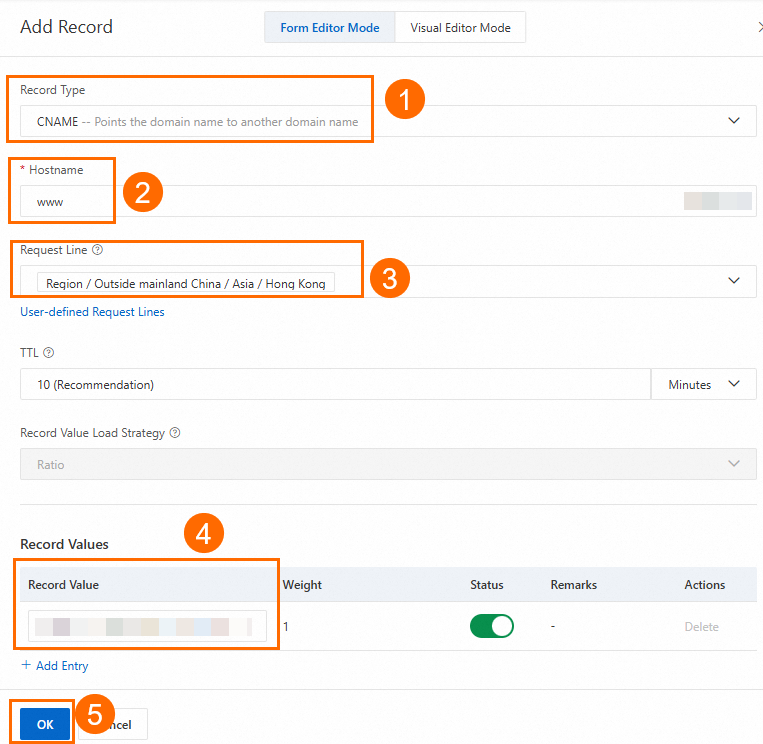
On the DNS Settings page, click Add DNS Record, configure a CNAME record, and then click OK.
In this example, the Record Type parameter is set to CNAME, the Hostname parameter is set to www, the DNS Request Source parameter is set to Asia_Hong Kong, and the Record Value parameter is set to the CNAME of the GA instance. You can use the default values for other parameters or modify the parameters based on your business requirements. For more information, see Add DNS records.
Step 6: Test the setup
Verify port mapping
From a computer in the acceleration region, which is China (Hong Kong) in this example:
Open a browser and visit
http://<your-domain-name>:80. Refresh the page several times. Requests should alternate between ECS01 and ECS02. The page returns a message such asHello World! This is ECS01, service running on port 8080.or
Hello World! This is ECS02, service running on port 8080.Open a browser and visit
http://<your-domain-name>:90. Refresh the page several times. Requests should alternate between ECS01 and ECS02. The page returns a message such asHello World! This is ECS01, service running on port 8090.orHello World! This is ECS02, service running on port 8090..
Verify acceleration performance
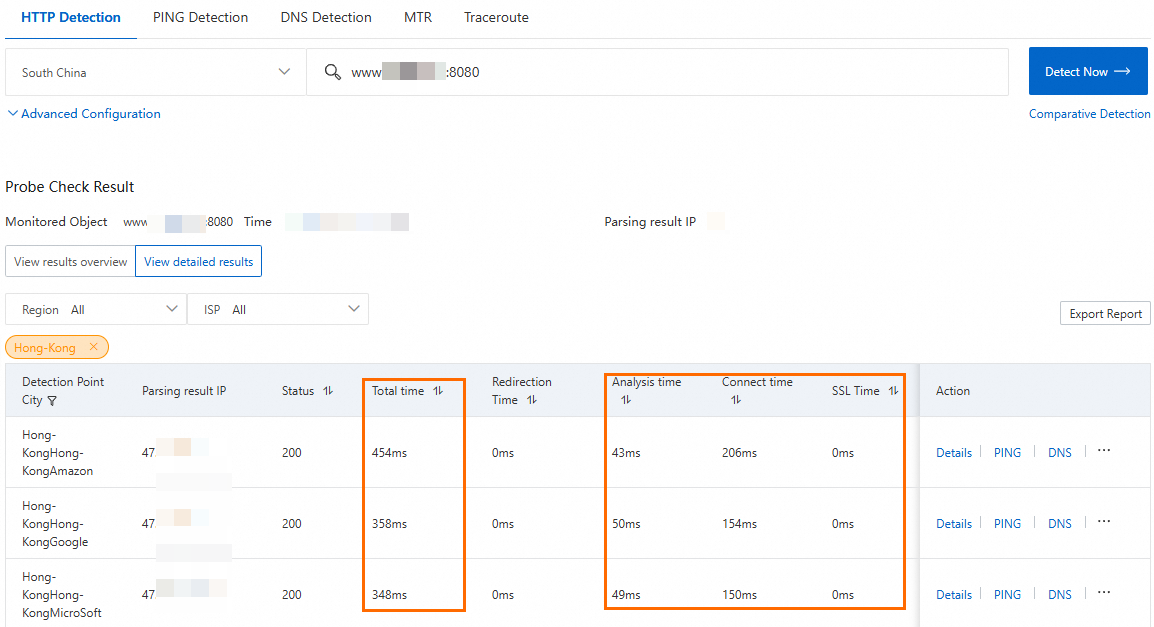
This example uses the one-time detection tool to compare the latency of the service on port 8080 before and after enabling GA. By comparing the response times, you can measure the performance improvement. For more information, see Use a network probe tool to test acceleration performance.
Enter
http://<your-domain-name>:8080to test the network latency before you configure GA.Before you perform this test, make sure that the DNS record points to the CNAME of the NLB instance.
You can view information such as the response time. The resolved IP address is the public IP of the NLB instance, indicating that traffic is routed directly to it.
Enter
http://<your-domain-name>:80to test the network latency after you configure GA.Before you perform this test, make sure that the DNS record is switched to point to the CNAME of the GA instance.
The resolved IP address is the accelerated IP address of the GA instance, which indicates that traffic is routed to the GA instance for acceleration.
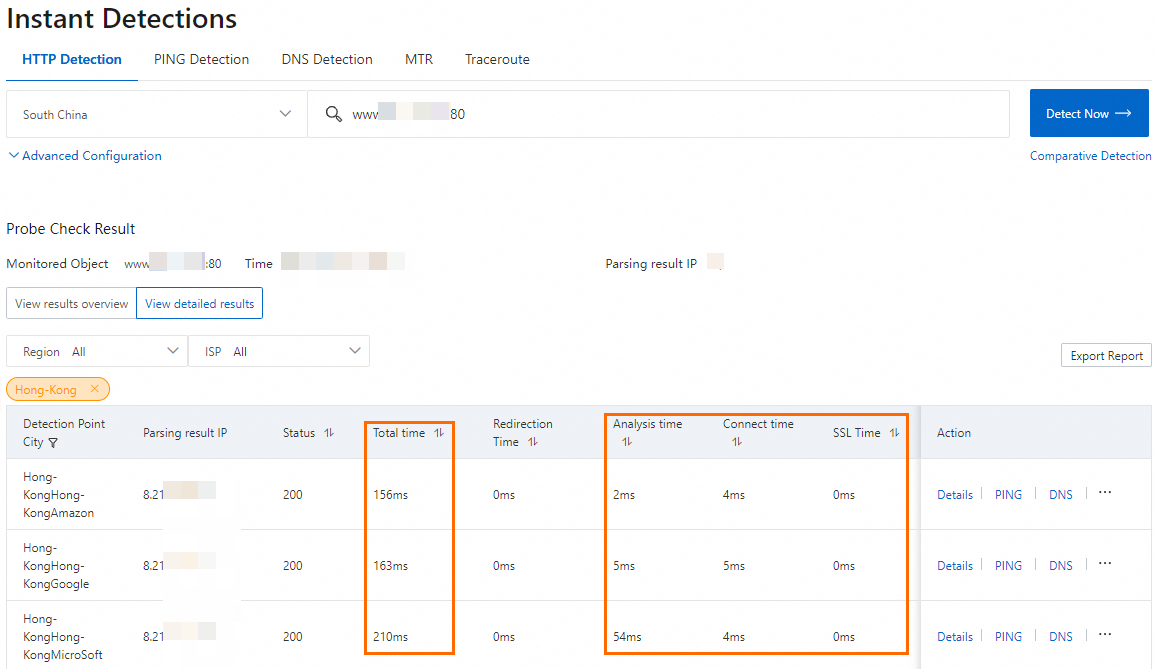
The test results show that using GA reduces the latency for clients in China (Hong Kong) when they access the service in the US (Silicon Valley) region.
The actual acceleration performance of GA may vary based on your network conditions and service configuration.
Layer 7 (HTTP and HTTPS)
An enterprise uses an Application Load Balancer (ALB) instance to deploy a highly available web service in the US (Silicon Valley) region. The web service runs on HTTP port 8081 and serves users across the globe.
The company faces the following challenges:
Poor public network quality causes high network latency for some users, which degrades the user experience.
HTTP transmits data in plaintext and does not authenticate the website, posing significant security risks.
The web service runs on the custom port 8081, so users cannot directly access the service through the standard HTTPS port 443.
To resolve these issues, the company uses GA to improve the user experience. The company also uses the GA port mapping feature to accept external requests on HTTPS port 443 and forward them to the backend service on HTTP port 8081. This encrypts client requests and allows the service to be accessed on the standard HTTPS port.

Prerequisites
You have created an ALB instance.
You have created a server group and added an HTTP listener for the ALB instance.
You have added ECS01 and ECS02 to the ALB server group, and a service is deployed on port 8081 on both ECS instances.
This example uses Alibaba Cloud Linux 3 and Nginx to configure a test service that listens on port 8081.
The security group rules for the ECS01 and ECS02 instances allow inbound traffic on port 8081.
You have configured a CNAME record for your domain name that points to the ALB instance.
If you use a DNS service other than Alibaba Cloud DNS, see the documentation of your DNS provider.
You have purchased a certificate or uploaded a third-party certificate to the SSL Certificates Service and associated it with your domain name. For more information about how to create a certificate, see Enable HTTPS access for a website with an official certificate.
Procedure
Step 1: Configure basic information about an instance
In this example, a pay-as-you-go standard GA instance is used.
On the page of the GA console, click Create Standard Pay-as-you-go Instance.
In the Basic Instance Configuration step, configure the basic information and click Next.
Step 2: Configure an acceleration area
In the Configure Acceleration Area step, add an acceleration region, allocate bandwidth to the region, and then click Next.
In this example, the China (Hong Kong) region is used. The Acceleration Region parameter is set to China (Hong Kong) and the ISP Line Type parameter is set to BGP (Multi-ISP). You can use the default values for other parameters or modify the parameters based on your business requirements. For more information, see Add and manage acceleration areas.
If the acceleration regions include regions in the Chinese mainland, you must apply for an ICP number for the domain name to provide services.
If you specify a small value for the maximum bandwidth, throttling may occur and packets may be dropped. Specify a maximum bandwidth based on your business requirements.
Step 3: Configure a listener
On the Configure Listener page, configure the forwarding protocol and port, and then click Next.
In this scenario, set Protocol to HTTPS and Port to 443. In the Select a server certificate drop-down list, select the SSL certificate that is associated with your domain name. You can use the default values for other parameters or modify them based on your business requirements. For more information about how to configure a listener, see Add and manage an intelligent routing listener.
Step 4: Configure an endpoint group and endpoints
On the Configure an Endpoint Group page, configure the backend service for the endpoint group, and then click Next.
In this scenario, set Region to US (Silicon Valley), Backend Service Type to ALB, and Backend Service to the destination ALB instance. In the Port Mapping section, map listener port 443 to endpoint port 8081. Then, read and select Compliance Commitments Regarding Cross-border Data Transfers. You can use the default values for other parameters or modify them based on your business requirements. For more information about how to configure an endpoint group, see Add and manage an endpoint group for an intelligent routing listener.
On the Configuration Review page, confirm the configurations of the GA instance and click Submit.
Step 5: Configure a CNAME record
In actual business scenarios, we recommend that you use a custom domain name. You can create a CNAME record to map the custom domain name to the CNAME assigned by GA. This way, business traffic is switched to GA for accelerated access.
In this example, if you already created an A record that points to the backend server, you can specify the China (Hong Kong) region when you add a CNAME record that points to the GA instance. If the CNAME record works as expected, apply the CNAME record to other regions or retain only the CNAME record that points to the GA instance.
On the Authoritative DNS Resolution page, find the domain name that you want to use and click DNS Settings in the Actions column.
NoteFor a domain name that is not registered with Alibaba Cloud, you must add the domain name to the Alibaba Cloud DNS console before you can configure DNS records.
On the DNS Settings page, click Add DNS Record, configure a CNAME record, and then click OK.
In this example, the Record Type parameter is set to CNAME, the Hostname parameter is set to www, the DNS Request Source parameter is set to Asia_Hong Kong, and the Record Value parameter is set to the CNAME of the GA instance. You can use the default values for other parameters or modify the parameters based on your business requirements. For more information, see Add DNS records.
Step 6: Test the setup
Verify port mapping
From a computer in the acceleration region, which is China (Hong Kong) in this example, open a browser and visit https://<your-domain-name>:443. Refresh the page several times. Requests should alternate between ECS01 and ECS02, and you can access the service on port 8081 through HTTPS port 443.
Verify acceleration performance
This example uses the one-time detection tool to test the domain name and its corresponding port before and after you configure GA. You can view the response time to learn about data latency. For more information, see Use a network probe tool to test acceleration performance.
Enter
http://<your-domain-name>:8081to test the network latency before you configure GA.Before you perform this test, make sure that the DNS record points to the CNAME of the ALB instance.
You can view information such as the response time. The resolved IP address is the public IP address allocated to the public-facing ALB instance, which indicates that traffic is routed to the ALB instance.
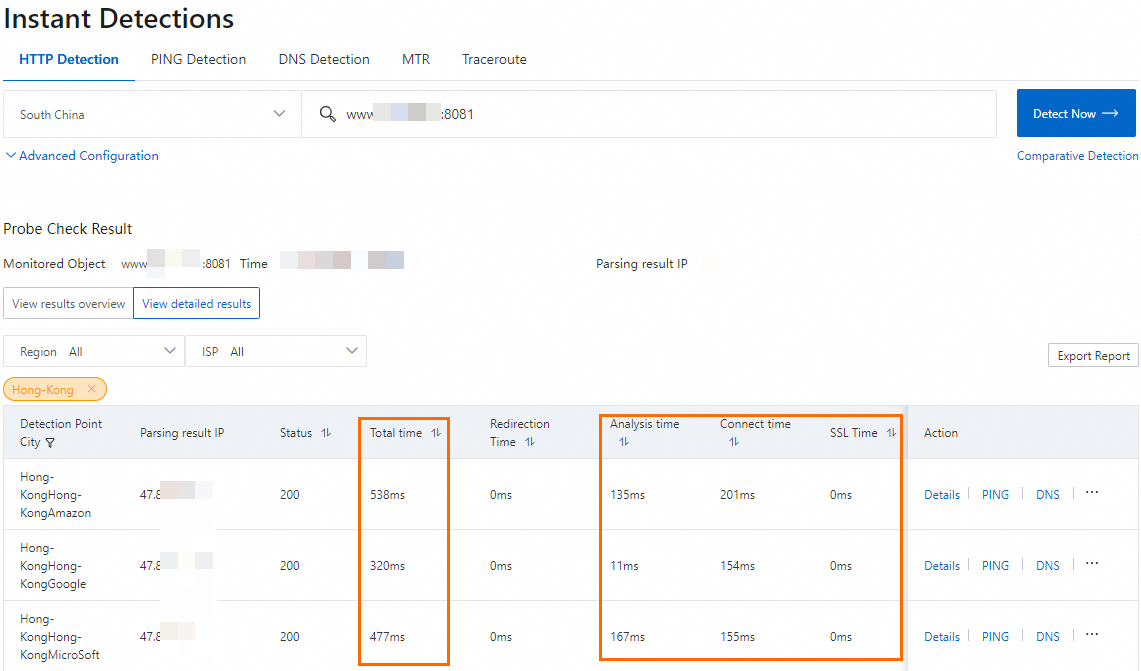
Enter
https://<your-domain-name>:443to test the network latency after you configure GA.Before you perform this test, make sure that the DNS record is switched to point to the CNAME of the GA instance.
The resolved IP address is the accelerated IP address of the GA instance, which indicates that traffic is routed to the GA instance for acceleration.
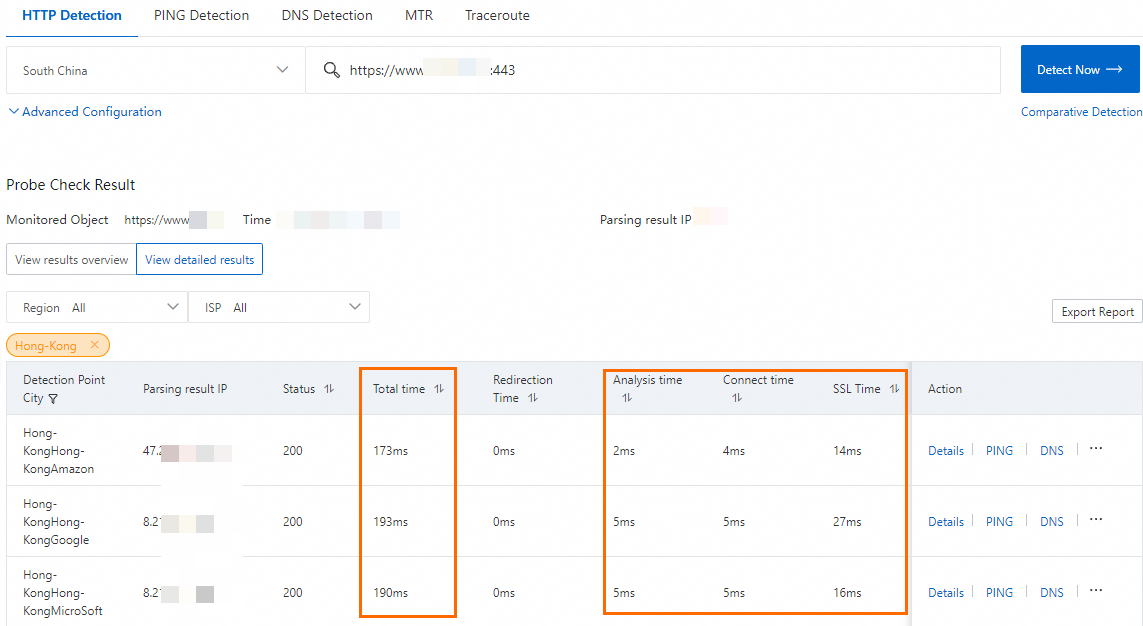
The test results show that using GA reduces the latency for clients in China (Hong Kong) when they access the service in the US (Silicon Valley) region.
The actual acceleration performance of GA may vary based on your network conditions and service configuration.
References
To deploy GA to access an HTTP 80 website deployed in the US (Silicon Valley) region over HTTPS 443, see Securely accelerate access to HTTP websites over HTTPS.
ALB is integrated with GA. You can quickly configure a GA accelerator from the ALB console to simplify the setup process. For more information, see Enable application acceleration quickly by integrating ALB with GA.
For information about common issues with GA, see the following topics:
You can use the
PortOverridesparameter of the following API operations to configure port mappings: