Use an ApsaraMQ for RocketMQ trigger to invoke a Function Compute function each time a message arrives in a topic. Function Compute integrates with ApsaraMQ for RocketMQ through EventBridge, which handles event routing and delivery. This topic walks you through creating a trigger, understanding the event payload, writing function code, and testing the setup.
How it works
When you create an ApsaraMQ for RocketMQ trigger in the Function Compute console, Function Compute automatically creates event streams in EventBridge based on your trigger configuration. After the trigger is active, messages arriving in the source topic are delivered to your function — individually or in batches, depending on your batch configuration.
ApsaraMQ for RocketMQ triggers are designed for end-to-end streaming data processing scenarios.
Limits
The ApsaraMQ for RocketMQ instance must reside in the same region as the Function Compute function.
If the number of event streams in your account reaches the upper limit, you cannot create additional ApsaraMQ for RocketMQ triggers. For quota information, see Limits.
Prerequisites
Before you begin, ensure that you have:
Activated EventBridge and granted the required permissions. See Activate EventBridge and grant permissions to a RAM user.
Created an event function in Function Compute. See Create an event function.
Activated ApsaraMQ for RocketMQ and granted the required permissions. See Activate and grant permissions on ApsaraMQ for RocketMQ.
Created an ApsaraMQ for RocketMQ instance, topic, and group ID. See Create an instance, a topic, and a group ID.
Step 1: Create a trigger
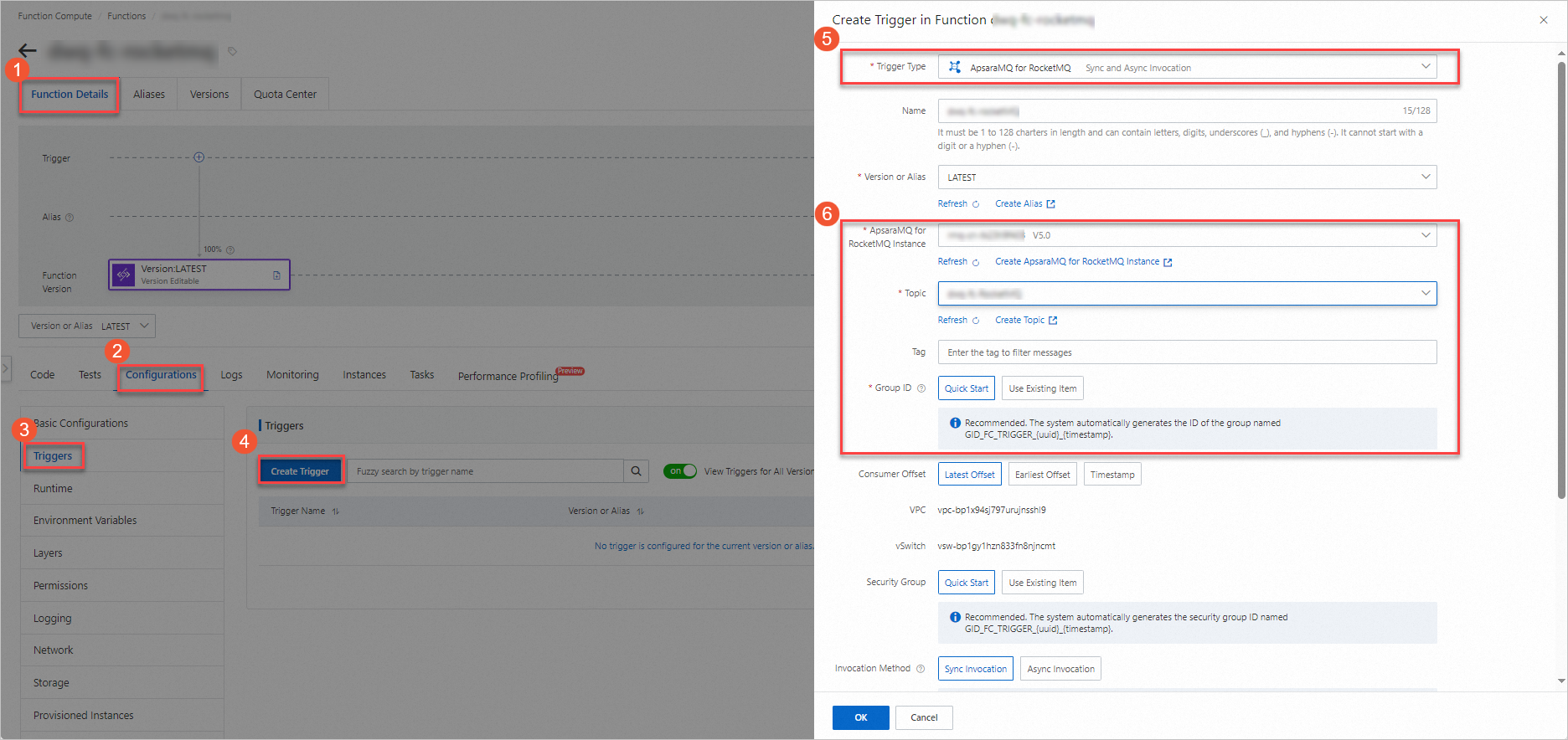
Log on to the Function Compute console and go to the function details page.
Click the Configurations tab, then click Create Trigger on the Triggers page.
Configure the trigger parameters described in the following table, then click OK.
| Parameter | Description | Example |
|---|---|---|
| Consumer offset | The offset from which ApsaraMQ for RocketMQ starts pulling messages. Valid values: Latest Offset (start from the most recent message), Earliest Offset (start from the oldest available message), Timestamp (start from a specific point in time). | Latest Offset |
| Invocation method | How the function is invoked when an event arrives. Sync Invocation: Function Compute runs the function and waits for a response before processing the next event or batch. Maximum payload: 32 MB. See Synchronous invocation. Async Invocation: Function Compute immediately moves on to the next event without waiting for the function to finish. Maximum payload: 128 KB. See Asynchronous invocation. | Sync Invocation |
For advanced settings such as push configuration, retry policies, and dead-letter queues, see Advanced features of triggers.
Step 2: (Optional) Configure test parameters
ApsaraMQ for RocketMQ delivers messages to your function as an event array. Before sending real messages, simulate trigger events to verify your function code.
On the Code tab of the function details page, click the
 icon next to Test Function and select Configure Test Parameters.
In the Configure Test Parameters panel, click Create New Test Event or Modify Existing Test Event, enter a name and the event content, then click OK.
The following is a sample event payload containing two messages:
[
    {
        "id": "94ebc15f-f0db-4bbe-acce-56fb72fb****",
        "source": "RocketMQ-Function-rocketmq-trigger",
        "specversion": "1.0",
        "type": "mq:Topic:SendMessage",
        "datacontenttype": "application/json; charset=utf-8",
        "subject": "acs:mq:cn-hangzhou:164901546557****:MQ_INST_164901546557****_BXhFHryi%TopicName",
        "time": "2021-04-08T06:01:20.766Z",
        "aliyunaccountid": "164901546557****",
        "aliyunpublishtime": "2021-10-15T02:05:16.791Z",
        "aliyunoriginalaccountid": "164901546557****",
        "aliyuneventbusname": "RocketMQ-Function-rocketmq-trigger",
        "aliyunregionid": "cn-chengdu",
        "aliyunpublishaddr": "42.120.XX.XX",
        "data": {
            "topic": "TopicName",
            "systemProperties": {
                "MIN_OFFSET": "0",
                "TRACE_ON": "true",
                "MAX_OFFSET": "8",
                "MSG_REGION": "cn-hangzhou",
                "KEYS": "systemProperties.KEYS",
                "CONSUME_START_TIME": 1628577790396,
                "TAGS": "systemProperties.TAGS",
                "INSTANCE_ID": "MQ_INST_164901546557****_BXhFHryi"
            },
            "userProperties": {},
            "body": "TEST"
        }
    },
    {
        "id": "94ebc15f-f0db-4bbe-acce-56fb72fb****",
        "source": "RocketMQ-Function-rocketmq-trigger",
        "specversion": "1.0",
        "type": "mq:Topic:SendMessage",
        "datacontenttype": "application/json; charset=utf-8",
        "subject": "acs:mq:cn-hangzhou:164901546557****:MQ_INST_164901546557****_BXhFHryi%TopicName",
        "time": "2021-04-08T06:01:20.766Z",
        "aliyunaccountid": "164901546557****",
        "aliyunpublishtime": "2021-10-15T02:05:16.791Z",
        "aliyunoriginalaccountid": "164901546557****",
        "aliyuneventbusname": "RocketMQ-Function-rocketmq-trigger",
        "aliyunregionid": "cn-chengdu",
        "aliyunpublishaddr": "42.120.XX.XX",
        "data": {
            "topic": "TopicName",
            "systemProperties": {
                "MIN_OFFSET": "0",
                "TRACE_ON": "true",
                "MAX_OFFSET": "8",
                "MSG_REGION": "cn-hangzhou",
                "KEYS": "systemProperties.KEYS",
                "CONSUME_START_TIME": 1628577790396,
                "TAGS": "systemProperties.TAGS",
                "INSTANCE_ID": "MQ_INST_164901546557****_BXhFHryi"
            },
            "userProperties": {},
            "body": "TEST"
        }
    }
]
Each element in the array is a CloudEvents-formatted message. The top-level fields (id, source, specversion, and so on) follow the CloudEvents specification. For details, see Overview. The data object contains the RocketMQ message content:
| Field | Type | Example | Description |
|---|---|---|---|
topic | String | TopicName | The topic name. |
systemProperties | Map | RocketMQ system-level message properties. | |
systemProperties.MIN_OFFSET | Int | 0 | The earliest offset in the queue. |
systemProperties.TRACE_ON | Boolean | true | Whether a message trace exists. |
systemProperties.MAX_OFFSET | Int | 8 | The latest offset in the queue. |
systemProperties.MSG_REGION | String | cn-hangzhou | The region where the message was sent. |
systemProperties.KEYS | String | systemProperties.KEYS | Keys used to filter the message. |
systemProperties.CONSUME_START_TIME | Long | 1628577790396 | Message consumption start time, in milliseconds. |
systemProperties.UNIQ_KEY | String | AC14C305069E1B28CDFA3181CDA2**** | The unique key of the message. |
systemProperties.TAGS | String | systemProperties.TAGS | Tags used to filter the message. |
systemProperties.INSTANCE_ID | String | MQ_INST_123456789098****_BXhFHryi | The ApsaraMQ for RocketMQ instance ID. |
userProperties | Map | The user properties. | |
body | String | TEST | The message body. |
Step 3: Write and test your function
After the trigger is created, write your function code and test it.
Write function code
On the Code tab of the function details page, write your handler code and click Deploy Code.
The following Node.js example shows how to handle the event:
'use strict';

exports.handler = (event, context, callback) => {
  console.log("event: %s", event);
  // Parse the event parameters and process the event.
  callback(null, 'return result');
}
Test the function
Two methods are available:
Method 1: Simulate with test parameters
If you configured a test event in Step 2, click Test Function on the Code tab.
Method 2: Send a real message
Log on to the ApsaraMQ for RocketMQ console, select the topic you created, and click Send Message.

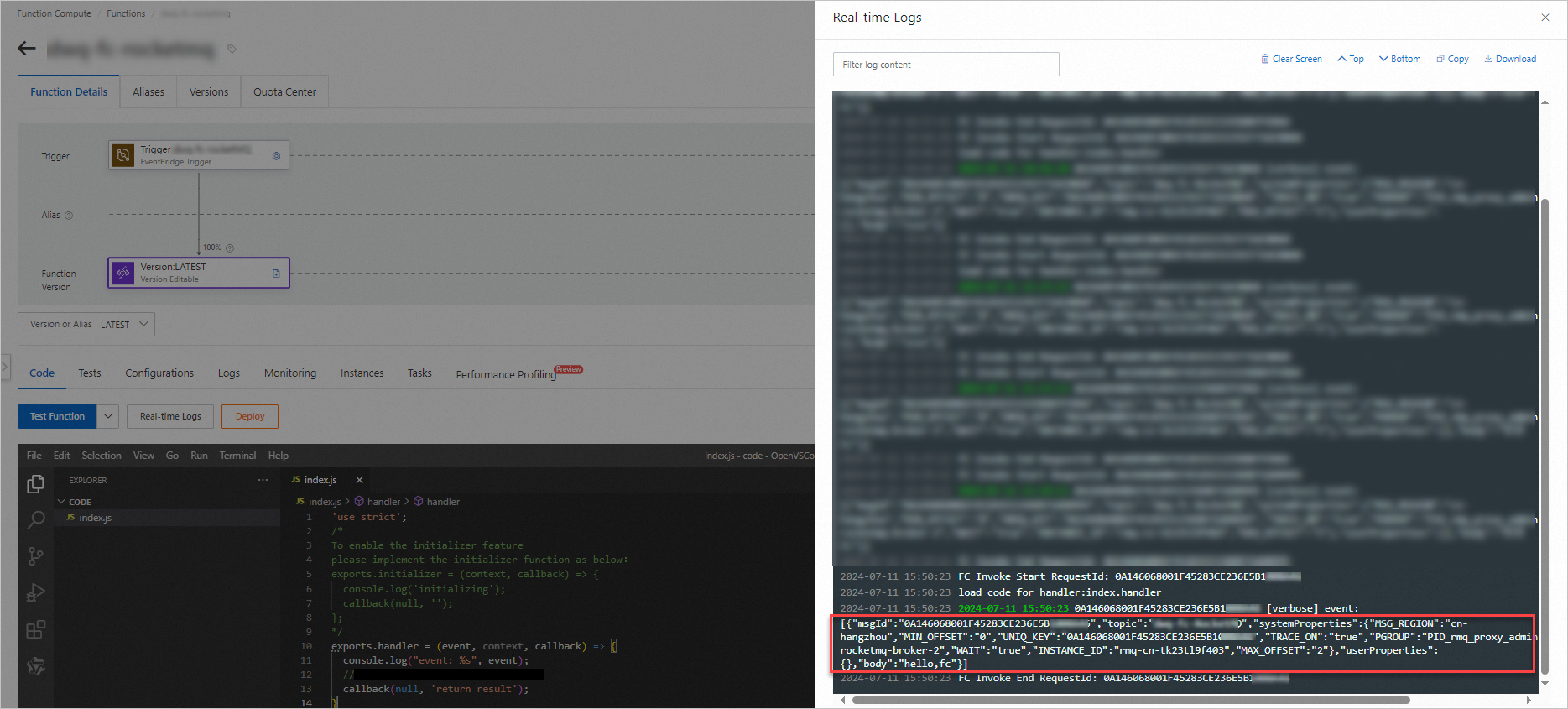
After the function runs, view the output in Real-time Logs.
What's next
To modify or delete this trigger, see Manage triggers.
To view the event streams created by this trigger, log on to the EventBridge console. See Overview.