This topic describes how to synchronize an entire MySQL database to Kafka. This approach reduces the load that multiple jobs place on the MySQL database.
Background
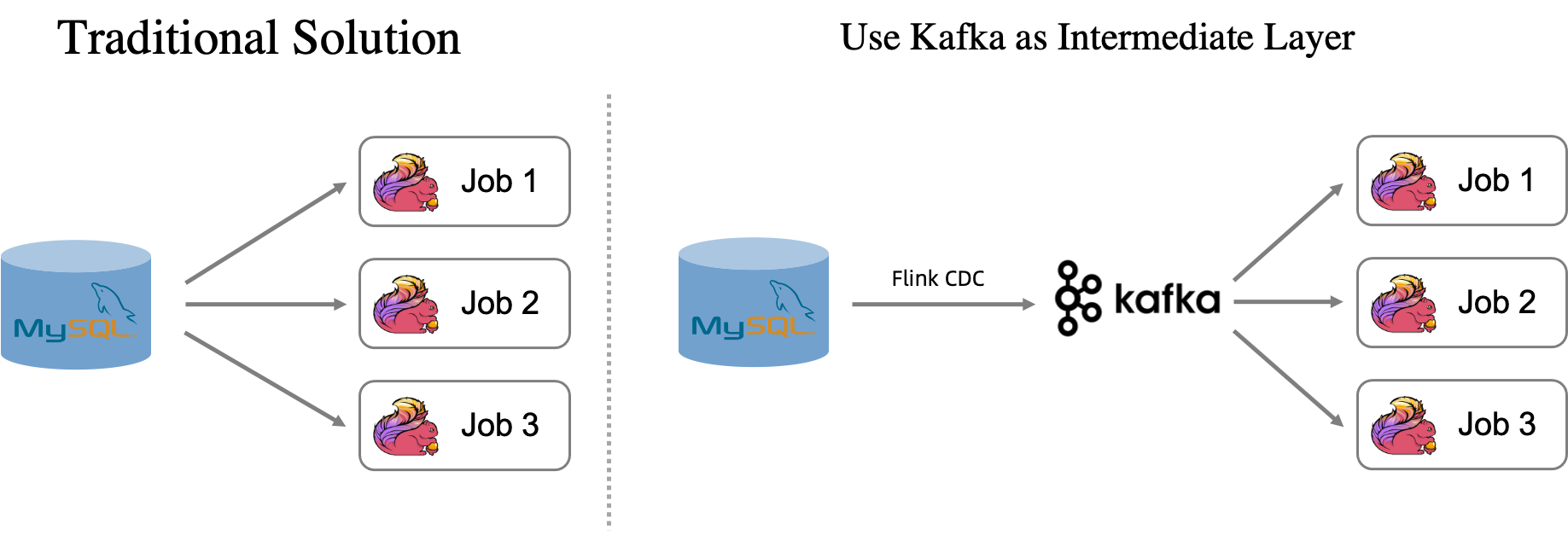
A MySQL CDC source table captures data from MySQL and synchronizes real-time changes from the table. This is common in complex computing scenarios, such as when a table serves as a dimension table in a JOIN operation with other data tables. A single MySQL table might be a dependency for multiple jobs. When multiple jobs process data from the same MySQL table, the database opens multiple connections, which places significant pressure on the MySQL server and network.
How it works
To reduce the pressure on the upstream MySQL database, Realtime Compute for Apache Flink can synchronize an entire MySQL database to Kafka. This solution introduces Kafka as an intermediate layer, using a Flink CDC data ingestion job to synchronize the data to Kafka.
In a single job, data from an upstream MySQL database is synchronized to Kafka in real time. Each MySQL table is written to a corresponding Kafka topic in upsert mode. Downstream jobs then use an upsert Kafka connector to read data from the topics instead of accessing the MySQL tables directly. This method effectively reduces the pressure that multiple jobs place on the MySQL database.
Limitations
-
Each MySQL table that you synchronize must have a primary key.
-
You can use self-managed Kafka clusters, EMR Kafka clusters, or ApsaraMQ for Kafka. If you use ApsaraMQ for Kafka, you can connect to it only through a default endpoint.
-
The storage space of the Kafka cluster must be larger than that of the source tables. Otherwise, data may be lost due to insufficient storage. The topics created for database synchronization are compacted topics. In a compacted topic, only the latest message for each message key is retained, but the data never expires. This means the compacted topic stores a volume of data roughly equivalent to the size of the source table.
Example scenario
For example, in a real-time order review analytics scenario, assume there are three tables: a user table (user), an order table (order), and a user feedback table (feedback). The tables contain the data shown in the following figure.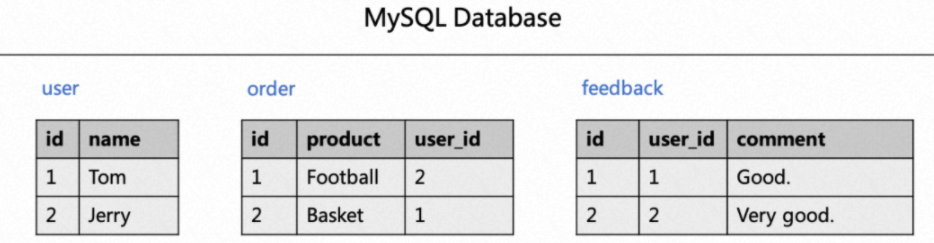
To display user order information and user reviews, you need to join the user table to retrieve usernames from the name field. The following SQL sample demonstrates this operation.
-- Join order information with the user table to display the username and product name for each order.
SELECT order.id as order_id, product, user.name as user_name
FROM order LEFT JOIN user
ON order.user_id = user.id;
-- Join reviews with the user table to display the content of each review and the corresponding username.
SELECT feedback.id as feedback_id, comment, user.name as user_name
FROM feedback LEFT JOIN user
ON feedback.user_id = user.id;
For the two preceding SQL jobs, both use the user table. At runtime, both jobs read the full and incremental data from MySQL. A full read requires creating a MySQL connection, and an incremental read requires creating a Binlog client. As the number of jobs increases, the demand for MySQL connection and Binlog client resources also grows, placing significant pressure on the upstream database. To relieve this pressure, you can use a Flink CDC data ingestion job to synchronize data from the upstream MySQL database to Kafka in real time for consumption by multiple downstream jobs.
Prerequisites
-
Realtime Compute for Apache Flink is active. For more information, see Activate Realtime Compute for Apache Flink.
-
ApsaraMQ for Kafka is active. For more information, see Deploy an ApsaraMQ for Kafka instance.
-
ApsaraDB RDS for MySQL is active. For more information, see Create an ApsaraDB RDS for MySQL instance.
-
Your Realtime Compute for Apache Flink, ApsaraDB RDS for MySQL, and ApsaraMQ for Kafka services are in the same VPC. If they are in different VPCs, you must enable cross-VPC network access or use public endpoints. For more information, see How do I access other services across VPCs? and How do I access the Internet?.
-
If you access resources as a RAM user or by using a RAM role, you must have the required permissions.
Preparation
Prepare the MySQL data source
-
Create an ApsaraDB RDS for MySQL database. For more information, see Create a database.
Create a database named
order_dwfor the target instance. -
Prepare the MySQL CDC data source.
-
On the instance details page, click Log on to Database at the top of the page.
-
In the DMS logon dialog box that appears, enter the username and password for the database account that you created, and then click Login.
-
After you log in, double-click the
order_dwdatabase in the left pane to switch databases. -
In the SQL Console, enter the DDL statements to create the three business tables and the statements to insert data.
CREATE TABLE `user` (
  id bigint not null primary key,
  name varchar(50) not null
);
CREATE TABLE `order` (
  id bigint not null primary key,
  product varchar(50) not null,
  user_id bigint not null
);
CREATE TABLE `feedback` (
  id bigint not null primary key,
  user_id bigint not null,
  comment varchar(50) not null
);
-- Prepare data
INSERT INTO `user` VALUES(1, 'Tom'),(2, 'Jerry');
INSERT INTO `order` VALUES
(1, 'Football', 2),
(2, 'Basket', 1);
INSERT INTO `feedback` VALUES
(1, 1, 'Good.'),
(2, 2, 'Very good');
-
-
Click Execute, and then click Execute.
Procedure
-
Create and start a Flink CDC data ingestion job to synchronize data from the upstream MySQL database to Kafka in real time for consumption by multiple downstream jobs. The database synchronization job automatically creates topics. You can define topic names by using the
routemodule. The topics use the Kafka cluster's default settings for the number of partitions and replicas, andcleanup.policyis set tocompact.Default topic names
By default, the Kafka topics created by the database synchronization job use the naming format
{database_name}.{table_name}. The following job creates three topics:order_dw.user,order_dw.order, andorder_dw.feedback.-
On the page, create a Flink CDC data ingestion job and copy the following code into the YAML editor.
source: type: mysql name: MySQL Source hostname: #{hostname} port: 3306 username: #{usernmae} password: #{password} tables: order_dw.\.* server-id: 28601-28604 # (Optional) Synchronize data from newly created tables during the incremental phase. scan.binlog.newly-added-table.enabled: true # (Optional) Synchronize table and field comments. include-comments.enabled: true # (Optional) Prioritize dispatching unbounded splits to avoid potential TaskManager OutOfMemory issues. scan.incremental.snapshot.unbounded-chunk-first.enabled: true # (Optional) Enable parsing filters to speed up reads. scan.only.deserialize.captured.tables.changelog.enabled: true sink: type: upsert-kafka name: upsert-kafka Sink properties.bootstrap.servers: xxxx.alikafka.aliyuncs.com:9092 # The following parameters are required for ApsaraMQ for Kafka. aliyun.kafka.accessKeyId: #{ak} aliyun.kafka.accessKeySecret: #{sk} aliyun.kafka.instanceId: #{instanceId} aliyun.kafka.endpoint: #{endpoint} aliyun.kafka.regionId: #{regionId} -
In the upper-right corner, click Deploy to deploy the job.
-
In the left navigation bar, click . In the Actions column of the target job, click Start, select Initial Mode, and then click Start.
Per-table topic names
You can use the
routemodule to specify a topic name for each table. The following job creates three topics:user1,order2, andfeedback3.-
On the page, create a Flink CDC data ingestion job and copy the following code into the YAML editor.
source: type: mysql name: MySQL Source hostname: #{hostname} port: 3306 username: #{usernmae} password: #{password} tables: order_dw.\.* server-id: 28601-28604 # (Optional) Synchronize data from newly created tables during the incremental phase. scan.binlog.newly-added-table.enabled: true # (Optional) Synchronize table and field comments. include-comments.enabled: true # (Optional) Prioritize dispatching unbounded splits to avoid potential TaskManager OutOfMemory issues. scan.incremental.snapshot.unbounded-chunk-first.enabled: true # (Optional) Enable parsing filters to speed up reads. scan.only.deserialize.captured.tables.changelog.enabled: true route: - source-table: order_dw.user sink-table: user1 - source-table: order_dw.order sink-table: order2 - source-table: order_dw.feedback sink-table: feedback3 sink: type: upsert-kafka name: upsert-kafka Sink properties.bootstrap.servers: xxxx.alikafka.aliyuncs.com:9092 # The following parameters are required for ApsaraMQ for Kafka. aliyun.kafka.accessKeyId: #{ak} aliyun.kafka.accessKeySecret: #{sk} aliyun.kafka.instanceId: #{instanceId} aliyun.kafka.endpoint: #{endpoint} aliyun.kafka.regionId: #{regionId} -
In the upper-right corner, click Deploy to deploy the job.
-
In the left navigation bar, select , click Start in the Actions column of the target job, select Initial Mode, and then click Start.
Batch topic names
You can use the
routemodule to specify a pattern for the names of the generated topics. The following job creates three topics:topic_user,topic_order, andtopic_feedback.-
On the page, create a Flink CDC data ingestion job and copy the following code into the YAML editor.
source: type: mysql name: MySQL Source hostname: #{hostname} port: 3306 username: #{usernmae} password: #{password} tables: order_dw.\.* server-id: 28601-28604 # (Optional) Synchronize data from newly created tables during the incremental phase. scan.binlog.newly-added-table.enabled: true # (Optional) Synchronize table and field comments. include-comments.enabled: true # (Optional) Prioritize dispatching unbounded splits to avoid potential TaskManager OutOfMemory issues. scan.incremental.snapshot.unbounded-chunk-first.enabled: true # (Optional) Enable parsing filters to speed up reads. scan.only.deserialize.captured.tables.changelog.enabled: true route: - source-table: order_dw.\.* sink-table: topic_<> replace-symbol: <> sink: type: upsert-kafka name: upsert-kafka Sink properties.bootstrap.servers: xxxx.alikafka.aliyuncs.com:9092 # The following parameters are required for ApsaraMQ for Kafka. aliyun.kafka.accessKeyId: #{ak} aliyun.kafka.accessKeySecret: #{sk} aliyun.kafka.instanceId: #{instanceId} aliyun.kafka.endpoint: #{endpoint} aliyun.kafka.regionId: #{regionId} -
In the upper-right corner, click Deploy to deploy the job.
-
In the left navigation bar, click . Click Start in the Actions column of the target job, select Initial Mode, and then click Start.
-
-
Consume Kafka data in real time.
The data ingestion job writes data from the upstream MySQL database to Kafka in JSON format. Multiple downstream jobs can then consume data from a single topic to retrieve the latest state of the database tables. You can consume the data from tables synchronized to Kafka in one of the following ways:
By catalog
Read data from a Kafka topic by using it as a source table.
-
On the page, create a streaming SQL job and copy the following code into the SQL editor.
CREATE TEMPORARY TABLE print_user_proudct(
  order_id BIGINT,
  product STRING,
  user_name STRING
) WITH (
  'connector'='print',
  'logger'='true'
);
CREATE TEMPORARY TABLE print_user_feedback(
  feedback_id BIGINT,
  `comment` STRING,
  user_name STRING
) WITH (
  'connector'='print',
  'logger'='true'
);
BEGIN STATEMENT SET;      -- Required when writing to multiple sinks.
-- Join order information with the user table in the Kafka JSON Catalog to display the username and product name for each order.
INSERT INTO print_user_proudct
SELECT `order`.key_id as order_id, value_product as product, `user`.value_name as user_name
FROM `kafka-catalog`.`kafka`.`order`/*+OPTIONS('properties.group.id'='<yourGroupName>', 'scan.startup.mode'='earliest-offset')*/  as `order` -- Specify the group and startup mode.
LEFT JOIN `kafka-catalog`.`kafka`.`user`/*+OPTIONS('properties.group.id'='<yourGroupName>', 'scan.startup.mode'='earliest-offset')*/ as `user` -- Specify the group and startup mode.
ON `order`.value_user_id = `user`.key_id;
-- Join reviews with the user table to display the content of each review and the corresponding username.
INSERT INTO print_user_feedback
SELECT feedback.key_id as feedback_id, value_comment as `comment`, `user`.value_name as user_name
FROM `kafka-catalog`.`kafka`.feedback/*+OPTIONS('properties.group.id'='<yourGroupName>', 'scan.startup.mode'='earliest-offset')*/  as feedback  -- Specify the group and startup mode.
LEFT JOIN `kafka-catalog`.`kafka`.`user`/*+OPTIONS('properties.group.id'='<yourGroupName>', 'scan.startup.mode'='earliest-offset')*/ as `user` -- Specify the group and startup mode.
ON feedback.value_user_id = `user`.key_id;
END;      -- Required when writing to multiple sinks.
This example uses the Print connector to print the results directly. You can also output the results to a result table that uses another connector for further analysis. For more information about the syntax for writing to multiple sinks, see INSERT INTO statement.
NoteWhen you use this method directly, schema changes may occur. As a result, the schema parsed by the Kafka JSON catalog may differ from the schema of the corresponding MySQL table. For example, deleted fields may still appear, and some fields may have null values.
The schema read from the catalog consists of fields from the consumed data. If a field is deleted but its messages have not expired, the field may still appear with a null value. No special handling is required for this case.
-
In the upper-right corner, click Deploy to deploy the job.
-
In the left navigation bar, click , click Start in the Actions column of the target job, select Initial Mode, and then click Start.
By temporary table
Define a custom schema and read data from a temporary table.
-
On the page, create a streaming SQL job and copy the following code into the SQL editor.
CREATE TEMPORARY TABLE user_source (
  key_id BIGINT,
  value_name STRING
) WITH (
  'connector' = 'kafka',
  'topic' = 'user',
  'properties.bootstrap.servers' = '<yourKafkaBrokers>',
  'scan.startup.mode' = 'earliest-offset',
  'key.format' = 'json',
  'value.format' = 'json',
  'key.fields' = 'key_id',
  'key.fields-prefix' = 'key_',
  'value.fields-prefix' = 'value_',
  'value.fields-include' = 'EXCEPT_KEY',
  'value.json.infer-schema.flatten-nested-columns.enable' = 'false',
  'value.json.infer-schema.primitive-as-string' = 'false'
);
CREATE TEMPORARY TABLE order_source (
  key_id  BIGINT,
  value_product STRING,
  value_user_id BIGINT
) WITH (
  'connector' = 'kafka',
  'topic' = 'order',
  'properties.bootstrap.servers' = '<yourKafkaBrokers>',
  'scan.startup.mode' = 'earliest-offset',
  'key.format' = 'json',
  'value.format' = 'json',
  'key.fields' = 'key_id',
  'key.fields-prefix' = 'key_',
  'value.fields-prefix' = 'value_',
  'value.fields-include' = 'EXCEPT_KEY',
  'value.json.infer-schema.flatten-nested-columns.enable' = 'false',
  'value.json.infer-schema.primitive-as-string' = 'false'
);
CREATE TEMPORARY TABLE feedback_source (
  key_id  BIGINT,
  value_user_id BIGINT,
  value_comment STRING
) WITH (
  'connector' = 'kafka',
  'topic' = 'feedback',
  'properties.bootstrap.servers' = '<yourKafkaBrokers>',
  'scan.startup.mode' = 'earliest-offset',
  'key.format' = 'json',
  'value.format' = 'json',
  'key.fields' = 'key_id',
  'key.fields-prefix' = 'key_',
  'value.fields-prefix' = 'value_',
  'value.fields-include' = 'EXCEPT_KEY',
  'value.json.infer-schema.flatten-nested-columns.enable' = 'false',
  'value.json.infer-schema.primitive-as-string' = 'false'
);
CREATE TEMPORARY TABLE print_user_proudct(
  order_id BIGINT,
  product STRING,
  user_name STRING
) WITH (
  'connector'='print',
  'logger'='true'
);
CREATE TEMPORARY TABLE print_user_feedback(
  feedback_id BIGINT,
  `comment` STRING,
  user_name STRING
) WITH (
  'connector'='print',
  'logger'='true'
);
BEGIN STATEMENT SET;      -- Required when writing to multiple sinks.
-- Join order information with the user table from the Kafka JSON Catalog to display the username and product name for each order.
INSERT INTO print_user_proudct
SELECT order_source.key_id as order_id, value_product as product, user_source.value_name as user_name
FROM order_source LEFT JOIN user_source
ON order_source.value_user_id = user_source.key_id;
-- Join reviews with the user table to display the content of each review and the corresponding username.
INSERT INTO print_user_feedback
SELECT feedback_source.key_id as feedback_id, value_comment as `comment`, user_source.value_name as user_name
FROM feedback_source  LEFT JOIN user_source
ON feedback_source.value_user_id = user_source.key_id;
END;      -- Required when writing to multiple sinks.
This example uses the Print connector to print the results directly. You can also output the results to a result table of another connector for further analysis. For more information about the syntax for writing to multiple sinks, see INSERT INTO statement.
The following table describes the configuration parameters for the temporary table.
Parameter
Description
Notes
connectorThe type of connector.
Set the value to
kafka.topicThe name of the corresponding topic.
Must be consistent with the Kafka JSON catalog description.
properties.bootstrap.serversThe addresses of the Kafka brokers.
The format is
host:port,host:port,host:port, separated by commas (,).scan.startup.modeThe startup position for reading data from Kafka.
Valid values:
-
earliest-offset: Starts reading from the earliest available offset. -
latest-offset: Starts reading from the latest offset. -
group-offsets(default): Reads from the committed offset for the group specified by properties.group.id. -
timestamp: Reads from the timestamp specified by scan.startup.timestamp-millis.
-
specific-offsets: Starts reading from the offsets specified in scan.startup.specific-offsets.
Note
This parameter takes effect when the job starts without a saved state. When the job restarts or recovers from a checkpoint, it prioritizes reading from the saved state.
key.formatThe format that the Flink Kafka connector uses to serialize or deserialize the Kafka message key.
Set the value to
json.key.fieldsThe fields in the source or result table that correspond to the Kafka message key.
Use semicolons (;) to separate multiple field names. For example,
field1;field2.key.fields-prefixA custom prefix for all Kafka message key fields to avoid naming conflicts with message value fields or metadata fields.
This value must be consistent with the value of the key.fields-prefix parameter of the Kafka JSON Catalog.
value.formatThe format that the Flink Kafka connector uses to serialize or deserialize the Kafka message value.
Set the value to
json.value.fields-prefixA custom prefix for all Kafka message value fields to avoid naming conflicts with message key fields or metadata fields.
Must match the value of the value.fields-prefix parameter of the Kafka JSON Catalog.
value.fields-includeThe policy for handling message key fields in the message value.
Set the value to
EXCEPT_KEY. This indicates that the message value does not include the fields of the message key.value.json.infer-schema.flatten-nested-columns.enableSpecifies whether to recursively expand nested JSON columns in the Kafka message value.
The value of the infer-schema.flatten-nested-columns.enable parameter of the corresponding Catalog.
value.json.infer-schema.primitive-as-stringSpecifies whether to infer all primitive types as String in the Kafka message value.
The value of the infer-schema.primitive-as-string parameter of the corresponding Catalog.
-
-
In the upper-right corner, click Deploy to deploy the job.
-
In the left navigation bar, click , click Start in the Actions column of the target job, select Initial Mode, and then click Start.
-
-
View the job results.
-
In the left navigation bar, click , and then click the target job.
-
On the Logs tab, on the Running Task Managers tab, click the task that has the Path, ID that you want to view.
-
Click Logs and search for log information related to
PrintSinkOutputWriter.Search the logs for the output of
PrintSinkOutputWriter. The output contains four joined data records:+I[1, Good., Tom],+I[2, Very good, Jerry],+I[2, Basket, Tom], and+I[1, Football, Jerry]. This indicates that the joins between the user table and the order and feedback tables were successful.
-