This topic describes how to use EventBridge to subscribe to ECS events and deliver them to downstream services.
Background information
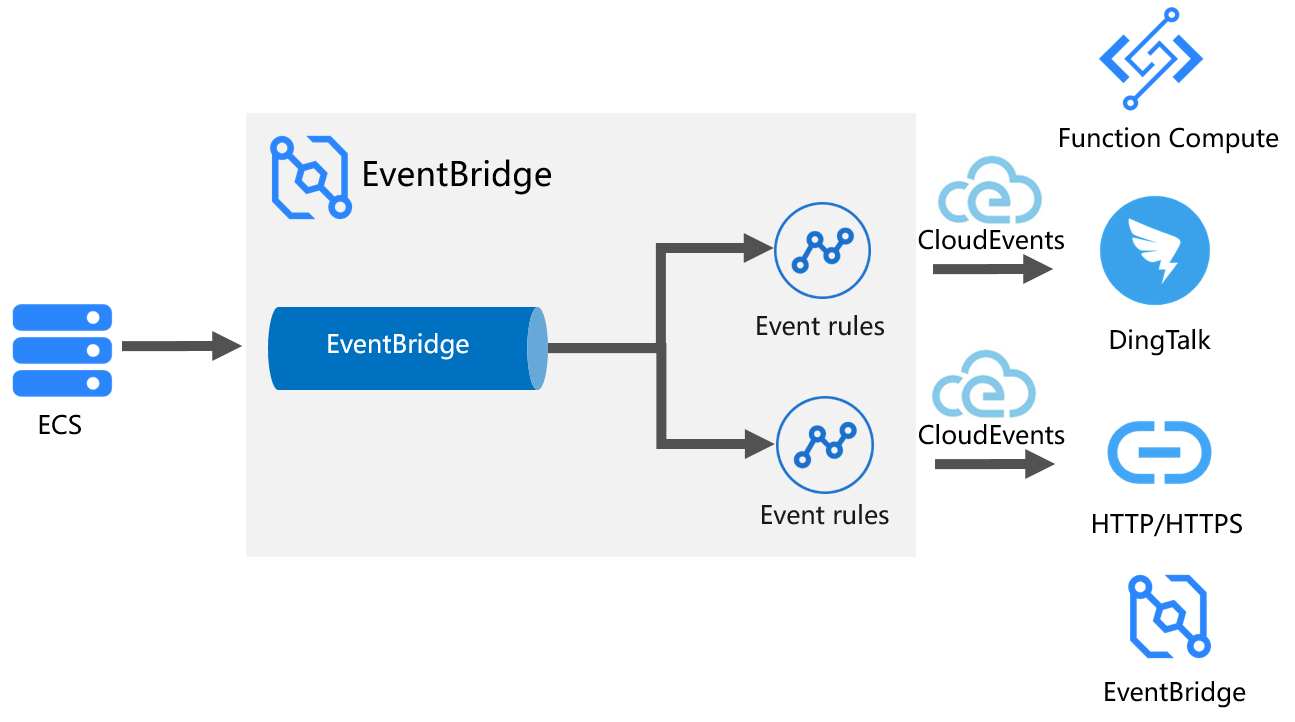
EventBridge is the event hub on Alibaba Cloud. It provides a unified event center for connecting Alibaba Cloud services with applications and for connecting applications with each other. EventBridge uses the standard CloudEvents 1.0 protocol. You can use EventBridge to manage events from Alibaba Cloud services, Software as a Service (SaaS) applications, and your own business applications. EventBridge ensures the quality of events from upstream Alibaba Cloud services, provides an improved event subscription experience, and increases the reliability of data delivery. EventBridge offers a Service-level agreement (SLA) that guarantees 99.99999999% data reliability and 99.95% service availability.
Using EventBridge to subscribe to events has the following advantages over calling the ECS DescribeInstanceHistoryEvents API operation to poll for new events:
-
Improved timeliness: When an event of a specific type is detected, a specific operation can be triggered within milliseconds.
-
Lower costs: You do not need to periodically poll for events. This avoids unnecessary overhead.
Scenarios
-
You can subscribe to specific ECS events to trigger notifications through DingTalk, text messages, or email.
-
You can push specific ECS events to downstream HTTP or HTTPS services over the internet or a VPC.
-
You can aggregate ECS events from multiple Alibaba Cloud accounts.
-
You can trigger specific actions using Function Compute when a specific ECS event occurs.
-
You can deliver ECS events to Simple Message Queue (formerly MNS) for subscription in scenarios with high event latency or large event volumes.
Prerequisites
-
Create a DingTalk robot and record its webhook URL and key.
-
Create a service and a function. For more information, see Manage services and Manage functions.
-
Create a Simple Message Queue (formerly MNS) queue. For more information, see Activate Simple Message Queue (formerly MNS) and grant permissions and Create a queue.
Step 1: Select the dedicated Alibaba Cloud service event bus
The system event bus is the `default` bus that EventBridge creates automatically. Alibaba Cloud services deliver events to the `default` bus in real time. You can find and subscribe to events from Alibaba Cloud services on the `default` bus.
Log on to the EventBridge console. In the left-side navigation pane, click Event Buses.
In the top navigation bar, select a region.
-
On the EventBridge page, click default.
Step 2: Create an event rule for ECS events
-
On the EventBridge page, click Event Rules in the navigation pane on the left, and then click Create Rule.
-
In the Create Rule panel, complete the following steps.
-
On the Configure Basic Info tab, enter a name in the Name text box and a description in the Description text box. Then, click Next.
-
On the Configure Event Pattern tab, configure the event pattern. Then, click Next.
-
Click the Alibaba Cloud Service Event Sources tab.
-
From the Event Source drop-down list, select acs.ecs.
-
From the Event Type drop-down list, select the event types that you want to subscribe to. You can select multiple event types.
-
In the Event Pattern Debugging section, you can view a sample for the selected event type. For example, if you select ecs.Instance.StateChange for instance lifetime status changes, the following sample is displayed.
{
  "id": "45ef4dewdwe1-7c35-447a-bd93-fab****",
  "source": "acs.ecs",
  "specversion": "1.0",
  "subject": "acs.ecs:cn-hangzhou:123456789098****:215672",
  "time": "2020-11-19T21:04:41Z",
  "type": "ecs:Instance:StateChange",
  "aliyunaccountid": "123456789098****",
  "aliyunpublishtime": "2020-11-19T21:04:42Z",
  "aliyuneventbusname": "default",
  "aliyunregionid": "cn-hangzhou",
  "aliyunpublishaddr": "172.25.XX.XX",
  "data": {
    "instanceName": "iZ0jl0kyquo46h****",
    "instanceType": "ecs.c6.large",
    "privateIpAddress": "172.21.XX.XX",
    "publicIpAddress": "8.37.XX.XX",
    "resourceId": "i-0jl0kyquo46****",
    "resourceType": "ALIYUN::ECS::Instance",
    "spotStrategy": "SpotWithPriceLimit",
    "state": "Running"
  }
}
-
-
On the Configure Targets tab, select a Service Type and configure the push scenario.
Scenario 1: Push to Simple Message Queue (formerly MNS)
You can use Simple Message Queue (formerly MNS) to subscribe to events in scenarios with high event latency or large event volumes. For more information about the billing of Simple Message Queue (formerly MNS), see Billing.
-
Service Type: Select Simple Message Queue (formerly MNS).
-
Queue: Select the queue that you created.
-
Message Body: Select **Complete Event**.
-
Enable Base64 Decoding: Select Yes. If you enable Base64 encoding, data is encoded before it is delivered to the destination queue in Simple Message Queue (formerly MNS).
If you set **Service Type** to Simple Message Queue (formerly MNS), you can use NetworkInterfaceDemo.zip to listen for messages from Simple Message Queue (formerly MNS) and retrieve events.
Scenario 2: Push to DingTalk
-
Service Type: Select DingTalk.
-
Address: Enter the webhook URL of the DingTalk robot.
-
Secret Key: Enter the key of the DingTalk robot.
-
Pushed Content: You can use the template feature of EventBridge to push parameters from the event to a DingTalk robot. For example, to push the instance name (`instanceName`) and running state (`state`) of an ECS instance, configure the following parameters:
-
Parameters: Use a JSONPath expression to specify the fields that you want to retrieve from the event and set variable names.
{ "instanceName":"$.data.instanceName", "state":"$.data.state" } -
Template: Define a template in the format required by the DingTalk robot and reference the variables that you defined.
{
  "msgtype": "text",
  "text": {
      "content": "${instanceName} state is ${state}"
  }
}
-
Scenario 3: Push to a downstream HTTP service
-
Service Type: Select HTTP or HTTPS.
-
URL: Configure the URL to receive events.
-
Body: Configure the format for the event content. EventBridge can transform events and push them to an HTTP target in the required format. The following transformation formats are supported: **Complete Event**, **Partial Event**, **Static Field**, and **Template**. For more information, see Event transformation.
-
Network Type:
-
Internet: Accesses the target URL over the internet.
-
VPC: Select this option if the target URL is not exposed to the internet. You must specify the VPC ID, VSwitch ID, and Security Group ID.
-
Scenario 4: Trigger an action after pushing
If you want to trigger a more customized action when an ECS event occurs, set the service type to Function Compute. You can push the event to a specific function and write code in Function Compute to define the custom action.
-
Service Type: Select Function Compute.
-
Service: The name of the service that you created in Function Compute.
-
Function: The name of the function that you created in Function Compute.
-
Event: Configure the format for the event content. EventBridge can transform events and push them to Function Compute in the required format. The following transformation templates are supported: Complete Event, Partial Event, Static Field, and Template. For more information, see Event transformation.
-
Invocation Mode:
-
Synchronization: Function Compute receives the event. The request is considered successful after the function processes the event.
-
Asynchronous: The request is considered successful after Function Compute receives the event.
For more information, see Route to Function Compute.
-
Scenario 5: Aggregate ECS events from multiple Alibaba Cloud accounts
EventBridge can aggregate ECS events from different accounts and regions to an event bus in a single account and region. To do this, set the service type to **EventBridge Event Bus**.
-
Destination Type:
-
Same-account Event Bus: Delivers events to another bus in the current account.
-
Cross-account Event Bus: Deliver events to a bus in another account. If you select this option, you must grant the required permissions. For more information, see Route events to EventBridge.
-
-
Region: Cross-region delivery is supported between regions in the Chinese mainland, and between regions outside the Chinese mainland.
-
Event Bus: The name of the target event bus.
-
Event: By default, the complete event is delivered. This cannot be changed.
At the bottom of the Configure Targets tab, you can configure a retry policy and a dead-letter queue as needed. For more information, see Retries and dead-letter queues.
For more information about other scenarios, see Target service types.
-
-
Step 3: Trigger an event
This topic uses the ecs.Instance.StateChange event type for instance lifetime status changes as an example. To trigger this event, you can change the running status of an ECS instance.
-
Log on to the ECS console.
-
In the navigation pane on the left, choose .
-
In the top navigation bar, select the region where the target resource is located.
-
Find the target ECS instance. In the Actions column, choose
 > Instance Status and change the running status of the instance.
Step 4: View the delivery result
-
Check whether an ECS event was generated.
EventBridge lets you search for ECS events by time range, event type, rule name, or event ID. The event ID is the same as the ECS event ID. For more information, see Query events.
-
Check the delivery result of the ECS event subscription.
Using the event ID from the previous step, you can click Event Trace in the Actions column to view the push track of the event. The track includes details such as the target, status, number of pushes, and time. The Event Trace details show:
-
Event Reception: the event source is Elastic Compute Service (ECS) acs.ecs, the event type is
ecs:Instance:StateChange, and the event bus is default. -
Event Delivery: the rule name is test, succeeded targets is 1, failed targets is 0, and total deliveries is 1. The delivery target is the webhook URL of the DingTalk robot, the delivery status is Succeeded, the delivery latency is 258 milliseconds, and the delivery response is
[200]NoMessage.
-
Event monitoring and alerting
On the EventBridge monitoring dashboard, you can view the number of calls, push success rate, and push latency for the ECS event subscription task that you created. You can also configure alert policies based on your business scenarios.
-
Log on to the CloudMonitor console.
-
In the left navigation pane, select .
-
On the Cloud Service Monitoring page, click Middleware in the navigation pane on the left. Then, in the Middleware section, move the pointer over Event Bus and click Event Bus - EventBus.
-
On the Event Bus - EventBus page, select a region. Then, click Monitoring Charts in the Actions column of the default bus to view its monitoring details.
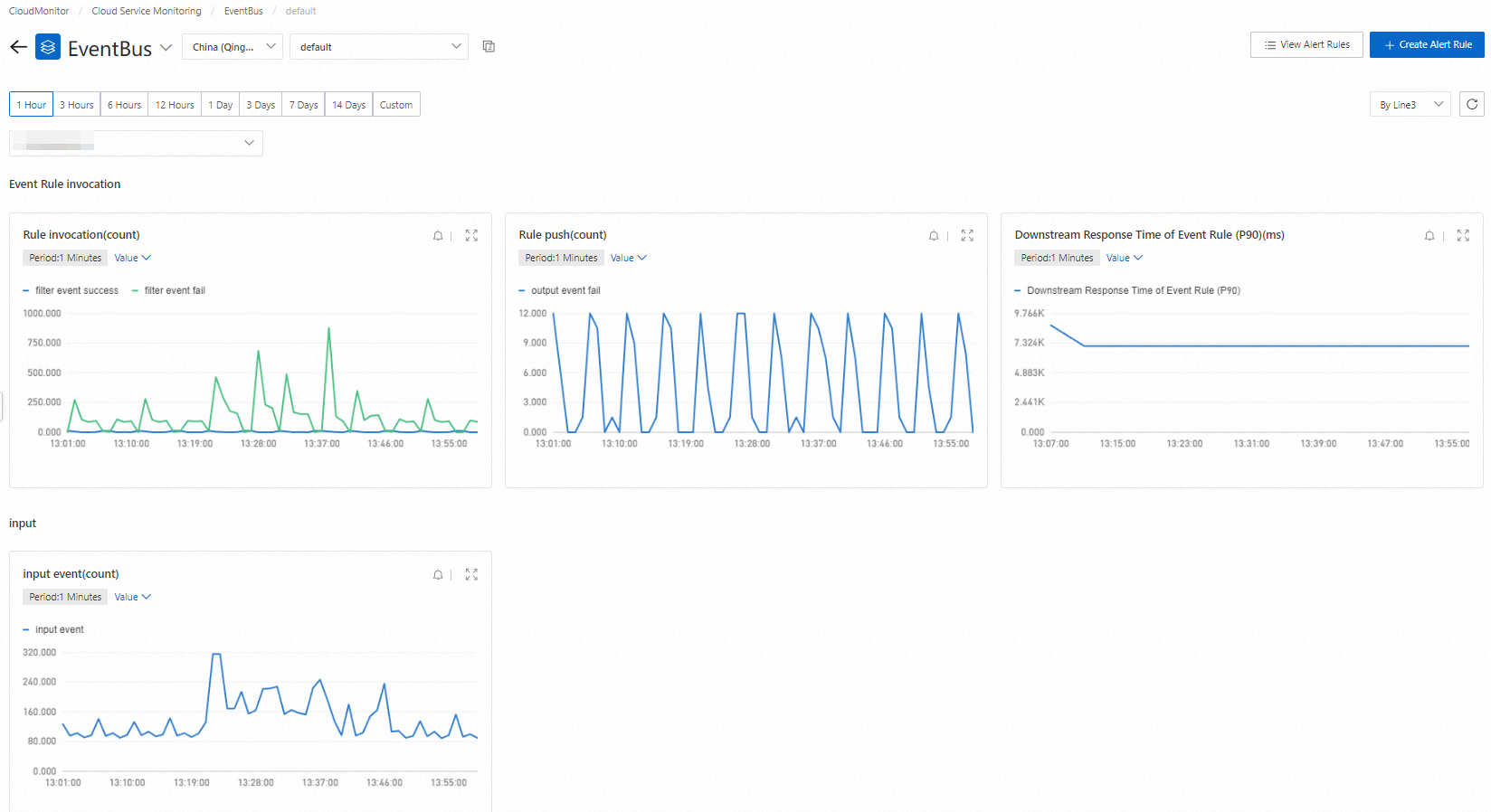
On the monitoring page, you can set alert rules for EventBridge resources. When a resource meets the conditions of an alert rule, CloudMonitor automatically sends an alert notification. For more information, see Set alert rules.
Retries and dead-letter queues
After an event is written to an event bus, EventBridge ensures that the event is pushed to the downstream service at least once. If the downstream accepter cannot receive the event due to exceptions such as downtime, service unavailability, or network jitter, EventBridge provides multiple ways to handle these exceptions, including retry policies, fault tolerance policies, and dead-letter queues. You can configure retry and dead-letter policies in Step 2: Create an event rule for ECS events to ensure that events are delivered correctly.
-
Retry policy
If a downstream accepter cannot receive an event, an exception occurs when EventBridge pushes the event. In this case, you can configure a retry policy in EventBridge to maximize the push success rate.
-
Backoff retry: Retries 3 times. The interval between retries is a random value from 10 to 20 seconds.
-
Exponential decay retry: Retries 176 times. The retry interval increases exponentially to 512 seconds. The total retry time is 1 day. The retry intervals are 1, 2, 4, 8, and so on, up to 512 seconds.
-
-
Dead-letter processing policy
If an event is still not delivered after the maximum number of retries is reached, EventBridge discards the event by default. If you want to keep the event, you can configure it to be sent to a dead-letter queue. EventBridge supports the following dead-letter queues: ApsaraMQ for RocketMQ, Simple Message Queue (formerly MNS), ApsaraMQ for Kafka, and EventBridge.
-
Fault tolerance policy
If you require events to be processed in order, you must pause the task when an exception occurs until the event is successfully pushed. Otherwise, events may be processed out of order. In this case, select Prohibit fault tolerance. For non-sequential scenarios, we recommend that you select Allow fault tolerance to provide the maximum concurrent push capability.
-
Allow fault tolerance: When an exception occurs, execution is not blocked. After the retry policy is exhausted, the message is delivered to the dead-letter queue or discarded based on your configuration.
-
Prohibit fault tolerance: When an exception occurs and the retry policy is exhausted, execution is blocked.
-