Use Alibaba Cloud Logstash pipelines to synchronize data from Azure Event Hubs to an Alibaba Cloud Elasticsearch instance.
Procedure
Step 1: Prepare the environment and instances
- Create an Alibaba Cloud Elasticsearch instance and enable auto indexing. This example uses a version 7.10 instance.
For more information, see Create an Alibaba Cloud Elasticsearch instance and Configure YML parameters.
- Create an Alibaba Cloud Logstash instance and configure Internet data transmission. This example uses a version 7.4 instance.
For more information, see Create an Alibaba Cloud Logstash instance.Alibaba Cloud Logstash instances are deployed in a VPC. The Logstash instance must access the internet to communicate with Azure Event Hubs. To enable internet access, you must configure a NAT Gateway. For more information, see Configure Internet data transmission by using a NAT Gateway.Note For a self-managed Logstash setup, you must use an ECS instance in the same VPC as the Alibaba Cloud Elasticsearch instance. If you have a suitable ECS instance, you do not need to create a new one. You must associate an Elastic IP Address (EIP) with the ECS instance.
- Prepare your Azure Event Hubs environment.
For more information, see the official Azure Event Hubs documentation.
Step 2: Create and configure a Logstash pipeline
Go to the Logstash Clusters page.
Navigate to the target cluster.
In the top navigation bar, select the region where the cluster resides.
On the Logstash Clusters page, find the cluster and click its ID.
-
In the left-side navigation pane, click Pipelines.
-
Click Create Pipeline.
- On the Create page, enter a Pipeline ID and configure the pipeline.
This example uses the following pipeline configuration:
input {
  azure_event_hubs {
     event_hub_connections => ["Endpoint=sb://abc-****.****.cn/;SharedAccessKeyName=gem-****-es-consumer;SharedAccessKey=******;EntityPath=xxxxxx"]
     initial_position => "beginning"
     threads => 2
     decorate_events => true
     consumer_group => "group-kl"
     storage_connection => "DefaultEndpointsProtocol=https;AccountName=xxxxx;AccountKey=*******;EndpointSuffix=core.****.cn"
     storage_container => "lettie_container"
   }
}
filter {

}
output {
  elasticsearch {
    hosts => ["es-cn-tl****5r50005adob.elasticsearch.aliyuncs.com:9200"]
    index => "test-log"
    password => "xxxxxx"
    user => "elastic"
  }
}
Table 1. Input parameters Parameter Description event_hub_connections A list of connection strings for the source event hubs. The connection string includes the EntityPath of the event hub. For more information, see event_hub_connections. Note Each event hub defines its own event_hub_connections parameter. Other parameters are shared among all event hubs.initial_position The position in the event hub where data reading begins. Valid values: beginning (default), end, and look_back. For more information, see initial position . threads The total number of threads for event processing. For more information, see threads. decorate_events Specifies whether to synchronize the event hub metadata. The metadata includes the event hub name, consumer group, processor host, partition, offset, sequence number, timestamp, and event size. For more information, see decorate events. consumer_group The consumer group used to read data from the event hub. You must create a dedicated consumer group for Logstash and ensure that all Logstash nodes use this consumer group for proper coordination. For more information, see consumer group. storage_connection The connection string for the Blob storage account. The Blob storage account retains offsets between restarts and enables multiple Logstash nodes to process different partitions. If this parameter is set, processing resumes from the last checkpoint after a restart. If this parameter is not set, processing starts from the position specified by the initial_position parameter. For more information, see storage connection. storage_container The name of the storage container used to persist offsets and coordinate multiple Logstash nodes. For more information, see storage container. Note To avoid overwriting offsets, use a different storage_container name. If you write the same data to different services, you must set this parameter to a different name for each service.Table 2. Output parameters Parameter Description hosts The endpoint of the Alibaba Cloud Elasticsearch service. Set the value to http://<Alibaba Cloud Elasticsearch instance ID>.elasticsearch.aliyuncs.com:9200.index The name of the destination index. user The username to access the Elasticsearch service. The default value is elastic. password The password for the specified user. For Alibaba Cloud Elasticsearch, the password for the elastic user is set when you create the instance. If you forget the password, you can reset it. For more information, see Reset the access password of an instance. For more information about Config settings, see Logstash configuration files.
-
Click Next step and configure the pipeline parameters.
Parameter
Description
Pipeline Workers
Number of worker threads for the filter and output stages. Increase this value if events are backlogged or CPU is underutilized. Default: the number of CPU cores.
Pipeline Batch Size
Maximum events a worker collects before executing filters and outputs. Larger batches increase memory usage and may require a larger JVM heap size (LS_HEAP_SIZE). Default: 125.
Pipeline Batch Delay
Wait time in milliseconds before dispatching an undersized batch to a worker thread. Default: 50 ms.
Queue Type
Internal queuing model for event buffering between stages. Valid values:
-
MEMORY: Default. Uses an in-memory queue.
-
PERSISTED: A disk-based persistent queue.
Queue Max Bytes
The maximum amount of data the queue can store, in
MB. The value must be an integer from1to253-1. Default value:1024.NoteMake sure that this value is less than your total disk capacity.
Queue Checkpoint Writes
Maximum events written before a checkpoint is forced (persistent queue only). 0 means no limit. Default: 1024.
WarningSaving and deploying the configuration triggers an instance restart. Proceed only when this will not affect your business.
-
-
Click Save or Save and Deploy.
-
Save: Saves the pipeline configuration but does not apply it. After saving, you are returned to the Pipelines page. In the Pipelines section, you can click Deploy Now in the Actions column to restart the instance and apply the configuration.
-
Save and Deploy: Saves and deploys the configuration, restarting the instance to apply the changes.
-
Step 3: Verify the result
Log on to the Kibana console of your Elasticsearch cluster and go to the Kibana homepage.
In the left navigation menu, click Dev tools.
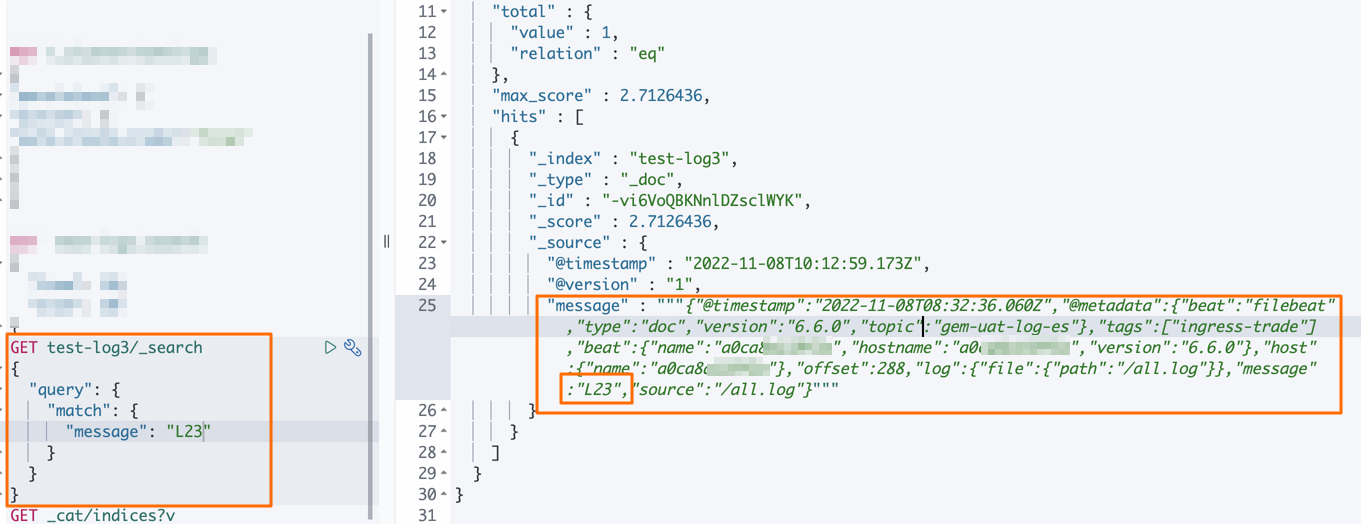
- In the Console, run the following command to view the synchronized data.
GET test-log3/_search
{
  "query":{
    "match":{
      "message":"L23"
     }
   }
}
The expected result is as follows.