If your Alibaba Cloud Elasticsearch instance uses the cloud-native deployment mode (v3), you can migrate data from a self-managed Elasticsearch cluster on an ECS instance by establishing a private network connection and using the reindex feature.
Prerequisites
-
Your self-managed Elasticsearch cluster must meet the following requirements:
-
The cluster must be hosted on an ECS instance in the same VPC as your Alibaba Cloud Elasticsearch instance. Connections established by using ClassicLink are not supported.
-
The security group of the ECS instance allows access from all node IP addresses of your Alibaba Cloud Elasticsearch instance over port 9200. You can find the node IP addresses in the Kibana console.
-
You must be able to connect to the Alibaba Cloud Elasticsearch instance. You can verify the connection by running the
curl -XGET http://<host>:9200command on a machine.NoteYou can run the script in this guide from any machine that can access both the self-managed Elasticsearch cluster and the Alibaba Cloud Elasticsearch instance over port 9200.
-
The source index data is ready in your self-managed Elasticsearch cluster. This guide uses an index named
sourceas an example.[root@elasticsearch1 ~]# curl -XGET http://172.16.xxx.xxx:9200/_cat/indices?v health status index uuid pri rep docs.count docs.deleted store.size pri.store.size green open source lGFcaUIgT1-Nsj9b_EezAQ 1 1 6 0 28.2kb 19.1kb green open dest Kn3Tu9TmT62J4ouMHi_37w 1 1 6 0 23.3kb 9.1kb [root@elasticsearch1 ~]#
-
-
Your Alibaba Cloud Elasticsearch instance must meet the following requirements:
-
Enable the automatic index creation feature in advance or create the index
mappingsandsettingson Alibaba Cloud Elasticsearch. -
Ensure no whitelist restrictions are configured.
-
Limits
Alibaba Cloud ES offers two deployment modes: basic management (v2) architecture and cloud-native new management (v3) architecture. You can identify the deployment mode of your instance in the Basic Information section.
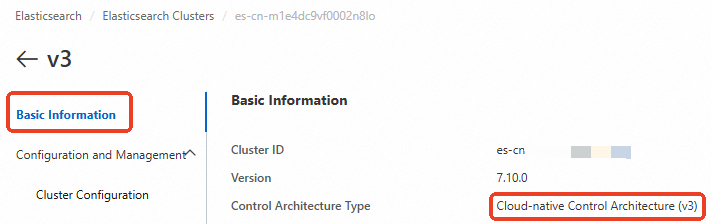
For clusters that use the cloud-native new management (v3) architecture, cross-cluster reindexing requires PrivateLink to establish a private network peering connection. Refer to the following table and select a solution based on your business scenario.
|
Scenario |
ES cluster network architecture |
Solutions |
|
Data migration between Alibaba Cloud ES clusters |
Both ES clusters are created with the basic management (v2) architecture. |
reindex API. For more information, see Use the reindex API to migrate data between Alibaba Cloud ES clusters. |
|
One of the ES clusters is created with the cloud-native new management (v3) architecture. Note
The other ES cluster can be created with the cloud-native new management (v3) architecture or the basic management (v2) architecture. |
||
|
Migrate data from a self-managed ES cluster on an ECS instance to an Alibaba Cloud ES cluster |
The Alibaba Cloud ES cluster is created with the basic management (v2) architecture. |
reindex API. For more information, see Migrate data from a self-managed Elasticsearch cluster to Alibaba Cloud Elasticsearch using reindex. |
|
The Alibaba Cloud ES cluster is created with the cloud-native new management (v3) architecture. |
reindex API. For more information, see Migrate self-managed Elasticsearch data via a private connection. |
Procedure
-
Step 1: Configure an SLB instance that supports PrivateLink
You can only use an SLB instance that supports PrivateLink as a service resource for an endpoint service. Before you can establish a private connection between VPCs by using PrivateLink, you must create an SLB instance that supports PrivateLink and configure a listener.
-
Step 2: Create an endpoint service
An endpoint service allows other VPCs to establish private connections by creating endpoints. After you configure the SLB instance, you must create an endpoint service.
-
Step 3: Configure a private connection for Alibaba Cloud Elasticsearch
In the Alibaba Cloud Elasticsearch console, associate your Alibaba Cloud Elasticsearch instance with the endpoint service that you created in Step 2.
-
Step 4: Get the endpoint domain name
After the target instance is associated with the endpoint service, you can obtain the endpoint domain name to configure the reindex whitelist.
-
Step 5: Configure the reindex whitelist
In the Alibaba Cloud Elasticsearch console, add the domain name that you obtained in Step 4 to the reindex whitelist of the target instance to grant access.
-
After completing the preceding steps, the network connection between the source and target instances is established, and you can start the data migration.
Step 1: Configure an SLB instance for PrivateLink
-
Create an SLB instance.
Make sure that the SLB instance is in the same region as the ECS instance that is added as a backend server. For more information, see Create an SLB instance that supports PrivateLink.
-
Configure the Protocol and listener. Set the protocol to TCP and the port to 9200.
In the SLB instance list, locate the target instance and click Create Listener in the Actions column.
For more information, see Add a TCP listener.
-
Click Next step. Configure the backend server group by adding the ECS instance that hosts your self-managed Elasticsearch cluster, and set the port to 9200.
For more information, see Configure backend servers.
-
Click Next step and configure the Configure Health Check as needed. This guide uses the default settings.
-
Click Next step. Review your configuration, click Submit, confirm the configuration details, and then click I Understand. You are returned to the Manage Cluster page, where you can check the health check status of the backend ECS instance.
A status of Normal means the backend ECS instance can process requests forwarded by the SLB instance.
Step 2: Create an endpoint service
-
In the top navigation bar, select the region where you want to create the endpoint service.
This guide uses China (Hangzhou) as an example.
-
Click Create Endpoint Service. On the Create Endpoint Service page, configure the parameters as needed.
For detailed instructions, see Create and manage an endpoint service. In the Service resource section, set Resource type to Classic Load Balancer (CLB). This guide uses the following key configurations. For other parameters, use the default values or configure them as needed.
Parameter
Description
Select service resource
Select the availability zone that carries traffic, and then select the SLB instance to associate with the endpoint service.
The associated SLB instance accepts network traffic from your service users. The availability zone of the endpoint service is the same as the primary availability zone of the service resource.
An SLB instance can be used as a service resource only if it meets the following conditions:
-
The network type is VPC.
-
PrivateLink is supported.
Automatically Accept Endpoint Connections
Select whether to automatically accept connection requests from endpoints. We recommend that you select Yes. The options are:
-
Yes: The endpoint service automatically accepts connection requests. The endpoint can then access the service.
-
No: The endpoint connection remains in a disconnected state until the service administrator handles the request:
-
If the administrator accepts the connection request, the service can be accessed through the endpoint.
-
If the administrator rejects the connection request, the service cannot be accessed through the endpoint.
-
Enable zone affinity
Select whether to enable zone affinity. We recommend that you select Yes.
-
-
Click OK.
Step 3: Configure a private connection
-
Log on to the Alibaba Cloud Elasticsearch console.
-
In the left navigation menu, choose Elasticsearch Clusters.
-
Navigate to the target cluster.
-
In the top navigation bar, select the resource group to which the cluster belongs and the region where the cluster resides.
-
On the Elasticsearch Clusters page, find the cluster and click its ID.
-
-
Click Add Private Connection and select the endpoint service created in the previous step.
-
Wait until the connection status is Connected. This means the ES cluster VPC and your VPC are connected.
-
In the Configure Private Connection panel, click Add Private Connection. Select the endpoint service that you created in Step 2 and the target availability zone, and then select the checkbox for the system prompt.
-
Click OK. The endpoint service actively connects to the endpoint. After the connection is established, the status changes to Connected.
Step 4: Get the endpoint domain name
After completing the preceding steps, you must obtain the endpoint domain name to configure the reindex whitelist.
-
In the Configure Private Connection panel, click the target Endpoint ID.
-
On the Endpoint connections tab, click the expand icon (
 ) next to the target endpoint ID to view the corresponding domain name of the endpoint.
After expanding, you can find the PrivateLink domain name in the Domain Name field. The format is:
ep-{endpoint ID}-{availability zone}.epsrv-{service ID}.{region}.privatelink.aliyuncs.com
Step 5: Configure the reindex whitelist
This operation restarts the cluster. We recommend that you perform this operation during off-peak hours.
-
Log on to the Alibaba Cloud Elasticsearch console.
-
In the left navigation menu, choose Elasticsearch Clusters.
-
Navigate to the target cluster.
-
In the top navigation bar, select the resource group to which the cluster belongs and the region where the cluster resides.
-
On the Elasticsearch Clusters page, find the cluster and click its ID.
-
-
In the left navigation menu, choose .
-
In the YML File Configuration section, click Modify Configuration on the right.
-
In the YML File Configuration panel, click Modify Configuration and add the domain name that you obtained in Step 4.
Example:
reindex.remote.whitelist: 'ep-bp1nitq0krp8yhcf****-cn-hangzhou-i.epsrv-bp1zczi0fgoc5qtv****.cn-hangzhou.privatelink.aliyuncs.com:9200' -
Click OK.
Step 6: Migrate data
-
In the Dev Tools of the Kibana console, run the following command to migrate data.
NoteFor information about how to log on to the Kibana console, see Log on to the Kibana console.
POST /_reindex?pretty
{
  "source": {
    "remote": {
      "host": "http://ep-bp1nitq0krp8yhcf****-cn-hangzhou-i.epsrv-bp1zczi0fgoc5qtv****.cn-hangzhou.privatelink.aliyuncs.com:9200",
      "username": "elastic",
      "password": "Elastic@123***"
    },
    "index": "source",
    "size": 5000
  },
  "dest": {
    "index": "dest"
  }
}
If the Kibana console is unavailable, you can also run a cURL command on a machine that can access your Alibaba Cloud Elasticsearch instance to perform the reindex operation:
curl -u <username>:<password> -XPOST "http://<Alibaba Cloud Elasticsearch domain name>:9200/_reindex?pretty" -H "Content-Type: application/json" -d '{ "source": { "remote": { "host": "http://<endpoint domain name>:9200", "username": "<self-managed Elasticsearch username>", "password": "<self-managed Elasticsearch password>" }, "index": "source", "size": 5000 }, "dest": { "index": "dest" } }'NoteIf security is not enabled for your self-managed Elasticsearch cluster, remove the
usernameandpasswordfields fromsource.remote.For more information, see reindex API.
-
Optional: To check the status of running reindex tasks, run the following command.
GET _tasks?detailed=true&actions=*reindex -
Verify the migration result.
After the migration is complete, run the following command to verify the result.
GET _cat/indices?vIf the health status of the destination index is normal and the data size is as expected, the migration is successful. Example output:
health status index                             uuid                   pri rep docs.count docs.deleted store.size pri.store.size
green  open   .security-7                      WzCXGepRRou3e2qE_NXg6g   1   1       55            0    424.1kb        212.1kb
green  open   .monitoring-kibana-7-2021.08.18   G_D3fb8jRfiC72PwmIn-vg   1   1     9560            0      3.1mb          1.5mb
green  open   test                              RHVpvC30RnO3lE2O2xPx0w   1   1        6            0     29.3kb          9.2kb
green  open   .apm-custom-link                  Sav0grXzTe2xA1tmgOQOUl   1   1        0            0       522b           261b
green  open   .monitoring-kibana-7-2021.08.19   iF8kyaZCtdSU8z_MIHsj-Q   1   1     2688            1      1.3mb        497.8kb
green  open   .kibana_task_manager_1            ILArbgzRR7KjOQd9SH8BoA   1   1        6         1524    637.3kb        326.7kb
green  open   .apm-agent-configuration          VXCcFRjYQU21A_sSPiVGXA   1   1        0            0       522b           261b
green  open   .kibana-event-log-7.10.0-000001   _A3SURUwThakLepdebZt5A   1   1        1            0     11.4kb          5.7kb
green  open   .monitoring-es-7-2021.08.19       RP2xbG60QaqakDvuF972LQ   1   1    28337        34918       37mb         18.4mb
green  open   .kibana_1                         o5MX39bZRTeMma4HjT0fog   1   1       22            4     20.8mb         10.4mb
green  open   .monitoring-es-7-2021.08.18       TGyPtE1bTXCaYHq4i7F5nQ   1   1    90546        60040    103.4mb         55.5mb
FAQ
Q: How do I speed up data synchronization for a large index?
A:
-
The reindex feature uses the scroll API internally. You can increase the scroll size or configure scroll slicing to parallelize the operation and improve performance. For more information, see reindex API.
-
If the source dataset is very large, we recommend that you use the OSS snapshot method. For more information, see Advanced: Migrate a self-managed Elasticsearch cluster to Alibaba Cloud Elasticsearch by using an OSS snapshot.
-
For a large index, you can speed up data synchronization by setting the number of replicas of the destination index to 0 and the refresh interval to -1 before migration. After the migration is complete, restore the original settings.
// Before migrating index data, set the number of replicas to 0 and disable the refresh interval to speed up the migration.
curl -u user:password -XPUT 'http://<host:port>/indexName/_settings' -d' {
        "number_of_replicas" : 0,
        "refresh_interval" : "-1"
}'
// After the index data is migrated, reset the number of replicas to 1 and the refresh interval to "1s" (the default value).
curl -u user:password -XPUT 'http://<host:port>/indexName/_settings' -d' {
        "number_of_replicas" : 1,
        "refresh_interval" : "1s"
}'