This topic describes how to quickly use PolarDB for MySQL edge clusters, including creating a cluster, configuring a whitelist, creating a database account, and connecting to the database.
Supported edge regions
PolarDB for MySQL edge clusters currently support only Haikou Telecom, Istanbul-1, Türkiye, Macao (China)-2, and Hanoi-3, Vietnam.
1. Create an ENS network
Create an Edge Node Service (ENS) network for the region where you plan to deploy your cluster.
If you have never used ENS before, fill in the required information based on your business needs and request to activate ENS.
Go to the ENS console. In the navigation pane on the left, choose and click Create Network.
On the Create Network page, create the corresponding VPC and vSwitch based on the supported edge regions. For more information, see Create a network (VPC and vSwitch).
2. Create an edge cluster
Go to the PolarDB edge cluster purchase page to quickly create a PolarDB for MySQL edge cluster. Configure the following parameters. Keep other settings at their default values.
Configuration item | Description |
Billing Method | Edge cloud clusters currently support only the subscription billing method. Note Subscription is a prepaid model. When creating a cluster, select fixed specifications and pay the fees upfront. The longer the subscription period, the greater the discount. This model suits scenarios with stable, long-term business requirements. |
Edge Primary Data Center | Select the edge cloud node where the cluster will be deployed. Note Ensure that your PolarDB cluster and the ENS instance you want to connect to are in the same region. Otherwise, they cannot communicate over the private network. |
Compatibility | Select the MySQL-compatible version for your cluster.
|
Sub-series | You can choose between Dedicated and General-purpose sub-series:
For a detailed comparison of these two sub-series, see How to choose between General-purpose and Dedicated specifications. |
Network | Select the ENS network created in Step 1. If you already have an edge cloud instance and its VPC meets your planning requirements, you can select that VPC and vSwitch. |
Specification | Select the node specifications. Different specifications vary in CPU, memory, maximum storage capacity, and IOPS. Choose based on your business needs. |
Nodes | The default is two nodes (one read/write and one read-only). Adjust this setting based on your business needs. Note
|
Storage class | PolarDB edge cloud uses ENS cloud disks—Alibaba Cloud’s block-level Elastic Block Storage product for ENS. These disks offer low latency, high performance, durability, and high reliability. Two performance levels are available:
|
Storage space | Specify the amount of storage space to pre-purchase. The default is 100 GB. |
3. Create a database account
Go to the PolarDB edge cloud console. Click the target cluster ID under **Edge Cloud Clusters** to go to its product page. In , create a database account.
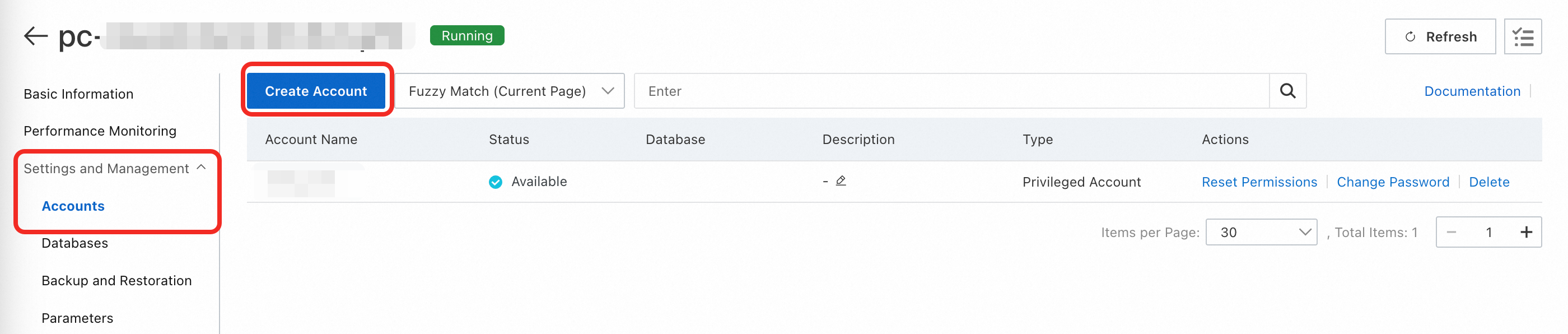
Database accounts come in two types: Privileged Account and Standard Account. These account types differ in permissions. Choose the appropriate type based on your business needs. For more information, see Account permissions.
4. Get the cluster endpoint
Go to the PolarDB edge cloud console. Under **Edge Cloud Clusters**, click the target cluster ID to go to its product page. In Database Connections, retrieve the database endpoint.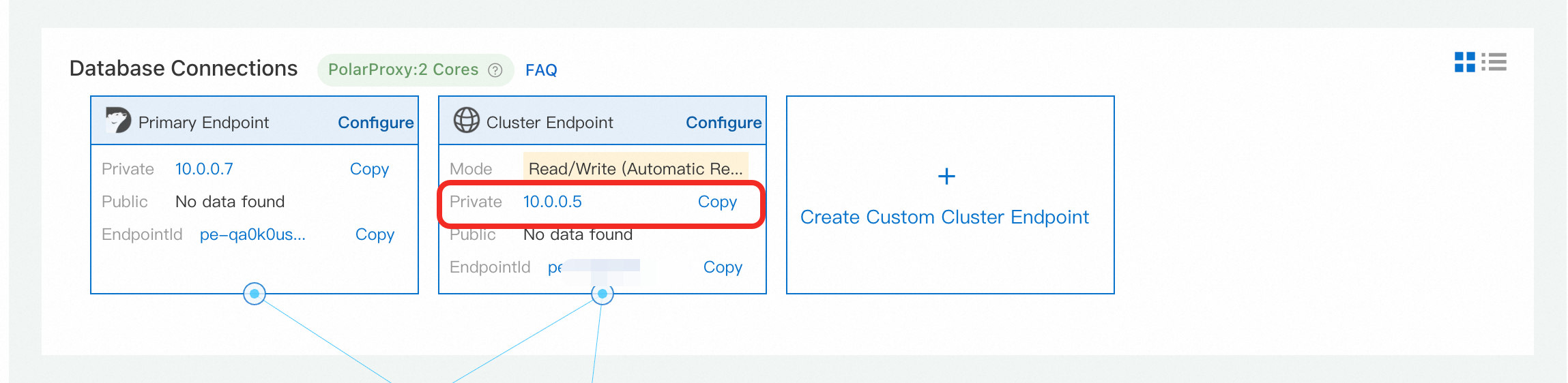
The private endpoint is an IP address within your edge cloud VPC. A Server Load Balancer associates this endpoint with all compute nodes.
We recommend using the Cluster Endpoint. The default port is 3306.
5. Connect to the database
You can connect to a database cluster in several ways. Choose a method that suits your needs. The following sections provide examples:
Use a client to connect to the cluster
You can use any general-purpose client to connect to a PolarDB cluster. This section uses MySQL Workbench 8.0.29 as an example. The procedure for other clients is similar.
Install MySQL Workbench. For the official download link, see the MySQL Workbench download page.
Open MySQL Workbench and choose .
Enter the connection information and click OK.
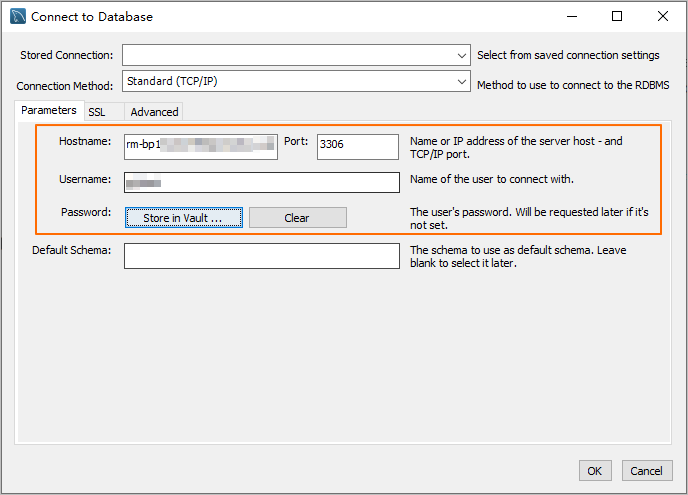
Parameter
Description
Example
Hostname
The database endpoint.
pc-2***.rwlb.rds.aliyuncs.com
Port
The port number of the database endpoint.
NoteThe default port is 3306.
3306
Username
The database account.
polardb_mysql_user
Password
The password of the database account.
Pass***233
Use the command line to connect to the cluster
If a MySQL client is installed on your server, you can use the command line to connect to the PolarDB for MySQL database cluster.
Syntax:
mysql -h<endpoint> -P<port> -u<database_username> -p<database_user_password>Example:
mysql -h pc-2***.rwlb.rds.aliyuncs.com -P3306 -upolardb_mysql_user -pPass***233Parameter | Description | Example |
-h | The database endpoint. | pc-2***.rwlb.rds.aliyuncs.com |
-P | The port number of the database endpoint. Note
| 3306 |
-u | The database account. | polardb_mysql_user |
-p | The password of the database account. Note This parameter is required.
| Pass***233 |
Use an application to connect to the cluster
The method for connecting to a PolarDB for MySQL cluster is the same as connecting to any other MySQL database. You only need to replace the database endpoint, port, account, and password. The following sections provide examples of how to access a PolarDB database from an application using different programming languages:
Java
This section uses a Maven project as an example to show how to use the MySQL Java Database Connectivity (JDBC) driver to connect to a PolarDB for MySQL cluster.
First, add the dependency for the MySQL JDBC driver to the pom.xml file. The following code provides an example:
<dependency>
    <groupId>mysql</groupId>
    <artifactId>mysql-connector-java</artifactId>
    <version>8.0.27</version>
</dependency>
Connect to the cluster. Replace the
<HOST>, port number,<USER>,<PASSWORD>,<DATABASE>,<YOUR_TABLE_NAME>, and<YOUR_TABLE_COLUMN_NAME>parameters with your actual information.import java.sql.Connection; import java.sql.DriverManager; import java.sql.ResultSet; import java.sql.Statement; public class DatabaseConnection { public DatabaseConnection() { } public static void main(String[] args) { // The endpoint, port, and name of the database to connect to. String url = "jdbc:mysql://<HOST>:3306/<DATABASE>?useSSL=false&serverTimezone=UTC"; // The database account. String user = "<USER>"; // The password of the database account. String password = "<PASSWORD>"; try { Class.forName("com.mysql.cj.jdbc.Driver"); Connection conn = DriverManager.getConnection(url, user, password); Statement stmt = conn.createStatement(); // The name of the data table to retrieve. ResultSet rs = stmt.executeQuery("SELECT * FROM `<YOUR_TABLE_NAME>`"); while(rs.next()) { // The name of the column in the data table to retrieve. System.out.println(rs.getString("<YOUR_TABLE_COLUMN_NAME>")); } rs.close(); stmt.close(); conn.close(); } catch (Exception var7) { var7.printStackTrace(); } } }
Python
This section uses Python 3 as an example to show how to use the PyMySQL library to connect to a PolarDB for MySQL cluster.
First, install the PyMySQL library. If you have not installed it, run the following command:
pip3 install PyMySQLConnect to the cluster. Replace the
<HOST>, port number,<USER>,<PASSWORD>,<DATABASE>, and<YOUR_TABLE_NAME>parameters with your actual information.import pymysql # Database connection parameters host = '<HOST>' # The endpoint of the PolarDB cluster port = 3306 # The default port is 3306 user = '<USER>' # The database account password = '<PASSWORD>' # The password of the database account database = '<DATABASE>' # The name of the database to connect to try: # Create a database connection connection = pymysql.connect( host=host, port=port, user=user, passwd=password, db=database ) # Get the cursor with connection.cursor() as cursor: # Execute an SQL query sql = "SELECT * FROM `<YOUR_TABLE_NAME>`" # The name of the data table to retrieve cursor.execute(sql) # Get the query results results = cursor.fetchall() for row in results: print(row) finally: # Close the database connection if 'connection' in locals() and connection.open: connection.close()
Go
This section uses Go 1.23.0 as an example to show how to use the database/sql package and the go-sql-driver/mysql driver to connect to a PolarDB for MySQL cluster.
First, install the
go-sql-driver/mysqldriver. You can run the following command to install it:go get -u github.com/go-sql-driver/mysqlConnect to the cluster. Replace the
<HOST>, port number,<USER>,<PASSWORD>,<DATABASE>, and<YOUR_TABLE_NAME>parameters with your actual information.package main import ( "database/sql" "fmt" "log" _ "github.com/go-sql-driver/mysql" ) func main() { // Database connection parameters dbHost := "<HOST>" // The endpoint of the PolarDB cluster dbPort := "3306" // The default port is 3306 dbUser := "<USER>" // The database account dbPass := "<PASSWORD>" // The password of the database account dbName := "<DATABASE>" // The name of the database to connect to // Build the Data Source Name (DSN) dsn := fmt.Sprintf("%s:%s@tcp(%s:%s)/%s?charset=utf8mb4&parseTime=True&loc=Local", dbUser, dbPass, dbHost, dbPort, dbName) // Open a database connection db, err := sql.Open("mysql", dsn) if err != nil { log.Fatalf("Failed to connect to database: %v", err) } defer db.Close() // Test the connection err = db.Ping() if err != nil { log.Fatalf("Failed to ping database: %v", err) } // Create a cursor var result string err = db.QueryRow("SELECT VERSION()").Scan(&result) if err != nil { log.Fatalf("Failed to execute query: %v", err) } // Print the database version fmt.Printf("Connected to database, version: %s\n", result) // Execute an SQL query rows, err := db.Query("SELECT * FROM `<YOUR_TABLE_NAME>`") // The name of the data table to retrieve if err != nil { log.Fatalf("Failed to execute query: %v", err) } defer rows.Close() }