You can match impact factors for lifecycle inventory items by selecting factors from the carbon emission factor database, referencing factors from the product library, or entering factors manually.
Select factors from the carbon emission factor database

Energy Expert includes several major global carbon emission factor databases, such as the China Product Carbon Footprint Database (CPCD), the Ecoinvent greenhouse gas emission database, and the European Life Cycle Database (ELCD).
-
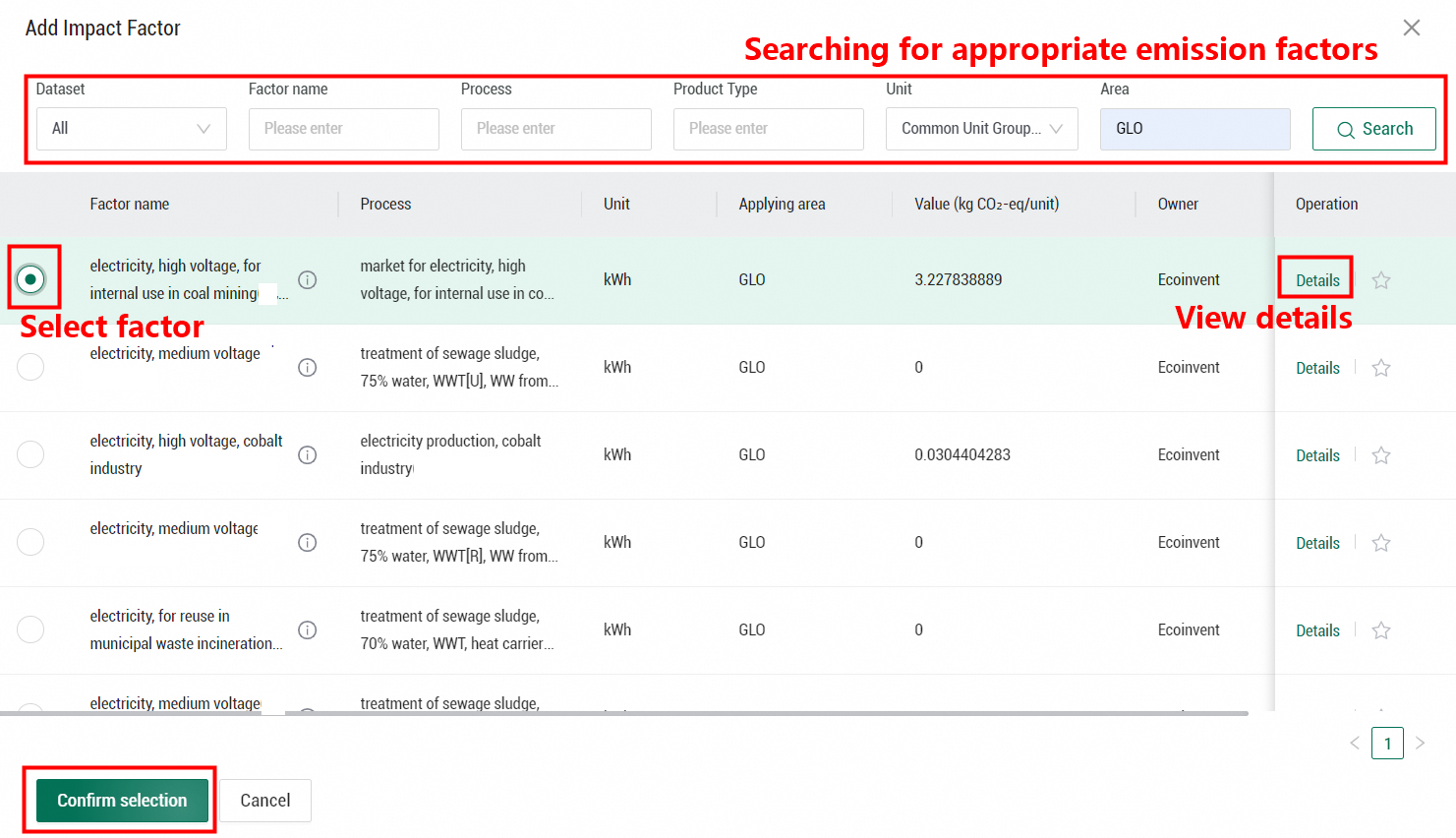
On the inventory settings interface, click Select factor from carbon emission factor database to open the carbon emission factor database.
-
Filter by database name, factor name, product process, or product type to find suitable carbon emission factors.
-
Click Details in the Actions column to view detailed information about a factor.
-
Select a factor and click Confirm to apply it to the current inventory item.
-
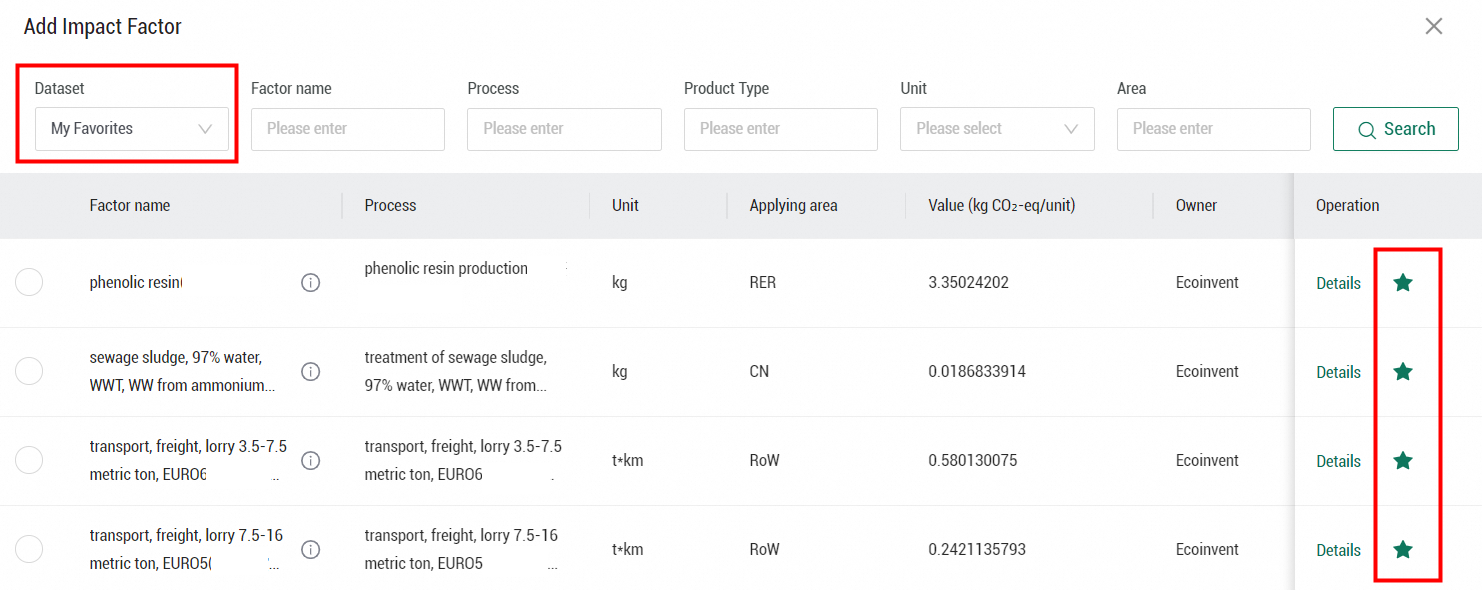
To save frequently used factors, click the star icon (☆) next to a factor to add it to your favorites. To view saved factors, select My Favorites from the database list. Click the star icon (★) again to remove it from favorites.
Reference factors from the product library

The product library contains product carbon footprints created for the current organization. To use an existing product's carbon footprint as the emission factor for an inventory item, click Reference factor from product library. This opens a list of product models from your organization. Select a model and click Confirm to apply its carbon footprint to the current inventory item.

After you reference a carbon footprint from another model, the impact factor source is displayed in the inventory item row. If the value or unit of the referenced model's carbon footprint changes, a red dot appears on the right side of the row, indicating that the referenced impact factor has been updated.

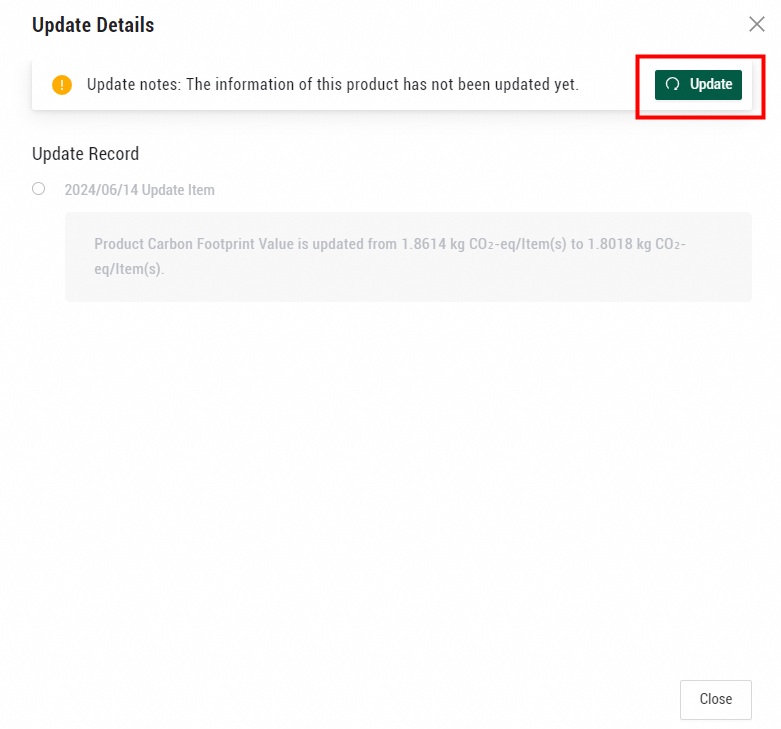
On the inventory item's basic information editing page, click View update details in the upper-right corner of the impact factor section to view update details and history for the referenced product. If you decide to update, click Update to synchronize the referenced impact factor with the latest version of the model.

Manually enter a factor
If no suitable factor is available in the factor database, click Manually enter impact factor to enter a value directly. You can also specify the factor's source and describe how the value was determined.


If an impact factor requires a formula, click Calculate factor using formula on the manual entry interface to define custom parameters and a calculation formula. You can manually enter each parameter or select parameters from the factor database or the parameter library.
