Elastic network interface (ENIs) are virtual network interfaces that provide network connectivity and IP addresses for Elastic Compute Service (ECS) instances that are deployed in virtual private clouds (VPCs). You can bind one or more ENIs to each ECS instance. An ENI supports multiple IP addresses. You can migrate an ENI between different ECS instances that are deployed in the same VPC and zone as the ENI. This improves the flexibility and scalability of network configurations and ensures that the network configurations can meet the network requirements in various business scenarios. For example, you can use ENIs to create multi-IP address, multi-NIC, or high-availability networks.
ENI types
Alibaba Cloud provides the following types of ENIs:
Primary ENIs
Each ECS instance in a VPC has a default ENI. The default ENI is called the primary ENI. Each ECS instance has only one primary ENI.
Secondary ENIs
If an ECS instance has only the primary ENI, the instance sends and receives all network traffic by using the primary ENI, which is suitable for scenarios in which the business traffic is simple. If your business requires finer-grained network classification and isolation to prevent single points of failure, you can create and bind secondary ENIs that reside in the same VPC and zone as an ECS instance to the instance.
Secondary ENIs can be separately created and bound to ECS instances. Compared with primary ENIs, secondary ENIs can be independently created and dynamically bound to and unbound from ECS instances.
For more information, see Create and use an ENI.
ENI features
Support for multiple IP addresses. A single ENI can be associated with multiple private IP addresses. This allows a single ECS instance to provide services or access external resources by using different IP addresses, which increases network flexibility. For more information, see Secondary private IPs.
Release with Instance: You can enable or disable the Release with Instance feature when or after an ENI is created. The status of the feature determines whether the ENI is retained or released when the associated ECS instance is released. By default, the Release with Instance feature is enabled for an ENI, which indicates that the ENI is released when the associated ECS instance is released. This simplifies O&M management and prevents resource residuals.
If the Release with Instance feature is disabled for an ENI, the ENI and its configurations, such as IP addresses and associated security groups, are retained when the associated ECS instance is released. You can quickly bind the ENI to a different ECS instance that resides in the same VPC and zone as the ENI. You can also reuse the ENI when you create a new ECS instance. This improves O&M flexibility and business continuity.
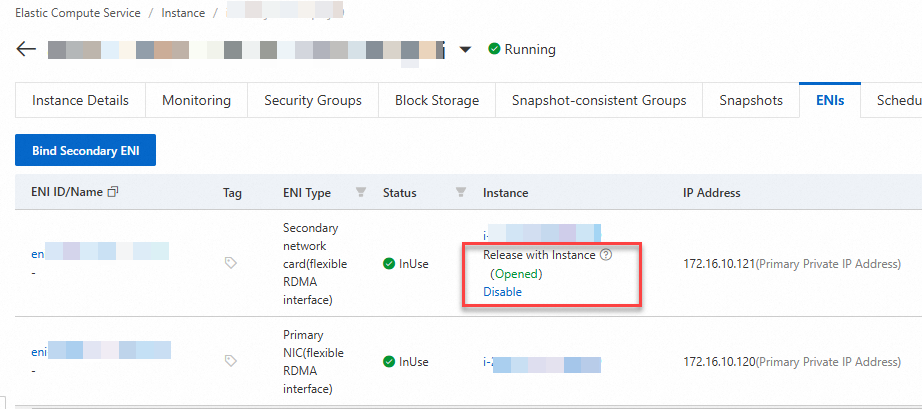
Hot swapping. The hot swapping feature of secondary ENIs provides great flexibility and convenience. The feature allows you to dynamically bind or unbind secondary ENIs to or from an ECS instance in the Running state, without the need to restart the instance or interrupt the services running on the instance. For example, you can unbind a secondary ENI from an ECS instance and attach the ENI to a different ECS instance that resides in the same VPC and zone as the ENI, without the need to restart the instances.
NoteYou cannot unbind the primary ENI from an ECS instance. Primary ENIs do not support the hot swapping feature.
The following table describes the instance types that do not support the hot swapping feature of secondary ENIs.
For the instance types that do not support the hot swapping feature of secondary ENIs, the following limits apply:
You cannot bind a secondary ENI to an ECS instance of an instance type in the preceding table when you create the instance. After you create the instance, you can bind secondary ENIs to the instance.
When you bind a secondary ENI to or unbind a secondary ENI from an ECS instance of an instance type in the preceding table, make sure that the instance is in the Stopped state.
Limits
You can use ENIs free of charge. However, the number of ENIs that you can create in an Alibaba Cloud account is limited. For more information, see the Limits section of the "Limits and quotas on ECS" topic.
An ECS instance and the ENIs that are bound to the instance must reside in the same VPC and zone.
The ENIs bound to an ECS instance can connect to different vSwitches in the same VPC and zone as the instance.
If you bind two or more ENIs from the same subnet to an ECS instance, network issues may occur, such as asymmetric routing. You can assign one or more secondary private IP addresses to each primary or secondary ENI to optimize the usage of ECS instances that are deployed in VPCs and divert traffic during a failover. For more information, see Secondary private IPs.
The number of ENIs that you can bind to an ECS instance varies based on the instance type. For more information, see the ENIs columns in Instance family overview.
Binding multiple ENIs to an ECS instance does not increase or multiply the network bandwidth of the instance. For more information, see Network bandwidth.
Important attributes of ENIs
After you bind ENIs to an ECS instance, the instance can obtain resources such as private IP addresses and elastic IP addresses (EIPs). This way, the ECS instance can communicate with the Internet or other cloud resources. The following section describes a few important attributes of ENIs:
VPC: An ENI can be bound to only an ECS instance that resides in the same VPC as the ENI. You cannot change the VPC of an ENI after the ENI is created.
vSwitch: Each VPC has an independent IP address range. You can create multiple vSwitches in a VPC to divide the VPC into subnets. By default, subnets in the same VPC can communicate with each other. When you specify a vSwitch for an ENI, the ENI obtains one or more IP addresses from the CIDR block associated with the vSwitch. An ENI can be bound to only an ECS instance that resides in the same zone as the ENI. The instance and the ENI can connect to different vSwitches.
NoteIf you want to bind an ENI to an ECS instance and the IP addresses of the ENI are not within the CIDR block of the VPC in which the instance resides, you must perform the following steps: Add a secondary CIDR block to the VPC, create a vSwitch in the zone in which the instance resides, associate the secondary CIDR block with the vSwitch, create an ENI that is associated with the vSwitch, and then bind the ENI to the instance. For more information, see Secondary CIDR blocks.
MAC address: Each ENI has a unique media access control (MAC) address as its unique identifier.
You can view information about an ENI, such as the VPC and MAC address of the ENI, in the ECS console or by calling an API operation. For more information, see Modify the attributes of an ENI.
Private IP addresses: You can assign one or more private IP addresses to an ENI for communication over the internal network. Each ENI is automatically assigned an IPv4 address as the primary private IPv4 address from the CIDR block that is associated with the vSwitch connected to the ENI.
If you have requirements for multiple private IP addresses in business scenarios, such as the multi-application, failover, and Server Load Balancer (SLB) scenarios, you can assign one or more secondary private IPv4 addresses to an ENI that is bound to an ECS instance. For more information, see the Assign a secondary private IP to an ENI section of the "Secondary private IP addresses" topic.
If you want an ECS instance to communicate with the Internet or private networks over IPv6, you can associate IPv6 CIDR blocks with the VPC in which the instance resides and with the vSwitch that is connected to an ENI bound to the instance, and then assign one or more IPv6 addresses to the ENI. For more information, see IPv6 communication.
Static public IP address or EIPs: You can assign a static public IP address to or associate EIPs with an ECS instance to allow the instance to access the Internet. An ENI does not have Internet communication capabilities. To enable Internet communication for an ECS instance, you can use one of the following methods:
Assign a static public IP address to the primary ENI of the ECS instance. For more information, see Static public IP addresses.
Associate EIPs with ENIs bound to the ECS instance. You can associate an EIP with or disassociate an EIP from an ENI based on your business requirements. For the ECS instance to provide multiple public IP addresses for external access, you can associate EIPs with multiple private IP addresses that are assigned to the ENIs bound to the instance. For more information, see Associate an EIP with a secondary ENI.
Security groups: To provide network layer security control, you can associate ENIs with security groups.
When you associate an ECS instance with a security group, you associate the primary ENI of the instance with the security group. For more information, see Associate security groups with an instance (primary ENI).
In the same VPC, the secondary ENIs bound to an ECS instance can be associated with different security groups from the security group of the primary ENI. For more information, see Associate a secondary ENI with security groups.
Route table: When data is transmitted within a VPC and between the VPC and other networks, the route table is used to guide the routing of data packets. Correct routing configurations ensure that ENIs can correctly send and receive data. For more information, see the (Conditionally required) Step 4: Configure routes section of the "Configure a secondary ENI" topic.
NoteIn a multi-ENI environment, the priority of the default route of a secondary ENI is lower than the priority of the default route of the primary ENI. This ensures that data is preferentially sent from the primary ENI. If you want data packets associated with a private IP address of a secondary ENI to be sent from the secondary ENI, you can configure policy-based routing for the secondary ENI to ensure that data received by the ENI is also sent from the ENI.
Network enhancements of ENIs
eRDMA capabilities
You can enable Elastic RDMA Interface (ERI) for an ENI. An ENI for which ERI is enabled is an ERI that supports elastic Remote Direct Memory Access (eRDMA) capabilities. You can bind an ERI to and install the eRDMA driver on an eRDMA-capable ECS instance to provide low-latency and high-throughput network communication for the instance. For more information, see Elastic RDMA Interface (ERI).
NIC multi-queue
Distribute packet processing across multiple CPU cores to improve network throughput and reduce latency.
For more information, see NIC multi-queue.
Network card indexes
Assign ENIs to different network cards on supported instance types to maximize bandwidth utilization.
For more information, see Network card indexes.
View the ENIs bound to an ECS instance
You can view information about the ENIs bound to an ECS instance in the ECS console, by calling an API operation, or within the instance.
View the ENIs bound to an ECS instance in the ECS console
Go to ECS console - Instances.
In the top navigation bar, select the region and resource group to which the resource that you want to manage belongs.

Click the ID of the ECS instance whose ENIs you want to view to go to the instance details page.
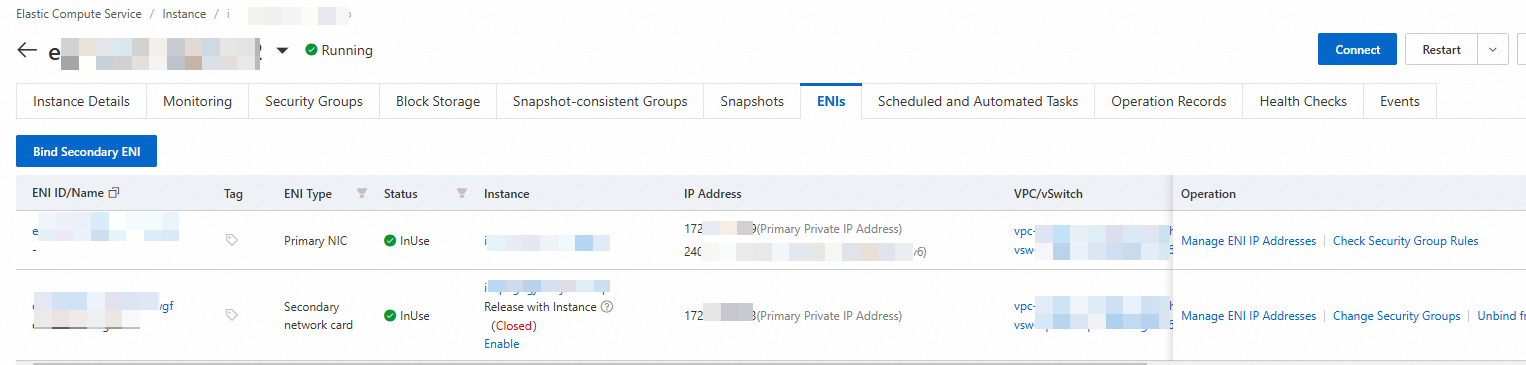
Click the ENIs tab to view the ENIs bound to the ECS instance.
You can view the IDs, names, types, status, and IP addresses of the ENIs bound to the ECS instance in the ENI list.
View the ENIs bound to an ECS instance by calling an API operation
Call the DescribeInstances operation to query information about the ECS instance specified by using the InstanceIds parameter. The NetworkInterfaces parameter in the response contains information about the ENIs bound to the instance, including the type (Type), ID (NetworkInterfaceId), and primary private IP address (PrimaryIpAddress) of each ENI.
View the ENIs bound to an ECS instance after you connect to the instance
Linux instance
Example OS: Alibaba Cloud Linux 3.2.
Connect to the Linux instance.
For more information, see Connect to a Linux instance by using Workbench.
Run the following command to view and confirm the instance's network interface information:
ip aThe output shows the following information about the instance's network interfaces:
Interface identifier:
eth0,eth1. In this example, the instance has two ENIs: a primary ENI (eth0) and a secondary ENI (eth1).Interface status:
state UPindicates that the interface is active and ready to use.[root@i-xxx ~]# ip a 1: lo: <LOOPBACK,UP,LOWER_UP> mtu 65536 qdisc noqueue state UNKNOWN group default qlen 1000 link/loopback 00:00:00:00:00:00 brd 00:00:00:00:00:00 inet 127.0.0.1/8 scope host lo valid_lft forever preferred_lft forever inet6 ::1/128 scope host valid_lft forever preferred_lft forever 2: eth0: <BROADCAST,MULTICAST,UP,LOWER_UP> mtu 1500 qdisc mq state UP group default qlen 1000 link/ether 00:16:xxx d ff:ff:ff:ff:ff:ff altname enp0s5 altname ens5 inet 172.16.20.182/24 brd 172.16.20.255 scope global dynamic noprefixroute eth0 valid_lft 315359014sec preferred_lft 315359014sec inet6 fe80::xxx/64 scope link valid_lft forever preferred_lft forever 3: eth1: <BROADCAST,MULTICAST,UP,LOWER_UP> mtu 1500 qdisc mq state UP group default qlen 1000 link/ether 00:xxx f brd ff:ff:ff:ff:ff:ff altname enp0s7 altname ens7 inet 172.16.20.181/24 brd 172.16.20.255 scope global dynamic noprefixroute eth1 valid_lft 315359849sec preferred_lft 315359849sec inet6 fe80::xxx/64 scope link noprefixroute valid_lft forever preferred_lft foreverImportantIf the status is state DOWN as shown in the following output, the interface failed to load and is unusable. You must configure the Linux guest OS to recognize the ENI.
root@xxx:~# ip a
1: lo: <LOOPBACK,UP,LOWER_UP> mtu 65536 qdisc noqueue state UNKNOWN group default qlen 1
    link/loopback 00:00:00:00:00:00 brd 00:00:00:00:00:00
    inet 127.0.0.1/8 scope host lo
       valid_lft forever preferred_lft forever
    inet6 ::1/128 scope host
       valid_lft forever preferred_lft forever
2: eth0: <BROADCAST,MULTICAST,UP,LOWER_UP> mtu 1500 qdisc mq state UP group default qlen 1000
    link/ether 00:16:3e:15:74:ee brd ff:ff:ff:ff:ff:ff
    inet 172.16.20.231/24 brd 172.16.20.255 scope global eth0
       valid_lft forever preferred_lft forever
    inet6 fe80::216:3eff:fe15:74ee/64 scope link
       valid_lft forever preferred_lft forever
4: eth1: <BROADCAST,MULTICAST> mtu 1500 qdisc noop state DOWN group default qlen 1000
    link/ether 00:16:3e:46:31:f4 brd ff:ff:ff:ff:ff:ff
primary private IP address: If the interface is active, you can view the primary private IP address for each ENI. For more information, see Primary private IP addresses.
If you assigned a secondary private IP address to the ENI but the OS does not recognize it, you must reconfigure the interface. For instructions, see Configure the guest OS to recognize a secondary private IP address.
Run the following command to view the interface's routing information:
route -n[root@ecs ~]# route -n Kernel IP routing table Destination Gateway Genmask Flags Metric Ref Use Iface 0.0.0.0 192.168.xxx.xxx 0.0.0.0 UG 100 0 0 eth0 0.0.0.0 192.168.xxx.xxx 0.0.0.0 UG 101 0 0 eth1 192.168.xxx.x 0.0.0.0 255.255.xxx.x U 100 0 0 eth0 192.168.xxx.x 0.0.0.0 255.255.xxx.x U 101 0 0 eth1 [root@ecs ~]#Typically, the system configures two routes for the secondary ENI (
eth1):Route with a destination in the 192.168.x.x range: A subnet-specific route. This route ensures that the instance can communicate directly with other hosts in the same subnet without going through an additional router.
Route with a destination of 0.0.0.0: The default route. When a packet's destination does not match a more specific entry in the route table, the system uses the default route. The system then sends the packet to the next-hop
Gatewaythrough the network interface specified byIface.ImportantIf multiple default routes exist, the route with the lower Metric value has higher priority.
If you need to precisely control traffic paths and ensure that traffic returns through the same ENI that received it (symmetric routing), you can configure a policy-based route for the ENI.
Some older operating systems, such as Ubuntu 16, may not automatically configure a default route for a secondary ENI. In this case, the route table may appear as shown in the following output, which can cause communication issues. To resolve this, use a newer OS distribution or manually configure the route. For instructions, see Configure a default route for an ENI.
root@ixxxxx:~# route -n
Kernel IP routing table
Destination     Gateway         Genmask         Flags Metric Ref    Use Iface
0.0.0.0         172.16.20.253   0.0.0.0         UG    0      0        0 eth0
172.16.20.0     0.0.0.0         255.255.255.0   U     0      0        0 eth0
172.16.20.0     0.0.0.0         255.255.255.0   U     0      0        0 eth1
Windows instance
Example OS: Windows Server 2022.
Connect to the Windows instance.
For more information, see Connect to a Windows instance by using Workbench.
Open the Network and Sharing Center.
Click Change adapter settings.
In this example, the instance has two ENIs attached (one primary and one secondary). If you see information similar to the following, the ENIs are active in the OS, and no further configuration is needed.
The Network Connections panel displays two network adapters: Ethernet and Ethernet 2, both of which are Red Hat VirtIO Ethernet Adapter.
If the secondary ENI is not recognized for other reasons, you might see the following. In this case, see Troubleshoot ENI configuration failures on Windows instances.
The secondary ENI (such as Ethernet 3) displays a status of Unidentified network.
View the status and details of the network adapter.
Double-click the adapter name to view its status.
The following shows the status of the primary ENI, named Ethernet.
In the Ethernet Status dialog box, on the General tab, you can view the following key status information:
IPv4 Connectivity: Shows Internet, indicating a normal connection.
IPv6 Connectivity: Shows No network access.
Speed: 10.0 Gbps.
Click Details to view the adapter's properties.
This dialog box shows the adapter's primary private IPv4 address, subnet mask, and default gateway.
Open Command Prompt.
Press Win+R to open the Run dialog box. Enter cmd and click OK.
Run the following command to view the interface's routing information:
C:\Users\Administrator>route print
===========================================================================
Interface List
  4...xxx......Red Hat VirtIO Ethernet Adapter
 10...xxx......Red Hat VirtIO Ethernet Adapter #2
  1...........................Software Loopback Interface 1
===========================================================================

IPv4 Route Table
===========================================================================
Active Routes:
Network Destination        Netmask          Gateway       Interface  Metric
          0.0.0.0          0.0.0.0    172.16.20.253   172.16.20.242      15
          0.0.0.0          0.0.0.0    172.16.12.253    172.16.12.76      15
        127.0.0.0        255.0.0.0         On-link         127.0.0.1     331
        127.0.0.1  255.255.255.255         On-link         127.0.0.1     331
  127.255.255.255  255.255.255.255         On-link         127.0.0.1     331
The two default routes (destination 0.0.0.0) point to gateway 172.16.20.253 (interface 172.16.20.242, Metric 15) and gateway 172.16.12.253 (interface 172.16.12.76, Metric 15) respectively, indicating that this instance is configured with dual NICs and dual gateways.
References
You can use the Terway Container Network Interface (CNI) plug-in to manage the IP addresses and communication of pods in Kubernetes clusters. Terway can define access policies between containers based on standard Kubernetes network policies. You can use one of the following modes to enable network communication between Kubernetes clusters: the inclusive ENI mode based on the secondary IP addresses of ENIs and the VPC mode based on ENIs. For more information, see Terway network plugin.
You can use ENIs in conjunction with SLB to distribute and manage traffic. For more information, see Add backend servers by specifying ENIs.
Specific Alibaba Cloud services, such as Container Service for Kubernetes (ACK) and NAT Gateway, depend on ENIs to work. You can grant Alibaba Cloud services the permissions to manage the lifecycles of the ENIs that are created by the services. This prevents accidental operations on the ENIs and ensures service availability. For more information, see Managed ENIs.
The multicast feature supported by Enterprise Edition transit routers is a cloud-native feature developed by Alibaba Cloud. This feature helps you build multicast networks without additional physical devices or third-party software licenses. You can use ENIs attached to ECS instances only as multicast sources. The system uses the primary private IP address of an ENI to send multicast traffic to a multicast group. For more information, see Manage multicast.
FAQ
Why does the console display security groups and Elastic Network Interfaces (ENIs) even when I have no ECS instances?
The following situations can cause security groups and ENIs to appear in your console when you have no ECS instances:
ENI retained after ECS instance release: If the Release with Instance feature is disabled for an ENI, the ENI and its configurations (such as IP addresses and associated security groups) are retained when the associated ECS instance is released. For more information, see the Release with Instance section in the ENI features section of this topic.
ENIs and security groups managed by other Alibaba Cloud services: Alibaba Cloud services such as Server Load Balancer (SLB), NAT Gateway, and Container Service for Kubernetes (ACK) automatically create and manage ENIs and security groups. The lifecycles of these resources are independent of ECS instances. For more information, see .
Default security group: When you first use a VPC, the system automatically creates a default security group. This security group is not tied to the lifecycle of any ECS instance and remains visible in the console even after all ECS instances are released.
To identify the specific cause, you can call the following API operations:
Call the DescribeNetworkInterfaces API operation to view the creator and binding status of each ENI.
Call the DescribeSecurityGroups API operation to view the source and details of each security group.