You can associate an EIP with an elastic network interface (ENI). This enables a single server to use multiple public IP addresses.
Background information
An elastic network interface is assigned a private IP address. After you associate an EIP with an ENI, the ENI can use both its private and public IP addresses. If you migrate an ENI that is associated with an EIP from an ECS instance, both the private and public IP addresses are migrated. This provides reliable IP migration for ECS instances that use public and private IP addresses.
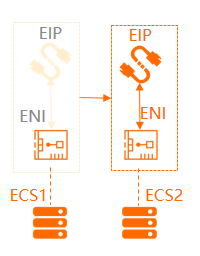
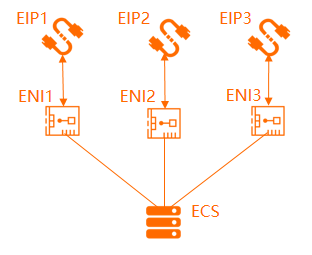
An ECS instance can be attached to multiple elastic network interfaces. You can associate an EIP with each ENI to give the ECS instance multiple public IP addresses. You can then configure security group rules and use these public IP addresses to provide services over the internet.
Association modes
You can associate an EIP with an elastic network interface in one of three modes:
NAT Mode
Cut-through Mode
Multi-EIP-to-ENI Mode
NoteThe Multi-EIP-to-ENI Mode is no longer available to new users. Existing users with the required permissions can continue to use this mode.
Use the secondary CIDR block feature of VPC to make an EIP visible on an ENI. Make an EIP visible on a network interface by using a secondary CIDR block.
The following table compares the three association modes.
Comparison | NAT mode | Cut-through mode | Multi-EIP-to-ENI mode |
EIP visibility on an elastic network interface within the operating system | No | Yes Note Run the | Yes Note After you configure a static IP address in the operating system, run the |
EIP-supported elastic network interface types | Primary and secondary ENIs Note When you associate an EIP with an ECS instance, the EIP is associated with the primary ENI of the instance. Associate an EIP with a cloud resource. | Secondary ENIs only | Secondary ENIs only |
Maximum number of EIPs that can be associated with a primary ENI | 1 | Primary ENIs are not supported. | Primary ENIs are not supported. |
Maximum number of EIPs that can be associated with a secondary ENI | Depends on the secondary ENI's private IP address count. Note An EIP is mapped to a private IP address of the secondary ENI. For example, if a secondary ENI has 10 private IP addresses, you can associate up to 10 EIPs with the ENI. | 1 Note In cut-through mode, an EIP can be associated only with the primary private IP address of a secondary ENI. | 10 |
When an EIP is associated with a secondary ENI, is the private network functionality of the secondary ENI available? | Yes | No | Yes |
Supported protocols | EIPs do not support protocols related to NAT Application Layer Gateway (NAT ALG), such as H.323, SIP, DNS, and RTSP. | EIPs support all IP protocols, such as FTP, H.323, SIP, DNS, RTSP, and TFTP. | EIPs support all IP protocols, such as FTP, H.323, SIP, DNS, RTSP, and TFTP. |
Supported regions | All regions | China (Hangzhou), China (Shanghai), China (Qingdao), China (Beijing), China (Zhangjiakou), China (Hohhot), China (Shenzhen), China (Guangzhou), China (Chengdu), Singapore, Indonesia (Jakarta), Germany (Frankfurt), UK (London), and US (Virginia) | China (Shenzhen), China (Shanghai), China (Beijing), China (Zhangjiakou), China (Chengdu), Singapore, Germany (Frankfurt), US (Virginia), and UK (London) |
Prerequisites
You have created a secondary ENI in a VPC that is in the same region as the EIP. Create and use an ENI.
Associate an EIP in NAT mode
After you associate an EIP with a secondary ENI in NAT Mode, the private and public IP addresses of the secondary ENI are both available. The EIP is not visible on the secondary ENI.
You can associate an EIP with a secondary ENI in NAT Mode before or after attaching the ENI to an ECS instance. We recommend attaching it first, because instance families limit ENI and private IP address counts. Then associate the EIP with the secondary ENI in NAT Mode. Note the following:
The number of ENIs an ECS instance supports varies by instance family. Instance families.
After you attach a secondary ENI to an ECS instance, some operating system images cannot automatically recognize the IP address of the secondary ENI or add the required routes. You must configure the secondary ENI within the ECS instance so that the operating system recognizes its IP address and adds the required routes. Configure a secondary ENI.
If an IPv4 gateway is activated for the VPC, configure routes for the IPv4 gateway to allow internet access. Create and manage an IPv4 gateway.
Log on to the Elastic IP Addresses console.
In the top navigation bar, select the region where the EIP is located.
On the Elastic IP Addresses page, find the EIP that you want to manage and click Associate with Resource in the Actions column.
In the Associate EIP with Resource dialog box, set the following parameters and click OK.
Parameter
Description
Instance Type
Select ENI.
Resource Group
Select the secondary ENI's resource group.
Mode
Select NAT Mode.
In NAT mode:
The number of EIPs that can be associated with a secondary ENI depends on the number of private IP addresses assigned to the secondary ENI.
An EIP is associated with the secondary ENI in NAT mode. Both the private and public IP addresses of the secondary ENI are available.
EIPs are not visible within the operating system. Call the DescribeEipAddresses API to query the public IP address bound to a specific network interface.
EIPs do not support protocols related to NAT ALG, such as H.323, SIP, DNS, and RTSP.
Select an instance to associate
Select the target secondary ENI.
If Allocated is displayed in the IP Status column and the ID of the secondary ENI is displayed in the Associated Instance Type/ID column, the association is successful.
After the association, you may need to configure routes for the secondary ENI. Configure routes.
Associate an EIP in cut-through mode (not recommended)
When you associate an EIP with a secondary ENI in Cut-through Mode, the EIP replaces the private IP address of the secondary ENI. The secondary ENI then becomes a public-only network interface, and you can view the EIP in the network settings of the operating system.
Before you start, ensure the following:
The region of your EIP and the secondary ENI supports Cut-through Mode.
The secondary ENI is not attached to any ECS instance. If the secondary ENI is already attached to an ECS instance, detach it first. After you associate the EIP with the secondary ENI in Cut-through Mode, you can attach the secondary ENI to an ECS instance. Manage ENIs.
No IPv4 gateway exists in the VPC to which the secondary ENI belongs.
If you use a subscription EIP, the EIP is bound to a secondary ENI in Cut-through Mode, and the secondary ENI is attached to an ECS instance. When the EIP expires and is released, the private network functionality of the secondary ENI that is bound to the EIP stops working. You must first detach the secondary ENI from the ECS instance and then reattach the secondary ENI to the ECS instance to restore the private network functionality of the secondary ENI.
Log on to the Elastic IP Addresses console.
In the top navigation bar, select the region where the EIP is created.
On the Elastic IP Addresses page, find the EIP that you want to manage and click Associate with Resource in the Actions column.
In the Associate EIP with Resource dialog box, set the following parameters and click OK.
Parameter
Description
Instance Type
Select ENI.
Resource Group
Select the secondary ENI's resource group.
Mode
Select Cut-through Mode.
Select an instance to associate
Select the target secondary ENI.
If Allocated is displayed in the IP Status column and the ID of the secondary ENI is displayed in the Associated Instance Type/ID column, the association is successful.
In the Associated Instance Type/ID column, click the ID of the associated secondary ENI.
The cell also displays Cut-through mode as the association mode.
In the upper-right corner of the elastic network interface details page, click Bind to Instance, and then select the target ECS instance, attaching the elastic network interface to the ECS instance.
NoteENI limits vary by instance family. Instance families.
After you attach a secondary ENI to an ECS instance, some operating system images cannot automatically recognize the IP address of the secondary ENI or add the required routes. You must configure the secondary ENI within the ECS instance so that the operating system recognizes its IP address and adds the required routes. Configure a secondary ENI.
After you enable the Cut-through Mode, the ECS instance automatically generates a route that uses the secondary ENI as the egress interface. This route has a lower priority than the route that uses the primary ENI as the egress interface. Adjust route priorities as needed. Configure routes.
Log on to the ECS instance by using the associated EIP, and run the
ipconfigcommand to view the network configuration of the instance.NoteMake sure that the security group rules of the ECS instance allow remote access.
The instance's local IP address becomes the EIP.
Windows PowerShell
Copyright (C) 2016 Microsoft Corporation. All rights reserved.
PS C:\Users\Administrator> ipconfig
Windows IP Configuration
Ethernet adapter Ethernet 4:
   Connection-specific DNS Suffix  . :
   Link-local IPv6 Address . . . . . : fe80:xxx
   IPv4 Address. . . . . . . . . . . : 192.xxx
   Subnet Mask . . . . . . . . . . . : 255.xxx
   Default Gateway . . . . . . . . . : 192.xxx
Ethernet adapter Ethernet 5:
   Connection-specific DNS Suffix  . :
   Link-local IPv6 Address . . . . . : fe80:xxx
   IPv4 Address. . . . . . . . . . . : 47.9xxx68
   Subnet Mask . . . . . . . . . . . : 255.xxx.xxx.0
   Default Gateway . . . . . . . . . : 47.9xxx53
Tunnel adapter isatap.{3E630C83-2ED0-4BAB-99DC-5F6F22B80903}:
   Media State . . . . . . . . . . . : Media disconnected
   Connection-specific DNS Suffix  . :
Tunnel adapter Teredo Tunneling Pseudo-Interface:
   Connection-specific DNS Suffix  . :
   IPv6 Address. . . . . . . . . . . : 2001:0:xxx
   Link-local IPv6 Address . . . . . : fe80::3xxx
   Default Gateway . . . . . . . . . : ::
Tunnel adapter isatap.{D9E63B28-1504-4094-A5EB-086C41138E32}:
   Media State . . . . . . . . . . . : Media disconnected
   Connection-specific DNS Suffix  . :
PS C:\Users\Administrator>
Associate EIPs in multi-EIP-to-ENI mode (no longer available for new users)
After you associate EIPs with a secondary ENI in Multi-EIP-to-ENI Mode, the private and public IP addresses of the secondary ENI are both available, and you can view the EIPs in the network settings of the operating system.
Log on to the Elastic IP Addresses console.
In the top navigation bar, select the region where the EIP is created.
On the Elastic IP Addresses page, find the EIP that you want to manage and click Associate with Resource in the Actions column.
In the Associate EIP with Resource dialog box, set the following parameters and click OK.
Parameter
Description
Instance Type
Select ENI.
Resource Group
Select the secondary ENI's resource group.
Mode
Select Multi-EIP-to-ENI Mode.
Select an instance to associate
Select the target secondary ENI.
If Allocated is displayed in the IP Status column and the ID of the secondary ENI is displayed in the Associated Instance Type/ID column, the association is successful.
Repeat the preceding steps to associate multiple EIPs with the secondary ENI.
In the Associated Instance Type/ID column, click the ID of the associated secondary ENI.
In the upper-right corner of the elastic network interface details page, click Bind to Instance, and then select the target ECS instance to attach the elastic network interface to the ECS instance.
NoteWhen you associate EIPs with a secondary ENI in Multi-EIP-to-ENI Mode and then attach the secondary ENI to an ECS instance, the ECS instance must belong to one of the following instance families: ecs.d1ne, ecs.ebmc4, ecs.ebmg5, ecs.ebmhfg5, ecs.f1, ecs.gn5i, ecs.gn6v, ecs.i2, ecs.r1, ecs.re4, ecs.re4e, ecs.sccg5, ecs.sccgn6, ecs.scch5, ecs.g5, ecs.c5, ecs.r5, ecs.t5, ecs.sn2ne, ecs.se1ne, and ecs.sn1ne. Instance families.
After you enable Multi-EIP-to-ENI Mode, the DHCP feature must be enabled on the ECS instance to which the secondary ENI is attached. Otherwise, the Multi-EIP-to-ENI Mode does not take effect.
Call DescribeEipGatewayInfo to query the EIP gateway and subnet mask. DescribeEipGatewayInfo.
Log on to an ECS instance and configure multiple EIPs for the ECS instance. Configure EIP addresses for a Windows instance and Configure EIP addresses for a Linux instance.
ImportantWhen you configure multiple EIPs for the ECS instance by following the instructions in the topics, replace the secondary private IP addresses with the EIPs, and use the gateway and subnet mask of the EIPs instead of those of the private IP addresses.
After you configure the EIPs, you can run the
ifconfigoripconfigcommand to view the EIPs.
FAQ
EIPEIP configuration fee (public IP address retention fee) after I associate an EIP with a secondary ENI?
No configuration fee (public IP address retention fee) is charged for subscription EIPs.
If you associate a pay-as-you-go EIP with a secondary ENI, you are charged on a pay-as-you-go basis.
After I associate an ENI with an EIP and attach the ENI to an ECS instance, are additional configurations required?
If the ECS instance hosts inbound services, such as a web server, you do not need to configure routes on the ECS instance or in the VPC. You can directly use the EIP associated with the secondary ENI to provide services.
If the ECS instance hosts services that need to actively access the internet, you must configure a custom default route or specific routes on the ECS instance. By default, outbound traffic uses the primary ENI. You can adjust route priorities to direct traffic through the secondary ENI. You can also configure specific routes to distribute traffic across multiple ENIs for load balancing or to route traffic from a random ENI.
References
Associate multiple EIPs with an ECS instance in NAT mode: If you need to host multiple applications on a single ECS instance and each application requires a unique public IP address, you can associate multiple EIPs with the ECS instance through secondary ENIs in NAT mode. This allows you to associate multiple EIPs with a single ECS instance.
Make an EIP visible on a network interface by using a secondary CIDR block: We recommend that you use the secondary CIDR block feature of a VPC to make an EIP visible on an ENI.
AssociateEipAddress: Associate an EIP with a cloud resource in the same region.