Waiting room analytics provide insights into traffic for your waiting room and on your origin server. You can use this data to fine-tune your waiting room settings.
View waiting room data
In the ESA console, select Websites. In the Website column, click the target site.
In the left-side navigation pane, choose .
Click the
 arrow icon next to the name of the waiting room. The Traffic Overview for the last 24 hours appears.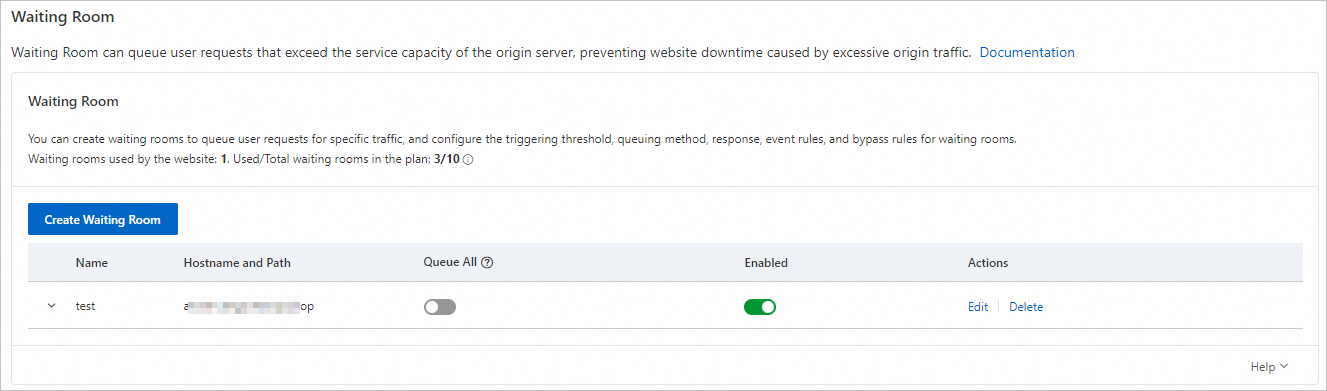
Metric
Description
Analysis suggestions
Maximum Active Users
The maximum number of active users per minute that accessed your origin server from this waiting room over the past 24 hours.
You can adjust your server resources based on the Maximum Active Users. If the number of Maximum Active Users is low, it indicates that you have a surplus of server resources and you can scale them down as needed. If the number of Maximum Active Users is high, you can click View More to analyze more detailed data and make adjustments.
Maximum Queued Users
The maximum number of users queued in the waiting room per minute over the past 24 hours.
If the Maximum Queued Users count is significantly higher than the number of active users on your origin server, this indicates a high volume of user requests. Consider the following actions:
Optimize and scale up your server resources to accommodate more users.
Prioritize user requests. For VIP users, you can configure a bypass rule for the waiting room to ensure they bypass the queue.
Optimize the waiting page settings to show users their estimated wait time and queue position. This can improve the user experience and encourage them to wait.
Typical Time in Queue
Over the past 24 hours, this metric shows the range between the 50th and 75th percentile of user queue times. The queue time is the duration from when a user enters the waiting room until they can access the origin server.
If the Typical Time in Queue is excessively long, it can lead to a poor user experience and user churn. Consider the following actions:
Within your origin server's capacity, increase the Total Active Users and New users per minute thresholds to serve more concurrent users.
Decrease the Session duration to reduce server load from inactive sessions.
Enable Disable Session Renewal to limit how long a single user's session remains active on your server.
To the right of Traffic Overview, click View More. Select a time range to view detailed data for Time in Queue, Time on Origin, Active Users, and New Users per Minute.

Category
Metric
Description
Time in Queue
Typical time in queue
The duration, in seconds, that most users wait in the queue. This metric shows the range between the 50th and 75th percentile of queue times within the selected time range. For example, if queue times are sorted from 1 to 100 seconds, the typical time in queue is 50–75 seconds.
95th percentile time in queue
Represents the queue time for 95% of users. Specifically, it is the 95th percentile of all queue times in ascending order. For example, if queue times range from 1 to 100 seconds, the value is 95 seconds, meaning 95% of users waited 95 seconds or less.
NoteThe 95th percentile helps you measure the experience for the vast majority of your users.
Time on Origin
Typical time on origin
The duration, in seconds, that most users spend on your origin server. This metric shows the range between the 50th and 75th percentile of session durations. The duration is the interval between a user's first and last request to the origin server. For example, if session durations range from 1 to 100 seconds, the typical time on origin is 50–75 seconds.
95th percentile time on origin
The duration, in seconds, that the vast majority of users spend on your origin server. It represents the 95th percentile of session durations. For example, if session durations range from 1 to 100 seconds, the value is 95 seconds.
Configured session duration
The session duration configured for the waiting room at the time of the query.
Active Users
Maximum queued users
The maximum number of users in the waiting room at a specific point in time.
Maximum active users
The maximum number of users accessing the origin server at a specific point in time.
Configured active user threshold
The active user threshold configured for the waiting room at the time of the query.
New Users per Minute
Actual user count
The number of new users accessing the origin server per minute.
Configured user count
The configured number of new users allowed to access the origin server per minute.