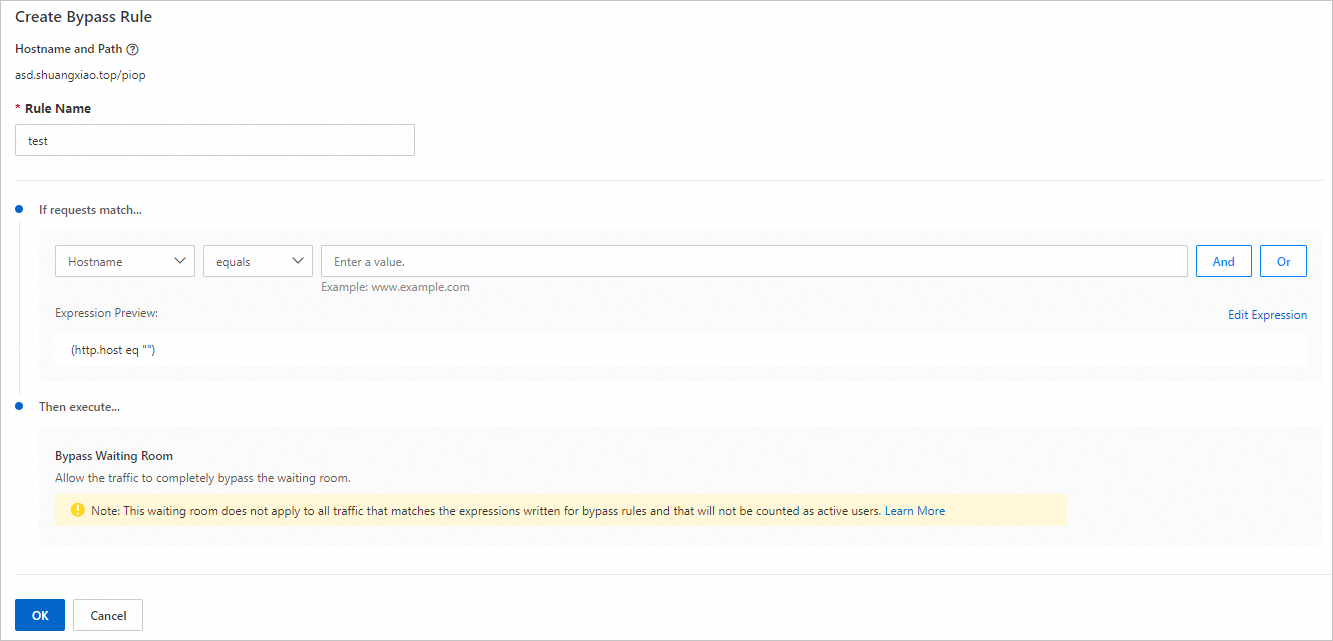
To allow specific traffic, such as requests from VIPs or internal employees, to bypass a waiting room during traffic surges, create a waiting room bypass rule. This ensures the traffic is routed directly to the origin server without queuing.
Before you begin
Only users who have subscribed to the Enterprise plan can create waiting room bypass rules. To use this feature, upgrade to the Enterprise plan and contact us.
Create a waiting room bypass rule
In the ESA console, select Websites, and in the Website column, click the target site.
In the left navigation pane, choose .
Click the arrow button next to the waiting room name. In the expanded Waiting Room Bypass Rules section, click View Rule.
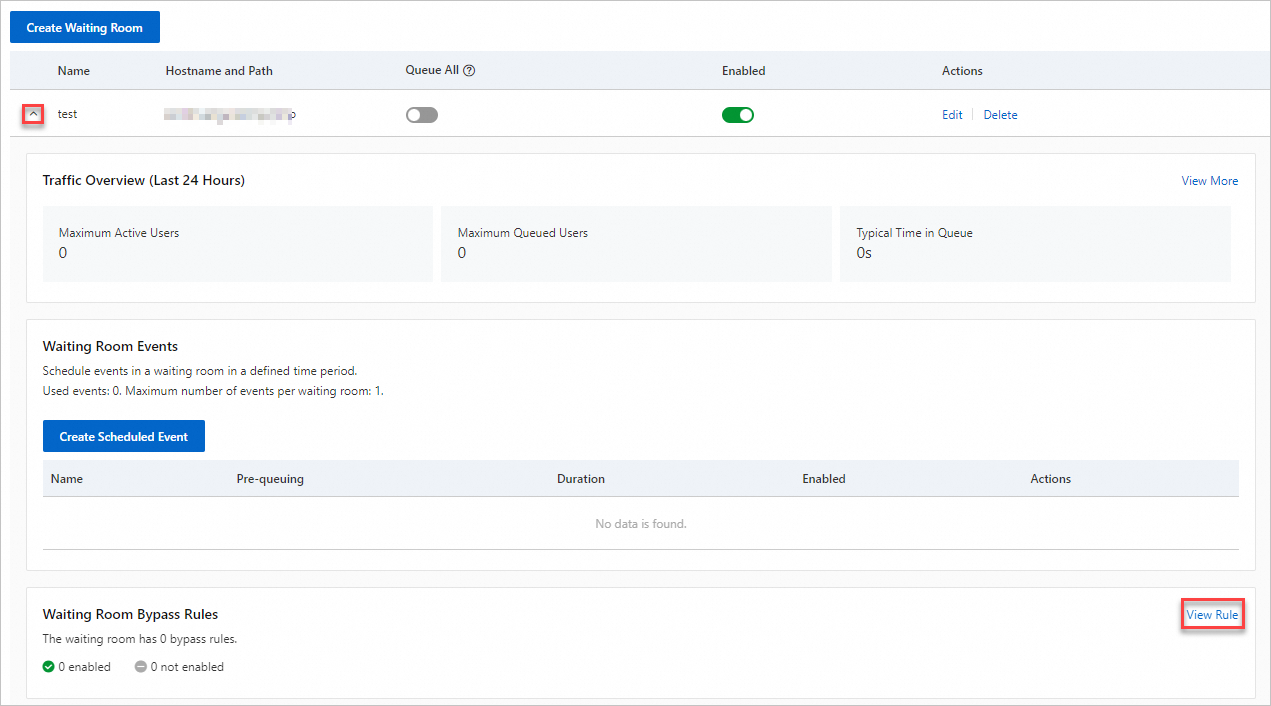
Click Create Rule.
 Note
NoteYou can create up to five bypass rules for each waiting room.
On the Create Bypass Rule page, specify a Rule Name and configure the matching conditions in the If Requests Match... section. Then, click OK. For more information, see Composition of rule expressions.