All Products
Search
Document Center

Edge Security Acceleration:Get started by creating a waiting room

Last Updated:Jan 04, 2026

When your site faces high-concurrency traffic from flash sales, sales promotions, or popular events, your origin server can become overloaded. This can cause slow responses or even a breakdown. The Waiting Room feature protects your origin server by creating a virtual queue at the edge. It queues user requests that exceed your origin's capacity. This ensures stable server performance and improves the user experience by providing a clear waiting time. Follow these steps to quickly set up and enable a waiting room for your site.

Configure a basic waiting room for a flash sale in 5 minutes

Assume your origin server can handle a maximum of 300 concurrent users. You need to configure a waiting room for the upcoming flash sale page at promo.example.com/flash-sale to protect the server.

Procedure

  1. In the ESA console, select Websites, and then click the target site in the Website column.

  2. In the left navigation pane, choose Traffic > Waiting Room.

  3. In the Waiting Room area, click Create Waiting Room. Fill in the following core parameters:

    • Waiting Room Name: flash-sale-room

    • Hostname and Path: promo.example.com/flash-sale

      • Subdomain: promo

      • Path: flash-sale

    • Custom Cookie: __aliwaitingroom_flash_sale (This acts as the queueing credential.)

    • Total Active Users: 300 (This value should match your origin's concurrent capacity.)

    • New Users per Minute: 300 (This setting ensures that users are admitted quickly at the start of the event.)

    • Session Duration: 5

Result verification

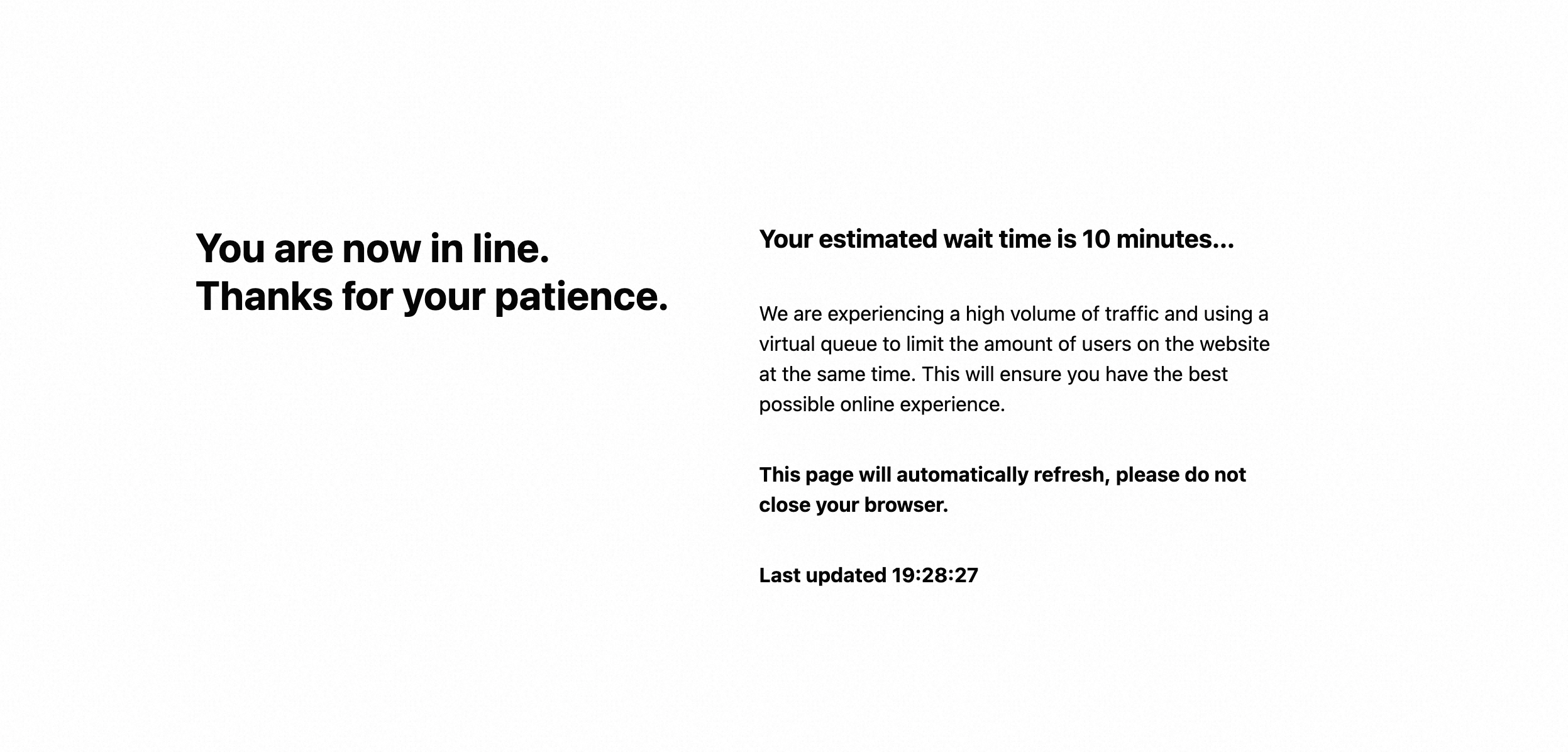
The waiting room is enabled by default. When the number of concurrent users accessing promo.example.com/flash-sale exceeds the Total Active Users limit of 300, subsequent users are directed to a waiting page that displays the estimated wait time.

image

Create a waiting room

For more fine-grained control over your waiting room, follow these detailed steps.

Step 1: Go to the waiting room configuration page

  1. In the ESA console, select Websites, and then click the target site in the Website column.

  2. In the left navigation pane, choose Traffic > Waiting Room.

  3. In the Waiting Room area, click Create Waiting Room.

    image

Step 2: Basic settings

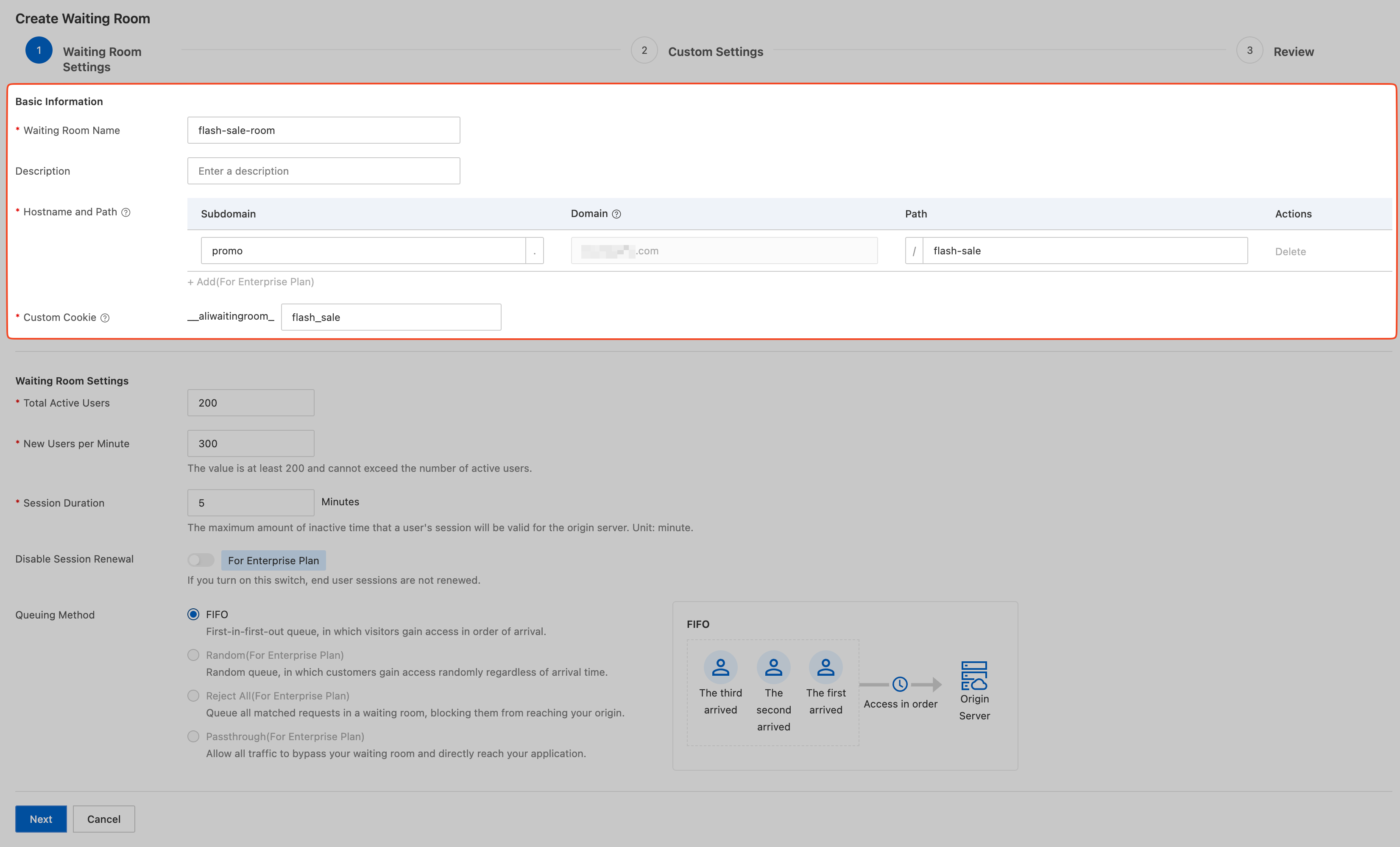
In this step, you define the basic information for the waiting room, such as its name and path.image

Parameter

Description

Waiting Room Name

Set an easy-to-identify name for your waiting room, such as promo_activity_room.

Hostname and Path

Defines the exact URL where the waiting room is active. A site can have multiple hostnames (domain names). This rule applies only to the Hostname and Path you specify.

Example: If the hostname is event.example.com and the path is /route, the waiting room only applies to requests for event.example.com/route.

Custom Cookie

The credential used to identify and track a user's queue status. The cookie name has a fixed prefix of __aliwaitingroom_. You can customize the suffix.

Example: __aliwaitingroom_promo_user.

Step 3: Room capacity and rate configuration

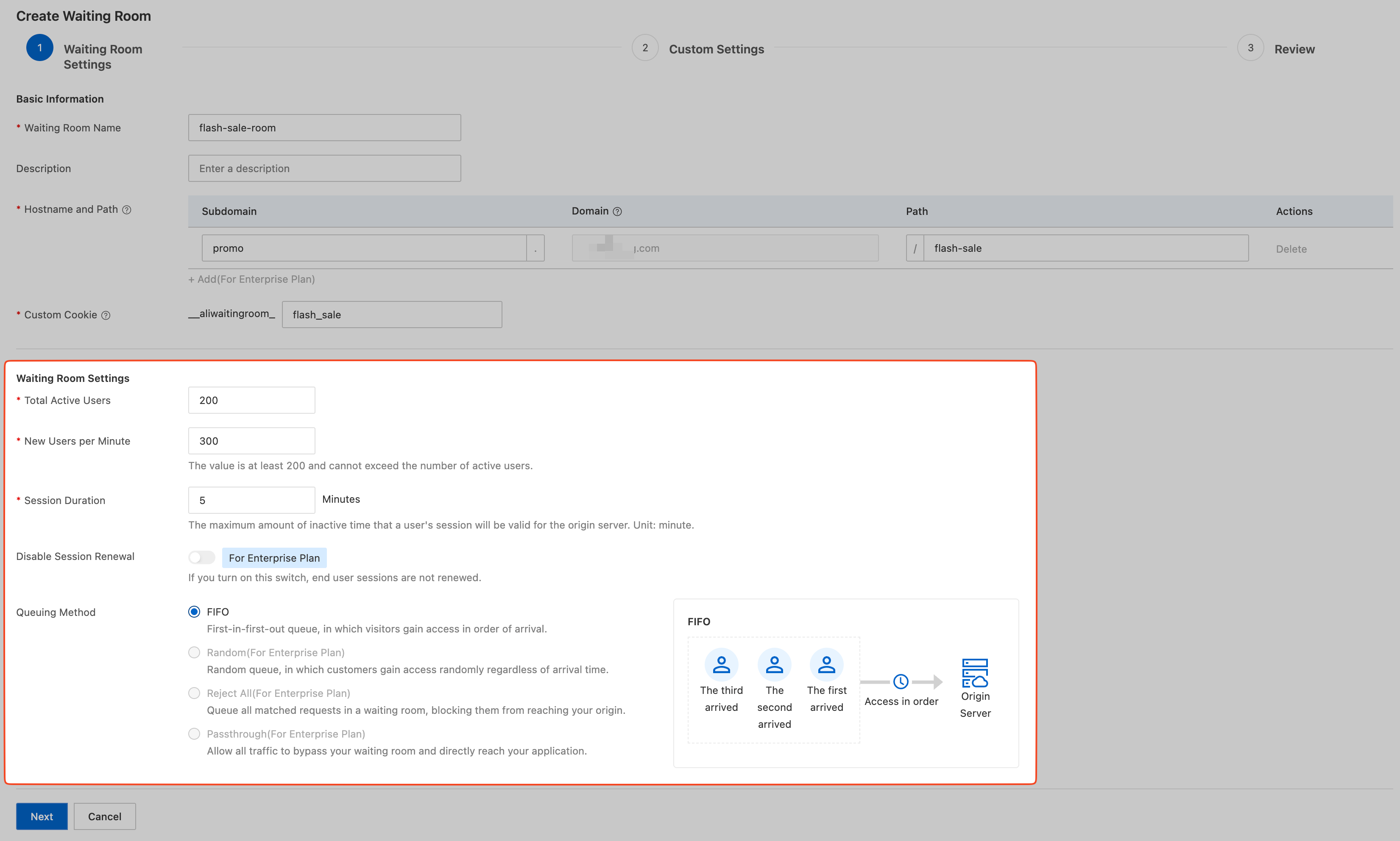
In this step, you define the waiting room's capacity and the rate at which users are admitted. This is the core configuration for protecting your origin server.image

Parameter

Description

Total Active Users

Purpose: Sets the maximum number of concurrent users that can access your origin server at the same time.

Description: Set this value based on your origin server's actual concurrent processing capacity. When the number of active users accessing the origin reaches this threshold, new user requests are sent to the queue.

Note: The minimum value is 200. If your origin's actual load is less than 200, set this value to 200 and use the New Users per Minute parameter to control the admission rate more precisely.

New Users per Minute

Purpose: Sets the maximum number of new users admitted from the queue to the origin server each minute. This controls the growth rate of the load on your origin.

Description: This parameter determines how quickly the queue is processed. For example, if you set it to 300, a maximum of 300 new users can move from the waiting page to the origin server each minute.

Note: The minimum value is 200. It must be less than or equal to the Total Active Users.

Session Duration

Purpose: Defines the validity period of a user's session after they leave the queue.

Description: After a user successfully accesses the origin server, if they leave temporarily (for example, by closing the page) and return within the time set by this parameter, they do not need to queue again. The default value is 5 minutes.

Disable Session Renewal

Purpose: Determines if a user's session validity period is automatically refreshed during interaction with the origin server.

Note: The name of this toggle is the opposite of its behavior. Choose an option based on your desired outcome:

  • Off (Default): This enables session renewal. As long as a user remains active on the origin server (by continuously sending requests), their session does not expire and they are not sent back to the queue. This is suitable for most scenarios.

  • On: This disables session renewal. A user's session is timed strictly from the moment they first enter the origin server. Once the time is up, the user must queue again, even if they are still actively browsing. This is suitable for scenarios that require strict control over a user's single visit duration, such as flash sales.

Queuing Method

Purpose: Selects the policy for admitting users from the waiting page.

  • FIFO: Admits users in the order their requests were received. This is the fairest method and is the recommended default.

  • Random: Randomly selects users from the queue to grant access. This is applicable to scenarios such as lotteries where fairness is not a primary concern.

  • Reject All: All new users are sent to the waiting page and are not admitted. This is useful for pre-event warm-ups, system maintenance, or for emergencies where you need to close access.

  • Passthrough: All requests bypass the queue and go directly to the origin server. In this mode, the waiting room is effectively disabled. This can be used to restore normal access after an event or for functional testing.

Step 4: Customize the waiting page

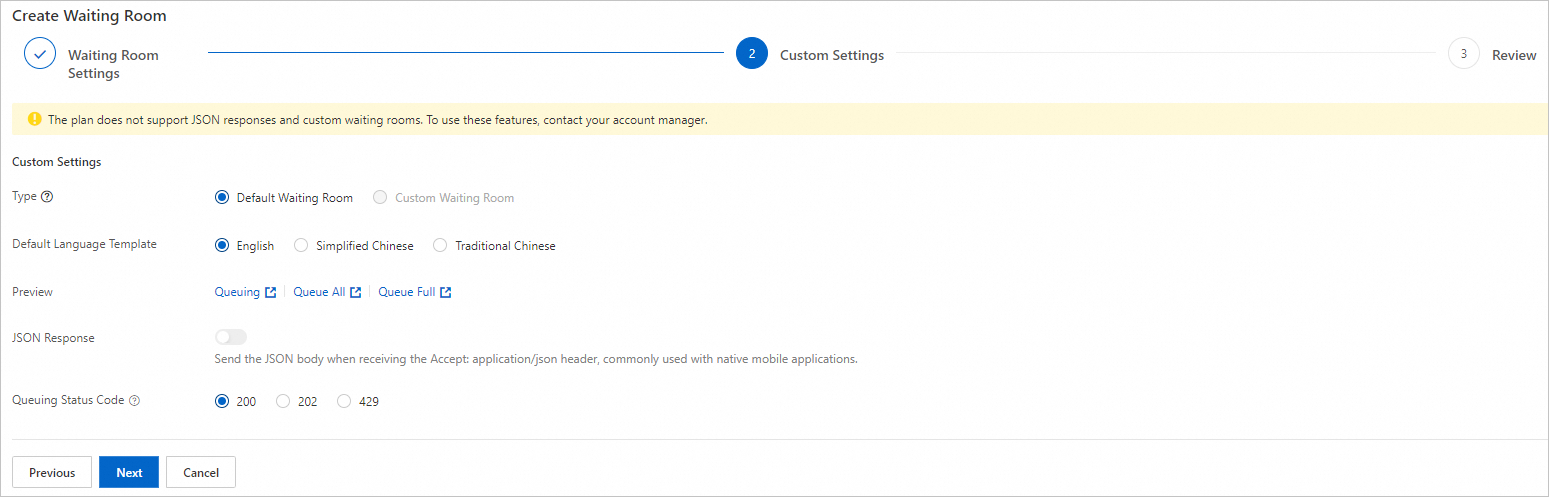
In this step, you configure the page content or API response that users see while they are in the queue.image

Parameter

Description

Type

Default Waiting Room: A standard waiting page provided by the system. It automatically displays the estimated wait time. You can select a Default Language Template (English, Simplified Chinese, or Traditional Chinese).

Custom Waiting Room: Lets you upload a custom HTML page. To use this feature, contact your sales representative.

  • You can edit the template or directly import an .html file (up to 50 KB in size).

  • You can use dynamic variables (such as ${waitTime}) in the HTML to display queue information.

Preview

Click the link to preview how the waiting page appears in different states, such as Queuing or Queue All.

JSON Response

Purpose: Provides structured queue status information for non-browser clients, such as apps and miniapps.

Enable this toggle. When a client's request header includes Accept: application/json, ESA returns queue information in JSON format instead of an HTML waiting page. For details about the parameters, see JSON response parameter descriptions.

Interaction flow:

  1. First request: The client accesses the target URL with the Accept: application/json request header.

  2. Get and store the cookie: The ESA response header will contain a Set-Cookie field. The client must save this cookie to use as an identity credential for subsequent requests.

  3. Poll for status: The client must include this cookie in its requests. It should periodically re-request the same URL at the interval specified by the refreshIntervalSeconds field in the response body to refresh its queue status.

  4. Access the origin: When the inWaitingRoom field in the response body changes to false, the client has left the queue. The client can then use the cookie to access origin resources normally.

Response example:

{
  "WaitingRoom": {
    "inWaitingRoom": true,
    "waitTime": 5,
    "waitTimeKnown": true,
    "waitTimeFormatted": "5 minutes",
    "queueIsFull": false,
    "queueAll": false,
    "lastUpdated": "2024-09-10T12:00:00.000Z",
    "refreshIntervalSeconds": 20
  }
}

Queuing Status Code

Customize the HTTP response status code that users receive while in the queue. The default is 200. You can change it to another status code, such as 202, as needed.

Step 5: Preview and enable the waiting room

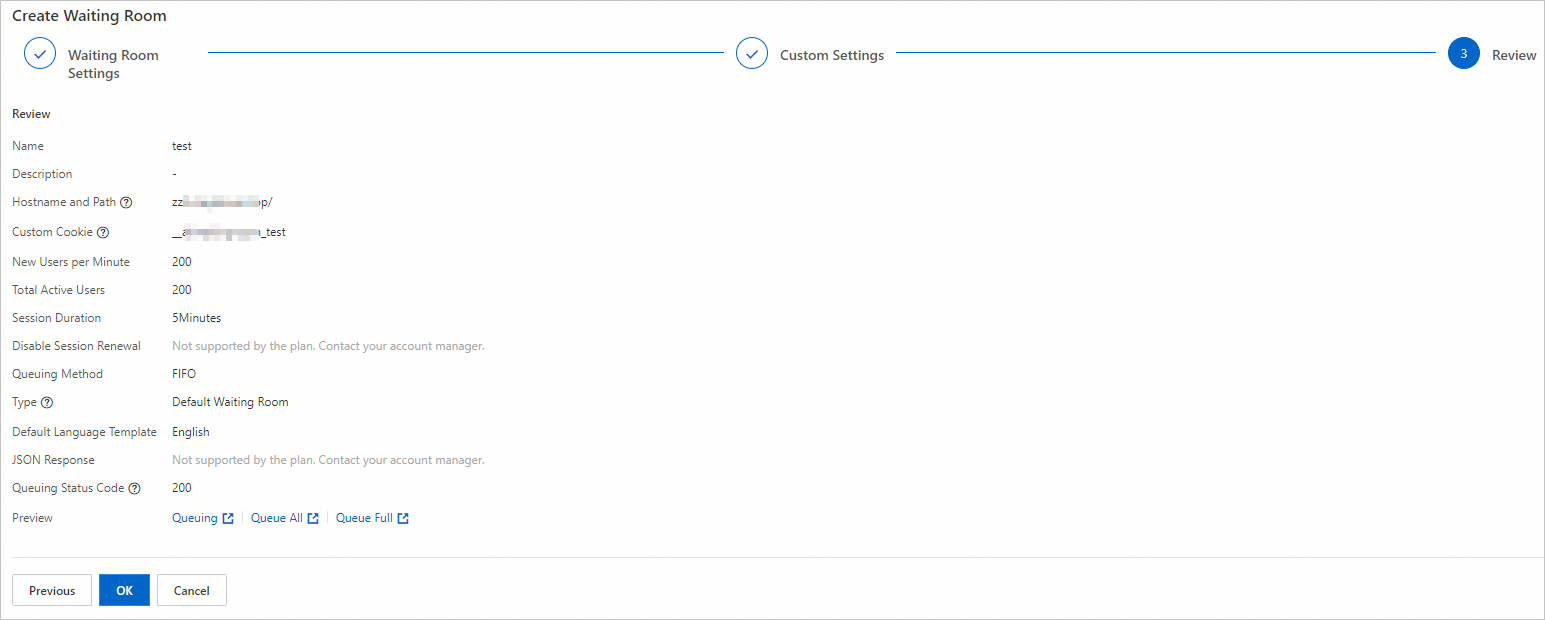
  1. A summary of the settings from the previous steps is displayed. This lets you confirm your configuration and choose whether to configure other features. After you confirm that the parameters are correct, click OK to create the waiting room.

    image

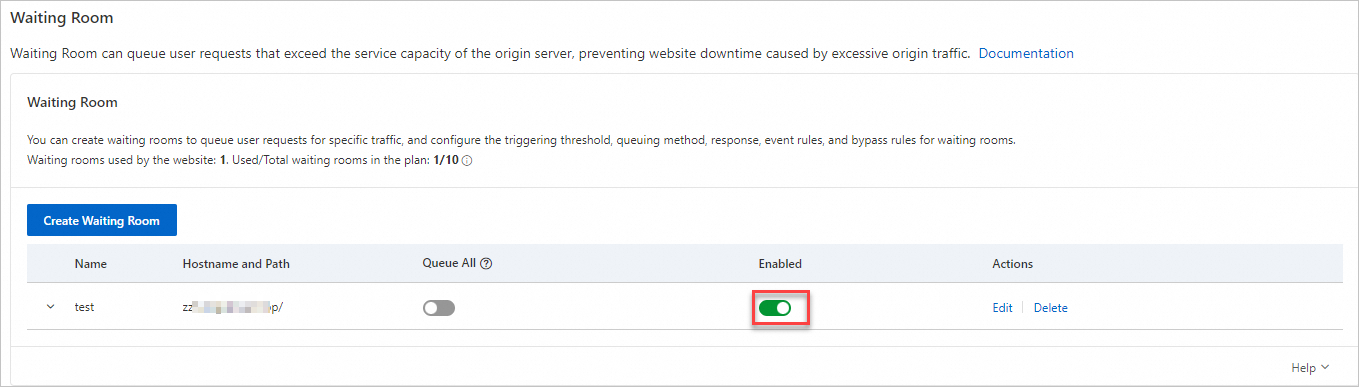
  2. After the waiting room is created, the feature is enabled by default.

    image

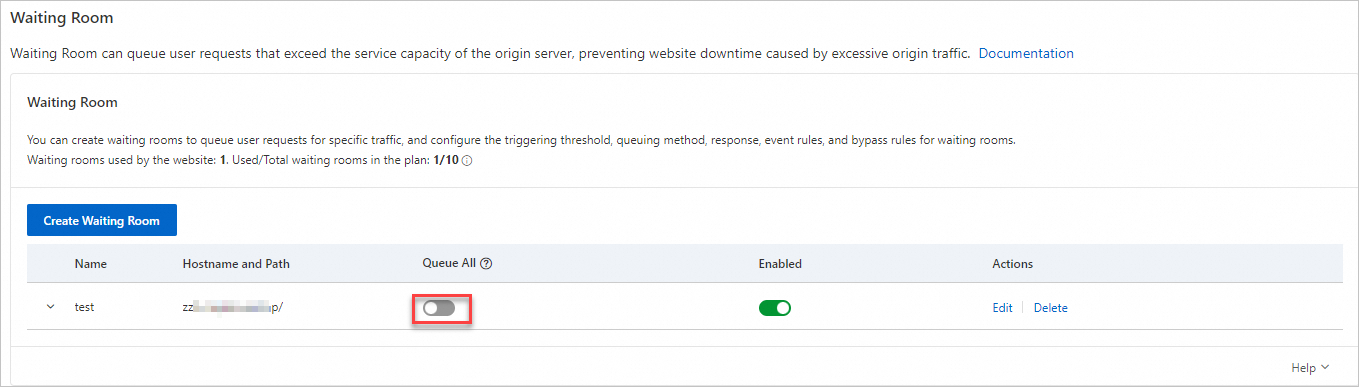
  3. You can also toggle Queue All on or off for all requests as needed:

    • Off: This is the default state. When the number of requests reaches the thresholds defined for Total Active Users and New Users per Minute, excess requests are sent to the waiting room queue.

    • On: All new visitors are required to queue. This can be used to prepare for a product launch or other scheduled events.

      Note
      • Active users who are already accessing your origin server can continue their sessions. They are not returned to the queue before their session expires.

      • Queue All overrides all other waiting room settings, including event settings.
    image

What to do next

If you are an Enterprise user, you can also use the following advanced features for greater control over the waiting room:

  • Scheduled waiting room events: Automatically adjust the waiting room's capacity and rate parameters at preset times to handle predictable traffic peaks and troughs.

  • Waiting room bypass rules: Set specific rules based on IP, header, or cookie to allow matching requests to bypass the waiting room and access the origin server directly.