Security rules in Edge Security Acceleration (ESA) analyze request attributes — source IP, request path, and User-Agent — against a threat intelligence library to identify malicious behavior and automatically challenge suspicious requests.
To apply a uniform security level to all requests on your website, Set a global security level.
Use cases
Administration backends, login endpoints, and payment APIs are frequent targets of automated tools, crawlers, and attacks. A fixed global policy is often too strict — blocking legitimate users — or too lenient to stop targeted attacks.
Fine-grained security rules let you apply stricter policies only to requests that target specific paths or carry suspicious attributes, protecting core services without affecting legitimate users.
How it works
ESA security rules use an intelligent decision engine that combines request attribute matching with threat intelligence analysis. When a request reaches an ESA point of presence (POP), the system evaluates it against your security rules in sequence.

This process involves two core mechanisms: threat evaluation and customizable security levels.
Threat evaluation
ESA threat detection is powered by Alibaba Cloud's threat intelligence library, which aggregates global cyber threat data in real time.
Intelligence sources: Known malicious IPs, attack sources, botnets, and proxy services.
Detection dimensions: The system evaluates IP reputation, geographic location, access patterns, and request attributes such as User-Agent, then generates a dynamic threat score to determine the security level.
Customizable security levels
Security levels control the sensitivity of threat detection and the strictness of countermeasures. Higher levels provide stronger protection but increase the risk of false positives.
Level | Recommended use case | Description |
I'm Under Attack | Recommended only as an emergency measure during large-scale attacks. | Challenges all incoming requests to ensure website availability. |
High | For websites under active attack or during high-security events. | Challenges any IP address that exhibits suspicious behavior. |
Medium | For websites with a history of volumetric attacks or heightened security needs. | Challenges IP addresses with a higher threat score. |
Low (Default) | For routine protection with no history of attacks. | Challenges only the IP addresses with the highest threat score. |
Essentially Off | Temporary use only, for troubleshooting false positives. | Retains minimal ESA platform-level protection and challenges only the highest-risk requests. |
Off (Available in Enterprise Plans) | Available only in the Enterprise Edition for debugging or special business scenarios. | Completely disables all active security features. |
Procedure
After you add a rule, ESA matches and executes rules sequentially based on the rule execution priority each time a user requests a resource.
Create a security rule
On the ESA console, navigate to Websites and click the target website in the Website column.
In the left navigation pane, choose .
Click Create Rule and enter a Rule Name.
In the If requests match... section, configure the matching request attributes, and in the Then execute... section, select a security level. For example:
For requests with the hostname www.example.com, set the security level to Medium.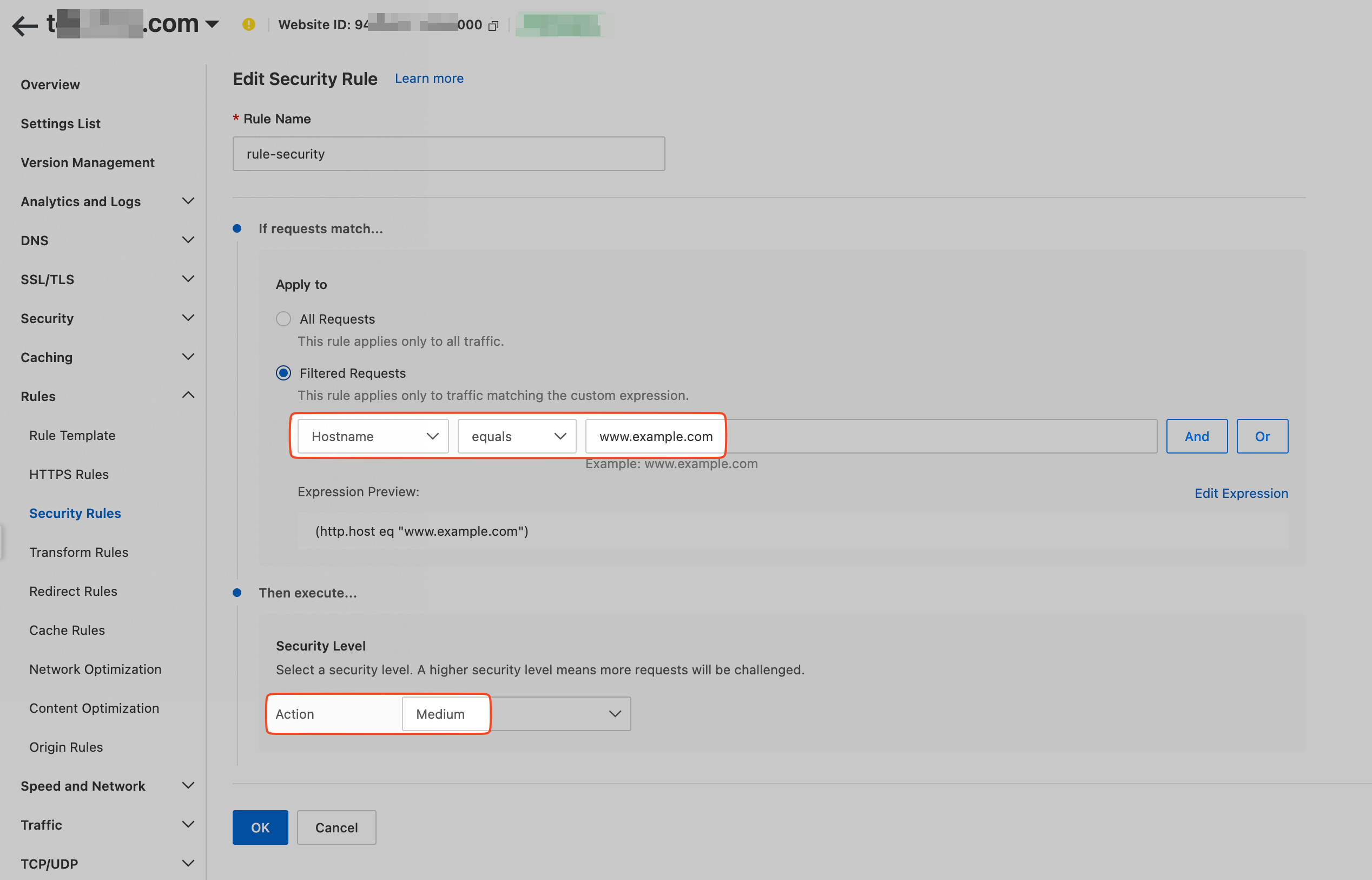 Important
Choosing a higher security level increases the risk of false positives. Balance security with user experience.
(Optional) To change the rule precedence, you can drag the
 icon in the Order column, or click Move to in the Actions column.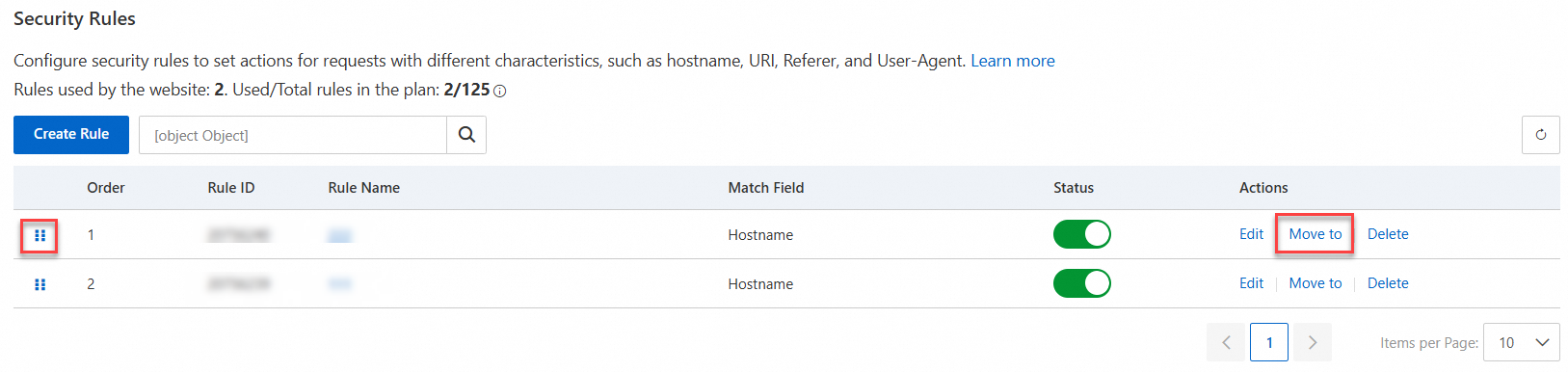
Verify the rule's effect
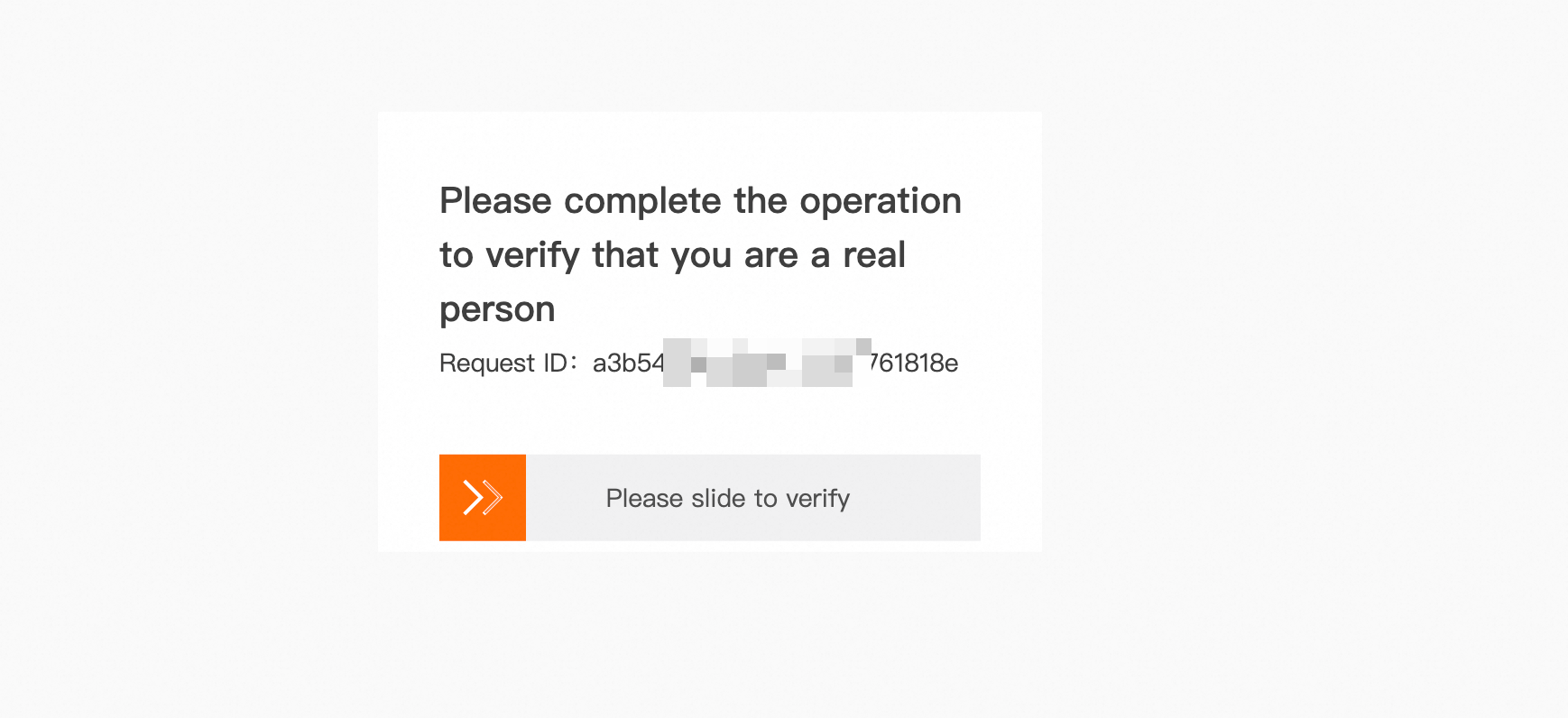
The rule takes effect immediately. When a request matching the rule conditions reaches www.example.com, the visitor receives a challenge page.
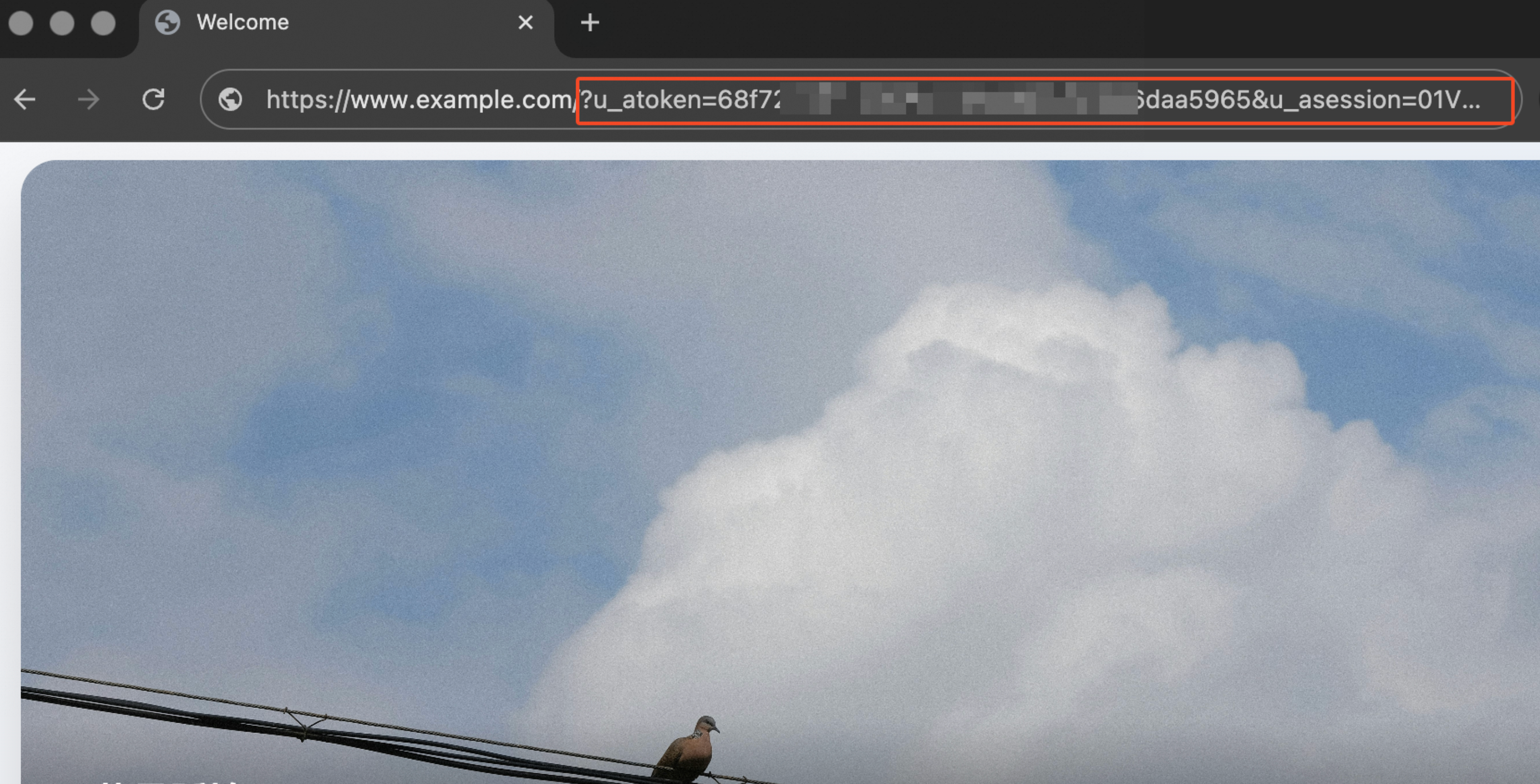
After the challenge is passed, the page loads normally. The u_atoken and u_asession parameters are appended to the request URL to identify verified users.
Handle false positives and optimize rules
Legitimate user IPs or API clients may trigger false positives. Consider the following scenario:
Your service is under a high-risk attack, and you have set the security level to High. However, you want to allow requests from the internal testing IP address 1.2.3.4.
Method 1: Add a whitelist rule
Add a WAF whitelist rule for known IP addresses to ensure critical business traffic is not interrupted.
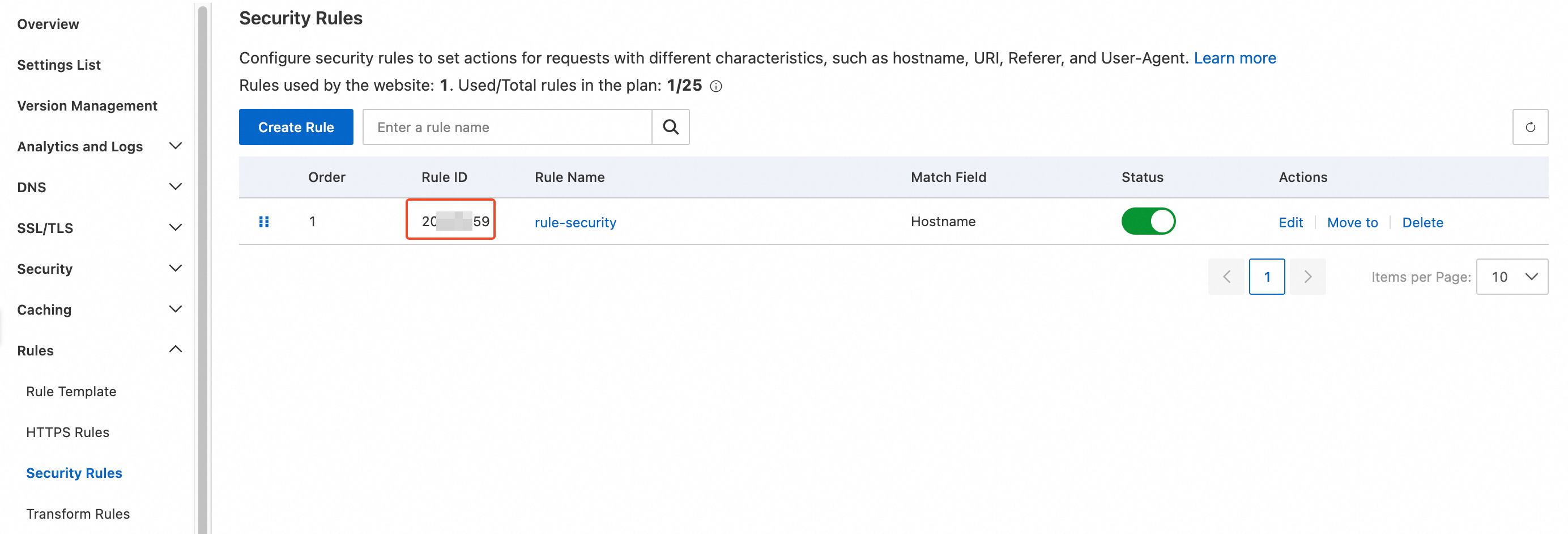
On the Security Rules page, copy the corresponding Rule ID.
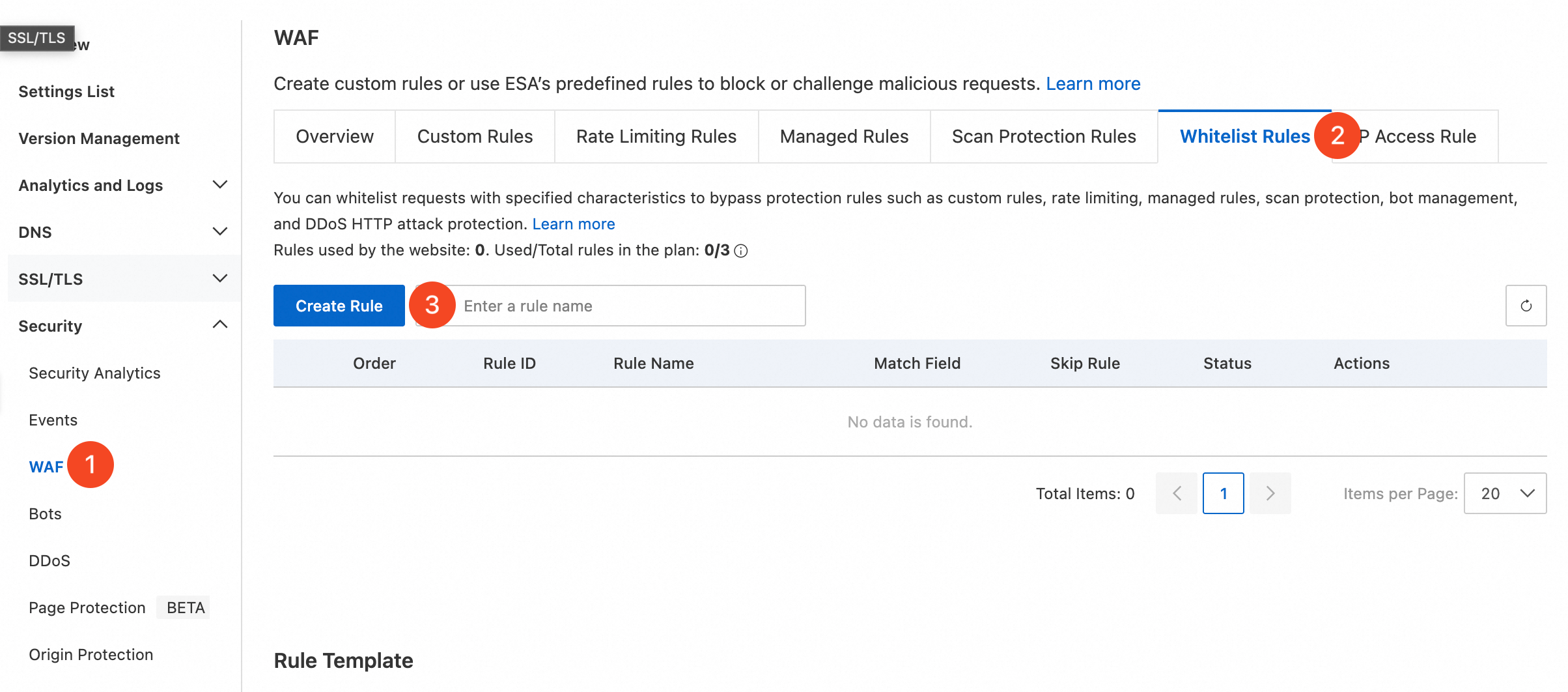
In the left navigation pane, choose . Select the Whitelist Rules tab, and then click Create Rule.
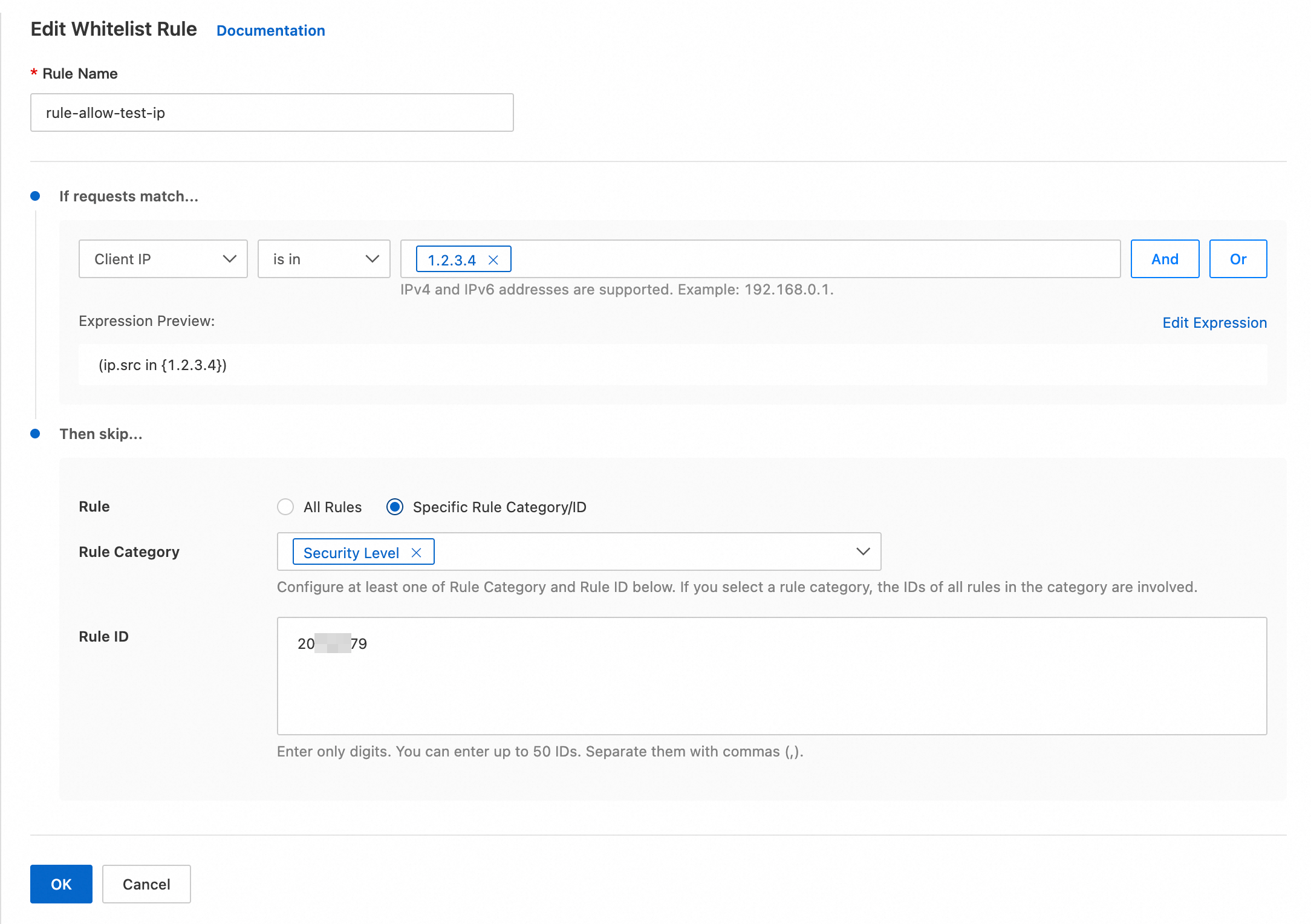
Configure the settings as shown in the following example and click OK:
Rule Name: Enter a custom rule name, such as
rule-allow-test-ip.If requests match...: From the match field drop-down list, select
Client IP. From the operator drop-down list, selectis in1.2.3.4.Rule: Select Specific Rule Category/ID.
Rule Category: From the drop-down list, select Security Level.
Rule ID: Enter the Rule ID from Step 1.
Method 2: Adjust rule precedence
Because ESA evaluates rules sequentially, you can create a lower-security rule for test traffic and place it before the blocking rule so it takes effect first.
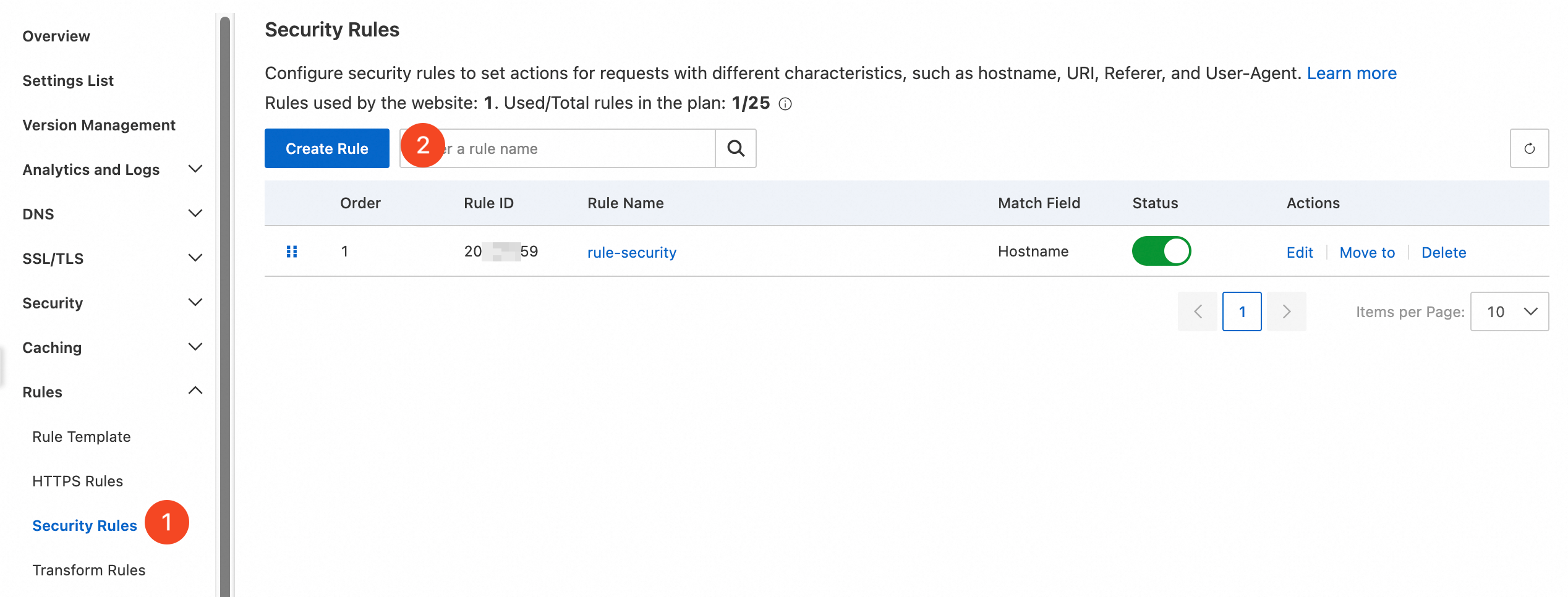
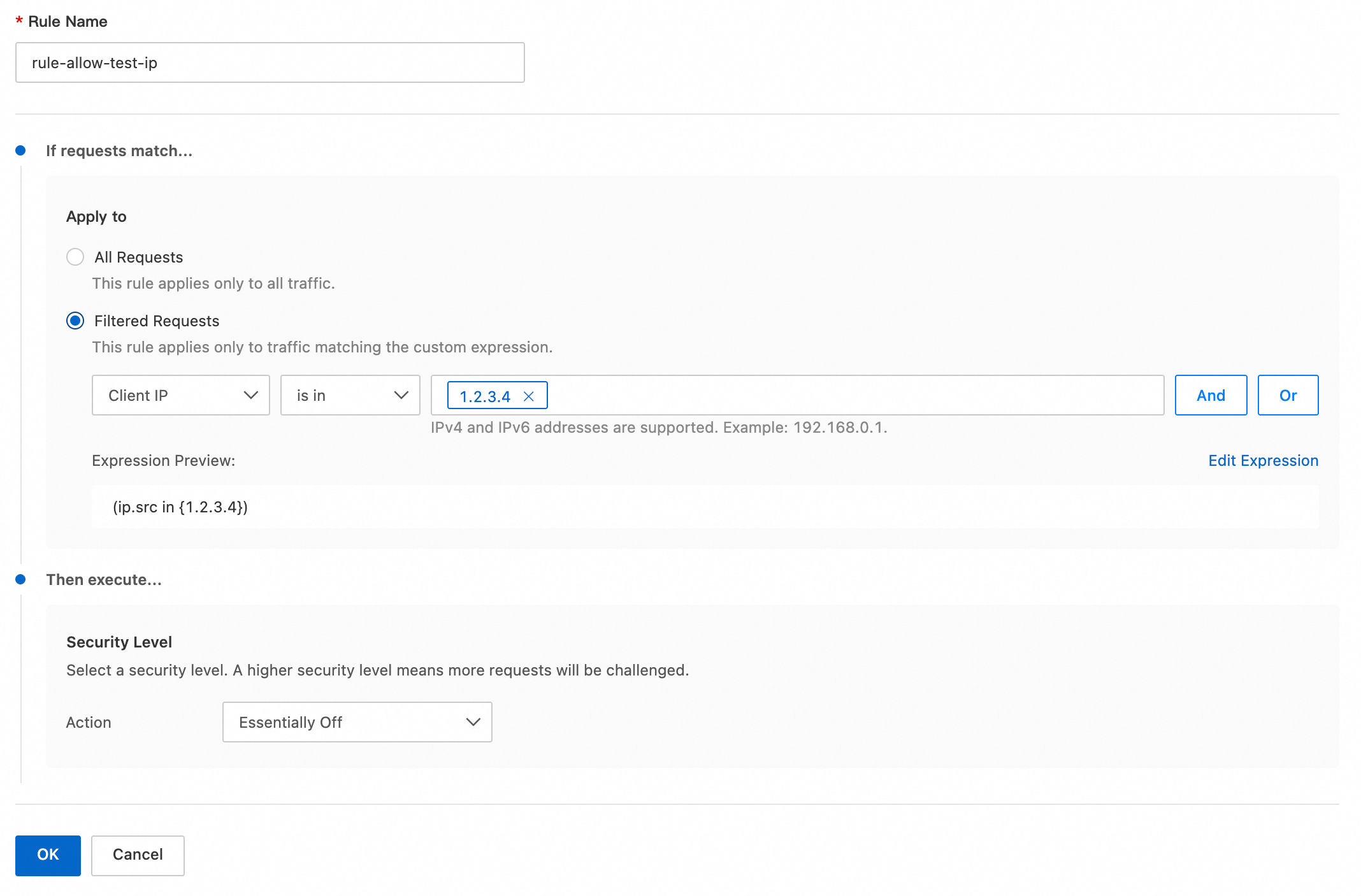
In the left navigation pane, choose , and then click Create Rule.
Configure the settings as shown in the following example and click OK: In the If requests match... section, create a condition that matches the affected IP address, User-Agent, or request path. Then, in the Then execute... section, set the Security Level to Essentially Off or Off (Available in Enterprise Plans) to bypass security checks.
Rule Name: Enter a custom rule name, such as
rule-allow-test-ip.Apply to: Filtered Requests is selected by default. For the match field, select
Client IP. For the operator, selectis in1.2.3.4.Security Level: Select Essentially Off or Off (Available in Enterprise Plans) to bypass security checks.
On the Security Rules page, drag the
 icon to adjust the execution order of the rules. Place the
 rule-allow-test-iprule before the original rule.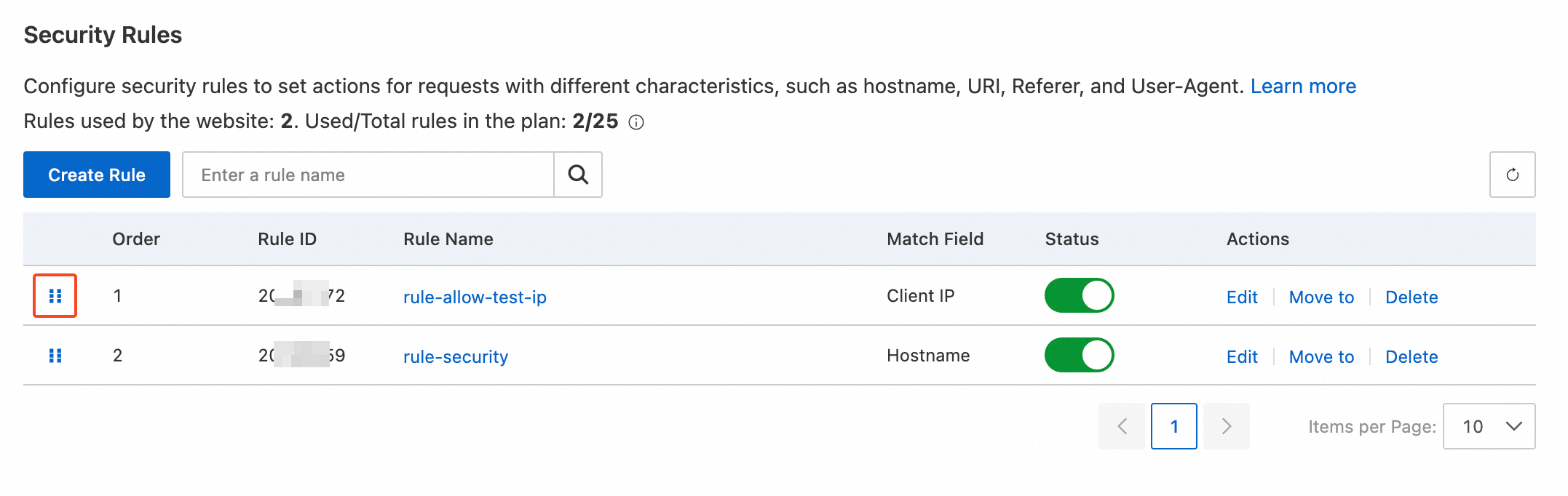
Availability
Feature | Entrance | Pro | Premium | Enterprise |
Number of security rules | 5 | 25 | 50 | 125 |
FAQ
Related documentation
Rule-related features vary in effective priority, reentrancy, and effective granularity. For details, see Characteristics of rule-based features.