Optimize cache policies to serve more requests from the cache, reducing origin server load, latency, and costs.
Cache optimization policies
Configure edge cache TTL, query strings, query string sorting, and Cache Reserve to increase the cache hit ratio.
Edge cache TTL
Use cache analysis to set an appropriate edge cache TTL for your resources.
Global configuration
Configure a global cache TTL when most resources share similar lifecycles or update frequencies.
If cache analysis shows a high percentage of resources with a Cache Status of EXPIRED, configure a longer edge cache TTL.
-
In the ESA console, go to Websites. In the Website column, click the target website.
-
In the navigation pane on the left, choose .
-
In the Edge Cache TTL section, click Configure. Select Use Custom TTL and set a longer TTL, such as
30days.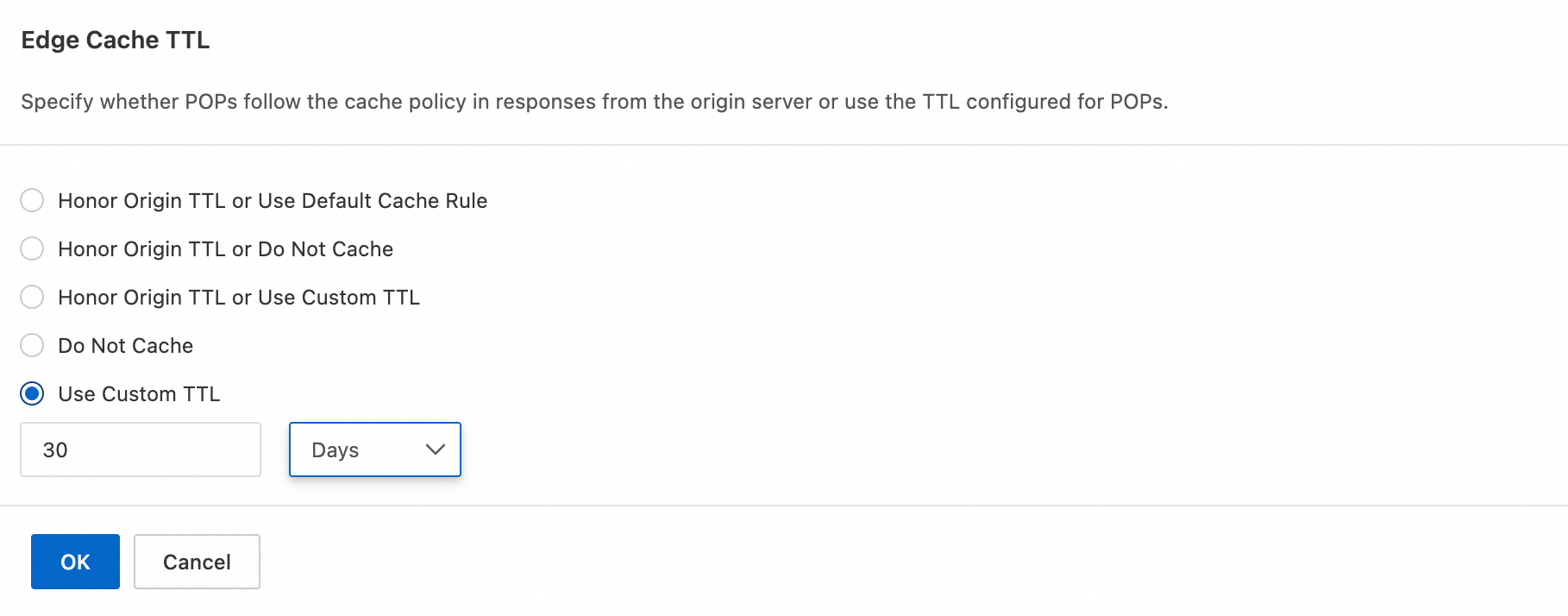
Rule-based configuration
If Cache analytics shows that a high proportion of responses for files with the .jpg suffix have a Cache Status of EXPIRED, use a rule to configure the edge cache expiration time for .jpg files.
-
In the ESA console, go to Websites. In the Website column, click the target website.
-
In the navigation pane on the left, choose .
-
Click Create Rule and enter a Rule Name.
-
Expression: The hostname is
www.example.comand the file name extension is.jpg.Action: Select Eligible for Cache. For Edge Cache TTL, choose Use Custom TTL and set it to
30days.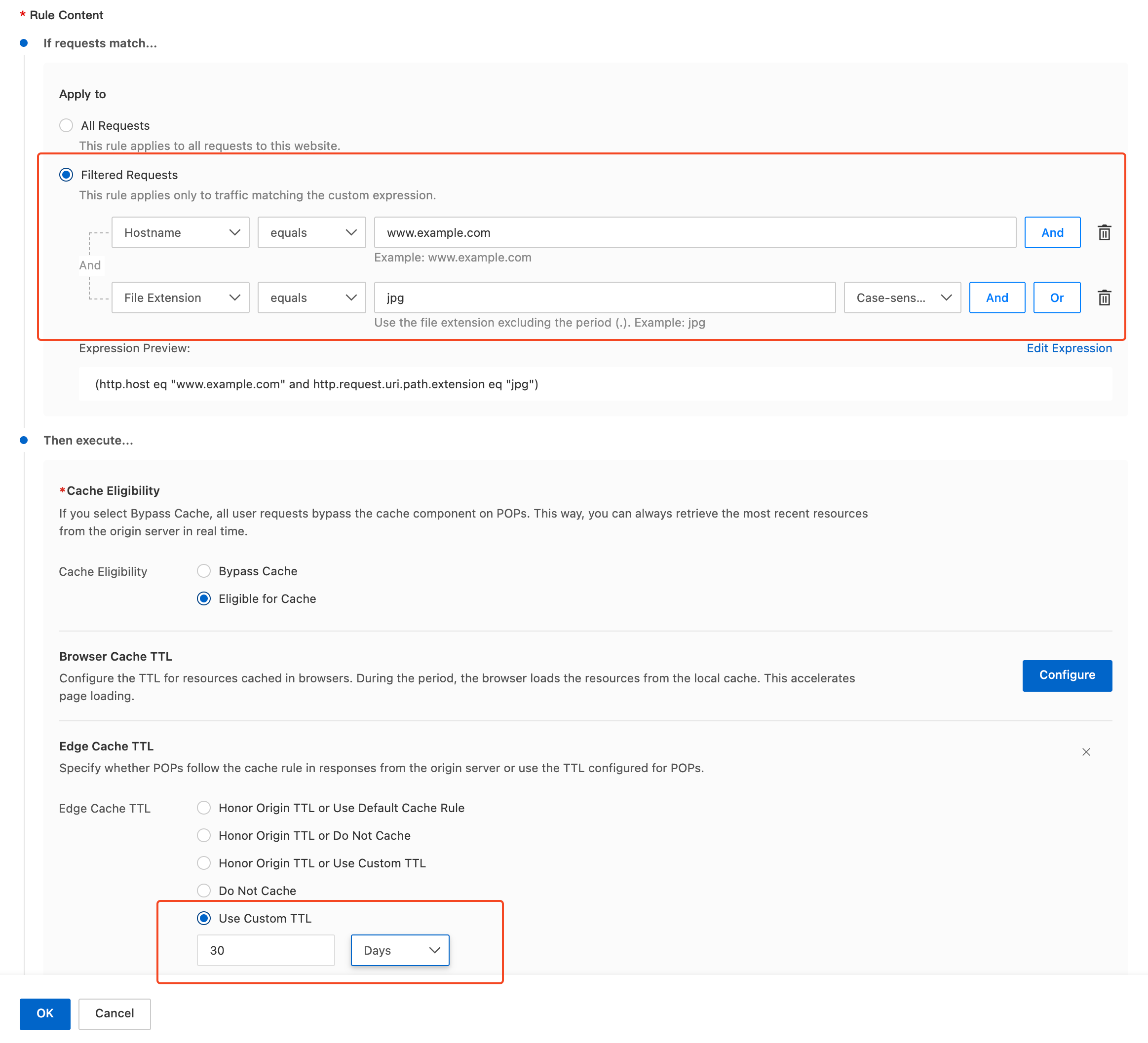
Query string
If URL parameters have little or no impact on resource content, configure query strings or custom cache keys to reduce duplicate caching.
Global configuration
-
In the ESA console, go to Websites. In the Website column, click the target website.
-
In the navigation pane on the left, choose .
-
In the Query String section, click Configure and select Ignore All.

Rule-based configuration
-
In the ESA console, go to Websites. In the Website column, click the target website.
-
In the navigation pane on the left, choose .
-
Click Create Rule and enter a Rule Name.
-
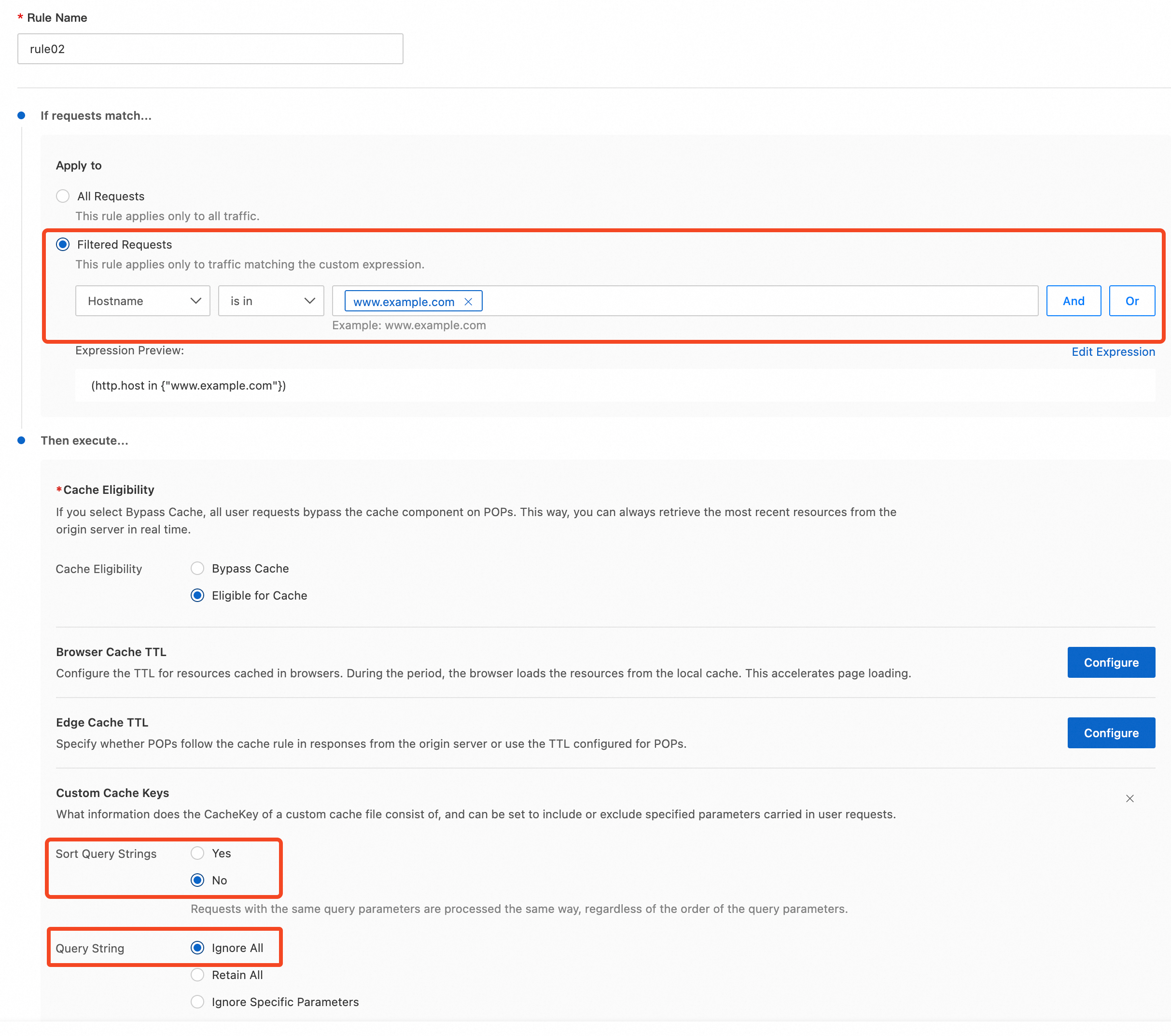
Expression: The hostname is
www.example.com.Action: In the Custom Cache Keys section, click Configure and select Ignore All.
Sort query strings
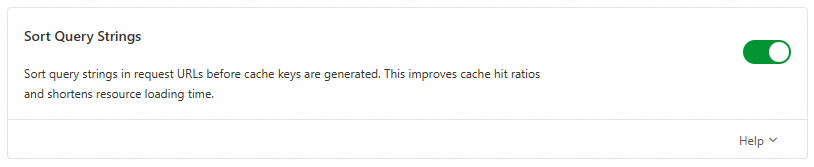
If resources such as images and JavaScript files are unaffected by query parameter order, sort the query strings to standardize requests and reduce cache entries.
Global configuration
-
In the ESA console, go to Websites. In the Website column, click the target website.
-
In the navigation pane on the left, choose .
-
Enable Sort Query Strings.

Rule-based configuration
-
In the ESA console, go to Websites. In the Website column, click the target website.
-
In the navigation pane on the left, choose .
-
Click Create Rule and enter a Rule Name.
-
Expression: The hostname is
www.example.com.Action: In the Custom Cache Keys section, click Configure and set Sort Query Strings to Yes.
Prefetch frequently accessed resources
Prefetch popular resources before peak periods such as promotions and live streams. Submit prefetch tasks to load resources onto points of presence (POPs) in advance.
-
In the ESA console, go to Websites. In the Website column, click the target website.
-
In the navigation pane on the left, choose .
-
In the Instant Prefetch section, enter the URLs and click Submit.

Cache reserve
Retain frequently accessed or critical resources in the cache to reduce origin reliance, speed up responses, and lower bandwidth costs.
-
Cache Reserve is pay-as-you-go. Charges are based on the purchased instance storage capacity.
-
Before using Cache Reserve, enable Smart Tiered Cache and Regional Tiered Cache. Then create a cache rule to filter origin requests for popular files to reduce storage costs.
Global configuration
-
In the ESA console, go to Websites. In the Website column, click the target website.
-
In the navigation pane on the left, choose .
-
In the Cache Reserve section, click Configure. Turn on the Status switch and select a purchased Instance.

Rule-based configuration
-
In the ESA console, go to Websites. In the Website column, click the target website.
-
In the navigation pane on the left, choose .
-
Click Create Rule and enter a Rule Name.
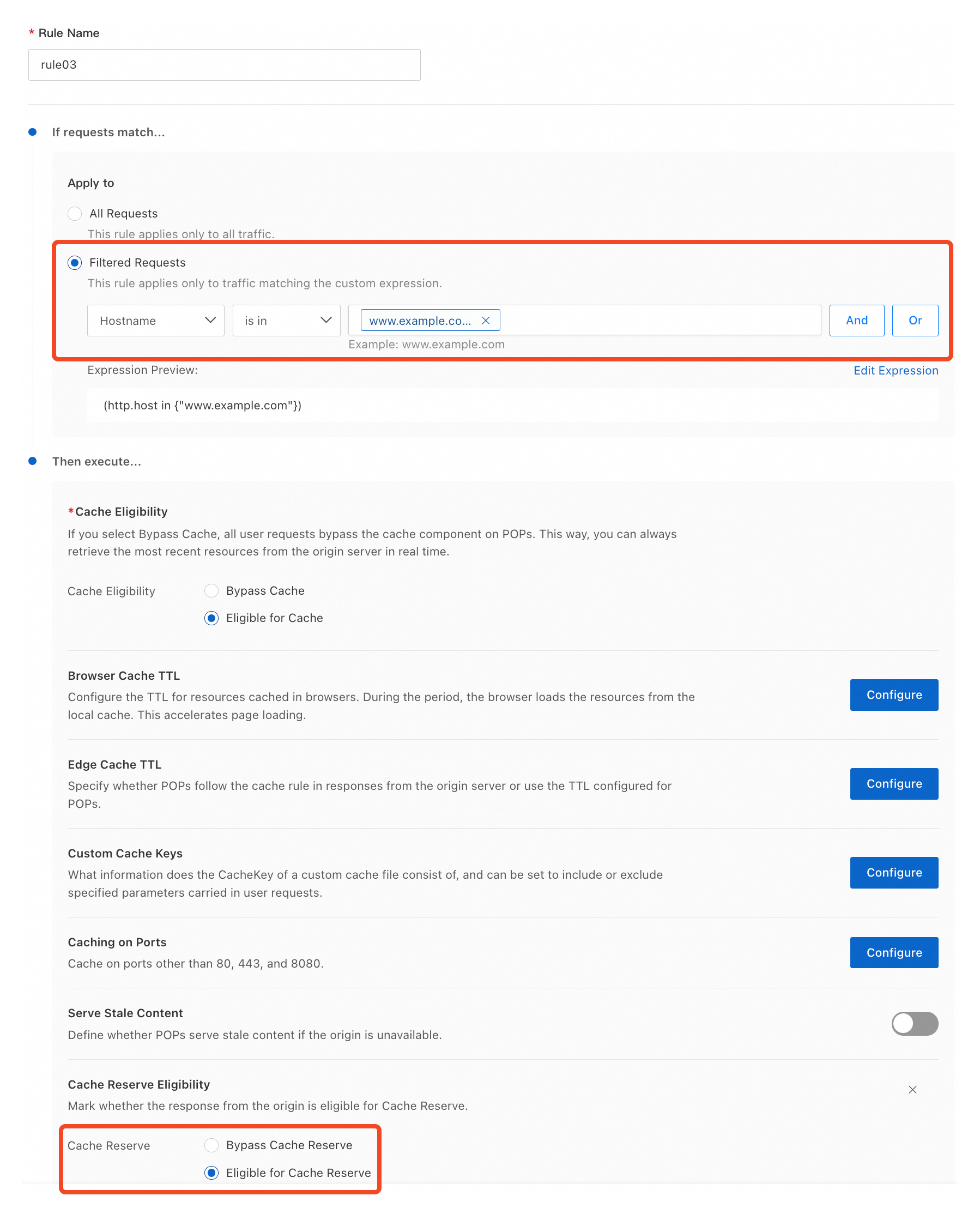
-
Expression: The hostname is
www.example.com.Action: In the Cache Reserve section, click Configure and select Eligible For Cache Reserve.