When multiple teams share an Alibaba Cloud account, each team typically needs access to only its own Enterprise Distributed Application Service (EDAS) clusters and applications. Instead of creating and maintaining separate Resource Access Management (RAM) policies for every user and resource, you can group related resources and grant permissions at the group level. This reduces policy maintenance overhead and prevents permission gaps when resources are added or removed.
Supported resources
Not all EDAS resource types can be added to resource groups. Review this table before planning your permission structure.
| Resource type | Supports resource groups | Permission management method |
|---|---|---|
| Clusters | Yes | Resource group + custom policy |
| Applications | Yes | Resource group + custom policy |
| Microservices namespaces | No | Direct RAM policy |
| Application Configuration Management (ACM) resources | No | Direct RAM policy |
| Application Real-Time Monitoring Service (ARMS) resources | No | Direct RAM policy |
For resource types that do not support resource groups, grant permissions through direct RAM policies. See Grant permissions on unsupported resource types for an example.
Key concepts
Resource-group-based permissions combine three building blocks:
| Concept | Definition |
|---|---|
| Resource group | A logical container that holds one or more Alibaba Cloud resources. Assign clusters and applications to a resource group so that permissions apply at the group level rather than per resource. |
| RAM user | An identity within your Alibaba Cloud account that represents a person or service. Each team member who needs access to EDAS resources uses a RAM user. |
| Custom policy | A JSON document that defines what actions a RAM user can perform. When attached to a RAM user within the scope of a resource group, the policy limits those actions to the resources in that group. |
You create resource groups, assign EDAS resources to them, create RAM users for each team, and attach a custom policy that scopes each user's permissions to their resource group.
Resource groups vs. RAM policies
RAM supports two approaches to permission management. The following table compares them.
| Dimension | RAM policies | Resource groups |
|---|---|---|
| Scope | Per resource. Each policy lists specific resource IDs. | Per group. A single policy covers all resources in a group. |
| Policy maintenance | Separate policies for each user, even when permissions are identical. Update policies whenever resources change. | One shared policy. Control access by adding or removing resources from the group. |
| Best for | Fine-grained control over individual resources. Small-scale setups with few resources. | Team-based access control. Environments where resources are frequently added or removed. |
EDAS supports two independent permission management systems, and each Alibaba Cloud account can use only one of them. We recommend that you use RAM.
Prerequisites
Before you begin, make sure that you have:
Switched to RAM-based permission management. EDAS has a legacy primary and sub-account management system. Each Alibaba Cloud account can use only one permission management system. To use resource groups, switch to RAM. For details, see Replace EDAS-defined permissions with RAM policies
An active Alibaba Cloud account with the Resource Management service (automatically activated for all accounts and RAM users)
Set up resource-group-based permissions
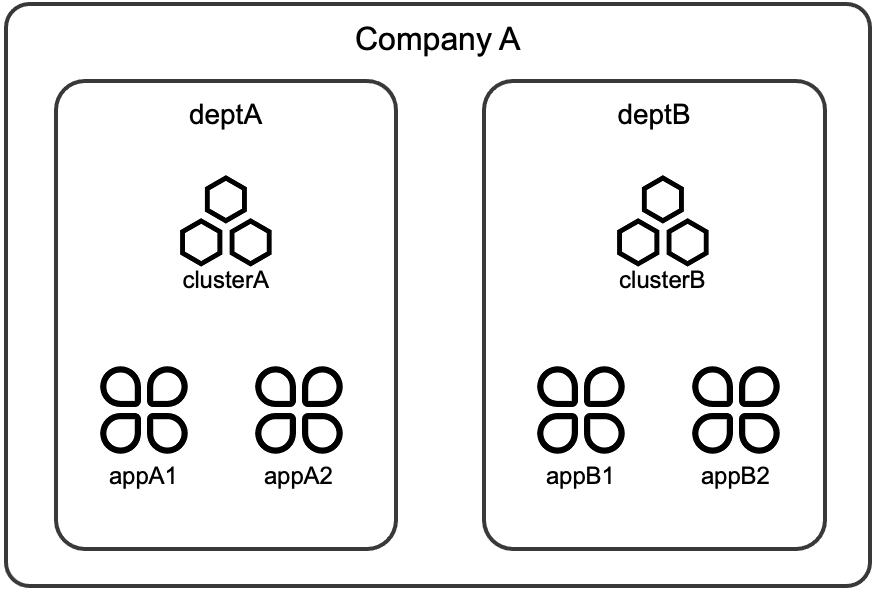
The following example demonstrates the full setup. Company A has two departments:
deptA manages clusterA, appA1, and appA2.
deptB manages clusterB, appB1, and appB2.
Each department should only access its own resources.
Step 1: Create resource groups
Log on to the Resource Management console.
Create two resource groups: groupA and groupB.
Step 2: Assign resources to resource groups
Add clusters and applications to the corresponding resource groups:
Add clusterA, appA1, and appA2 to groupA.
Add clusterB, appB1, and appB2 to groupB.
For detailed steps, see Transfer resources to a resource group.
Step 3: Create RAM users
Log on to the RAM console.
Create two RAM users: subA for deptA and subB for deptB.
Step 4: Create a custom policy
In the RAM console, create a custom policy that grants cluster and application management permissions. Because the scope is controlled at the resource group level, a single policy works for both users.
For detailed steps, see Create custom policies.
Use the following policy content:
{
    "Version": "1",
    "Statement": [
        {
            "Effect": "Allow",
            "Action": [
                "edas:*Cluster",
                "edas:*Application"
            ],
            "Resource": [
                "acs:edas:*:*:*"
            ]
        }
    ]
}
The Resource element uses a wildcard because the resource group scope, applied in the next step, determines which specific resources the user can access.
Step 5: Attach the policy to RAM users
In the Resource Management console, attach the custom policy to subA within the scope of groupA.
Attach the same policy to subB within the scope of groupB.
After this step, subA can only manage clusters and applications in groupA, and subB can only manage those in groupB.
Step 6 (optional): Adjust resource assignments
To change a user's access, add or remove resources from their resource group. No policy changes are required.
For example, if deptA creates a new application appA3, add it to groupA. subA automatically gains access to it.
Grant permissions on unsupported resource types
Microservices namespaces cannot be added to resource groups. If a RAM user needs to query microservices in a specific namespace, grant the permission through a separate RAM policy.
Even if a RAM user has the AliyunEDASFullAccess policy on a resource group, queries that specify a microservices namespace return a permission error. Namespaces exist outside the resource group scope.
To grant namespace-level read access, create and attach the following policy to the RAM user. For detailed steps, see Grant permissions to a RAM user.
{
    "Version": "1",
    "Statement": [
        {
            "Action": [
                "edas:ReadService"
            ],
            "Resource": [
                "acs:edas:$regionid:*:namespace/$namespace"
            ],
            "Effect": "Allow"
        }
    ]
}
Replace the following placeholders with your values:
| Placeholder | Description | Example |
|---|---|---|
$regionid | The region where the namespace is located | cn-hangzhou |
$namespace | The microservices namespace ID | default |
This policy grants only the edas:ReadService action. For the full list of EDAS policy actions, including cluster management, application management, and application-based microservice management, see RAM policies.
Verify the result
After completing the setup, verify that each RAM user can only access resources in their assigned resource group:
Log on to the EDAS console as subA.
Confirm that subA can view and manage clusterA, appA1, and appA2.
Confirm that subA cannot view or manage resources in groupB (clusterB, appB1, appB2).
Repeat the verification for subB with groupB resources.